Split a worksheet into pages Leave feedback
On this page
GroupDocs.Viewer can split a worksheet into pages in five ways, each covered below:
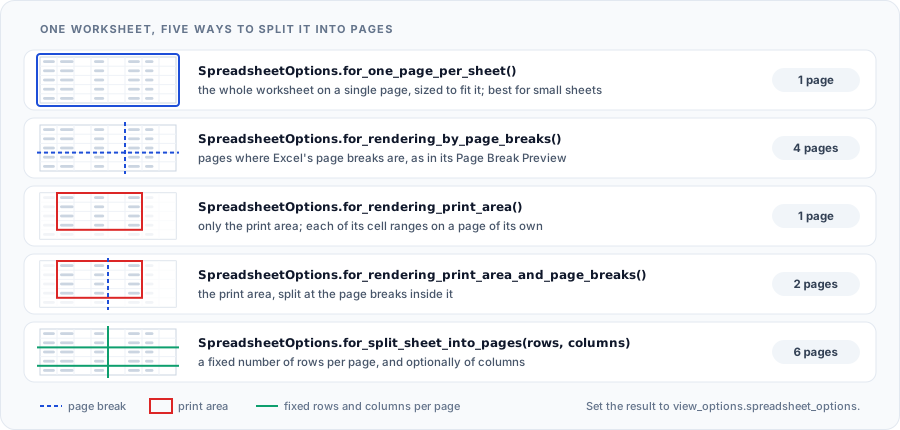
GroupDocs.Viewer uses page breaks to split a worksheet into separate pages. Microsoft Excel adds automatic page breaks based on paper size and page settings, but you can also insert manual horizontal and vertical page breaks. Switch to Page Break Preview in Microsoft Excel to see where page breaks appear on a worksheet.
In the image below, the vertical page break is inserted after the column E, and the horizontal page break is located under the row 30.

To render a worksheet based on the inserted page breaks, call the SpreadsheetOptions.for_rendering_by_page_breaks static method and assign the returned SpreadsheetOptions instance to the ViewOptions.spreadsheet_options property of your view (depending on the output file format).
The following example converts a worksheet to PDF and uses the page breaks to split this worksheet into pages:
from groupdocs.viewer import Viewer
from groupdocs.viewer.options import PdfViewOptions, SpreadsheetOptions

def split_by_page_breaks():
    # Load spreadsheet
    with Viewer("products.xlsx") as viewer:
        # Convert the spreadsheet to PDF.
        viewOptions = PdfViewOptions("split_by_page_breaks/by_page_breaks.pdf")
        # Split using page breaks.
        viewOptions.spreadsheet_options = SpreadsheetOptions.for_rendering_by_page_breaks()
        viewer.view(viewOptions)

if __name__ == "__main__":
    split_by_page_breaks()
products.xlsx is the sample file used in this example. Click here to download it.
Binary file (PDF, 75 KB)
The following code snippet splits a worksheet into two pages and renders them to PDF:
from groupdocs.viewer import Viewer
from groupdocs.viewer.options import PdfViewOptions, SpreadsheetOptions

def split_by_rows():
    # Load spreadsheet
    with Viewer("two-pages.xlsx") as viewer:
        # Specify number of rows for every page.
        rows_per_page = 15
        # Convert the spreadsheet to PDF.
        viewOptions = PdfViewOptions("split_by_rows/by_rows.pdf")
        # Split by number of rows.
        viewOptions.spreadsheet_options = SpreadsheetOptions.for_split_sheet_into_pages(rows_per_page)
        viewer.view(viewOptions)

if __name__ == "__main__":
    split_by_rows()
two-pages.xlsx is the sample file used in this example. Click here to download it.
Binary file (PDF, 41 KB)
The following code snippet splits a worksheet into four pages and renders them to PDF:
from groupdocs.viewer import Viewer
from groupdocs.viewer.options import PdfViewOptions, SpreadsheetOptions

def split_by_rows_and_columns():
    # Load spreadsheet
    with Viewer("four-pages.xlsx") as viewer:
        # Specify number of rows and columns for every page.
        rows_per_page = 15
        column_per_page = 7
        # Convert the spreadsheet to PDF.
        viewOptions = PdfViewOptions("split_by_rows_and_columns/by_rows_and_columns.pdf")
        # Split by number of rows and columns.
        viewOptions.spreadsheet_options = SpreadsheetOptions.for_split_sheet_into_pages(rows_per_page, column_per_page)
        viewer.view(viewOptions)

if __name__ == "__main__":
    split_by_rows_and_columns()
four-pages.xlsx is the sample file used in this example. Click here to download it.
Binary file (PDF, 53 KB)
In Microsoft Excel, you can designate one or more cell ranges in a worksheet as the only region to print (a print area). A worksheet can contain multiple print areas. Each print area prints on its own page.

GroupDocs.Viewer also supports this option. Call the SpreadsheetOptions.for_rendering_print_area static method and assign the returned SpreadsheetOptions instance to the ViewOptions.spreadsheet_options property to display only the worksheet’s print area in the output HTML, PDF, or image file.
The following example renders the print area displayed in the image above to PDF:
from groupdocs.viewer import Viewer
from groupdocs.viewer.options import PdfViewOptions, SpreadsheetOptions

def render_print_area():
    # Load spreadsheet
    with Viewer("invoice.xlsx") as viewer:
        # Convert the spreadsheet to PDF.
        viewOptions = PdfViewOptions("render_print_area/print_area.pdf")
        # Render the print area only.
        viewOptions.spreadsheet_options = SpreadsheetOptions.for_rendering_print_area()
        viewer.view(viewOptions)

if __name__ == "__main__":
    render_print_area()
invoice.xlsx is the sample file used in this example. Click here to download it.
Binary file (PDF, 54 KB)
If you want to display all worksheet data on one page, call the SpreadsheetOptions.for_one_page_per_sheet static method and assign the returned SpreadsheetOptions instance to the ViewOptions.spreadsheet_options property for a target view.
The following example converts each worksheet to one page in the PDF file:
from groupdocs.viewer import Viewer
from groupdocs.viewer.options import PdfViewOptions, SpreadsheetOptions

def render_one_page_per_sheet():
    # Load spreadsheet
    with Viewer("products.xlsx") as viewer:
        # Convert the spreadsheet to PDF.
        viewOptions = PdfViewOptions("render_one_page_per_sheet/one_page_per_sheet.pdf")
        # Render each worksheet to one page.
        viewOptions.spreadsheet_options = SpreadsheetOptions.for_one_page_per_sheet()
        viewer.view(viewOptions)

if __name__ == "__main__":
    render_one_page_per_sheet()
products.xlsx is the sample file used in this example. Click here to download it.
Binary file (PDF, 73 KB)
The output PDF file contains one page that displays all worksheet data.
GroupDocs.Viewer uses page breaks to split a worksheet into separate pages. Microsoft Excel adds automatic page breaks based on paper size and page settings, but you can also insert manual horizontal and vertical page breaks. Switch to Page Break Preview in Microsoft Excel to see where page breaks appear on a worksheet.
Also, you can designate one or more cell ranges in a worksheet as the only region to print (a print area). A worksheet can contain multiple print areas. Each print area prints on its own page.
When printing, Microsoft Excel splits a worksheet into pages using both page breaks and print areas. In the following image the red line shows the print area, and the blue line shows page breaks:

GroupDocs.Viewer also supports this option. Call the SpreadsheetOptions.for_rendering_print_area_and_page_breaks static method and assign the returned SpreadsheetOptions instance to the ViewOptions.spreadsheet_options property to display only the worksheet’s print area in the output HTML, PDF, or image file.
The following example renders the Microsoft Excel spreadsheet using page breaks and print areas displayed in the image above to PDF:
from groupdocs.viewer import Viewer
from groupdocs.viewer.options import PdfViewOptions, SpreadsheetOptions

def render_print_area_and_page_breaks():
    # Load spreadsheet
    with Viewer("products.xlsx") as viewer:
        # Render the spreadsheet to PDF.
        viewOptions = PdfViewOptions("render_print_area_and_page_breaks/print_area_and_page_breaks.pdf")
        viewOptions.spreadsheet_options = SpreadsheetOptions.for_rendering_print_area_and_page_breaks()
        viewer.view(viewOptions)

if __name__ == "__main__":
    render_print_area_and_page_breaks()
products.xlsx is the sample file used in this example. Click here to download it.
Binary file (PDF, 59 KB)
Was this page helpful?
Any additional feedback you'd like to share with us?
Please tell us how we can improve this page.
Thank you for your feedback!
We value your opinion. Your feedback will help us improve our documentation.
