Render to HTML Leave feedback
On this page
When rendering to HTML, GroupDocs.Viewer renders each page of the source document as a separate HTML document.
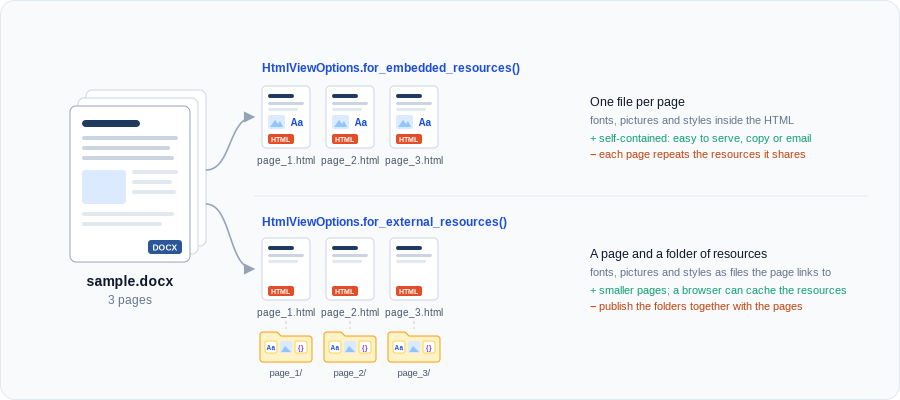
GroupDocs.Viewer for Python provides two options to manage CSS, fonts, images, and other resources:
- HTML with external resources stores page resources as separate files. This allows reusing common resources and results in reducing page size and loading speed.
- HTML with embedded resources integrates page resources into HTML. This makes each document page self-sufficient but results in increasing page size and loading speed.
To render files to HTML, follow these steps:
- Create an instance of the Viewer class. Specify the source document path as a constructor parameter.
- Instantiate the HtmlViewOptions object. Specify a path to save the rendered pages.
- Call the View.view() method of the Viewer object. Specify the HtmlViewOptions object as the parameter.
The following code snippet shows how to render a .docx document to HTML with external resources:
from groupdocs.viewer import Viewer
from groupdocs.viewer.options import HtmlViewOptions

def render_to_html_external():
    # Create an HTML file for each page.
    # Specify the HTML file names and location of external resources.
    # {0} and {1} are replaced with the current page number and resource name, respectively.
    with Viewer("sample.docx") as viewer:
        html_options = HtmlViewOptions.for_external_resources("page_{0}.html", "page_{0}/resource_{0}_{1}", "page_{0}/resource_{0}_{1}")
        viewer.view(html_options)

if __name__ == "__main__":
    render_to_html_external()
sample.docx is the sample file used in this example. Click here to download it.
page_1.html (2 KB)
page_1/resource_1_f.woff (20 KB)
page_1/resource_1_f1.woff (9 KB)
page_1/resource_1_f2.woff (10 KB)
page_1/resource_1_i.jpeg (144 KB)
page_1/resource_1_i.png (4 KB)
page_1/resource_1_s.css (1 KB)
page_2.html (9 KB)
page_2/resource_2_f.woff (15 KB)
page_2/resource_2_f1.woff (29 KB)
[TRUNCATED] (35 files total)
The following code snippet shows how to render a .docx document to HTML with embedded resources:
from groupdocs.viewer import Viewer
from groupdocs.viewer.options import HtmlViewOptions

def render_to_html_embedded():
    # Create an HTML file for each page.
    # {0} is replaced with the current page number in the file name.
    with Viewer("sample.docx") as viewer:
        html_options = HtmlViewOptions.for_embedded_resources("page_{0}.html")
        viewer.view(html_options)

    print(f"\nSource document rendered successfully.")

if __name__ == "__main__":
    render_to_html_embedded()
sample.docx is the sample file used in this example. Click here to download it.
page_1.html (253 KB)
page_2.html (110 KB)
page_3.html (148 KB)
page_4.html (1001 KB)
page_5.html (86 KB)
For details, please refer to the following pages:
Was this page helpful?
Any additional feedback you'd like to share with us?
Please tell us how we can improve this page.
Thank you for your feedback!
We value your opinion. Your feedback will help us improve our documentation.
