# Render documents
Render documents to HTML, PDF, PNG, or JPEG with GroupDocs.Viewer for Python: how pages become output files, which output to choose, and how to render specific pages.
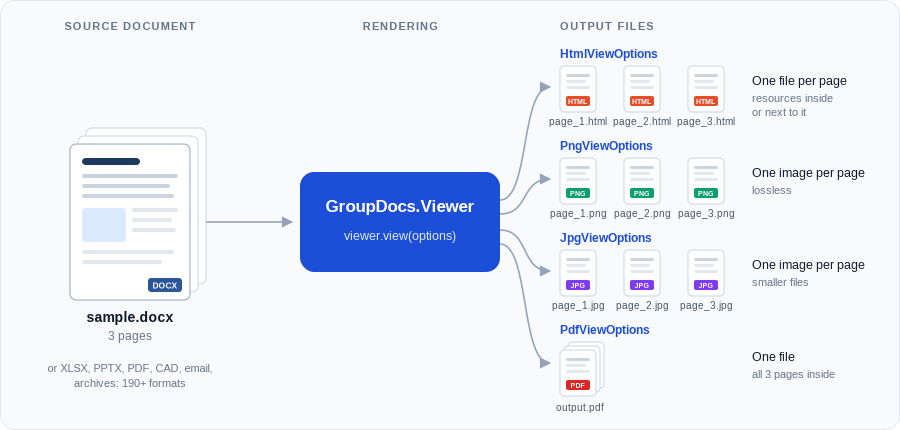
Rendering turns a document into files that a browser or an app can display: HTML pages, a PDF file, or PNG and JPEG images. GroupDocs.Viewer renders more than 190 formats, and all of them the same way: open the document with a [Viewer](https://reference.groupdocs.com/viewer/python-net/groupdocs.viewer/viewer/), create the view options of the output you need, and call [Viewer.view](https://reference.groupdocs.com/viewer/python-net/groupdocs.viewer/viewer/#methods).
## Choose the output
| Output | View options | Files | Good for |
|---|---|---|---|
| HTML | [HtmlViewOptions](https://reference.groupdocs.com/viewer/python-net/groupdocs.viewer.options/htmlviewoptions/) | One HTML file per page. Its fonts, images and styles are embedded in it or saved next to it | Showing a document in a web page, with text that readers can select and search |
| PDF | [PdfViewOptions](https://reference.groupdocs.com/viewer/python-net/groupdocs.viewer.options/pdfviewoptions/) | One PDF file with every page | Downloading, printing and archiving |
| PNG | [PngViewOptions](https://reference.groupdocs.com/viewer/python-net/groupdocs.viewer.options/pngviewoptions/) | One image per page, lossless | Previews and thumbnails with sharp text |
| JPEG | [JpgViewOptions](https://reference.groupdocs.com/viewer/python-net/groupdocs.viewer.options/jpgviewoptions/) | One image per page, smaller than PNG | Photos and scans, where file size matters more |
When an output has one file per page, put `{0}` in the file name: it is replaced with the page number, so `page_{0}.png` gives `page_1.png`, `page_2.png` and so on. A PDF needs no `{0}`, because every page goes into the one file.
## Render a document
The following example renders each page of a Word document to a PNG image:
{{< tabs "example1">}}
{{< tab "Python" >}}
```python
from groupdocs.viewer import Viewer
from groupdocs.viewer.options import PngViewOptions
def render_document_to_png():
# Load the document
with Viewer("sample.docx") as viewer:
# Create a PNG image for each page.
# {0} is replaced with the current page number in the file name.
viewOptions = PngViewOptions("render_document_to_png/page_{0}.png")
viewer.view(viewOptions)
if __name__ == "__main__":
render_document_to_png()
```
{{< /tab >}}
{{< tab "sample.docx" >}}
{{< tab-text >}}
`sample.docx` is the sample file used in this example. Click [here](https://docs.groupdocs.com/viewer/python-net/_sample_files/developer-guide/rendering-documents/sample.docx) to download it.
{{< /tab-text >}}
{{< /tab >}}
{{< tab "render-document-to-png-outputs.zip" >}}
```text
render_document_to_png/page_1.png (287 KB)
render_document_to_png/page_2.png (33 KB)
render_document_to_png/page_3.png (33 KB)
render_document_to_png/page_4.png (430 KB)
render_document_to_png/page_5.png (21 KB)
```
[Download full output](https://docs.groupdocs.com/viewer/python-net/_output_files/developer-guide/rendering-documents/_index/render_document_to_png/render-document-to-png-outputs.zip)
{{< /tab >}}
{{< /tabs >}}
Replace `PngViewOptions` with `JpgViewOptions`, `PdfViewOptions` or `HtmlViewOptions.for_embedded_resources` to get the other outputs; the pages below describe each one.
## Render specific pages
To render only some of the pages, pass their numbers to [Viewer.view](https://reference.groupdocs.com/viewer/python-net/groupdocs.viewer/viewer/#methods) after the view options. The following example renders pages 1 and 3:
{{< tabs "example2">}}
{{< tab "Python" >}}
```python
from groupdocs.viewer import Viewer
from groupdocs.viewer.options import PngViewOptions
def render_specific_pages():
# Load the document
with Viewer("sample.docx") as viewer:
# {0} is replaced with the current page number in the file name.
viewOptions = PngViewOptions("render_specific_pages/page_{0}.png")
# Render pages 1 and 3 only.
viewer.view(viewOptions, [1, 3])
if __name__ == "__main__":
render_specific_pages()
```
{{< /tab >}}
{{< tab "sample.docx" >}}
{{< tab-text >}}
`sample.docx` is the sample file used in this example. Click [here](https://docs.groupdocs.com/viewer/python-net/_sample_files/developer-guide/rendering-documents/sample.docx) to download it.
{{< /tab-text >}}
{{< /tab >}}
{{< tab "render-specific-pages-outputs.zip" >}}
```text
render_specific_pages/page_1.png (287 KB)
render_specific_pages/page_3.png (33 KB)
```
[Download full output](https://docs.groupdocs.com/viewer/python-net/_output_files/developer-guide/rendering-documents/_index/render_specific_pages/render-specific-pages-outputs.zip)
{{< /tab >}}
{{< /tabs >}}
When you render to PDF, the order of the numbers is the order of the pages in the file: see [Reorder pages]({{< ref "viewer/python-net/developer-guide/rendering-documents/rendering-to-pdf/reorder-pages" >}}).
## More about rendering
Each format has options of its own, such as the hidden slides of a presentation, the layers of a CAD drawing or the folders of an archive. See [Document rendering basics]({{< ref "viewer/python-net/rendering-basics" >}}). The pages of this section cover the outputs:
## Contents
- [Add text watermarks](https://docs.groupdocs.com/viewer/python-net/add-text-watermark.md)
- [Render to HTML](https://docs.groupdocs.com/viewer/python-net/rendering-to-html.md)
- [Render to PDF](https://docs.groupdocs.com/viewer/python-net/rendering-to-pdf.md)