# Render XML documents as HTML, PDF, PNG, and JPEG files
Convert XML to HTML, PDF, PNG, or JPEG using GroupDocs.Viewer. Learn about options for pagination and image quality.
[GroupDocs.Viewer for Python via .NET](https://products.groupdocs.com/viewer/python-net) started to support XML format a long time ago, but XML documents were treated as plain text, and thus it was not as useful as it might be. Starting from [version 24.9](https://releases.groupdocs.com/viewer/python-net/release-notes/2024/groupdocs-viewer-for-python-via-net-24-9-release-notes/#new-xml-converter), the completely new XML processing module was implemented, and now XML documents are processed differently, not as plain text documents. This article explains this new XML processing module.
## Opening the XML document
First of all need to emphasize that the new XML processing module had not touched the public API at all — no new options, classes, properties or methods were added or modified. In order to process input XML document properly using the new XML processing module, need to either specify the [`LoadOptions`](https://reference.groupdocs.com/viewer/python-net/groupdocs.viewer.options/loadoptions/) class instance with [`FileType.XML`](https://reference.groupdocs.com/viewer/python-net/groupdocs.viewer/filetype/) in its [constructor](https://reference.groupdocs.com/viewer/python-net/groupdocs.viewer.options/loadoptions/#constructors) or just pass the XML document as filename with `*.xml` extension. Code example below shows all possible ways:
{{< tabs "Loading example">}}
{{< tab "Python" >}}
```python
from groupdocs.viewer import Viewer, FileType
from groupdocs.viewer.options import LoadOptions
def load_xml_document():
# Method 1: Load XML document by specifying filename with .xml extension
# GroupDocs.Viewer automatically detects XML format from file extension
with Viewer("sample.xml") as viewer:
# Render document
pass
# Method 2: Load XML document by explicitly specifying file type in LoadOptions
# Create load options and set file type to XML
load_options = LoadOptions()
load_options.file_type = FileType.XML
# Load XML document with explicit load options
with Viewer("sample.xml", load_options) as viewer:
# Render document
pass
if __name__ == "__main__":
load_xml_document()
```
{{< /tab >}}
{{< tab "sample.xml" >}}
{{< tab-text >}}
`sample.xml` is the sample file used in this example. Click [here](https://docs.groupdocs.com/viewer/python-net/_sample_files/rendering-basics/render-xml-documents/sample.xml) to download it.
{{< /tab-text >}}
{{< /tab >}}
{{< /tabs >}}
If the instance of the [`Viewer`](https://reference.groupdocs.com/viewer/python-net/groupdocs.viewer/viewer/) class is initialized using one of the ways described above, the new XML processing module will be used.
By default all XML documents must have an [XML declaration](https://developer.mozilla.org/en-US/docs/Web/XML/XML_introduction#xml_declaration), which is located in the very beginning of the XML document and which stores the encoding of the consecutive content, for example:
``
By default GroupDocs.Viewer uses it. But there is a possibility to override this character encoding, if needed. In order to do this the [`LoadOptions.encoding`](https://reference.groupdocs.com/viewer/python-net/groupdocs.viewer.options/loadoptions/#properties) property should be set while initializing the [`Viewer`](https://reference.groupdocs.com/viewer/python-net/groupdocs.viewer/viewer/) class, as it is shown below:
{{< tabs "Custom encoding example">}}
{{< tab "Python" >}}
```python
from groupdocs.viewer import Viewer, FileType
from groupdocs.viewer.options import LoadOptions
def load_xml_with_encoding():
# Create load options for XML file type
load_options = LoadOptions(FileType.XML)
# Override the encoding specified in XML declaration
# This allows you to use a different encoding than what's declared in the XML file
load_options.encoding = "ASCII"
# Load XML document with custom encoding
with Viewer("sample.xml", load_options) as viewer:
# Render document
pass
if __name__ == "__main__":
load_xml_with_encoding()
```
{{< /tab >}}
{{< tab "sample.xml" >}}
{{< tab-text >}}
`sample.xml` is the sample file used in this example. Click [here](https://docs.groupdocs.com/viewer/python-net/_sample_files/rendering-basics/render-xml-documents/sample.xml) to download it.
{{< /tab-text >}}
{{< /tab >}}
{{< /tabs >}}
The rest of this article explains features of this new XML processing module.
## Representation
The main task of the new XML processing module is to represent the XML markup, obtained from the user, in a structured, formatted, hierarchical view, with highlighting of every distinct entity of this XML structure. For the GroupDocs.Viewer there is no matter how human-friendly is represented the XML markup in original document: it may be divided by line breaks onto separate lines per every element, or the whole document may be stored in a single line of text; it may have indents or not, — all of this does not matter. The GroupDocs.Viewer parses the input XML document and creates a hierarchical Document Object Model (DOM), and then serializes it to the HTML, PDF, PNG or JPEG depending on user options.
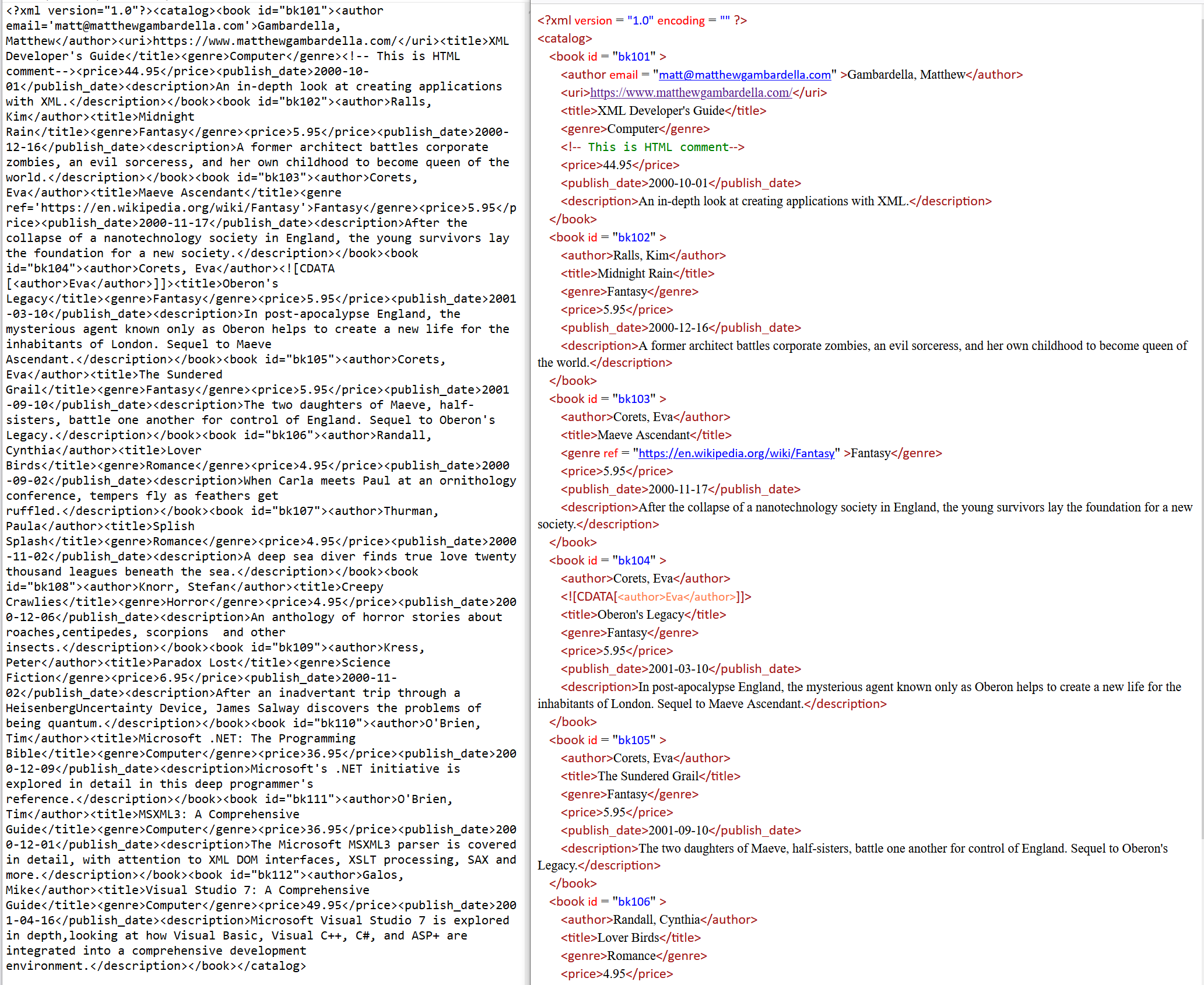
In particular, when serializing, GroupDocs.Viewer puts every XML element (node) on a new line, and with left indent, which indicates nesting of a certain element. Every entity of the XML document, — XML element, attribute, its value, text node, XML comment, CDATA section, — has its own highlighting: font style, type, color, size and so on. All quotes, used for enquoting the attribute values, are unified.
The screenshot below shows such scenario. On the left side there is a [sample XML document](https://docs.groupdocs.com/viewer/net/sample-files/render-xml-documents/books-single-line.xml), where all content is stored within a single line, with no indents, line breaks, horizontal tabs, or even extra whitespaces. On the right side the resultant HTML file, generated by the GroupDocs.Viewer, is shown. There can be seen structured view with corrent line breaks and indents, valid highlighting of every XML entity, and recognition of the URIs and email addresses.
## Fix incorrect XML structure
The World Wide Web Consortium has clearly defined what is a valid XML document, and what is not. The term “[well-formed document](https://developer.mozilla.org/en-US/docs/Web/XML/XML_introduction#correct_xml_valid_and_well-formed)” defines a those XML document, which "adheres to the syntax rules specified by the XML 1.0 specification in that it must satisfy both physical and logical structures"([ref](http://www.csdservices.com/articles/csdservices)). In particular, a valid XML document must contain only valid characters, its start tags and end tags must be matched, correctly opened and closed, elements must be properly nested, and so on. Unfortunately, not all existing XML documents are well-formed and sometimes there is a necessity to view them. Different XML markup viewers often are unable to properly show invalid XML documents.
GroupDocs.Viewer with its new XML processing module is able to correctly parse, process, format, highlight and view even the heavily distorted XML documents. There is partial list of different damages in XML structure, which GroupDocs.Viewer can fix and process:
- Invalid and illegal characters, including `<` and `&` characters in wrong places.
- Start tags, which are not closed.
- End tags, which are not opened.
- Interleaved (overlapped) tags.
- Start and end tags with unmatched letter cases.
- Truncated (cutted from end) markup.
- Attribute names without values.
- Un-enquoted attribute values (without enclosing quotes).
- Attribute values, which are enquoted partially, with only opening or only closing quote.
- Attribute values, which have redundant quote inside.
GroupDocs.Viewer detects and fixes all these and even more issues in XML markup and also writes them to the log.
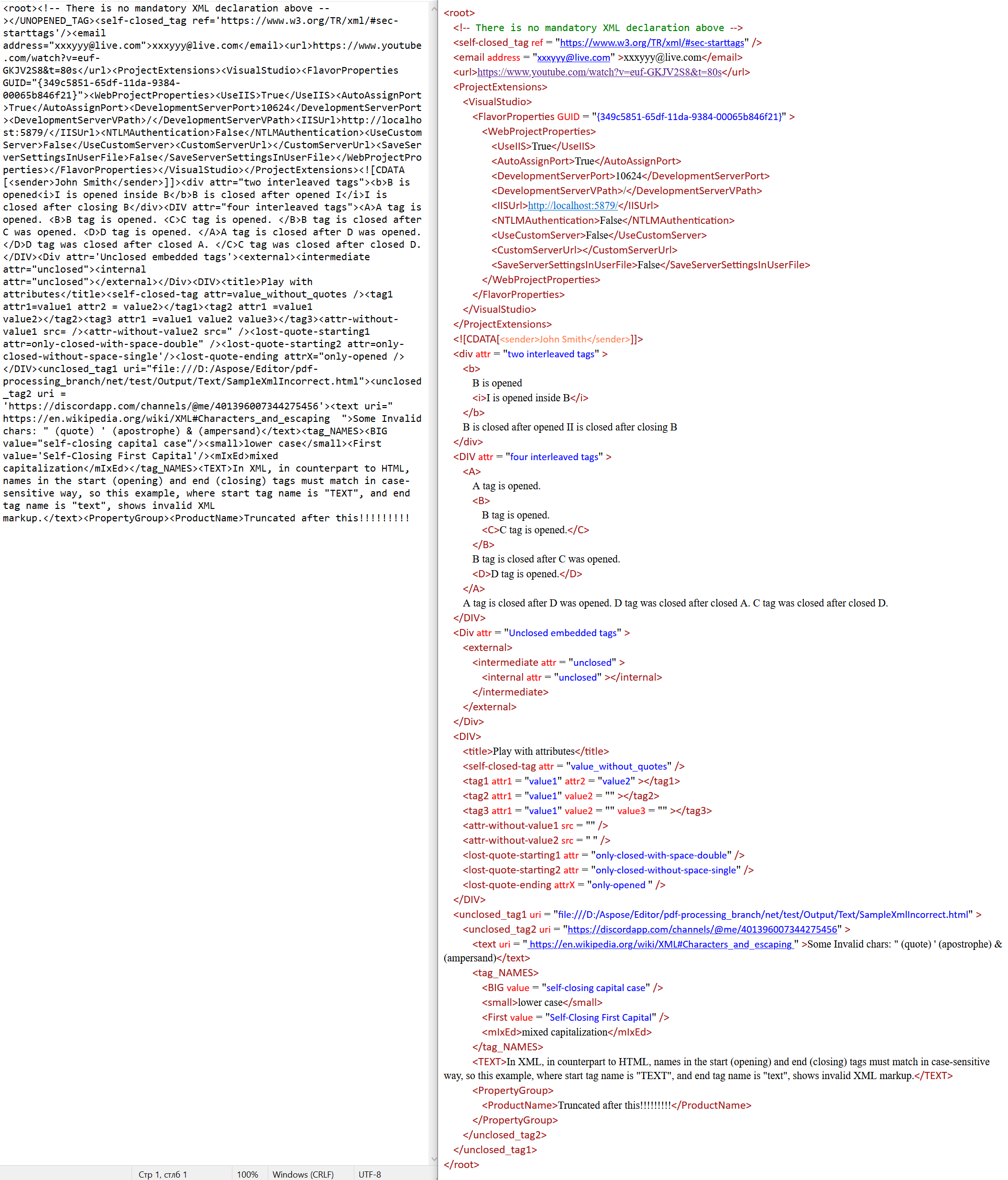
Screenshot below demonstrates this in action. [Sample XML file "InvalidXml.xml"](https://docs.groupdocs.com/viewer/net/sample-files/render-xml-documents/InvalidXml.xml) contains all possible damages, described above. In cannot be correctly formatted and highlighted by most popular XML viewing and editing applications. But with the new XML processing module the GroupDocs.Viewer fixes its structure and displays it absolutely correct.
## Recognition of URIs and email addresses
While processing the XML markup, the GroupDocs.Viewer scans the XML content for any valid URI, if found, represents them as external links in the resultant HTML format: by using the [A element](https://developer.mozilla.org/en-US/docs/Web/HTML/Element/a). GroupDocs.Viewer is searching for URIs in: text nodes, CDATA sections, XML comments, attribute values, DocType definitions.
Regarding the email addresses, the GroupDocs.Viewer searches them only in attribute values, and if found, represents them with [mailto](https://en.wikipedia.org/wiki/Mailto) scheme and [A element](https://developer.mozilla.org/en-US/docs/Web/HTML/Element/a).
If the XML document is saved not to the HTML format, but to the PDF, the URIs and email addresses will be interactive too. But if the output format is PNG or JPEG, the output will be a raster image without any interactive links, of course.
## Saving to HTML format
For saving the documents to the HTML format the GroupDocs.Viewer provides a [`HtmlViewOptions`](https://reference.groupdocs.com/viewer/python-net/groupdocs.viewer.options/htmlviewoptions/) class. There are two ways of creating an instance of this class: using either [`for_external_resources`](https://reference.groupdocs.com/viewer/python-net/groupdocs.viewer.options/htmlviewoptions/#methods) or [`for_embedded_resources`](https://reference.groupdocs.com/viewer/python-net/groupdocs.viewer.options/htmlviewoptions/#methods) static methods. First method is designed for saving HTML document in a such way, that all its resources (stylesheets, images, fonts etc) are stored separately, while second method stores all resources of the HTML document inside its content: stylesheets are saved inside the STYLE elements, SVG graphics is inlined inside HTML markup, while all other resources (mostly raster images and fonts) are stored according to the [data URI scheme](https://en.wikipedia.org/wiki/Data_URI_scheme) and converted to the [base64](https://en.wikipedia.org/wiki/Base64) format.
But in the context of the XML documents the way of creating the [`HtmlViewOptions`](https://reference.groupdocs.com/viewer/python-net/groupdocs.viewer.options/htmlviewoptions/) instance is not important, because the XML documents cannot have resources, which may be stored externally or embedded. So, when saving XML documents to the HTML, you can create the [`HtmlViewOptions`](https://reference.groupdocs.com/viewer/python-net/groupdocs.viewer.options/htmlviewoptions/) instance in both ways — the result will be the same, no external resources will be produced.
Another important thing is that the XML format by its nature has no pages — it is a hierarchical structure, where some elements are nested inside another, and there is no even similar to pages here. So the best way to represent them in HTML format is to generate a single-page HTML document, so all XML content will be represented in a single HTML document. In order to do this the option [`HtmlViewOptions.render_to_single_page`](https://reference.groupdocs.com/viewer/python-net/groupdocs.viewer.options/htmlviewoptions/#properties) needs to be set up to the true value. By default this option has a false value, so the output HTML document will be paginated — splitted into multiple chunks.
Code example below shows rendering of input XML file to the HTML in both ways:
{{< tabs "Saving to HTML example">}}
{{< tab "Python" >}}
```python
from groupdocs.viewer import Viewer
from groupdocs.viewer.options import HtmlViewOptions
def render_xml_to_html():
# Create HTML view options for paginated output
# {0} will be replaced with page number
paginated_html_options = HtmlViewOptions.for_embedded_resources("render_xml_to_html/page-{0}.html")
# Create HTML view options for single-page output
single_html_options = HtmlViewOptions.for_embedded_resources("render_xml_to_html/single-page.html")
# Enable single-page rendering - all XML content in one HTML file
single_html_options.render_to_single_page = True
# Load XML document
with Viewer("sample.xml") as viewer:
# Render to paginated HTML (multiple HTML files)
viewer.view(paginated_html_options)
# Render to single-page HTML (one HTML file)
viewer.view(single_html_options)
if __name__ == "__main__":
render_xml_to_html()
```
{{< /tab >}}
{{< tab "sample.xml" >}}
{{< tab-text >}}
`sample.xml` is the sample file used in this example. Click [here](https://docs.groupdocs.com/viewer/python-net/_sample_files/rendering-basics/render-xml-documents/sample.xml) to download it.
{{< /tab-text >}}
{{< /tab >}}
{{< tab "render-xml-to-html-outputs.zip" >}}
```text
render_xml_to_html/page-1.html (36 KB)
render_xml_to_html/single-page.html (9 KB)
```
[Download full output](https://docs.groupdocs.com/viewer/python-net/_output_files/rendering-basics/render-xml-documents/render_xml_to_html/render-xml-to-html-outputs.zip)
{{< /tab >}}
{{< /tabs >}}
All other options, which are present in the [`HtmlViewOptions`](https://reference.groupdocs.com/viewer/python-net/groupdocs.viewer.options/htmlviewoptions/) class, have no effect when saving XML to HTML, except the [`render_to_single_page`](https://reference.groupdocs.com/viewer/python-net/groupdocs.viewer.options/htmlviewoptions/#properties) flag.
## Saving to PDF format
PDF format by its nature has pages, so if the XML content because of its big size cannot fit in the single PDF page, then it will be paginated. Unlike the HTML, PNG, or JPEG, the GroupDocs.Viewer generates only a single PDF file for a single input XML document, with one or more pages. [`PdfViewOptions`](https://reference.groupdocs.com/viewer/python-net/groupdocs.viewer.options/pdfviewoptions/) class is responsible for saving XML to the PDF, and example below shows this:
{{< tabs "Saving to PDF example">}}
{{< tab "Python" >}}
```python
from groupdocs.viewer import Viewer
from groupdocs.viewer.options import PdfViewOptions
def render_xml_to_pdf():
# Create PDF view options and specify output file path
pdf_options = PdfViewOptions("render_xml_to_pdf/xml_document.pdf")
# Load XML document
with Viewer("sample.xml") as viewer:
# Render XML document to PDF format
# If content is large, it will be automatically paginated
viewer.view(pdf_options)
if __name__ == "__main__":
render_xml_to_pdf()
```
{{< /tab >}}
{{< tab "sample.xml" >}}
{{< tab-text >}}
`sample.xml` is the sample file used in this example. Click [here](https://docs.groupdocs.com/viewer/python-net/_sample_files/rendering-basics/render-xml-documents/sample.xml) to download it.
{{< /tab-text >}}
{{< /tab >}}
{{< tab "xml_document.pdf" >}}
```text
Binary file (PDF, 22 KB)
```
[Download full output](https://docs.groupdocs.com/viewer/python-net/_output_files/rendering-basics/render-xml-documents/render_xml_to_pdf/xml_document.pdf)
{{< /tab >}}
{{< /tabs >}}
As for the version 24.8 all options, which are present in the [`PdfViewOptions`](https://reference.groupdocs.com/viewer/python-net/groupdocs.viewer.options/pdfviewoptions/) class, have no effect when saving XML to PDF.
## Saving to raster PNG and JPEG formats
[`PngViewOptions`](https://reference.groupdocs.com/viewer/python-net/groupdocs.viewer.options/pngviewoptions/) and [`JpgViewOptions`](https://reference.groupdocs.com/viewer/python-net/groupdocs.viewer.options/jpgviewoptions/) are responsible for saving XML to the PNG and JPEG raster image formats. Like for the PDF, if XML content cannot fit into the area of one image, it will be paginated and spread across multiple images.
Size of the output images will be calculated automatically based on the XML content, as for the version 24.8 there is no possibility to set the size forcibly, and `width`, `height`, `max_width`, and `max_height` properties of the [`PngViewOptions`](https://reference.groupdocs.com/viewer/python-net/groupdocs.viewer.options/pngviewoptions/) and [`JpgViewOptions`](https://reference.groupdocs.com/viewer/python-net/groupdocs.viewer.options/jpgviewoptions/) classes have no effect when saving XML to PNG or JPEG.
There is a possibility to set a quality of output JPEG image by setting a [`JpgViewOptions.quality`](https://reference.groupdocs.com/viewer/python-net/groupdocs.viewer.options/jpgviewoptions/#properties) instance property, which has a default value `90`.
Example below shows saving input XML to the output PNG and JPEG:
{{< tabs "Saving to PNG and JPEG example">}}
{{< tab "Python" >}}
```python
from groupdocs.viewer import Viewer
from groupdocs.viewer.options import PngViewOptions, JpgViewOptions
def render_xml_to_images():
# Create PNG view options
# {0} will be replaced with page number if content spans multiple images
pngOptions = PngViewOptions("render_xml_to_images/page-{0}.png")
# Create JPEG view options
jpegOptions = JpgViewOptions("render_xml_to_images/page-{0}.jpeg")
# Set JPEG image quality (1-100, default is 90)
jpegOptions.quality = 80
# Load XML document
with Viewer("sample.xml") as viewer:
# Render XML document to PNG format
viewer.view(pngOptions)
# Render XML document to JPEG format
viewer.view(jpegOptions)
if __name__ == "__main__":
render_xml_to_images()
```
{{< /tab >}}
{{< tab "sample.xml" >}}
{{< tab-text >}}
`sample.xml` is the sample file used in this example. Click [here](https://docs.groupdocs.com/viewer/python-net/_sample_files/rendering-basics/render-xml-documents/sample.xml) to download it.
{{< /tab-text >}}
{{< /tab >}}
{{< tab "render-xml-to-images-outputs.zip" >}}
```text
render_xml_to_images/page-1.jpeg (36 KB)
render_xml_to_images/page-1.png (27 KB)
```
[Download full output](https://docs.groupdocs.com/viewer/python-net/_output_files/rendering-basics/render-xml-documents/render_xml_to_images/render-xml-to-images-outputs.zip)
{{< /tab >}}
{{< /tabs >}}
## Retrieving information about XML view
Like for all other supported formats, GroupDocs.Viewer supports returning information about specific XML documents. Like for all other formats, for doing this you need to call the [`get_view_info`](https://reference.groupdocs.com/viewer/python-net/groupdocs.viewer/viewer/#methods) instance method of the [`Viewer`](https://reference.groupdocs.com/viewer/python-net/groupdocs.viewer/viewer/) class, which returns an instance of [`ViewInfo`](https://reference.groupdocs.com/viewer/python-net/groupdocs.viewer.results/viewinfo/) class. This [`ViewInfo`](https://reference.groupdocs.com/viewer/python-net/groupdocs.viewer.results/viewinfo/) instance contains all information about the view depending on [`ViewInfoOptions`](https://reference.groupdocs.com/viewer/python-net/groupdocs.viewer.options/viewinfooptions/), passed to the [`get_view_info`](https://reference.groupdocs.com/viewer/python-net/groupdocs.viewer/viewer/#methods) method.
Example below shows obtaining [`ViewInfo`](https://reference.groupdocs.com/viewer/python-net/groupdocs.viewer.results/viewinfo/) for a single XML document for HTML, PDF, and PNG formats.
{{< tabs "Retrieving information about XML view example">}}
{{< tab "Python" >}}
```python
from groupdocs.viewer import Viewer
from groupdocs.viewer.options import ViewInfoOptions
def get_xml_view_info():
# Create view info options for HTML format (single page)
view_info_options_html_single = ViewInfoOptions.for_html_view(True)
# Create view info options for PDF format
view_info_options_pdf = ViewInfoOptions.for_pdf_view()
# Create view info options for PNG format
view_info_options_png = ViewInfoOptions.for_png_view()
# Load XML document
with Viewer("sample.xml") as viewer:
# Get view information for HTML format (single page)
result_html_single = viewer.get_view_info(view_info_options_html_single)
# Get view information for PDF format
result_pdf = viewer.get_view_info(view_info_options_pdf)
# Get view information for PNG format
result_png = viewer.get_view_info(view_info_options_png)
if __name__ == "__main__":
get_xml_view_info()
```
{{< /tab >}}
{{< tab "sample.xml" >}}
{{< tab-text >}}
`sample.xml` is the sample file used in this example. Click [here](https://docs.groupdocs.com/viewer/python-net/_sample_files/rendering-basics/render-xml-documents/sample.xml) to download it.
{{< /tab-text >}}
{{< /tab >}}
{{< /tabs >}}