# Render Project documents as HTML, PDF, and image files
Convert Microsoft Project files to HTML, PDF, PNG, or JPEG using the GroupDocs.Viewer Python API.
[GroupDocs.Viewer for Python via .NET](https://products.groupdocs.com/viewer/python-net) allows you to render Project files in HTML, PDF, PNG, and JPEG formats. You do not need to use Microsoft Project or other project management software to load and view Project files within your .NET application (web or desktop).
To start using the GroupDocs.Viewer API, create a [Viewer](https://reference.groupdocs.com/viewer/python-net/groupdocs.viewer/viewer) class instance. Pass a document you want to view to the class constructor. You can load the document from a file or stream. Call one of the [Viewer.view](https://reference.groupdocs.com/viewer/python-net/groupdocs.viewer/viewer/#methods) method overloads to convert the document to HTML, PDF, or image format. These methods allow you to render the entire document or specific pages.
{{< button style="primary" link="https://products.groupdocs.app/viewer/project" >}} {{< icon "gdoc_person" >}} View Project files online {{< /button >}} {{< button style="primary" link="https://github.com/groupdocs-viewer/GroupDocs.Viewer-for-Python-via-.NET" >}} {{< icon "gdoc_github" >}} View demos and examples on GitHub {{< /button >}}
## Supported Project Management file formats
GroupDocs.Viewer supports the following Project Management file formats:
* [Microsoft Project](https://docs.fileformat.com/project-management/mpp) (.MPP)
* [Microsoft Project Template](https://docs.fileformat.com/project-management/mpt) (.MPT)
* [Microsoft Project Exchange File](https://docs.fileformat.com/project-management/mpx) (.MPX)
GroupDocs.Viewer can detect the document format automatically based on information in the file header.
{{< alert style="info" >}}Since version 26.9 the Project Management file formats family (MPP, MPT, and MPX) renders on all platforms — Windows, Linux, and macOS. Earlier versions rendered it on Windows only. On Linux, install the Microsoft core fonts (`ttf-mscorefonts-installer`) — without them Project rendering fails with `Cannot find fallback font 'Generic Sans Serif'`.{{< /alert >}}
## Render Project files as HTML
Create an [HtmlViewOptions](https://reference.groupdocs.com/viewer/python-net/groupdocs.viewer.options/htmlviewoptions) class instance and pass it to the [[Viewer.view](https://reference.groupdocs.com/viewer/python-net/groupdocs.viewer/viewer/#methods) method to convert a Project file to HTML. The `HtmlViewOptions` class properties allow you to control the conversion process. For instance, you can embed all external resources in the generated HTML file, minify the output file, and optimize it for printing. Refer to the following documentation section for details: [Rendering to HTML]({{< ref "viewer/python-net/developer-guide/rendering-documents/rendering-to-html/_index.md" >}}).
### Create an HTML file with embedded resources
To save all elements of an HTML page (including text, graphics, and stylesheets) into a single file, call the [HtmlViewOptions.for_embedded_resources](https://reference.groupdocs.com/viewer/python-net/groupdocs.viewer.options/htmlviewoptions/#methods) method and specify the output file name.
{{< tabs "example1">}}
{{< tab "Python" >}}
```python
from groupdocs.viewer import Viewer
from groupdocs.viewer.options import HtmlViewOptions
def render_project_to_html():
# Load Project file
with Viewer("sample.mpp") as viewer:
# Render the project's active view as HTML.
# {0} is replaced with the current page number in the output file names.
viewOptions = HtmlViewOptions.for_embedded_resources("render_project_to_html/pdf_page_{0}.html")
viewer.view(viewOptions)
if __name__ == "__main__":
render_project_to_html()
```
{{< /tab >}}
{{< tab "sample.mpp" >}}
{{< tab-text >}}
`sample.mpp` is the sample file used in this example. Click [here](https://docs.groupdocs.com/viewer/python-net/_sample_files/rendering-basics/render-ms-project-files/sample.mpp) to download it.
{{< /tab-text >}}
{{< /tab >}}
{{< tab "pdf_page_1.html" >}}
```text
HTML file (7.0 MB)
```
[Download full output](https://docs.groupdocs.com/viewer/python-net/_output_files/rendering-basics/render-ms-project-files/render_project_to_html/pdf_page_1.html)
{{< /tab >}}
{{< /tabs >}}
### Create an HTML file with external resources
If you want to store an HTML file and additional resource files (such as fonts, images, and stylesheets) separately, call the [HtmlViewOptions.for_external_resources](https://reference.groupdocs.com/viewer/python-net/groupdocs.viewer.options/htmlviewoptions/#methods) method and pass the following parameters:
* The output file path format
* The path format for the folder with external resources
* The resource URL format
{{< tabs "example2">}}
{{< tab "Python" >}}
```python
from groupdocs.viewer import Viewer
from groupdocs.viewer.options import HtmlViewOptions
def render_project_to_html_external():
# Load Project file
with Viewer("sample.mpp") as viewer:
# Render the project's active view as HTML.
# Specify the HTML file names and location of external resources.
# {0} and {1} are replaced with the page number and resource name, respectively.
# The resource URL is relative to the HTML file.
viewOptions = HtmlViewOptions.for_external_resources("render_project_to_html_external/pdf_page_{0}.html", "render_project_to_html_external/pdf_page_{0}/resource_{0}_{1}", "pdf_page_{0}/resource_{0}_{1}")
viewer.view(viewOptions)
if __name__ == "__main__":
render_project_to_html_external()
```
{{< /tab >}}
{{< tab "sample.mpp" >}}
{{< tab-text >}}
`sample.mpp` is the sample file used in this example. Click [here](https://docs.groupdocs.com/viewer/python-net/_sample_files/rendering-basics/render-ms-project-files/sample.mpp) to download it.
{{< /tab-text >}}
{{< /tab >}}
{{< tab "render-project-to-html-external-outputs.zip" >}}
```text
render_project_to_html_external/pdf_page_1.html (81 KB)
render_project_to_html_external/pdf_page_1/resource_1_f.ttf (1612 KB)
render_project_to_html_external/pdf_page_1/resource_1_f1.ttf (1021 KB)
render_project_to_html_external/pdf_page_1/resource_1_f2.ttf (1578 KB)
render_project_to_html_external/pdf_page_1/resource_1_f3.ttf (967 KB)
render_project_to_html_external/pdf_page_1/resource_1_g.svg (127 KB)
render_project_to_html_external/pdf_page_1/resource_1_i.png (345 bytes)
render_project_to_html_external/pdf_page_1/resource_1_i1.png (968 bytes)
render_project_to_html_external/pdf_page_1/resource_1_i2.png (946 bytes)
render_project_to_html_external/pdf_page_1/resource_1_i3.png (353 bytes)
[TRUNCATED] (11 files total)
```
[Download full output](https://docs.groupdocs.com/viewer/python-net/_output_files/rendering-basics/render-ms-project-files/render_project_to_html_external/render-project-to-html-external-outputs.zip)
{{< /tab >}}
{{< /tabs >}}
External resources are placed in a separate folder.
## Render Project files as PDF
Create a [PdfViewOptions](https://reference.groupdocs.com/viewer/python-net/groupdocs.viewer.options/pdfviewoptions) class instance and pass it to the [[Viewer.view](https://reference.groupdocs.com/viewer/python-net/groupdocs.viewer/viewer/#methods) method to convert a Project file to PDF. The `PdfViewOptions` class properties allow you to control the conversion process. For instance, you can protect the output PDF file, reorder its pages, and specify the quality of document images. Refer to the following documentation section for details: [Rendering to PDF]({{< ref "viewer/python-net/developer-guide/rendering-documents/rendering-to-pdf/_index.md" >}}).
{{< tabs "example3">}}
{{< tab "Python" >}}
```python
from groupdocs.viewer import Viewer
from groupdocs.viewer.options import PdfViewOptions
def render_project_to_pdf():
# Load Project file
with Viewer("sample.mpp") as viewer:
# Create a PDF file for the project's active view.
viewOptions = PdfViewOptions("render_project_to_pdf/project_file.pdf")
viewer.view(viewOptions)
if __name__ == "__main__":
render_project_to_pdf()
```
{{< /tab >}}
{{< tab "sample.mpp" >}}
{{< tab-text >}}
`sample.mpp` is the sample file used in this example. Click [here](https://docs.groupdocs.com/viewer/python-net/_sample_files/rendering-basics/render-ms-project-files/sample.mpp) to download it.
{{< /tab-text >}}
{{< /tab >}}
{{< tab "project_file.pdf" >}}
```text
Binary file (PDF, 125 KB)
```
[Download full output](https://docs.groupdocs.com/viewer/python-net/_output_files/rendering-basics/render-ms-project-files/render_project_to_pdf/project_file.pdf)
{{< /tab >}}
{{< /tabs >}}
## Render Project files as PNG
Create a [PngViewOptions](https://reference.groupdocs.com/viewer/python-net/groupdocs.viewer.options/pngviewoptions) class instance and pass it to the [[Viewer.view](https://reference.groupdocs.com/viewer/python-net/groupdocs.viewer/viewer/#methods) method to convert a Project file to PNG. Use the [PngViewOptions.height](https://reference.groupdocs.com/viewer/python-net/groupdocs.viewer.options/pngviewoptions/#properties) and [PngViewOptions.width](https://reference.groupdocs.com/viewer/python-net/groupdocs.viewer.options/pngviewoptions/#properties) properties to specify the output image size in pixels.
{{< tabs "example4">}}
{{< tab "Python" >}}
```python
from groupdocs.viewer import Viewer
from groupdocs.viewer.options import PngViewOptions
def render_project_to_png():
# Load Project file
with Viewer("sample.mpp") as viewer:
# Render the project's active view as PNG.
# {0} is replaced with the current page number in the output file names.
viewOptions = PngViewOptions("render_project_to_png/project_page_0_{0}.png")
# Set width and height.
viewOptions.width = 1600
viewOptions.height = 650
viewer.view(viewOptions)
if __name__ == "__main__":
render_project_to_png()
```
{{< /tab >}}
{{< tab "sample.mpp" >}}
{{< tab-text >}}
`sample.mpp` is the sample file used in this example. Click [here](https://docs.groupdocs.com/viewer/python-net/_sample_files/rendering-basics/render-ms-project-files/sample.mpp) to download it.
{{< /tab-text >}}
{{< /tab >}}
{{< tab "project_page_0_1.png" >}}
```text
Binary file (PNG, 259 KB)
```
[Download full output](https://docs.groupdocs.com/viewer/python-net/_output_files/rendering-basics/render-ms-project-files/render_project_to_png/project_page_0_1.png)
{{< /tab >}}
{{< /tabs >}}
## Render Project files as JPEG
Create a [JpgViewOptions](https://reference.groupdocs.com/viewer/python-net/groupdocs.viewer.options/jpgviewoptions) class instance and pass it to the [[Viewer.view](https://reference.groupdocs.com/viewer/python-net/groupdocs.viewer/viewer/#methods) method to convert a Project file to JPEG. Use the [JpgViewOptions.height](https://reference.groupdocs.com/viewer/python-net/groupdocs.viewer.options/jpgviewoptions/#properties) and [JpgViewOptions.width](https://reference.groupdocs.com/viewer/python-net/groupdocs.viewer.options/jpgviewoptions/#properties) properties to specify the output image size in pixels.
{{< tabs "example5">}}
{{< tab "Python" >}}
```python
from groupdocs.viewer import Viewer
from groupdocs.viewer.options import JpgViewOptions
def render_project_to_jpg():
# Load Project file
with Viewer("sample.mpp") as viewer:
# Render the project's active view as JPEG.
# {0} is replaced with the current page number in the output file names.
viewOptions = JpgViewOptions("render_project_to_jpg/project_to_jpg_{0}.jpg")
# Set width and height.
viewOptions.width = 1600
viewOptions.height = 650
viewer.view(viewOptions)
if __name__ == "__main__":
render_project_to_jpg()
```
{{< /tab >}}
{{< tab "sample.mpp" >}}
{{< tab-text >}}
`sample.mpp` is the sample file used in this example. Click [here](https://docs.groupdocs.com/viewer/python-net/_sample_files/rendering-basics/render-ms-project-files/sample.mpp) to download it.
{{< /tab-text >}}
{{< /tab >}}
{{< tab "project_to_jpg_1.jpg" >}}
```text
Binary file (JPG, 184 KB)
```
[Download full output](https://docs.groupdocs.com/viewer/python-net/_output_files/rendering-basics/render-ms-project-files/render_project_to_jpg/project_to_jpg_1.jpg)
{{< /tab >}}
{{< /tabs >}}
## Get information about a Project file
Follow the steps below to obtain information about a Project file (the file format, the number of pages, the project's start and end dates):
1. Create a [ViewInfoOptions](https://reference.groupdocs.com/viewer/python-net/groupdocs.viewer.options/viewinfooptions) instance for a specific view.
2. Call the [Viewer.get_view_info](https://reference.groupdocs.com/viewer/python-net/groupdocs.viewer/viewer/#methods) method, pass the `ViewInfoOptions` instance to this method as a parameter, and cast the returned object to the [ProjectManagementViewInfo](https://reference.groupdocs.com/viewer/python-net/groupdocs.viewer.results/projectmanagementviewinfo) type.
3. Use the `ProjectManagementViewInfo` class properties to retrieve information about the Project file.
{{< tabs "example6">}}
{{< tab "Python" >}}
```python
from groupdocs.viewer import Viewer
from groupdocs.viewer.options import ViewInfoOptions
from groupdocs.viewer.results import ProjectManagementViewInfo
def get_project_info():
# Load Project file
with Viewer("sample.mpp") as viewer:
viewOptions = ViewInfoOptions.for_html_view()
view_info = viewer.get_view_info(viewOptions)
print("File type: " + str(view_info.file_type))
print("The number of pages: " + str(len(view_info.pages)))
if __name__ == "__main__":
get_project_info()
```
{{< /tab >}}
{{< tab "sample.mpp" >}}
{{< tab-text >}}
`sample.mpp` is the sample file used in this example. Click [here](https://docs.groupdocs.com/viewer/python-net/_sample_files/rendering-basics/render-ms-project-files/sample.mpp) to download it.
{{< /tab-text >}}
{{< /tab >}}
{{< tab "get-project-info.txt" >}}
```text
File type: Microsoft Project File (.mpp)
The number of pages: 1
```
[Download full output](https://docs.groupdocs.com/viewer/python-net/_output_files/rendering-basics/render-ms-project-files/get_project_info/get-project-info.txt)
{{< /tab >}}
{{< /tabs >}}
## Specify the output page size
GroupDocs.Viewer allows you to specify page size for the output file when you convert your Project document to HTML, PDF, or image format. Assign a [PageSize](https://reference.groupdocs.com/viewer/python-net/groupdocs.viewer.options/pagesize) enumeration member to the [project_management_options.page_size](https://reference.groupdocs.com/viewer/python-net/groupdocs.viewer.options/projectmanagementoptions/#properties) property to select one of the predefined page sizes (Letter, Ledger, A0, A1, A2, A3, or A4). You can access this property for the following classes (depending on the output file format):
* [HtmlViewOptions](https://reference.groupdocs.com/viewer/python-net/groupdocs.viewer.options/htmlviewoptions)
* [PdfViewOptions](https://reference.groupdocs.com/viewer/python-net/groupdocs.viewer.options/pdfviewoptions)
* [PngViewOptions](https://reference.groupdocs.com/viewer/python-net/groupdocs.viewer.options/pngviewoptions)
* [JpgViewOptions](https://reference.groupdocs.com/viewer/python-net/groupdocs.viewer.options/jpgviewoptions)
The following example specifies page size for the output PDF file:
{{< tabs "example7">}}
{{< tab "Python" >}}
```python
from groupdocs.viewer import Viewer
from groupdocs.viewer.options import PdfViewOptions, PageSize
def render_project_with_page_size():
# Load Project file
with Viewer("sample.mpp") as viewer:
# Convert the document to PDF.
viewOptions = PdfViewOptions("render_project_with_page_size/project_with_page_size.pdf")
# Specify the page size.
viewOptions.project_management_options.page_size = PageSize.A3
viewer.view(viewOptions)
if __name__ == "__main__":
render_project_with_page_size()
```
{{< /tab >}}
{{< tab "sample.mpp" >}}
{{< tab-text >}}
`sample.mpp` is the sample file used in this example. Click [here](https://docs.groupdocs.com/viewer/python-net/_sample_files/rendering-basics/render-ms-project-files/sample.mpp) to download it.
{{< /tab-text >}}
{{< /tab >}}
{{< tab "project_with_page_size.pdf" >}}
```text
Binary file (PDF, 119 KB)
```
[Download full output](https://docs.groupdocs.com/viewer/python-net/_output_files/rendering-basics/render-ms-project-files/render_project_with_page_size/project_with_page_size.pdf)
{{< /tab >}}
{{< /tabs >}}
## Adjust the time unit
When rendering a Project file, GroupDocs.Viewer selects the smallest time unit on a timescale based on the total length of the project. You can adjust the timescale to show smaller or greater time units (from days to months). To do this, set the [ViewOptions.project_management_options.time_unit](https://reference.groupdocs.com/viewer/python-net/groupdocs.viewer.options/projectmanagementoptions/#properties) property for a target view to one of the following [TimeUnit](https://reference.groupdocs.com/viewer/python-net/groupdocs.viewer.options/timeunit) enumeration members:
* `DAYS` displays days on the timescale.
* `THIRDS_OF_MONTHS` displays the Beginning/Middle/End (B/M/E) of each month on the timescale.
* `MONTHS` displays months on the timescale.
* `UNSPECIFIED` means that the timescale unit is not specified.
The following code sample demonstrates how to specify the timescale unit when rendering a Project file to HTML:
{{< tabs "example8">}}
{{< tab "Python" >}}
```python
from groupdocs.viewer import Viewer
from groupdocs.viewer.options import HtmlViewOptions, TimeUnit
def render_project_with_time_unit():
# Load Project file
with Viewer("sample.mpp") as viewer:
# Convert the document to HTML.
# {0} is replaced with the current page number in the file name.
viewOptions = HtmlViewOptions.for_embedded_resources("render_project_with_time_unit/output_{0}.html")
# Specify the time unit.
viewOptions.project_management_options.time_unit = TimeUnit.THIRDS_OF_MONTHS
viewer.view(viewOptions)
if __name__ == "__main__":
render_project_with_time_unit()
```
{{< /tab >}}
{{< tab "sample.mpp" >}}
{{< tab-text >}}
`sample.mpp` is the sample file used in this example. Click [here](https://docs.groupdocs.com/viewer/python-net/_sample_files/rendering-basics/render-ms-project-files/sample.mpp) to download it.
{{< /tab-text >}}
{{< /tab >}}
{{< tab "output_1.html" >}}
```text
HTML file (6.9 MB)
```
[Download full output](https://docs.groupdocs.com/viewer/python-net/_output_files/rendering-basics/render-ms-project-files/render_project_with_time_unit/output_1.html)
{{< /tab >}}
{{< /tabs >}}
## Render notes
Microsoft Project allows you to add notes to tasks, resources, and assignments.
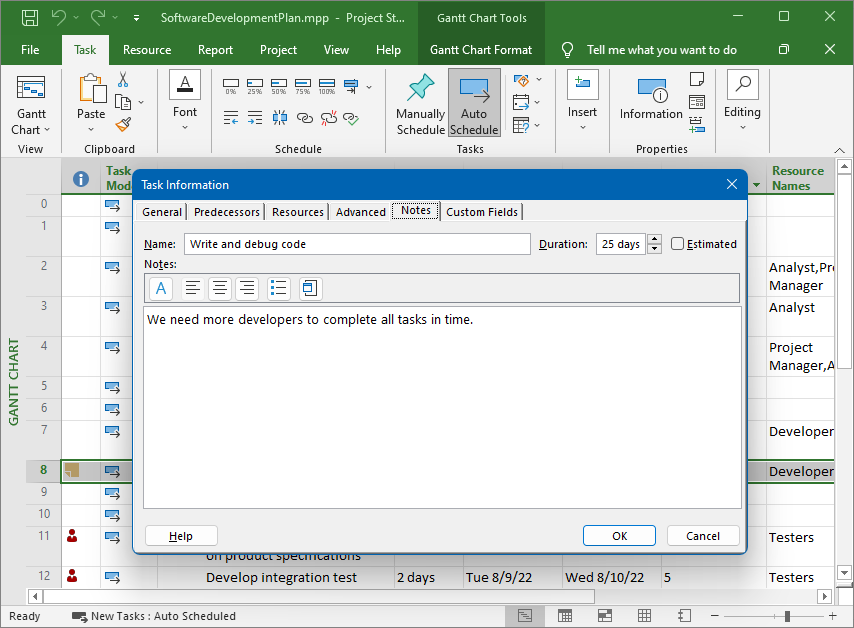
If you need to display these notes in the output HTML, PDF, or image files, enable the [ViewOptions.render_notes](https://reference.groupdocs.com/viewer/python-net/groupdocs.viewer.options/baseviewoptions/#properties) property for a target view.
The following code sample converts a Project file with task notes to PDF:
{{< tabs "example10">}}
{{< tab "Python" >}}
```python
from groupdocs.viewer import Viewer
from groupdocs.viewer.options import PdfViewOptions
def render_project_with_notes():
# Load Project file
with Viewer("sample.mpp") as viewer:
# Convert the document to PDF.
viewOptions = PdfViewOptions("render_project_with_notes/project_with_notes.pdf")
# Enable notes rendering.
viewOptions.render_notes = True
viewer.view(viewOptions)
if __name__ == "__main__":
render_project_with_notes()
```
{{< /tab >}}
{{< tab "sample.mpp" >}}
{{< tab-text >}}
`sample.mpp` is the sample file used in this example. Click [here](https://docs.groupdocs.com/viewer/python-net/_sample_files/rendering-basics/render-ms-project-files/sample.mpp) to download it.
{{< /tab-text >}}
{{< /tab >}}
{{< tab "project_with_notes.pdf" >}}
```text
Binary file (PDF, 149 KB)
```
[Download full output](https://docs.groupdocs.com/viewer/python-net/_output_files/rendering-basics/render-ms-project-files/render_project_with_notes/project_with_notes.pdf)
{{< /tab >}}
{{< /tabs >}}
Notes are rendered on a separate page.