Render Project documents as HTML, PDF, and image files Leave feedback
On this page
GroupDocs.Viewer for Python via .NET allows you to render Project files in HTML, PDF, PNG, and JPEG formats. You do not need to use Microsoft Project or other project management software to load and view Project files within your .NET application (web or desktop).
To start using the GroupDocs.Viewer API, create a Viewer class instance. Pass a document you want to view to the class constructor. You can load the document from a file or stream. Call one of the Viewer.view method overloads to convert the document to HTML, PDF, or image format. These methods allow you to render the entire document or specific pages.
GroupDocs.Viewer supports the following Project Management file formats:
- Microsoft Project (.MPP)
- Microsoft Project Template (.MPT)
- Microsoft Project Exchange File (.MPX)
GroupDocs.Viewer can detect the document format automatically based on information in the file header.
NoteThe Project Management file formats family (MPP, MPT, and MPX) currently renders only on Windows. These formats are not supported on Linux or macOS.
Create an HtmlViewOptions class instance and pass it to the [Viewer.view method to convert a Project file to HTML. The HtmlViewOptions class properties allow you to control the conversion process. For instance, you can embed all external resources in the generated HTML file, minify the output file, and optimize it for printing. Refer to the following documentation section for details: Rendering to HTML.
To save all elements of an HTML page (including text, graphics, and stylesheets) into a single file, call the HtmlViewOptions.for_embedded_resources method and specify the output file name.
from groupdocs.viewer import Viewer
from groupdocs.viewer.options import HtmlViewOptions

def render_project_to_html():
    # Load Project file
    with Viewer("sample.mpp") as viewer:
        # Render the project's active view as HTML.
        # {0} is replaced with the current page number in the output file names.
        viewOptions = HtmlViewOptions.for_embedded_resources("render_project_to_html/pdf_page_{0}.html")
        viewer.view(viewOptions)

if __name__ == "__main__":
    render_project_to_html()
sample.mpp is the sample file used in this example. Click here to download it.
<?xml version="1.0" encoding="utf-8"?>
<!DOCTYPE html[]>
<!--[if IE]>  <html class="p1-56000000000-_1_ie"> <![endif]-->
<html>
  <head>
    <meta charset="utf-8" />
    <title>Page 1</title>
    <style type="text/css">.p1-56000000000-_1_ sup {
	vertical-align: baseline;
	position: relative;
[TRUNCATED]
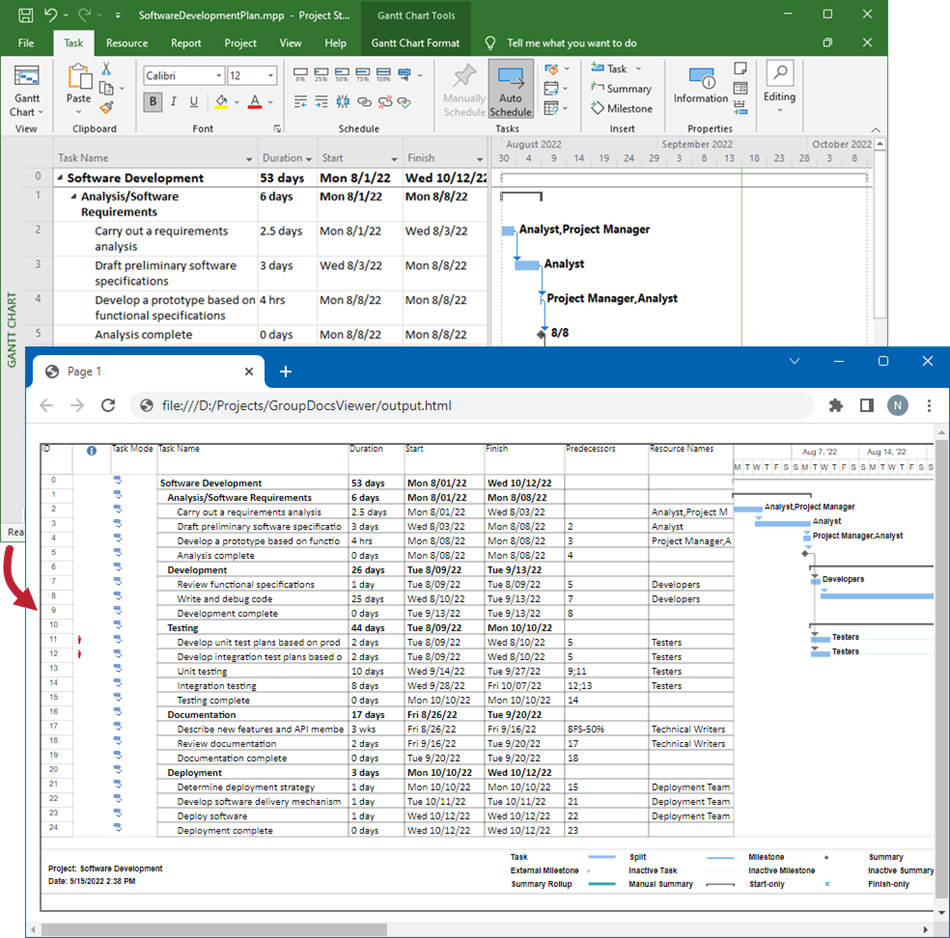
The following image demonstrates the result:
If you want to store an HTML file and additional resource files (such as fonts, images, and stylesheets) separately, call the HtmlViewOptions.for_external_resources method and pass the following parameters:
- The output file path format
- The path format for the folder with external resources
- The resource URL format
from groupdocs.viewer import Viewer
from groupdocs.viewer.options import HtmlViewOptions

def render_project_to_html_external():
    # Load Project file
    with Viewer("sample.mpp") as viewer:
        # Render the project's active view as HTML.
        # Specify the HTML file names and location of external resources.
        # {0} and {1} are replaced with the page number and resource name, respectively.
        viewOptions = HtmlViewOptions.for_external_resources("render_project_to_html_external/pdf_page_{0}.html", "render_project_to_html_external/pdf_page_{0}/resource_{0}_{1}", "render_project_to_html_external/pdf_page_{0}/resource_{0}_{1}")
        viewer.view(viewOptions)

if __name__ == "__main__":
    render_project_to_html_external()
sample.mpp is the sample file used in this example. Click here to download it.
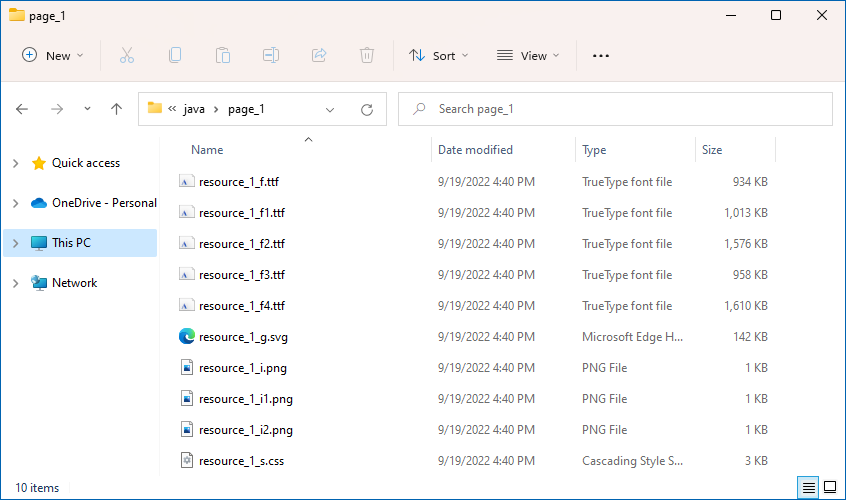
render_project_to_html_external/pdf_page_1.html (123 KB)
render_project_to_html_external/pdf_page_1/resource_1_f.ttf (993 KB)
render_project_to_html_external/pdf_page_1/resource_1_f1.ttf (938 KB)
render_project_to_html_external/pdf_page_1/resource_1_g.svg (275 KB)
render_project_to_html_external/pdf_page_1/resource_1_i.png (345 bytes)
render_project_to_html_external/pdf_page_1/resource_1_i1.png (371 bytes)
render_project_to_html_external/pdf_page_1/resource_1_i2.png (946 bytes)
render_project_to_html_external/pdf_page_1/resource_1_s.css (2 KB)
The image below demonstrates the result. External resources are placed in a separate folder.
Create a PdfViewOptions class instance and pass it to the [Viewer.view method to convert a Project file to PDF. The PdfViewOptions class properties allow you to control the conversion process. For instance, you can protect the output PDF file, reorder its pages, and specify the quality of document images. Refer to the following documentation section for details: Rendering to PDF.
from groupdocs.viewer import Viewer
from groupdocs.viewer.options import PdfViewOptions

def render_project_to_pdf():
    # Load Project file
    with Viewer("sample.mpp") as viewer:
        # Create a PDF file for the project's active view.
        viewOptions = PdfViewOptions("render_project_to_pdf/project_file.pdf")
        viewer.view(viewOptions)

if __name__ == "__main__":
    render_project_to_pdf()
sample.mpp is the sample file used in this example. Click here to download it.
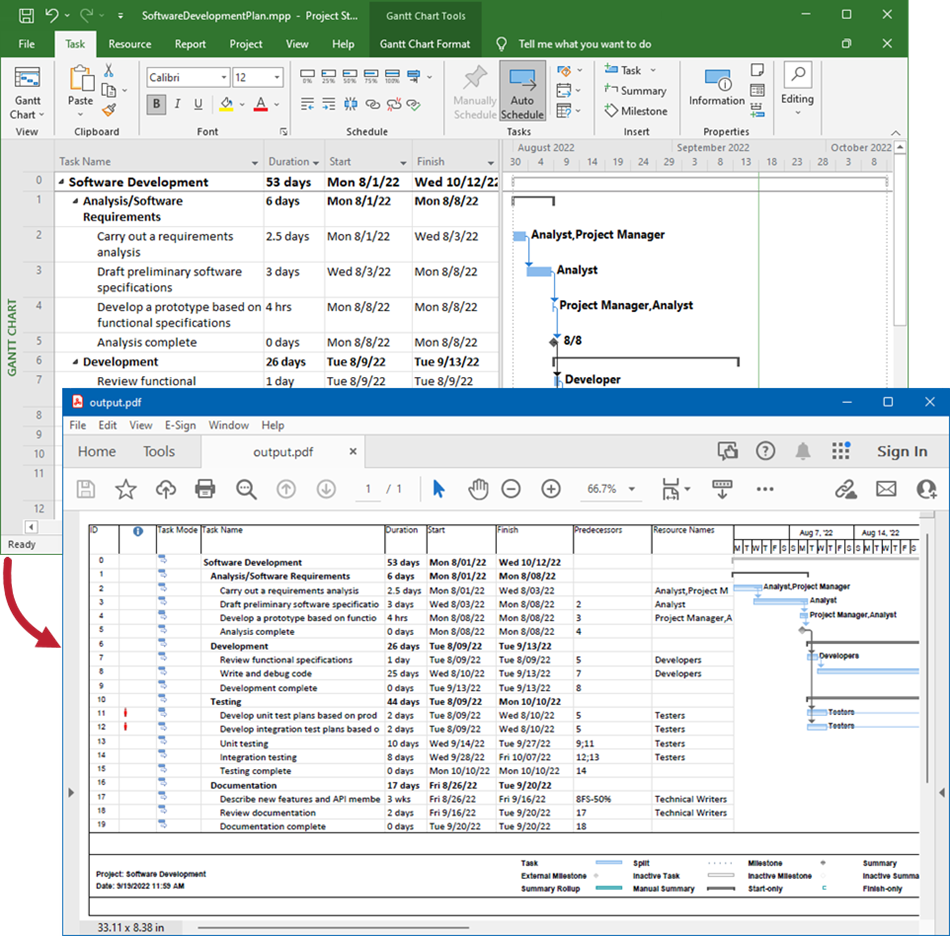
Binary file (PDF, 156 KB)
The following image demonstrates the result:
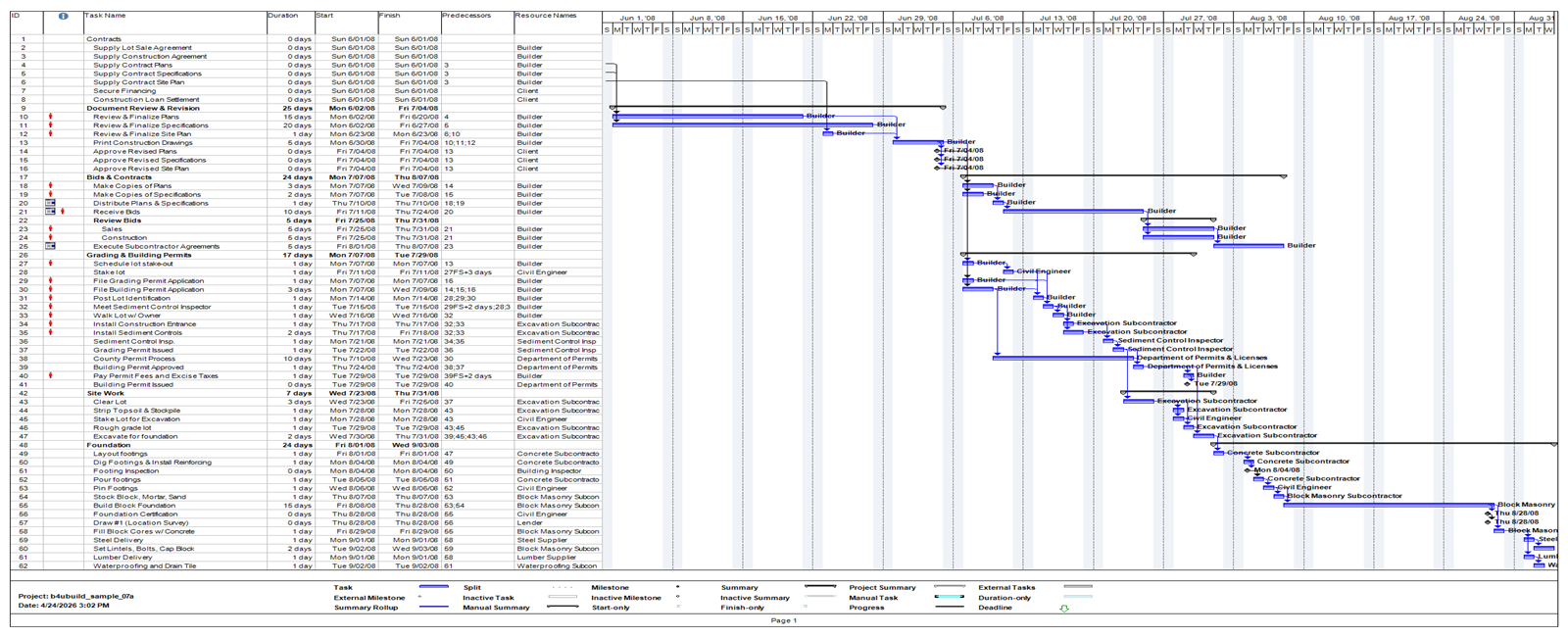
Create a PngViewOptions class instance and pass it to the [Viewer.view method to convert a Project file to PNG. Use the PngViewOptions.height and PngViewOptions.width properties to specify the output image size in pixels.
from groupdocs.viewer import Viewer
from groupdocs.viewer.options import PngViewOptions

def render_project_to_png():
    # Load Project file
    with Viewer("sample.mpp") as viewer:
        # Render the project's active view as PNG.
        # {0} is replaced with the current page number in the output file names.
        viewOptions = PngViewOptions("render_project_to_png/project_page_0_{0}.png")
        # Set width and height.
        viewOptions.width = 1600
        viewOptions.height = 650
        viewer.view(viewOptions)

if __name__ == "__main__":
    render_project_to_png()
sample.mpp is the sample file used in this example. Click here to download it.
Binary file (PNG, 528 KB)
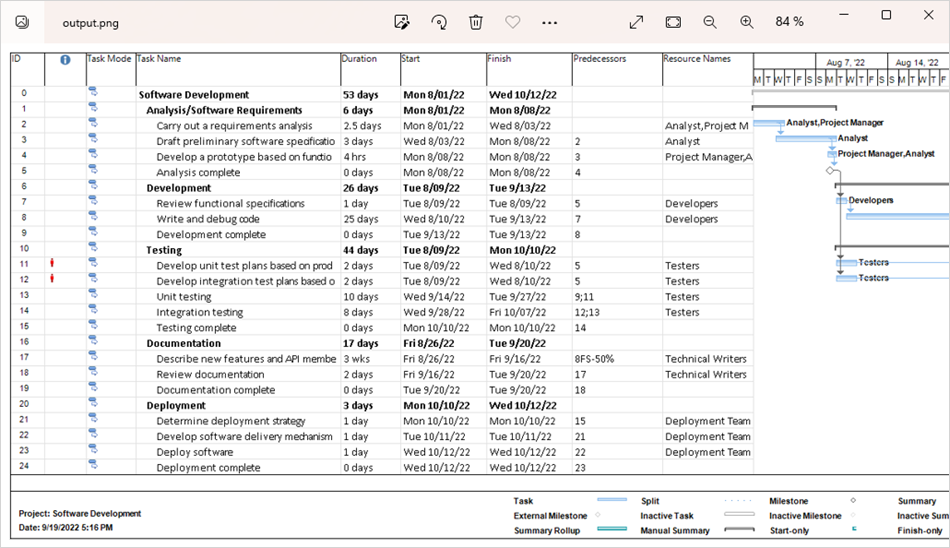
The following image demonstrates the result:
Create a JpgViewOptions class instance and pass it to the [Viewer.view method to convert a Project file to JPEG. Use the JpgViewOptions.height and JpgViewOptions.width properties to specify the output image size in pixels.
from groupdocs.viewer import Viewer
from groupdocs.viewer.options import JpgViewOptions

def render_project_to_jpg():
    # Load Project file
    with Viewer("sample.mpp") as viewer:
        # Render the project's active view as JPEG.
        # {0} is replaced with the current page number in the output file names.
        viewOptions = JpgViewOptions("render_project_to_jpg/project_to_jpg_{0}.jpg")
        # Set width and height.
        viewOptions.width = 1600
        viewOptions.height = 650
        viewer.view(viewOptions)

if __name__ == "__main__":
    render_project_to_jpg()
sample.mpp is the sample file used in this example. Click here to download it.
Binary file (JPG, 255 KB)
Follow the steps below to obtain information about a Project file (the file format, the number of pages, the project’s start and end dates):
- Create a ViewInfoOptions instance for a specific view.
- Call the Viewer.get_view_info method, pass the
ViewInfoOptionsinstance to this method as a parameter, and cast the returned object to the ProjectManagementViewInfo type. - Use the
ProjectManagementViewInfoclass properties to retrieve information about the Project file.
from groupdocs.viewer import Viewer
from groupdocs.viewer.options import ViewInfoOptions
from groupdocs.viewer.results import ProjectManagementViewInfo

def get_project_info():
    # Load Project file
    with Viewer("sample.mpp") as viewer:
        viewOptions = ViewInfoOptions.for_html_view()
        view_info = viewer.get_view_info(viewOptions)
        print("File type: " + str(view_info.file_type))
        print("The number of pages: " + str(len(view_info.pages)))

if __name__ == "__main__":
    get_project_info()
sample.mpp is the sample file used in this example. Click here to download it.
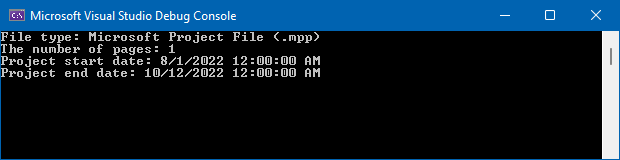
File type: Microsoft Project File (.mpp)
The number of pages: 1
The following image shows a sample console output:
GroupDocs.Viewer allows you to specify page size for the output file when you convert your Project document to HTML, PDF, or image format. Assign a PageSize enumeration member to the project_management_options.page_size property to select one of the predefined page sizes (Letter, Ledger, A0, A1, A2, A3, or A4). You can access this property for the following classes (depending on the output file format):
The following example specifies page size for the output PDF file:
from groupdocs.viewer import Viewer
from groupdocs.viewer.options import PdfViewOptions, PageSize

def render_project_with_page_size():
    # Load Project file
    with Viewer("sample.mpp") as viewer:
        # Convert the document to PDF.
        viewOptions = PdfViewOptions("render_project_with_page_size/project_with_page_size.pdf")
        # Specify the page size.
        viewOptions.project_management_options.page_size = PageSize.A3
        viewer.view(viewOptions)

if __name__ == "__main__":
    render_project_with_page_size()
sample.mpp is the sample file used in this example. Click here to download it.
Binary file (PDF, 160 KB)
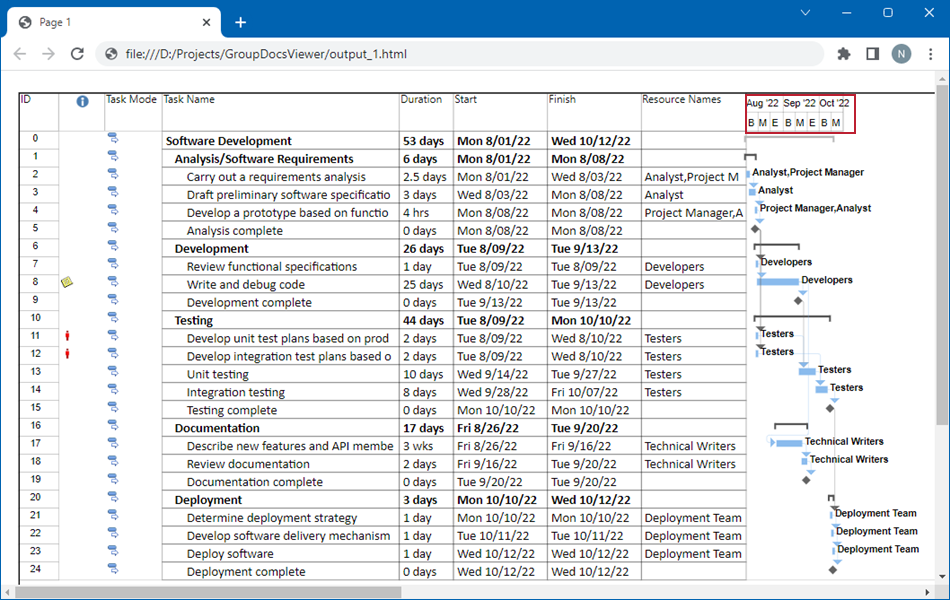
When rendering a Project file, GroupDocs.Viewer selects the smallest time unit on a timescale based on the total length of the project. You can adjust the timescale to show smaller or greater time units (from days to months). To do this, set the ViewOptions.project_management_options.time_unit property for a target view to one of the following TimeUnit enumeration members:
DAYSdisplays days on the timescale.THIRDS_OF_MONTHSdisplays the Beginning/Middle/End (B/M/E) of each month on the timescale.MONTHSdisplays months on the timescale.UNSPECIFIEDmeans that the timescale unit is not specified.
The following code sample demonstrates how to specify the timescale unit when rendering a Project file to HTML:
from groupdocs.viewer import Viewer
from groupdocs.viewer.options import HtmlViewOptions, TimeUnit

def render_project_with_time_unit():
    # Load Project file
    with Viewer("sample.mpp") as viewer:
        # Convert the document to HTML.
        # {0} is replaced with the current page number in the file name.
        viewOptions = HtmlViewOptions.for_embedded_resources("render_project_with_time_unit/output_{0}.html")
        # Specify the time unit.
        viewOptions.project_management_options.time_unit = TimeUnit.THIRDS_OF_MONTHS
        viewer.view(viewOptions)

if __name__ == "__main__":
    render_project_with_time_unit()
sample.mpp is the sample file used in this example. Click here to download it.
render_project_with_time_unit/output_1.html (3010 KB)
render_project_with_time_unit/output_2.html (2643 KB)
The image below illustrates the result.
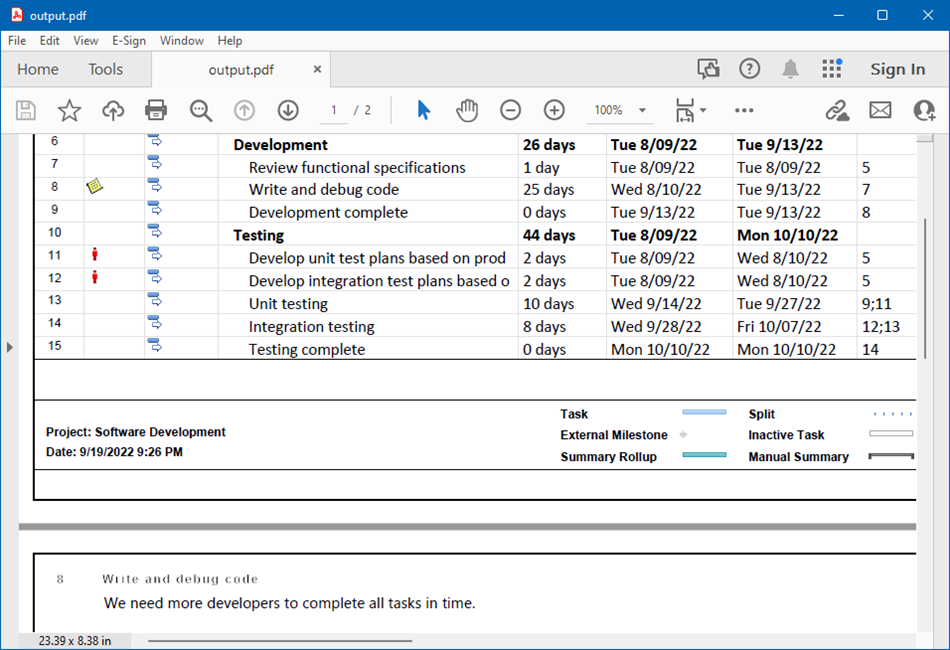
Microsoft Project allows you to add notes to tasks, resources, and assignments.
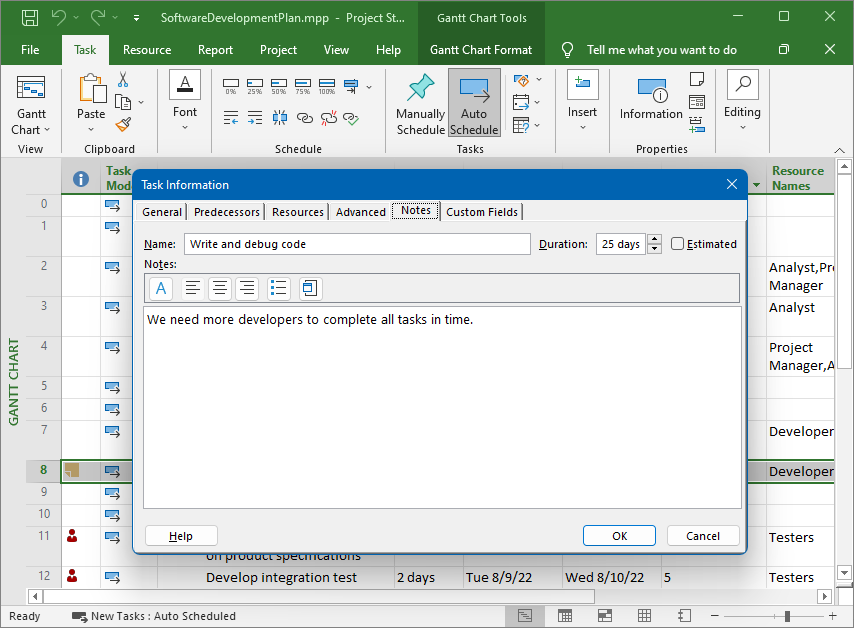
If you need to display these notes in the output HTML, PDF, or image files, enable the ViewOptions.render_notes property for a target view.
The following code sample converts a Project file with task notes to PDF:
from groupdocs.viewer import Viewer
from groupdocs.viewer.options import PdfViewOptions

def render_project_with_notes():
    # Load Project file
    with Viewer("sample.mpp") as viewer:
        # Convert the document to PDF.
        viewOptions = PdfViewOptions("render_project_with_notes/project_with_notes.pdf")
        # Enable notes rendering.
        viewOptions.render_notes = True
        viewer.view(viewOptions)

if __name__ == "__main__":
    render_project_with_notes()
sample.mpp is the sample file used in this example. Click here to download it.
Binary file (PDF, 156 KB)
The image below demonstrates the result. Notes are rendered on a separate page.
Was this page helpful?
Any additional feedback you'd like to share with us?
Please tell us how we can improve this page.
Thank you for your feedback!
We value your opinion. Your feedback will help us improve our documentation.