Render email messages as HTML, PDF, PNG, and JPEG files Leave feedback
On this page
GroupDocs.Viewer for Python via .NET allows you to render your email messages in HTML, PDF, PNG, and JPEG formats. You do not need to use third-party email clients to view the contents of email files within your .NET application (web or desktop).
To start with the GroupDocs.Viewer API, create a Viewer class instance. Pass an email message you want to view to the class constructor. You can load the message from a file or stream. Call one of the Viewer.view method overloads to convert the loaded message to HTML, PDF, or image format. These methods allow you to render the entire message or specific pages.
GroupDocs.Viewer supports the following email file formats:
- Email Message (.EML)
- Apple Mail Message (.EMLX)
- Email Mailbox File (.MBOX)
- Outlook Message Item File (.MSG)
- vCard (Virtual Contact) File (.VCF, .VCARD)
GroupDocs.Viewer can detect the email file format automatically based on information in the file header.
Create an HtmlViewOptions class instance and pass it to the Viewer.view method to convert an email message to HTML. The HtmlViewOptions class properties allow you to control the conversion process. For instance, you can embed all external resources in the generated HTML file, minify the output file, and exclude specific fonts. Refer to the following documentation section for details: Rendering to HTML.
To embed an email message in an HTML page, call the HtmlViewOptions.for_embedded_resources method and specify the output file name.
from groupdocs.viewer import Viewer
from groupdocs.viewer.options import HtmlViewOptions

def render_email_to_html():
    # Load email message
    with Viewer("sample.eml") as viewer:
        # Create an HTML file.
        viewOptions = HtmlViewOptions.for_embedded_resources("render_email_to_html/pdf_page_{0}.html")
        viewer.view(viewOptions)

if __name__ == "__main__":
    render_email_to_html()
sample.eml is the sample file used in this example. Click here to download it.
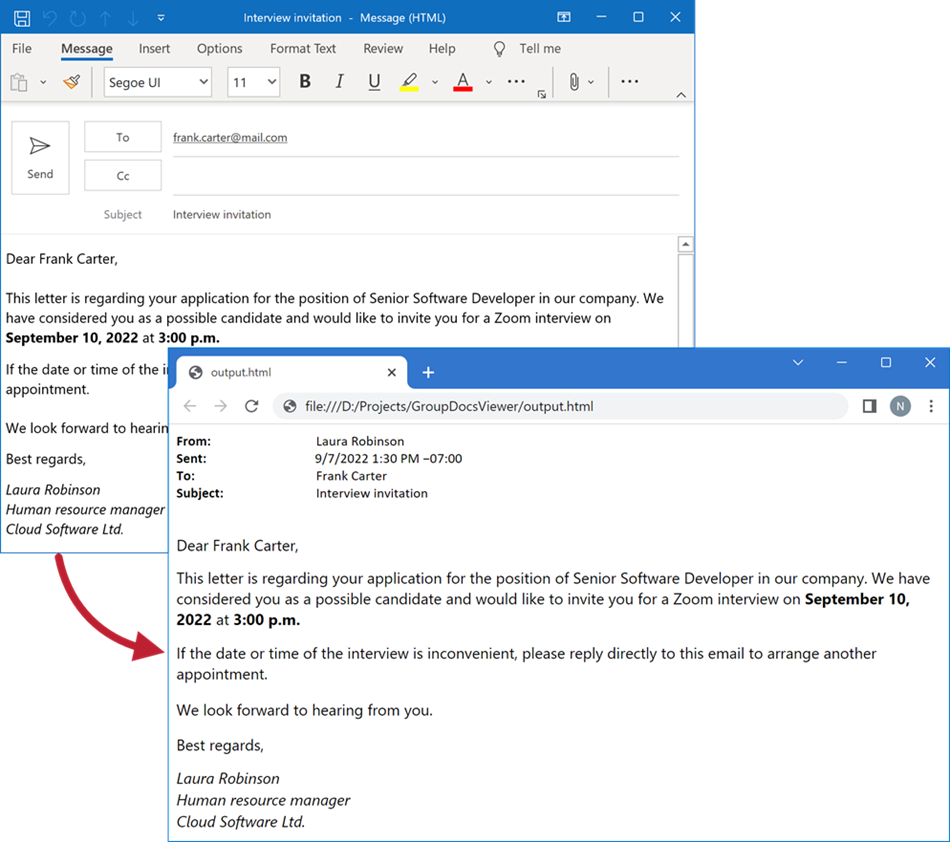
The following image demonstrates the result:
To save an email message to a separate folder, call the HtmlViewOptions.for_external_resources method and pass the following parameters:
- The output file path format
- The path format for the folder with external resources
- The resource URL format
from groupdocs.viewer import Viewer
from groupdocs.viewer.options import HtmlViewOptions

def render_email_to_html_external():
    # Load email message
    with Viewer("sample.eml") as viewer:
        # Specify the HTML file name and location of external resources.
        # {0} is replaced with the resource name in the output file name.
        viewOptions = HtmlViewOptions.for_external_resources("render_email_to_html_external/pdf_page_{0}.html", "render_email_to_html_external/pdf_page_{0}/resource_{0}_{1}", "render_email_to_html_external/pdf_page_{0}/resource_{0}_{1}")
        viewer.view(viewOptions)

if __name__ == "__main__":
    render_email_to_html_external()
sample.eml is the sample file used in this example. Click here to download it.
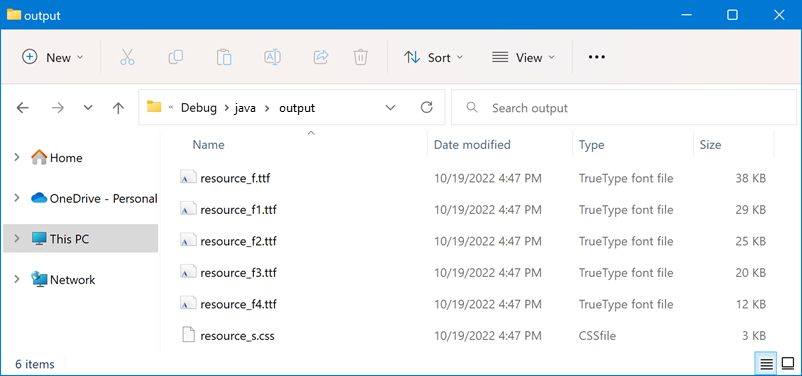
The result is shown below. External resources are placed in a separate folder.
Create a PdfViewOptions class instance and pass it to the Viewer.view method to convert an email message to PDF. The PdfViewOptions class properties allow you to control the conversion process. For instance, you can protect the output PDF file, reorder its pages, and specify the quality of document images. Refer to the following documentation section for details: Rendering to PDF.
from groupdocs.viewer import Viewer
from groupdocs.viewer.options import PdfViewOptions

def render_email_to_pdf():
    # Load email message
    with Viewer("sample.eml") as viewer:
        # Create a PDF file.
        viewOptions = PdfViewOptions("render_email_to_pdf/email_message.pdf")
        viewer.view(viewOptions)

if __name__ == "__main__":
    render_email_to_pdf()
sample.eml is the sample file used in this example. Click here to download it.
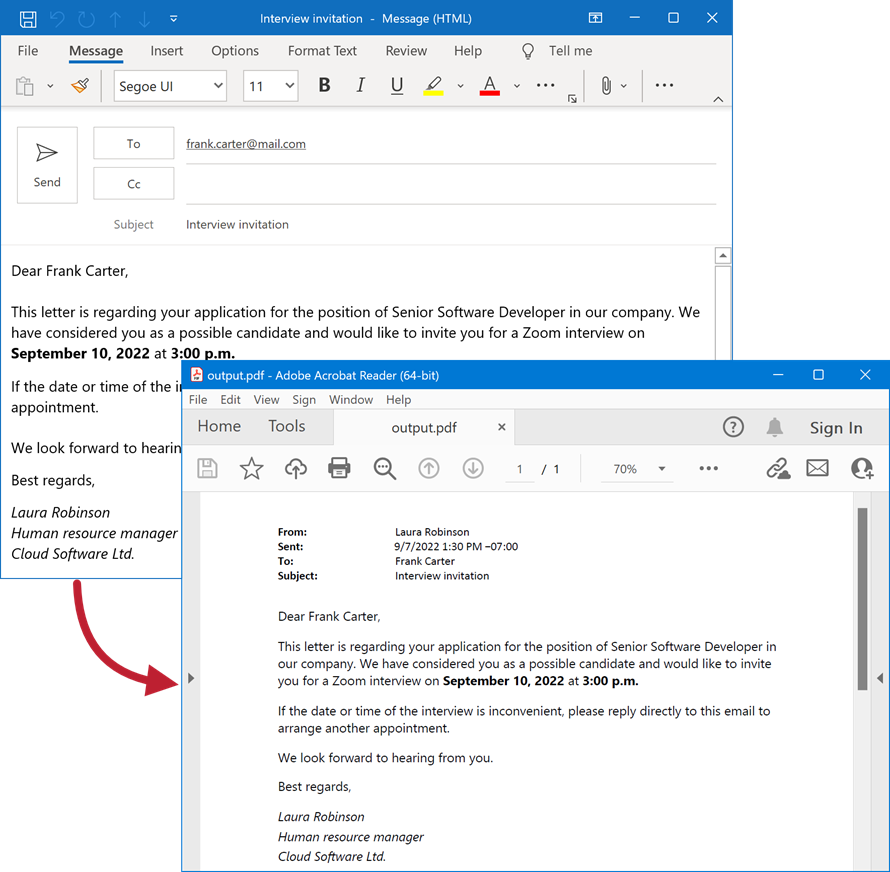
The following image demonstrates the result:
Create a PngViewOptions class instance and pass it to the Viewer.view method to convert an email message to PNG. Use the PngViewOptions.height and PngViewOptions.width properties to specify the output image size in pixels.
from groupdocs.viewer import Viewer
from groupdocs.viewer.options import PngViewOptions

def render_email_to_png():
    # Load email message
    with Viewer("sample.eml") as viewer:
        # Create a PNG file.
        viewOptions = PngViewOptions("render_email_to_png/email_page_0.png")
        # Set width and height.
        viewOptions.width = 800
        viewOptions.height = 1000
        viewer.view(viewOptions)

if __name__ == "__main__":
    render_email_to_png()
sample.eml is the sample file used in this example. Click here to download it.
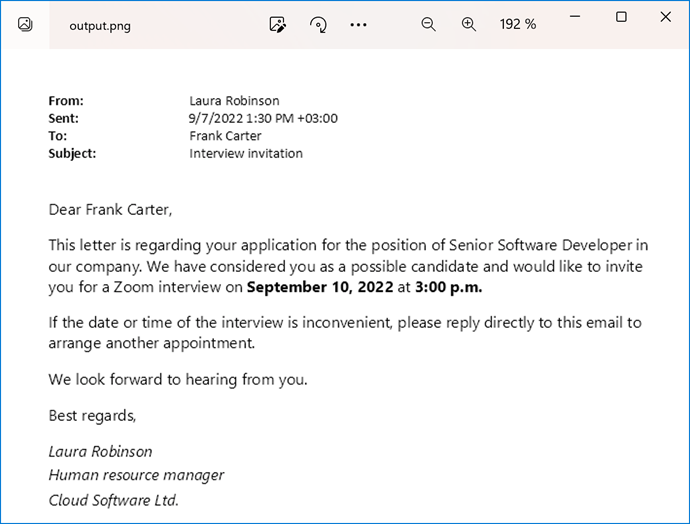
The following image demonstrates the result:
Create a JpgViewOptions class instance and pass it to the Viewer.view method to convert an email message to JPEG. Use the JpgViewOptions.height and JpgViewOptions.width properties to specify the output image size in pixels.
from groupdocs.viewer import Viewer
from groupdocs.viewer.options import JpgViewOptions

def render_email_to_jpg():
    # Load email message
    with Viewer("sample.eml") as viewer:
        # Create a JPG file.
        viewOptions = JpgViewOptions("render_email_to_jpg/email_to_jpg.jpg")
        # Set width and height.
        viewOptions.width = 800
        viewOptions.height = 1000
        viewer.view(viewOptions)

if __name__ == "__main__":
    render_email_to_jpg()
sample.eml is the sample file used in this example. Click here to download it.
GroupDocs.Viewer supports the EmailOptions class that allows you to specify different options for rendering email messages. To access these options, use the EmailOptions property for one of the following classes (depending on the output file format):
GroupDocs.Viewer allows you to specify page size for the output file when you convert an email message to HTML, PDF, or image format. Assign a PageSize enumeration member to the email_options.page_size property to select one of the predefined page sizes (UNSPECIFIED, LETTER, LEDGER, A0, A1, A2, A3, or A4).
The following example specifies page size for the output PDF file:
from groupdocs.viewer import Viewer
from groupdocs.viewer.options import PdfViewOptions, PageSize

def render_email_with_page_size():
    # Load email message
    with Viewer("sample.eml") as viewer:
        # Create a PDF file.
        viewOptions = PdfViewOptions("render_email_with_page_size/email_with_page_size.pdf")
        # Specify the page size.
        viewOptions.email_options.page_size = PageSize.LETTER
        viewer.view(viewOptions)

if __name__ == "__main__":
    render_email_with_page_size()
sample.eml is the sample file used in this example. Click here to download it.
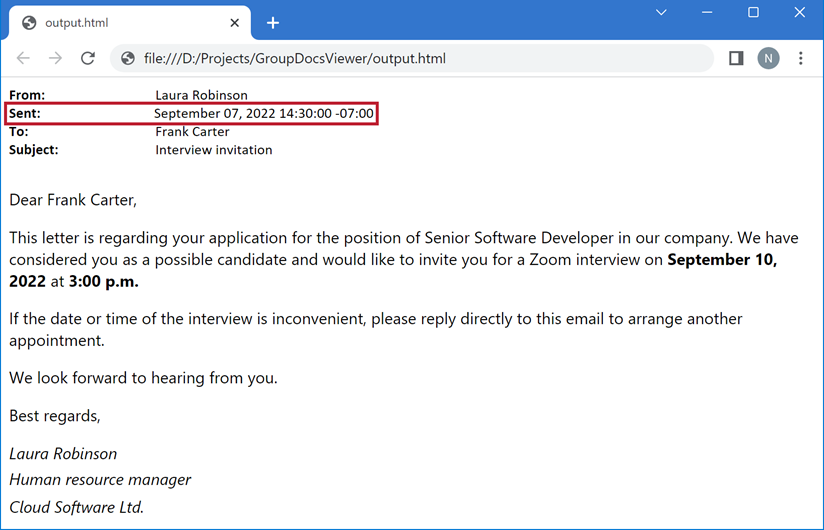
When rendering email messages, GroupDocs.Viewer formats date and time information in the message header based on the system’s date and time settings. If you want to change the default date and time format or specify the time zone offset, use the following properties:
- email_options.date_time_format—Allows you to define a custom date and time format. See the following topics for details:
- email_options.time_zone_offset—Specifies the hours and minutes offset from UTC. The offset is displayed with a leading sign. A plus sign (+) indicates time ahead of UTC, and a minus sign (-) indicates time behind UTC.
from datetime import timedelta
from groupdocs.viewer import Viewer
from groupdocs.viewer.options import HtmlViewOptions

def render_email_with_datetime_format():
    # Load email message
    with Viewer("sample.eml") as viewer:
        # Create an HTML file.
        options = HtmlViewOptions.for_embedded_resources("render_email_with_datetime_format/email_with_datetime_format.html")
        # Apply a custom format to the date in the email message header.
        options.email_options.date_time_format = "MM d yyyy HH:mm tt zzz"
        # Specify the time zone offset.
        options.email_options.time_zone_offset = timedelta(hours=1)

        viewer.view(options)

if __name__ == "__main__":
    render_email_with_datetime_format()
sample.eml is the sample file used in this example. Click here to download it.
The following image illustrates the result:
Was this page helpful?
Any additional feedback you'd like to share with us?
Please tell us how we can improve this page.
Thank you for your feedback!
We value your opinion. Your feedback will help us improve our documentation.