Render CAD drawings and models as HTML, PDF, and image files Leave feedback
On this page
GroupDocs.Viewer for Python via .NET allows you to render your CAD drawings and 3D models in HTML, PDF, PNG, and JPEG formats. You do not need to use AutoCAD or other CAD software to load and view CAD files within your Python application (web or desktop).
Create a Viewer class instance to get started with the GroupDocs.Viewer API. Pass a CAD drawing you want to view to the class constructor. You can load the drawing from a file or stream. Call one of the Viewer.View method overloads to convert the drawing to HTML, PDF, or image format.
GroupDocs.Viewer supports the following CAD and 3D file formats:
- AutoCAD Drawing (.DWG)
- AutoCAD Drawing Template (.DWT)
- Design Web Format (.DWF)
- Drawing Exchange Format (.DXF)
- AutoCAD Plotter Document (.PLT)
- MicroStation Design File (V7) (.DGN)
- Industry Foundation Classes (.IFC)
- Stereolithography File (.STL)
- Wavefront 3D Object File (.OBJ)
- Common File Format (.CF2)
- IGES (Initial Graphics Exchange Specification) Drawing (.IGS)
- HPGL (Hewlett-Packard Graphics Language) Plot File (.HPG)
GroupDocs.Viewer can detect the document format automatically based on information in the file header.
Create an HtmlViewOptions class instance and pass it to the Viewer.View method to convert a CAD file to HTML. During the conversion, GroupDocs.Viewer creates an SVG image from the CAD drawing and embeds this image in an HTML document.
The HtmlViewOptions class properties allow you to control the conversion process. For instance, you can embed all external resources in the generated HTML file, minify the output file, and optimize it for printing. Refer to the following documentation section for details: Rendering to HTML.
To save all elements of an HTML page (including text, graphics, and stylesheets) into a single file, call the HtmlViewOptions.for_embedded_resources method and specify the output file name.
from groupdocs.viewer import Viewer
from groupdocs.viewer.options import HtmlViewOptions

def render_cad_to_html():
    # Load CAD file
    with Viewer("sample.dwg") as viewer:
        # Create an HTML file for the drawing.
        # Specify the HTML file name.
        viewOptions = HtmlViewOptions.for_embedded_resources("render_cad_to_html/pdf_page_{0}.html")
        viewer.view(viewOptions)

if __name__ == "__main__":
    render_cad_to_html()
sample.dwg is the sample file used in this example. Click here to download it.
<!DOCTYPE html>
<html lang="en">
<head>
    <meta name="viewport" content="width=device-width,initial-scale=1">
    <meta charset="utf-8" />
    <title>Page-1</title>
</head>
<body>
    <div id="main_image">
    <svg xmlns="http://www.w3.org/2000/svg" xmlns:xlink="http://www.w3.org/1999/xlink" id="body_-770116761_6634" width="2000" height="1769.2308349609375"><g transform="matrix(75.964135732832403 0 0 -75.964135732832403 -914.05417456346686 2464.9369736113467)"><g><path d="M12.158660251539231 1
[TRUNCATED]
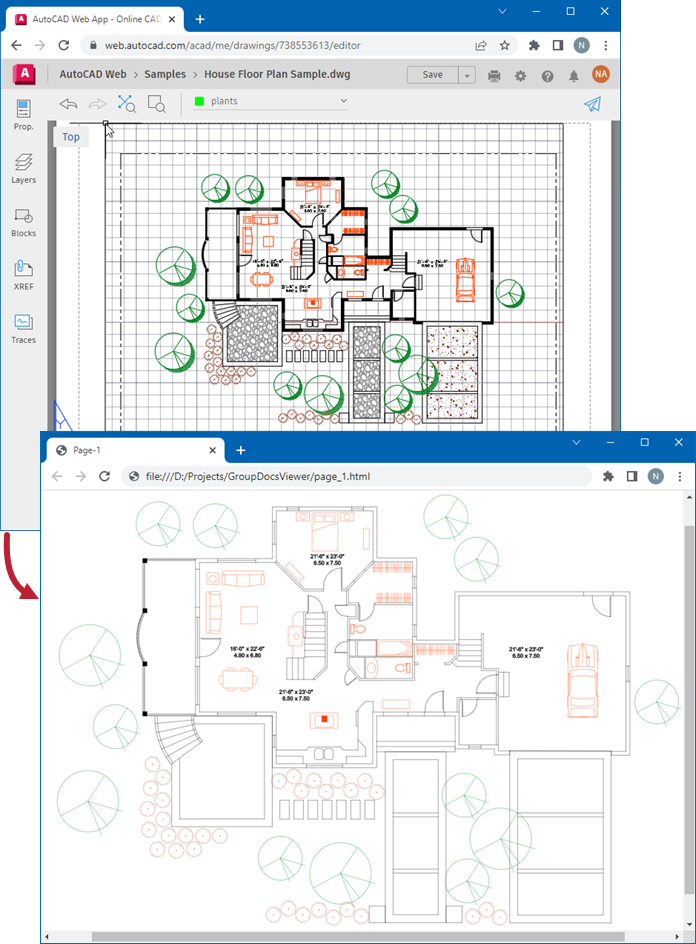
The following image demonstrates the result:
If you want to store an HTML file and additional resource files (such as fonts, images, and style sheets) separately, call the HtmlViewOptions.for_external_resources method and pass the following parameters:
- The output file path format
- The path format for the folder with external resources
- The resource URL format
from groupdocs.viewer import Viewer
from groupdocs.viewer.options import HtmlViewOptions

def render_cad_to_html_external():
    # Load CAD file
    with Viewer("sample.dwg") as viewer:
        # Create an HTML file for the drawing.
        # Specify the HTML file name and location of external resources.
        # {0} is replaced with the resource name.
        viewOptions = HtmlViewOptions.for_external_resources("render_cad_to_html_external/pdf_page_{0}.html", "render_cad_to_html_external/pdf_page_{0}/resource_{0}_{1}", "render_cad_to_html_external/pdf_page_{0}/resource_{0}_{1}")
        viewer.view(viewOptions)

if __name__ == "__main__":
    render_cad_to_html_external()
sample.dwg is the sample file used in this example. Click here to download it.
render_cad_to_html_external/pdf_page_1.html (410 bytes)
render_cad_to_html_external/pdf_page_1/resource_1_g.svg (7 KB)
render_cad_to_html_external/pdf_page_1/resource_1_s.css (529 bytes)
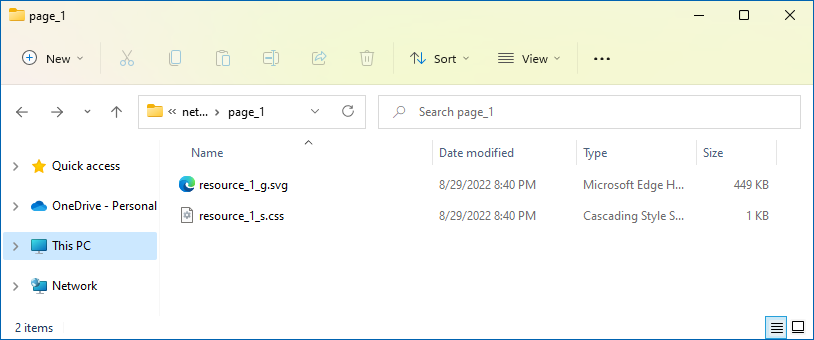
The image below demonstrates the result. External resources are placed in a separate folder.
Create a PdfViewOptions class instance and pass it to the Viewer.view method to convert a CAD file to PDF. The PdfViewOptions class properties allow you to control the conversion process. For instance, you can protect the output PDF file, reorder its pages, and specify the quality of document images. Refer to the following documentation section for details: Rendering to PDF.
from groupdocs.viewer import Viewer
from groupdocs.viewer.options import PdfViewOptions

def render_cad_to_pdf():
    # Load CAD file
    with Viewer("sample.dwg") as viewer:
        # Create a PDF file for the drawing.
        # Specify the PDF file name.
        viewOptions = PdfViewOptions("render_cad_to_pdf/cad_drawing.pdf")
        viewer.view(viewOptions)

if __name__ == "__main__":
    render_cad_to_pdf()
sample.dwg is the sample file used in this example. Click here to download it.
Binary file (PDF, 3 KB)
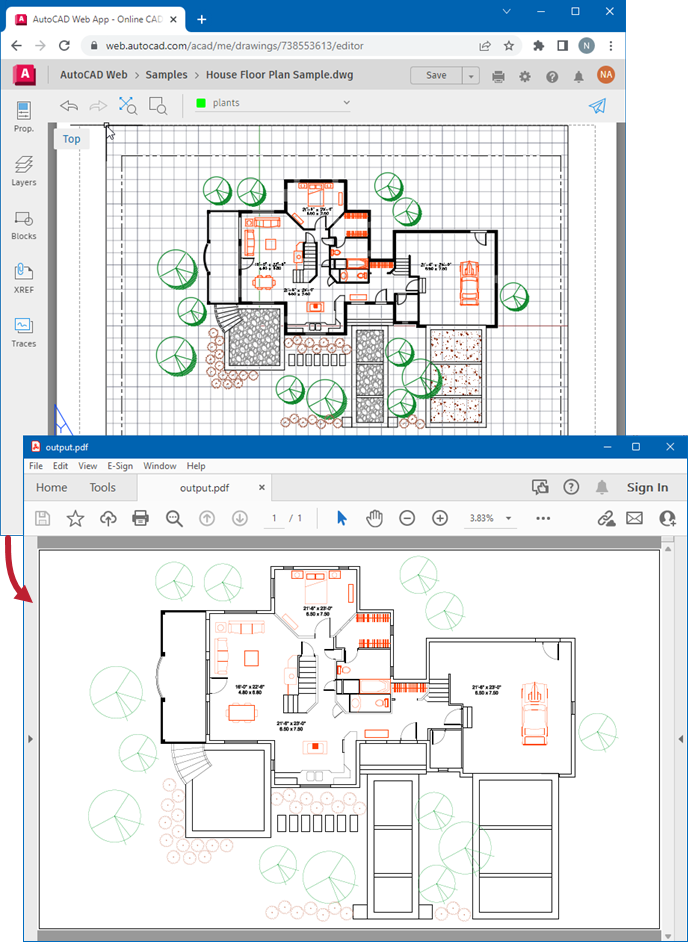
The following image demonstrates the result:
Create a PngViewOptions class instance and pass it to the Viewer.view method to convert a CAD file to PNG. Use the PngViewOptions.height and PngViewOptions.width properties to specify the output image size in pixels.
from groupdocs.viewer import Viewer
from groupdocs.viewer.options import PngViewOptions

def render_cad_to_png():
    # Load CAD file
    with Viewer("sample.dwg") as viewer:
        # Create a PNG image for the drawing.
        viewOptions = PngViewOptions("render_cad_to_png/cad_page_0.png")
        # Set width and height.
        viewOptions.width = 1500
        viewOptions.height = 1000
        viewer.view(viewOptions)

if __name__ == "__main__":
    render_cad_to_png()
sample.dwg is the sample file used in this example. Click here to download it.
Binary file (PNG, 44 KB)
The following image demonstrates the result:
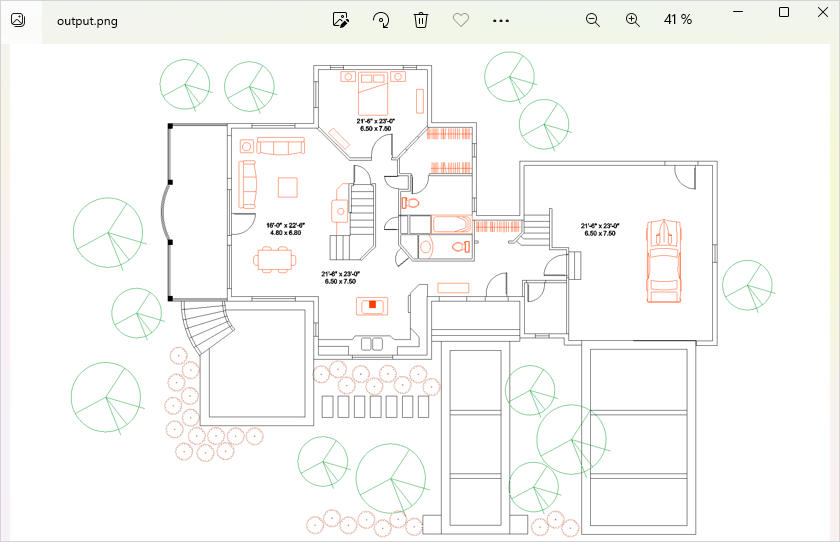
Create a JpgViewOptions class instance and pass it to the Viewer.view method to convert a CAD file to JPEG. Use the JpgViewOptions.height and JpgViewOptions.width properties to specify the output image size in pixels.
from groupdocs.viewer import Viewer
from groupdocs.viewer.options import JpgViewOptions

def render_cad_to_jpg():
    # Load CAD file
    with Viewer("sample.dwg") as viewer:
        # Create a JPG image for the drawing.
        viewOptions = JpgViewOptions("render_cad_to_jpg/cad_to_jpg.jpg")
        # Set width and height.
        viewOptions.width = 1500
        viewOptions.height = 1000
        viewer.view(viewOptions)

if __name__ == "__main__":
    render_cad_to_jpg()
sample.dwg is the sample file used in this example. Click here to download it.
Binary file (JPG, 53 KB)
Follow the steps below to obtain information about layouts and layers contained in a CAD drawing. You can use this information to specify which layers and layouts to display in the output file.
- Create a ViewInfoOptions instance for a specific view.
- Call the Viewer.get_view_info method.
from groupdocs.viewer import Viewer
from groupdocs.viewer.options import ViewInfoOptions

def get_cad_info():
    # Load CAD file
    with Viewer("sample.dwg") as viewer:
        viewInfoOptions = ViewInfoOptions.for_html_view()
        cad_info = viewer.get_view_info(viewInfoOptions)
        # Display information about the CAD file.
        print("File type:", cad_info.file_type)
        print("Pages count:", len(cad_info.pages))

        print("\nView info retrieved successfully.")

if __name__ == "__main__":
    get_cad_info()
sample.dwg is the sample file used in this example. Click here to download it.
File type: AutoCAD Drawing Database File (.dwg)
Pages count: 1

View info retrieved successfully.
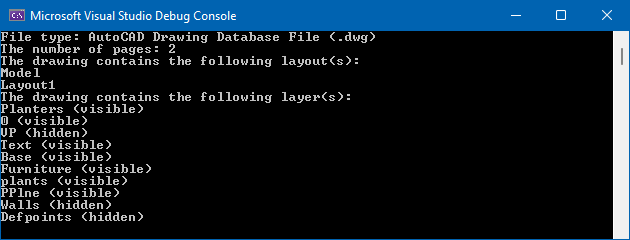
The following image shows a sample console output:
When you convert a CAD drawing to HTML, PDF, or image format, GroupDocs.Viewer renders only the model-space layout (Model). If you also need to render all paper space layouts contained in your CAD file, enable the CadOptions.render_layouts option for one of the following classes (depending on the output file format):
Each layout is rendered on a separate page.
The following example renders all layouts when converting a CAD drawing to PDF:
from groupdocs.viewer import Viewer
from groupdocs.viewer.options import PdfViewOptions

def render_all_layouts():
    # Load CAD file
    with Viewer("sample.dwg") as viewer:
        # Convert the document to PDF.
        options = PdfViewOptions("render_all_layouts/all_layouts.pdf")
        # Render the Model and all non-empty paper space layouts.
        options.cad_options.render_layouts = True
        viewer.view(options)

if __name__ == "__main__":
    render_all_layouts()
sample.dwg is the sample file used in this example. Click here to download it.
Binary file (PDF, 26 KB)
To render a specific layout, assign the layout name to the CadOptions.layout_name property of a target view.
from groupdocs.viewer import Viewer
from groupdocs.viewer.options import PdfViewOptions

def render_specific_layout():
    # Load CAD file
    with Viewer("sample.dwg") as viewer:
        # Convert the document to PDF.
        options = PdfViewOptions("render_specific_layout/specific_layout.pdf")
        # Specify the name of the layout to render.
        # If the specified layout is not found,
        # an exception occurs.
        options.cad_options.layout_name = "layout1"
        viewer.view(options)

if __name__ == "__main__":
    render_specific_layout()
sample.dwg is the sample file used in this example. Click here to download it.
Binary file (PDF, 3 KB)
Note
The CadOptions.RenderLayouts and CadOptions.layout_name properties apply only to the following file formats: DWG, DWT, DXF, and DWF.
If you use the CadOptions.layout_name property to render a specific layout, the CadOptions.render_layouts option is ignored.
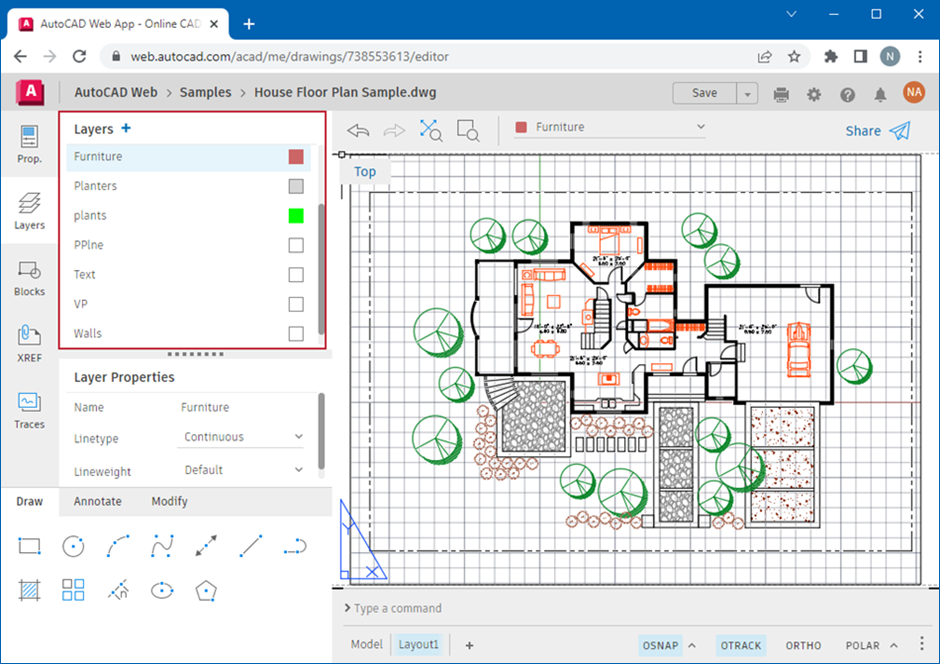
A CAD drawing can contain many layers. Each layer is used to draw a specific object type. For example, the drawing below contains layers for walls, furniture, plants, and so on. You can control the visibility of objects on the drawing by turning specific layers on or off.
When you convert a CAD drawing to HTML, PDF, or image format, GroupDocs.Viewer renders all available layers. You can specify which layers to display in the output file, as described below:
- Access the CadOptions property for a target view:
- Assign the list of layers you want to render to the cad_options.layers property.
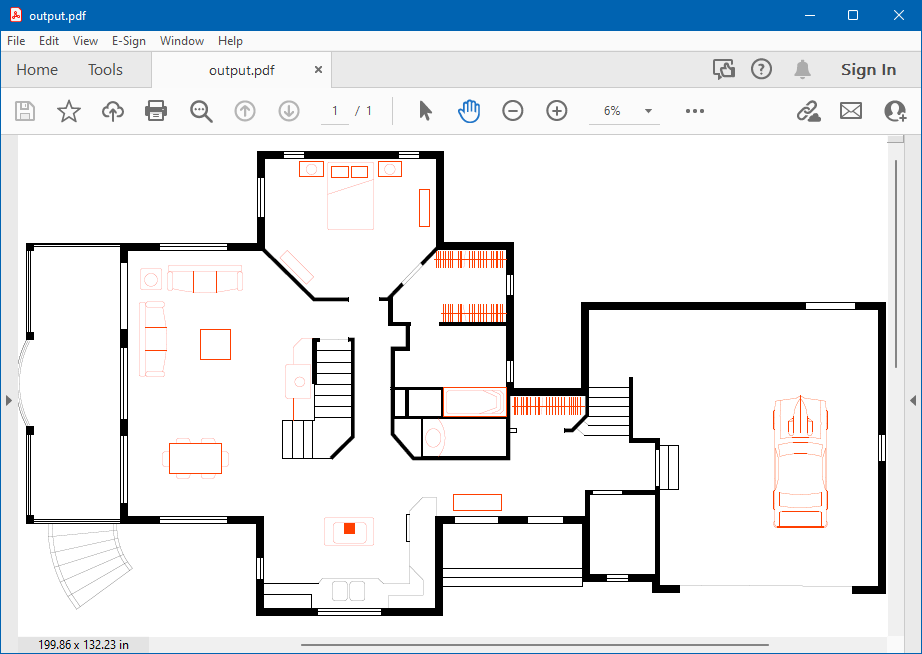
The following example renders layers with walls and furniture to PDF:
from groupdocs.viewer import Viewer
from groupdocs.viewer.options import PdfViewOptions
from groupdocs.viewer.results import Layer

def render_specific_layers():
    # Load CAD file
    with Viewer("sample.dwg") as viewer:
        # Convert the document to PDF.
        options = PdfViewOptions("render_specific_layers/specific_layers.pdf")
        # Specify a list of layers to display.
        options.cad_options.layers = [
            Layer("QUADRANT")
        ]
        viewer.view(options)

if __name__ == "__main__":
    render_specific_layers()
sample.dwg is the sample file used in this example. Click here to download it.
Binary file (PDF, 2 KB)
The image below illustrates the result.
Was this page helpful?
Any additional feedback you'd like to share with us?
Please tell us how we can improve this page.
Thank you for your feedback!
We value your opinion. Your feedback will help us improve our documentation.