# GroupDocs.Viewer for Python via .NET — Complete Documentation
> Native Python library that renders 190+ file formats — DOCX, PDF, XLSX, PPTX, CAD, email, archives, images — to HTML, PDF, PNG, or JPG on Windows, Linux, and macOS. No Microsoft Office or Adobe Acrobat required.
---
## Features Overview
Path: https://docs.groupdocs.com/viewer/python-net/getting-started/features-overview/
## Rendering Documents
The term *rendering* in GroupDocs.Viewer describes the process of converting a document into a file format that preserves page boundaries. For example, when a three-page DOCX file is rendered to HTML, the result is three HTML files — one per page. See the [Developer Guide]({{< ref "viewer/python-net/developer-guide/rendering-documents/_index.md" >}}) for runnable examples.
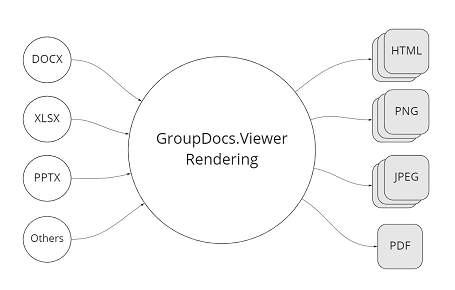
### Rendering to HTML
Rendering to HTML is the best choice when you need to:
- Build a web-based application and display document content inside a browser.
- Allow users to interact with the rendered text — select, copy, or search it.
- View document pages separately.
- Zoom in on a document without quality loss.
- Rotate, reorder, or watermark pages.
GroupDocs.Viewer for Python offers two HTML resource-management modes:
- **HTML with external resources** — stores page resources (CSS, fonts, images) next to the HTML file so common resources are reused across pages. Reduces overall page size and speeds up loading.
- **HTML with embedded resources** — inlines every resource into the HTML file so each page is self-contained. Larger individual files but easier to distribute.
### Rendering to PNG or JPEG
Rendering to PNG or JPEG is the best choice when you need to:
- Support any type of application (desktop, web, mobile, CLI).
- Restrict interaction with rendered text — for example, to prevent copying. You can still extract a text layer separately if you want to overlay selectable text on the image.
- View document pages separately.
- Rotate, reorder, or watermark pages.
A quick comparison of the two image formats:
- **PNG** is a lossless raster format that supports full-colour images and transparency. PNG does not expose a quality setting. It is a good choice for line drawings, text, and iconic graphics at small file sizes.
- **JPEG** is a lossy compressed format whose quality can be tuned — lowering the quality removes detail and adds noise, but the file becomes smaller. JPEG is optimal for photographs and any image with a large colour range, and is a common web choice thanks to its compression ratio.
### Rendering to PDF
GroupDocs.Viewer renders a document into a single PDF file. Rendering to PDF is the best choice when you need to:
- Print documents.
- Send documents via email.
- Distribute all pages as a single file rather than a collection of per-page files.
## Retrieving Document Information
GroupDocs.Viewer for Python exposes basic information about a source document — file type, page count, text with coordinates, and more — without rendering. See [Get Document Info]({{< ref "viewer/python-net/developer-guide/get-document-info" >}}).
Format-specific information is also available:
- **Archive** — list of folders contained in the archive.
- **CAD** — list of layers and layouts in a CAD document.
- **Email** — list of folders contained in an Outlook data file.
- **PDF** — a flag that indicates whether document printing is allowed.
- **Project Management** — project start and end dates.
### Text extraction
You can opt to extract document text when rendering to PNG or JPEG. The text is returned together with per-word coordinates, which is helpful when overlaying a selectable text layer on a page image.
## Processing Attachments
In GroupDocs.Viewer, *attachments* covers email attachments, files embedded in PDFs, and individual items inside compressed archives.
With GroupDocs.Viewer you can list and save:
- Email attachments.
- Files embedded in PDF documents.
- Email messages contained in Outlook and Lotus Notes data files.
- Individual files inside archive containers.
See [Processing Attachments]({{< ref "viewer/python-net/developer-guide/processing-attachments" >}}) for a runnable example.
## Output Transformation
GroupDocs.Viewer for Python ships a set of options to transform each rendered page:
- **Rotate pages** — change page orientation when rendering to HTML, JPG, PNG, or PDF.
- **Add a text watermark** — stamp a text watermark on every rendered page.
- **Reorder pages** — render pages in any order you prefer, including when rendering to PDF.
## Caching Results
GroupDocs.Viewer for Python supports caching to accelerate repeat renderings and reduce overall load on the application.
By default, the cache is stored on the local disk. The viewer API also exposes cache interfaces that can be implemented for third-party storage — FTP, Amazon S3, Dropbox, Google Drive, Microsoft Azure, Redis, or any other backend.
---
## Load document from local disk
Path: https://docs.groupdocs.com/viewer/python-net/developer-guide/loading-documents/load-document-from-local-disk/
You can load a document from a local disk using a path to a file. GroupDocs.Viewer opens the file in the read-only mode.
The following code snippet shows how to load a document using the local path string:
{{< tabs "example1">}}
{{< tab "Python" >}}
```python
from groupdocs.viewer import Viewer
from groupdocs.viewer.options import HtmlViewOptions
def load_document_from_local_disk():
# Load document from local disk
with Viewer("sample.docx") as viewer:
html_options = HtmlViewOptions.for_embedded_resources("load_document_from_local_disk/document_from_local_disk_{0}.html")
viewer.view(html_options)
if __name__ == "__main__":
load_document_from_local_disk()
```
{{< /tab >}}
{{< tab "sample.docx" >}}
{{< tab-text >}}
`sample.docx` is the sample file used in this example. Click [here](https://docs.groupdocs.com/viewer/python-net/_sample_files/developer-guide/loading-documents/load-document-from-local-disk/sample.docx) to download it.
{{< /tab-text >}}
{{< /tab >}}
{{< tab "load-document-from-local-disk-outputs.zip" >}}
```text
load_document_from_local_disk/document_from_local_disk_1.html (317 KB)
load_document_from_local_disk/document_from_local_disk_2.html (149 KB)
load_document_from_local_disk/document_from_local_disk_3.html (113 KB)
```
[Download full output](https://docs.groupdocs.com/viewer/python-net/_output_files/developer-guide/loading-documents/load-document-from-local-disk/load_document_from_local_disk/load-document-from-local-disk-outputs.zip)
{{< /tab >}}
{{< /tabs >}}
---
## Optimize a PDF file for a browser
Path: https://docs.groupdocs.com/viewer/python-net/optimization-pdf-for-web/
This optimization allows a browser to display the first pages of a PDF file when you open the document, instead of waiting for the entire file to download.
The following code snippet shows how to optimize a PDF file for browser:
{{< tabs "Example1">}}
{{< tab "Python" >}}
```python
from groupdocs.viewer import Viewer
from groupdocs.viewer.options import PdfViewOptions, PdfOptimizationOptions
def optimize_pdf_for_web():
# Load document
with Viewer("sample.docx") as viewer:
viewOptions = PdfViewOptions("optimize_pdf_for_web/optimized_spreadsheet.pdf")
viewOptions.pdf_optimization_options = PdfOptimizationOptions()
viewOptions.pdf_optimization_options.lineriaze = True
viewer.view(viewOptions)
if __name__ == "__main__":
optimize_pdf_for_web()
```
{{< /tab >}}
{{< tab "sample.docx" >}}
{{< tab-text >}}
`sample.docx` is the sample file used in this example. Click [here](https://docs.groupdocs.com/viewer/python-net/_sample_files/developer-guide/rendering-documents/rendering-to-pdf/optimization-pdf-options/optimization-pdf-for-web/sample.docx) to download it.
{{< /tab-text >}}
{{< /tab >}}
{{< tab "optimized_spreadsheet.pdf" >}}
```text
Binary file (PDF, 232 KB)
```
[Download full output](https://docs.groupdocs.com/viewer/python-net/_output_files/developer-guide/rendering-documents/rendering-to-pdf/optimization-pdf-options/optimization-pdf-for-web/optimize_pdf_for_web/optimized_spreadsheet.pdf)
{{< /tab >}}
{{< /tabs >}}
---
## GroupDocs.Viewer for Python via .NET Overview
Path: https://docs.groupdocs.com/viewer/python-net/product-overview/
## What is GroupDocs.Viewer?
GroupDocs.Viewer for Python via .NET is a native Python library that renders **190+ file formats** — DOCX, PDF, XLSX, PPTX, CAD drawings, email messages, compressed archives, eBooks, and raster images — into HTML, PDF, PNG, or JPG output. It runs entirely on-premise, requires no Microsoft Office installation, and ships as a pre-built wheel on Windows, Linux, and macOS.
Typical uses include:
- **In-app document preview** — embed HTML rendering into desktop or web applications so users can read any document format without leaving the app.
- **Server-side rendering pipelines** — convert user uploads to PDF for archival or to per-page PNG for thumbnail generation.
- **AI / RAG preprocessing** — render DOCX, XLSX, EML, and scanned PDFs into page-level PNG images or structured HTML that LLMs can consume. See [Agents and LLM Integration]({{< ref "viewer/python-net/agents-and-llm-integration" >}}).
- **Redaction and watermarking** — apply text watermarks during rendering, or produce password-protected PDFs from unprotected sources.
- **Accessibility and search** — generate semantic HTML from PDFs, DWGs, and legacy office formats for indexing and screen readers.
## Key Capabilities
| Capability | Description |
|---|---|
| **190+ file formats** | DOCX, PDF, XLSX, PPTX, CAD, email, archives, eBooks, HTML, images, and more. See [supported formats]({{< ref "viewer/python-net/getting-started/supported-document-formats.md" >}}). |
| **Four output targets** | HTML (embedded or external resources), PDF, PNG, and JPG. Every source format renders to every target. |
| **Load options per format** | [Passwords, fonts, encodings, sheet indexes, email fields]({{< ref "viewer/python-net/developer-guide/loading-documents" >}}). |
| **View options per target** | DPI, page size, watermarks, rotation, image size limits, PDF permissions — tuned per output format. |
| **Page selection** | Render the entire document, a subset of pages, or a single page at a time. |
| **Embedded or external HTML resources** | `for_embedded_resources(...)` produces self-contained pages; `for_external_resources(...)` emits separate CSS, font, and image files for indexing systems. |
| **Watermarks** | [Add text watermarks]({{< ref "viewer/python-net/developer-guide/rendering-documents/add-text-watermark" >}}) during rendering — color, size, position, opacity. |
| **PDF rendering options** | [Protect]({{< ref "viewer/python-net/developer-guide/rendering-documents/rendering-to-pdf/protect-pdf-document" >}}) output PDFs, [reorder pages]({{< ref "viewer/python-net/developer-guide/rendering-documents/rendering-to-pdf/reorder-pages" >}}), adjust image quality, and apply optimization. |
| **Attachments** | [Extract attachments]({{< ref "viewer/python-net/developer-guide/processing-attachments/how-to-extract-and-save-attachments" >}}) from emails, archives, and PDFs. |
| **Document inspection** | [Read file type, page count, and attachment list]({{< ref "viewer/python-net/developer-guide/get-document-info" >}}) without rendering. |
| **Streams** | Load input from file-like objects — handy for cloud blobs and HTTP bodies. |
| **Logging and diagnostics** | Wire `ConsoleLogger` through `ViewerSettings` for production traces. |
| **On-premise** | No cloud calls, no Microsoft Office install, no network traffic. |
## Quick Example
{{< tabs "quick-example">}}
{{< tab "quick_example.py" >}}
```python
from groupdocs.viewer import Viewer
from groupdocs.viewer.options import HtmlViewOptions
def quick_example():
"""Render a DOCX document to HTML — the hello-world example."""
with Viewer("./sample.docx") as viewer:
options = HtmlViewOptions.for_embedded_resources("page_{0}.html")
viewer.view(options)
if __name__ == "__main__":
quick_example()
```
{{< /tab >}}
{{< tab "render_with_options.py" >}}
```python
from groupdocs.viewer import Viewer
from groupdocs.viewer.options import LoadOptions, PdfViewOptions, Watermark
def render_with_options():
"""Open a password-protected DOCX, render to PDF with a watermark."""
load_options = LoadOptions()
load_options.password = "secret"
with Viewer("./protected.docx", load_options) as viewer:
options = PdfViewOptions("./protected.pdf")
options.watermark = Watermark("CONFIDENTIAL")
viewer.view(options)
if __name__ == "__main__":
render_with_options()
```
{{< /tab >}}
{{< tab "quick-outputs.zip" >}}
```text
page_1.html (317 KB)
page_2.html (149 KB)
page_3.html (113 KB)
```
[Download full output](https://docs.groupdocs.com/viewer/python-net/_output_files/product-overview/quick_example/quick-outputs.zip)
{{< /tab >}}
{{< /tabs >}}
## Where to next
1. **Install the package** — [Installation]({{< ref "viewer/python-net/getting-started/installation" >}}) walks through PyPI and offline wheel installation for Windows, Linux, and macOS.
2. **Run your first rendering** — [Quick Start Guide]({{< ref "viewer/python-net/getting-started/quick-start-guide" >}}) renders a DOCX to HTML, PDF, and PNG in five minutes.
3. **Explore the examples** — [Running Examples]({{< ref "viewer/python-net/getting-started/how-to-run-examples" >}}) clones the runnable repository and runs every documented scenario locally or in Docker.
4. **Use it in depth** — the [Developer Guide]({{< ref "viewer/python-net/developer-guide" >}}) covers loading, rendering, inspecting, page selection, watermarks, and attachments.
5. **Render per format** — the [Rendering Basics]({{< ref "viewer/python-net/rendering-basics" >}}) section has per-format guides for PDF, Word, Excel, presentations, CAD, email, and more.
6. **Plug it into AI pipelines** — [Agents and LLM Integration]({{< ref "viewer/python-net/agents-and-llm-integration" >}}) explains the MCP server, `AGENTS.md`, and how to chain GroupDocs.Viewer with GroupDocs.Conversion for exotic inputs.
---
## Reduce image quality
Path: https://docs.groupdocs.com/viewer/python-net/optimization-pdf-reduce-image-quality/
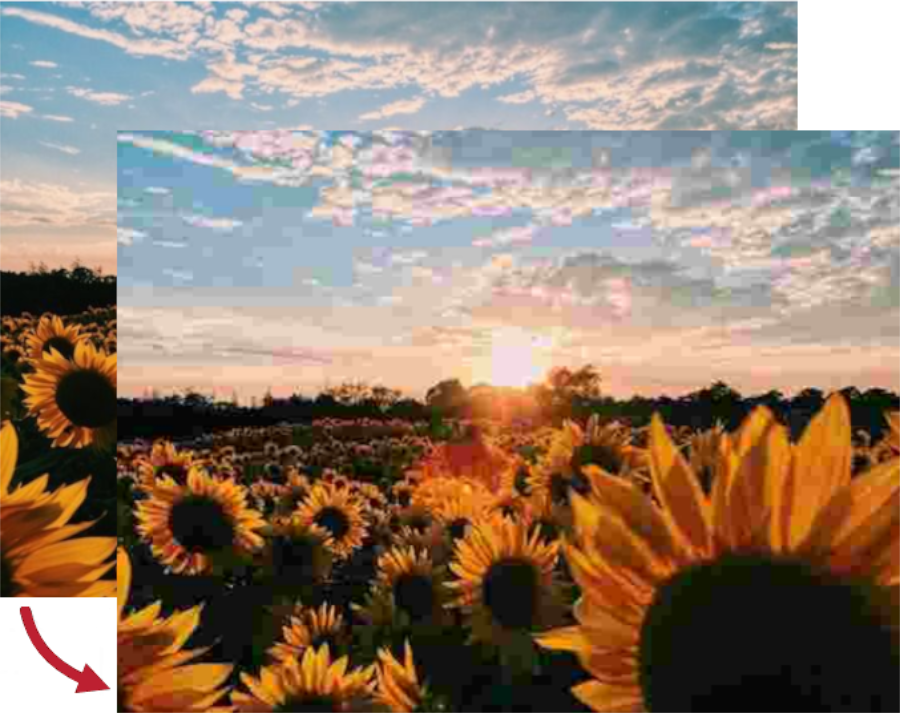
If the output PDF file contains images, you can reduce its size using image compression.
To enable image compression, set the [compress_images](https://reference.groupdocs.com/viewer/python-net/groupdocs.viewer.options/pdfoptimizationoptions/#properties) property to `True`. The GroupDocs.Viewer compresses all images in the file.
The [image_quality](https://reference.groupdocs.com/viewer/python-net/groupdocs.viewer.options/pdfoptimizationoptions/#properties) property determines the compression ratio. It is a quality value in percent. 100% means original quality.
The following code snippet shows how to compress images in the file:
{{< tabs "Example1">}}
{{< tab "Python" >}}
```python
from groupdocs.viewer import Viewer
from groupdocs.viewer.options import PdfViewOptions, PdfOptimizationOptions
def reduce_image_quality():
# Load document
with Viewer("sample.docx") as viewer:
viewOptions = PdfViewOptions("reduce_image_quality/reduced_quality.pdf")
viewOptions.pdf_optimization_options = PdfOptimizationOptions()
viewOptions.pdf_optimization_options.compress_images = True
viewOptions.pdf_optimization_options.image_quality = 50
viewer.view(viewOptions)
if __name__ == "__main__":
reduce_image_quality()
```
{{< /tab >}}
{{< tab "sample.docx" >}}
{{< tab-text >}}
`sample.docx` is the sample file used in this example. Click [here](https://docs.groupdocs.com/viewer/python-net/_sample_files/developer-guide/rendering-documents/rendering-to-pdf/optimization-pdf-options/optimize-images/optimization-pdf-reduce-image-quality/sample.docx) to download it.
{{< /tab-text >}}
{{< /tab >}}
{{< tab "reduced_quality.pdf" >}}
```text
Binary file (PDF, 233 KB)
```
[Download full output](https://docs.groupdocs.com/viewer/python-net/_output_files/developer-guide/rendering-documents/rendering-to-pdf/optimization-pdf-options/optimize-images/optimization-pdf-reduce-image-quality/reduce_image_quality/reduced_quality.pdf)
{{< /tab >}}
{{< /tabs >}}
The following image demonstrates the result:
---
## Remove annotations
Path: https://docs.groupdocs.com/viewer/python-net/optimization-pdf-remove-annotations/
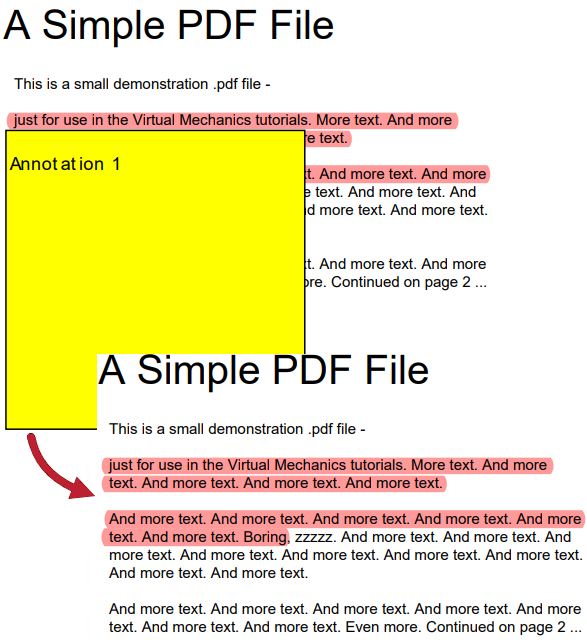
If the output PDF file contains annotations, you can remove them to reduce the file size.
To remove annotations, set the [remove_annotations](https://reference.groupdocs.com/viewer/python-net/groupdocs.viewer.options/pdfoptimizationoptions/#properties) property to `True`.
The following code snippet shows how to remove annotations from the file:
{{< tabs "Example1">}}
{{< tab "Python" >}}
```python
from groupdocs.viewer import Viewer
from groupdocs.viewer.options import PdfViewOptions, PdfOptimizationOptions
def remove_annotations():
# Load document
with Viewer("sample.docx") as viewer:
viewOptions = PdfViewOptions("remove_annotations/without_annotations.pdf")
viewOptions.pdf_optimization_options = PdfOptimizationOptions()
viewOptions.pdf_optimization_options.remove_annotations = True
viewer.view(viewOptions)
if __name__ == "__main__":
remove_annotations()
```
{{< /tab >}}
{{< tab "sample.docx" >}}
{{< tab-text >}}
`sample.docx` is the sample file used in this example. Click [here](https://docs.groupdocs.com/viewer/python-net/_sample_files/developer-guide/rendering-documents/rendering-to-pdf/optimization-pdf-options/optimize-content/optimization-pdf-remove-annotations/sample.docx) to download it.
{{< /tab-text >}}
{{< /tab >}}
{{< tab "without_annotations.pdf" >}}
```text
Binary file (PDF, 234 KB)
```
[Download full output](https://docs.groupdocs.com/viewer/python-net/_output_files/developer-guide/rendering-documents/rendering-to-pdf/optimization-pdf-options/optimize-content/optimization-pdf-remove-annotations/remove_annotations/without_annotations.pdf)
{{< /tab >}}
{{< /tabs >}}
The following image demonstrates the result:
---
## Render CAD drawings and models as HTML, PDF, and image files
Path: https://docs.groupdocs.com/viewer/python-net/render-cad-drawings-and-models/
[GroupDocs.Viewer for Python via .NET](https://products.groupdocs.com/viewer/python-net) allows you to render your CAD drawings and 3D models in HTML, PDF, PNG, and JPEG formats. You do not need to use AutoCAD or other CAD software to load and view CAD files within your Python application (web or desktop).
Create a [Viewer](https://reference.groupdocs.com/viewer/python-net/groupdocs.viewer/viewer) class instance to get started with the GroupDocs.Viewer API. Pass a CAD drawing you want to view to the class constructor. You can load the drawing from a file or stream. Call one of the [Viewer.View](https://reference.groupdocs.com/viewer/python-net/groupdocs.viewer/viewer/#methods) method overloads to convert the drawing to HTML, PDF, or image format.
{{< button style="primary" link="https://products.groupdocs.app/viewer/cad" >}} {{< icon "gdoc_person" >}} View CAD files online {{< /button >}} {{< button style="primary" link="https://github.com/groupdocs-viewer/GroupDocs.Viewer-for-Python-via-.NET" >}} {{< icon "gdoc_github" >}} View demos and examples on GitHub {{< /button >}}
## Supported CAD file formats
GroupDocs.Viewer supports the following CAD and 3D file formats:
* [AutoCAD Drawing](https://docs.fileformat.com/cad/dwg/) (.DWG)
* [AutoCAD Drawing Template](https://docs.fileformat.com/cad/dwt) (.DWT)
* [Design Web Format](https://docs.fileformat.com/cad/dwf/) (.DWF)
* [Drawing Exchange Format](https://docs.fileformat.com/cad/dxf) (.DXF)
* [AutoCAD Plotter Document](https://docs.fileformat.com/cad/plt) (.PLT)
* [MicroStation Design File (V7)](https://docs.fileformat.com/cad/dgn) (.DGN)
* [Industry Foundation Classes](https://docs.fileformat.com/cad/ifc) (.IFC)
* [Stereolithography File](https://docs.fileformat.com/cad/stl) (.STL)
* [Wavefront 3D Object File](https://docs.fileformat.com/3d/obj/) (.OBJ)
* [Common File Format](https://docs.fileformat.com/cad/cf2/) (.CF2)
* [IGES (Initial Graphics Exchange Specification) Drawing](https://docs.fileformat.com/cad/igs/) (.IGS)
* [HPGL (Hewlett-Packard Graphics Language) Plot File](https://docs.fileformat.com/cad/hpgl/) (.HPG)
GroupDocs.Viewer can detect the document format automatically based on information in the file header.
## Render CAD drawings as HTML
Create an [HtmlViewOptions](https://reference.groupdocs.com/viewer/python-net/groupdocs.viewer.options/htmlviewoptions) class instance and pass it to the [Viewer.View](https://reference.groupdocs.com/viewer/python-net/groupdocs.viewer/viewer/#methods) method to convert a CAD file to HTML. During the conversion, GroupDocs.Viewer creates an [SVG](https://docs.fileformat.com/page-description-language/svg/) image from the CAD drawing and embeds this image in an [HTML](https://docs.fileformat.com/web/html/) document.
The `HtmlViewOptions` class properties allow you to control the conversion process. For instance, you can embed all external resources in the generated HTML file, minify the output file, and optimize it for printing. Refer to the following documentation section for details: [Rendering to HTML]({{< ref "viewer/python-net/developer-guide/rendering-documents/rendering-to-html/_index.md" >}}).
### Create an HTML file with embedded resources
To save all elements of an HTML page (including text, graphics, and stylesheets) into a single file, call the [HtmlViewOptions.for_embedded_resources](https://reference.groupdocs.com/viewer/python-net/groupdocs.viewer.options/htmlviewoptions/#methods) method and specify the output file name.
{{< tabs "example1">}}
{{< tab "Python" >}}
```python
from groupdocs.viewer import Viewer
from groupdocs.viewer.options import HtmlViewOptions
def render_cad_to_html():
# Load CAD file
with Viewer("sample.dwg") as viewer:
# Create an HTML file for the drawing.
# Specify the HTML file name.
viewOptions = HtmlViewOptions.for_embedded_resources("render_cad_to_html/pdf_page_{0}.html")
viewer.view(viewOptions)
if __name__ == "__main__":
render_cad_to_html()
```
{{< /tab >}}
{{< tab "sample.dwg" >}}
{{< tab-text >}}
`sample.dwg` is the sample file used in this example. Click [here](https://docs.groupdocs.com/viewer/python-net/_sample_files/rendering-basics/render-cad-documents/sample.dwg) to download it.
{{< /tab-text >}}
{{< /tab >}}
{{< tab "pdf_page_1.html" >}}
```text
Page-1