Features Overview Leave feedback
On this page
The term rendering in GroupDocs.Viewer describes the process of converting a document into a file format that preserves page boundaries. For example, when a three-page DOCX file is rendered to HTML, the result is three HTML files — one per page. See the Developer Guide for runnable examples.
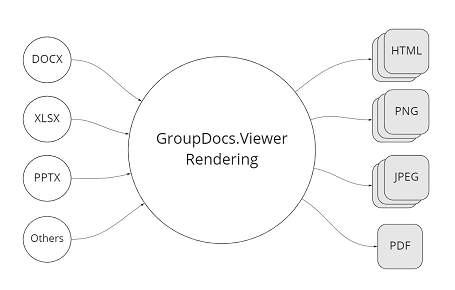
Rendering to HTML is the best choice when you need to:
- Build a web-based application and display document content inside a browser.
- Allow users to interact with the rendered text — select, copy, or search it.
- View document pages separately.
- Zoom in on a document without quality loss.
- Rotate, reorder, or watermark pages.
GroupDocs.Viewer for Python offers two HTML resource-management modes:
- HTML with external resources — stores page resources (CSS, fonts, images) next to the HTML file so common resources are reused across pages. Reduces overall page size and speeds up loading.
- HTML with embedded resources — inlines every resource into the HTML file so each page is self-contained. Larger individual files but easier to distribute.
Rendering to PNG or JPEG is the best choice when you need to:
- Support any type of application (desktop, web, mobile, CLI).
- Restrict interaction with rendered text — for example, to prevent copying. You can still extract a text layer separately if you want to overlay selectable text on the image.
- View document pages separately.
- Rotate, reorder, or watermark pages.
A quick comparison of the two image formats:
- PNG is a lossless raster format that supports full-colour images and transparency. PNG does not expose a quality setting. It is a good choice for line drawings, text, and iconic graphics at small file sizes.
- JPEG is a lossy compressed format whose quality can be tuned — lowering the quality removes detail and adds noise, but the file becomes smaller. JPEG is optimal for photographs and any image with a large colour range, and is a common web choice thanks to its compression ratio.
GroupDocs.Viewer renders a document into a single PDF file. Rendering to PDF is the best choice when you need to:
- Print documents.
- Send documents via email.
- Distribute all pages as a single file rather than a collection of per-page files.
GroupDocs.Viewer for Python exposes basic information about a source document — file type, page count, text with coordinates, and more — without rendering. See Get Document Info.
Format-specific information is also available:
- Archive — list of folders contained in the archive.
- CAD — list of layers and layouts in a CAD document.
- Email — list of folders contained in an Outlook data file.
- PDF — a flag that indicates whether document printing is allowed.
- Project Management — project start and end dates.
You can opt to extract document text when rendering to PNG or JPEG. The text is returned together with per-word coordinates, which is helpful when overlaying a selectable text layer on a page image.
In GroupDocs.Viewer, attachments covers email attachments, files embedded in PDFs, and individual items inside compressed archives.
With GroupDocs.Viewer you can list and save:
- Email attachments.
- Files embedded in PDF documents.
- Email messages contained in Outlook and Lotus Notes data files.
- Individual files inside archive containers.
See Processing Attachments for a runnable example.
GroupDocs.Viewer for Python ships a set of options to transform each rendered page:
- Rotate pages — change page orientation when rendering to HTML, JPG, PNG, or PDF.
- Add a text watermark — stamp a text watermark on every rendered page.
- Reorder pages — render pages in any order you prefer, including when rendering to PDF.
GroupDocs.Viewer for Python supports caching to accelerate repeat renderings and reduce overall load on the application.
By default, the cache is stored on the local disk. The viewer API also exposes cache interfaces that can be implemented for third-party storage — FTP, Amazon S3, Dropbox, Google Drive, Microsoft Azure, Redis, or any other backend.
Was this page helpful?
Any additional feedback you'd like to share with us?
Please tell us how we can improve this page.
Thank you for your feedback!
We value your opinion. Your feedback will help us improve our documentation.