# Features Overview
Render documents to HTML, PDF, PNG, or JPEG; extract text; list attachments; and apply rotations, reorders, and watermarks with GroupDocs.Viewer for Python via .NET.
## Rendering Documents
The term *rendering* in GroupDocs.Viewer describes the process of converting a document into a file format that preserves page boundaries. For example, when a three-page DOCX file is rendered to HTML, the result is three HTML files — one per page. See the [Developer Guide]({{< ref "viewer/python-net/developer-guide/rendering-documents/_index.md" >}}) for runnable examples.
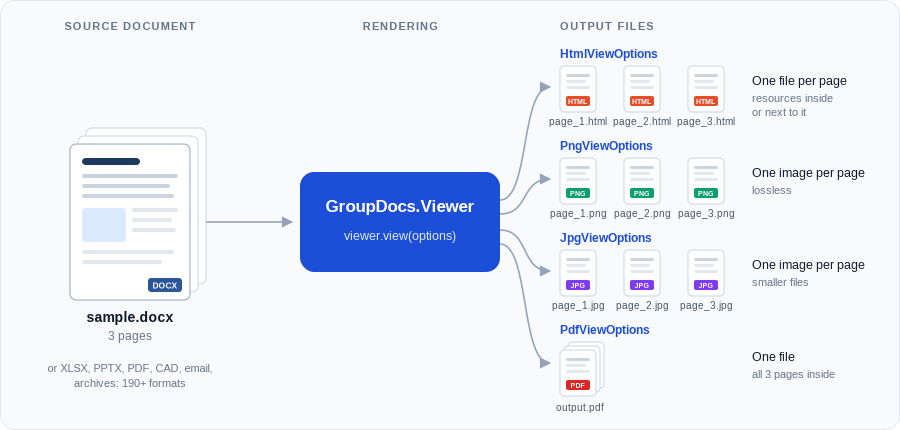
### Rendering to HTML
Rendering to HTML is the best choice when you need to:
- Build a web-based application and display document content inside a browser.
- Allow users to interact with the rendered text — select, copy, or search it.
- View document pages separately.
- Zoom in on a document without quality loss.
- Rotate, reorder, or watermark pages.
GroupDocs.Viewer for Python offers two HTML resource-management modes:
- **HTML with external resources** — stores page resources (CSS, fonts, images) next to the HTML file so common resources are reused across pages. Reduces overall page size and speeds up loading.
- **HTML with embedded resources** — inlines every resource into the HTML file so each page is self-contained. Larger individual files but easier to distribute.
### Rendering to PNG or JPEG
Rendering to PNG or JPEG is the best choice when you need to:
- Support any type of application (desktop, web, mobile, CLI).
- Restrict interaction with rendered text — for example, to prevent copying. You can still extract a text layer separately if you want to overlay selectable text on the image.
- View document pages separately.
- Rotate, reorder, or watermark pages.
A quick comparison of the two image formats:
- **PNG** is a lossless raster format that supports full-colour images and transparency. PNG does not expose a quality setting. It is a good choice for line drawings, text, and iconic graphics at small file sizes.
- **JPEG** is a lossy compressed format whose quality can be tuned — lowering the quality removes detail and adds noise, but the file becomes smaller. JPEG is optimal for photographs and any image with a large colour range, and is a common web choice thanks to its compression ratio.
### Rendering to PDF
GroupDocs.Viewer renders a document into a single PDF file. Rendering to PDF is the best choice when you need to:
- Print documents.
- Send documents via email.
- Distribute all pages as a single file rather than a collection of per-page files.
### Rendering to memory
Every output can go to memory instead of files: pass a function that returns an `io.BytesIO` (or any writable stream) to `PngViewOptions`, `JpgViewOptions`, `PdfViewOptions` or `HtmlViewOptions`, and each buffer is filled by the time `view()` returns. This suits web services that send pages straight to the client, and storage that is not a local disk. See [Save output to a stream]({{< ref "viewer/python-net/developer-guide/rendering-documents/save-output-to-stream.md" >}}).
### Cancelling a render
A long render can be stopped from another thread, or after a time limit, with a `CancellationTokenSource` (since 26.11). See [Cancel rendering]({{< ref "viewer/python-net/developer-guide/rendering-documents/cancel-rendering.md" >}}) for what the engine checks, and how to stop a render it does not.
## Viewing Documents in the Browser
The package installs a `groupdocs-viewer` command (since 26.11). `groupdocs-viewer report.docx` or `groupdocs-viewer ~/documents` starts a local web server and opens the GroupDocs.Viewer UI in your browser, with page navigation, zoom, thumbnails, search, print and PDF download. It needs nothing beyond the package. See [View documents in the browser]({{< ref "viewer/python-net/getting-started/view-documents-in-the-browser.md" >}}).
## Retrieving Document Information
GroupDocs.Viewer for Python exposes basic information about a source document — file type, page count, text with coordinates, and more — without rendering. See [Get Document Info]({{< ref "viewer/python-net/developer-guide/get-document-info" >}}).
Format-specific information is also available:
- **Archive** — list of folders contained in the archive.
- **CAD** — list of layers and layouts in a CAD document.
- **Email** — list of folders contained in an Outlook data file.
- **PDF** — a flag that indicates whether document printing is allowed.
- **Project Management** — project start and end dates.
### Text extraction
You can opt to extract document text when rendering to PNG or JPEG. The text is returned together with per-word coordinates, which is helpful when overlaying a selectable text layer on a page image.
## Processing Attachments
In GroupDocs.Viewer, *attachments* covers email attachments, files embedded in PDFs, and individual items inside compressed archives.
With GroupDocs.Viewer you can list and save:
- Email attachments.
- Files embedded in PDF documents.
- Email messages contained in Outlook and Lotus Notes data files.
- Individual files inside archive containers.
See [Processing Attachments]({{< ref "viewer/python-net/developer-guide/processing-attachments" >}}) for a runnable example.
## Output Transformation
GroupDocs.Viewer for Python ships a set of options to transform each rendered page:
- **Rotate pages** — change page orientation when rendering to HTML, JPG, PNG, or PDF.
- **Add a text watermark** — stamp a text watermark on every rendered page.
- **Reorder pages** — render pages in any order you prefer, including when rendering to PDF.
## Caching Results
GroupDocs.Viewer for Python can keep rendered pages in a cache on the local disk (`FileCache`, passed through `ViewerSettings`), so a second rendering of the same document is served from the cache.
The .NET API's cache interface (`ICache`) for other storage, such as Redis or a cloud bucket, cannot be implemented in Python. To keep rendered pages in your own storage, render to memory (above) and store the buffers yourself; the [GroupDocs.Viewer UI package](https://pypi.org/project/groupdocs-viewer-net-ui/) does this for a web application.