Render PDF documents as HTML and image files Leave feedback
On this page
GroupDocs.Viewer for Node.js allows you to render your PDF files in HTML, PNG, and JPEG formats. Use this library to implement a simple PDF viewer within your Java application (web or desktop).
Create a Viewer class instance to get started with the GroupDocs.Viewer API. Pass a document you want to view to the class constructor. You can load the document from a file or stream. Call one of the Viewer.view method overloads to convert the document to HTML or image format. These methods allow you to render the entire document or specific pages.
GroupDocs.Viewer supports the following PDF and Page Layout file formats:
- Portable Document Format (.PDF)
- Microsoft XML Paper Specification (.XPS)
- Open XML Paper Specification (.OXPS)
- LaTeX Source Document (.TEX)
- Open Fixed-layout Document (.OFD)
Create an HtmlViewOptions class instance and pass it to the Viewer.view method to convert a PDF file to HTML. The HtmlViewOptions class properties allow you to control the conversion process. For instance, you can embed all external resources in the generated HTML file, minify the output file, and optimize it for printing. Refer to the following documentation section for details: Rendering to HTML.
To save all elements of an HTML page (including text, graphics, and stylesheets) into a single file, call the HtmlViewOptions.forEmbeddedResources method and specify the output file name.
import { Viewer, HtmlViewOptions } from '@groupdocs/groupdocs.viewer';

const viewer = new Viewer("resume.pdf")
// Create an HTML files.
// {0} is replaced with the current page number in the file name.
const viewOptions = HtmlViewOptions.forEmbeddedResources("render-pdf-to-html-embedded/pdf-to-html-page_{0}.html")
viewer.view(viewOptions)
resume.pdf is the sample file used in this example. Click here to download it.
The following image demonstrates the result:
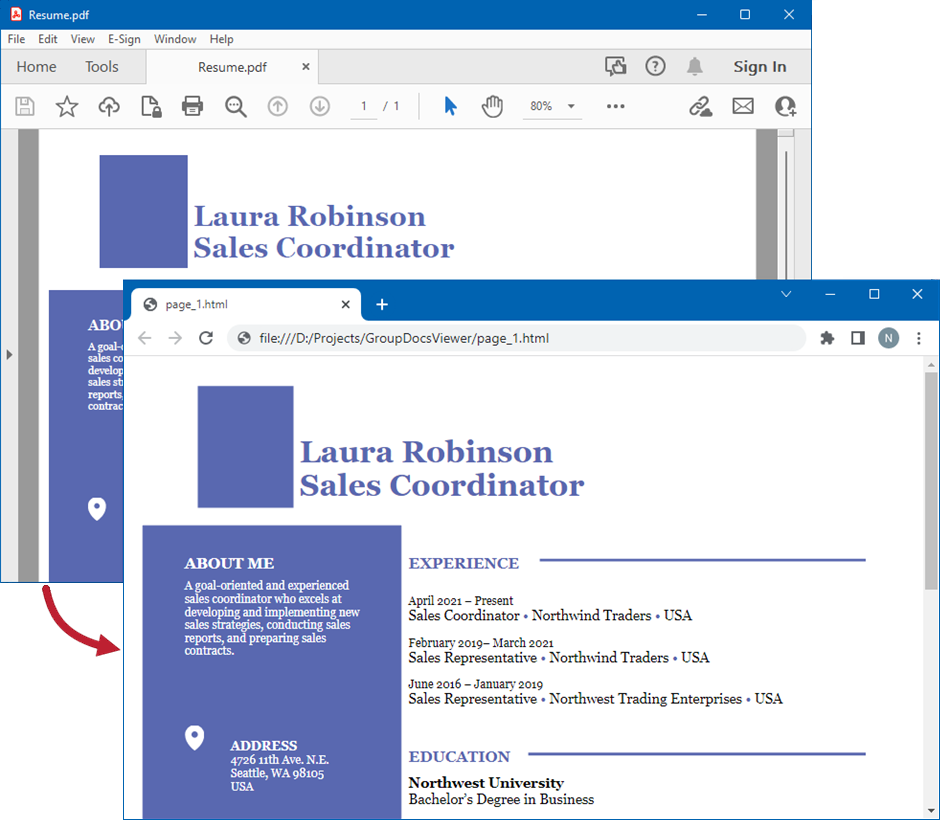
If you want to store an HTML file and additional resource files (such as fonts, images, and stylesheets) separately, call the HtmlViewOptions.forExternalResources method and pass the following parameters:
- The output file path format
- The path format for the folder with external resources
- The resource URL format
import { Viewer, HtmlViewOptions } from '@groupdocs/groupdocs.viewer';

const viewer = new Viewer("resume.pdf")
 // Create an HTML file for each PDF page.
// Specify the HTML file names and location of external resources.
// {0} and {1} are replaced with the current page number and resource name, respectively.
const viewOptions = HtmlViewOptions.forExternalResources("render-pdf-to-html-external/pdf-to-html-page_{0}.html", "render-pdf-to-html-external/pdf-to-html-page_{0}/resource_{0}_{1}", "render-pdf-to-html-external/pdf-to-html-page_{0}/resource_{0}_{1}")
viewer.view(viewOptions)
resume.pdf is the sample file used in this example. Click here to download it.
The image below demonstrates the result. External resources are placed in a separate folder.
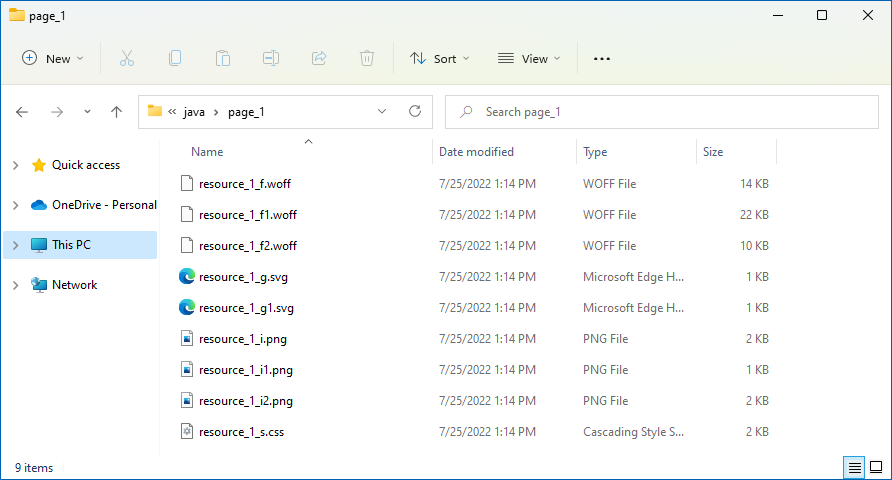
By default, PDF and EPUB documents are rendered to HTML with fixed layout to ensure that the output HTML looks the same as a source document. Rendering to fixed layout means that all the HTML elements are absolutely positioned to the container element. And container element has a fixed size so browser window resizing will not have an effect on the position and size of elements in a document.
The following image demonstrates PDF document rendered HTML with fixed layout:
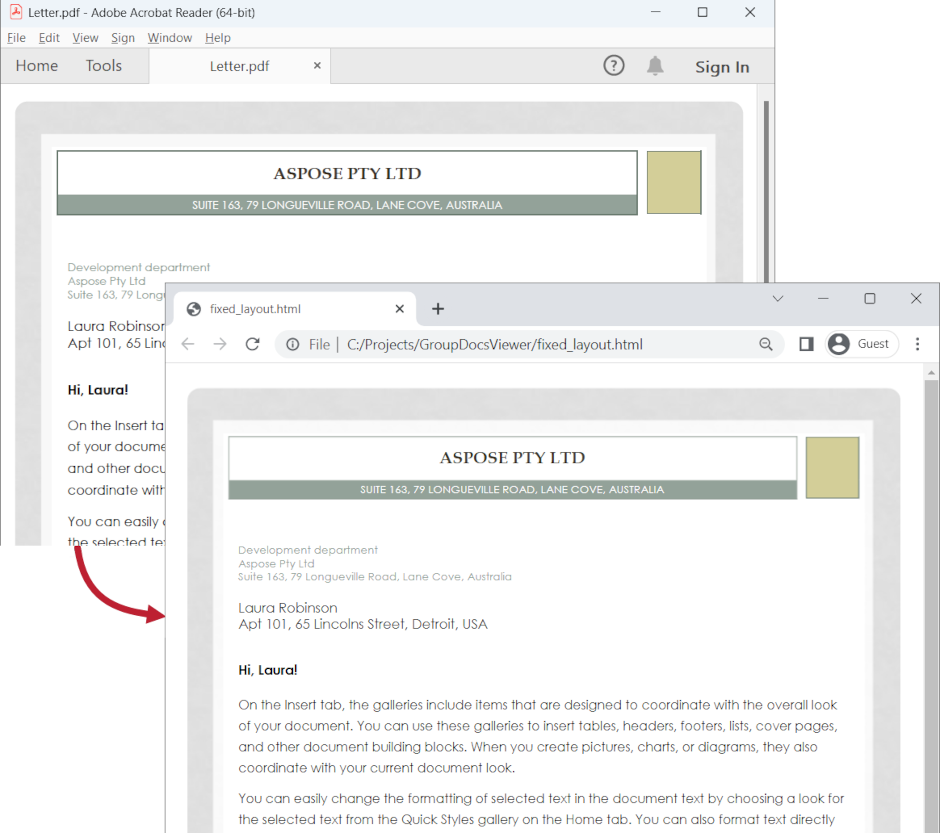
The HtmlviewOptions.getPdfOptions().setImageQuality() methods allows you to specify the quality of images in the output HTML file. You can set this property to one of the following values:
- ImageQuality.LOW — The image resolution is low (96 DPI), and the image size is small. Use this value to increase the conversion performance.
- ImageQuality.MEDIUM — The image resolution is medium (192 DPI), and the image size is larger compared to the low quality images.
- ImageQuality.HIGH — The image resolution is high (300 DPI), and the image size is big. Use of this value may decrease the conversion performance.
The following code snippet shows how to set the medium image quality when rendering a PDF document to HTML:
import { Viewer, HtmlViewOptions, ImageQuality } from '@groupdocs/groupdocs.viewer';

const viewer = new Viewer("resume.pdf")
// Create an HTML files.
// {0} is replaced with the current page number in the file name.
const viewOptions = HtmlViewOptions.forEmbeddedResources("render-pdf-with-image-quality/pdf-to-html-page_{0}.html")
// Set image quality to medium.
viewOptions.getPdfOptions().setImageQuality(ImageQuality.MEDIUM)
viewer.view(viewOptions)
resume.pdf is the sample file used in this example. Click here to download it.
GroupDocs.Viewer supports the HtmlViewOptions.getPdfOptions().setRenderTextAsImage option that allows you to render text as an image when you convert a PDF file to HTML. In this case, the layout of the output HTML file closely mirrors the layout of the source PDF document.
The following code snippet shows how to enable this option in code:
import { Viewer, HtmlViewOptions } from '@groupdocs/groupdocs.viewer';

const viewer = new Viewer("resume.pdf")
// Create an HTML files.
// {0} is replaced with the current page number in the file name.
const viewOptions = HtmlViewOptions.forEmbeddedResources("render-pdf-text-as-image/pdf-to-html-page_{0}.html")
// Enable rendering text as image.
viewOptions.getPdfOptions().setRenderTextAsImage(true)
viewer.view(viewOptions)
resume.pdf is the sample file used in this example. Click here to download it.
The image below illustrates the result. PDF content is exported to HTML as an image, so users cannot select or copy document text.
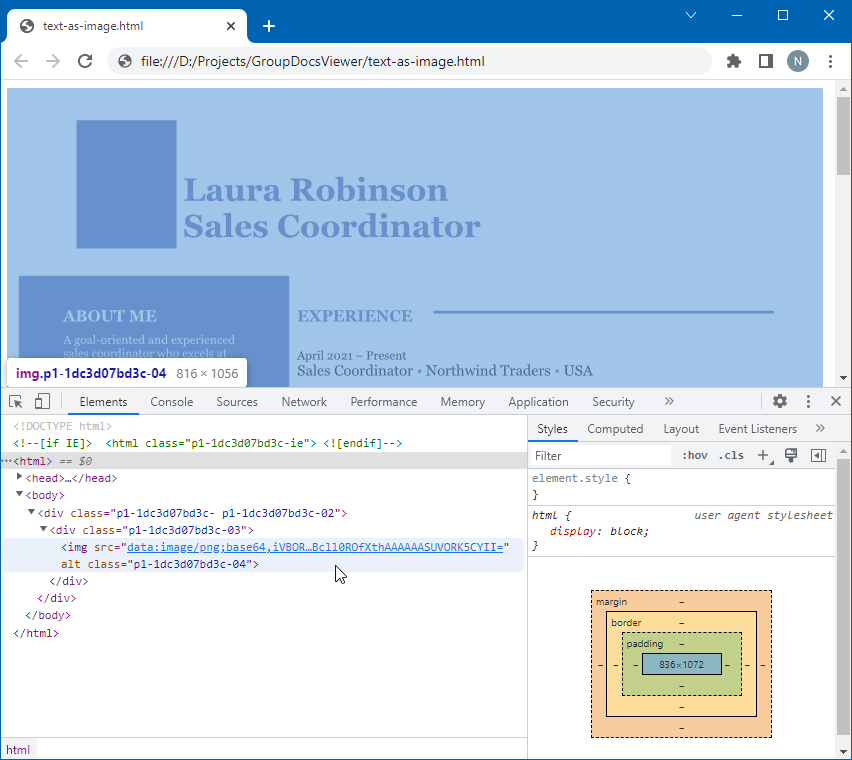
When you convert a PDF file to HTML, GroupDocs.Viewer creates an HTML document with a single layer (the z-index is not specified for document elements). This helps increase performance and reduce the output file size. If you convert a PDF document with multiple layers and want to improve the position of document elements in the output HTML file, use the HtmlViewOptions.getPdfOptions().setEnableLayeredRendering method to render text and graphics in the HTML file according to their z-order in the source PDF document.
The following code snippet shows how to enable the multi-layer rendering:
import { Viewer, HtmlViewOptions } from '@groupdocs/groupdocs.viewer';

const viewer = new Viewer("resume.pdf")
// Create an HTML files.
// {0} is replaced with the current page number in the file name.
const viewOptions = HtmlViewOptions.forEmbeddedResources("render-pdf-with-multi-layer/pdf-to-html-page_{0}.html")
// Enable the multi-layer rendering.
viewOptions.getPdfOptions().setEnableLayeredRendering(true)
viewer.view(viewOptions)
resume.pdf is the sample file used in this example. Click here to download it.
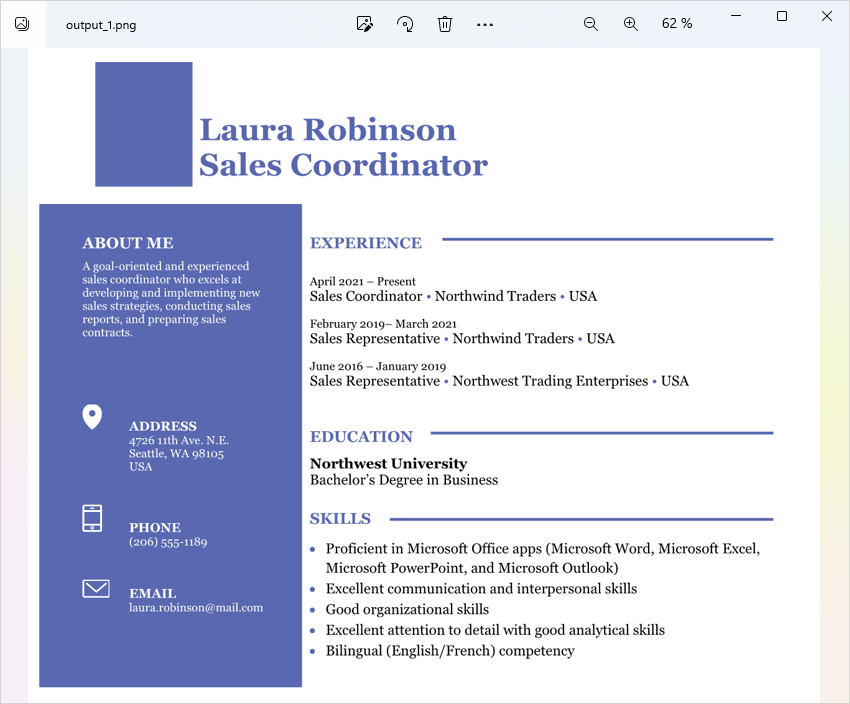
Create a PngViewOptions class instance and pass it to the Viewer.view method to convert a PDF file to PNG. Use the PngViewOptions.setHeight and PngViewOptions.setWidth methods to specify the output image size in pixels.
import { Viewer, PngViewOptions } from '@groupdocs/groupdocs.viewer';

const viewer = new Viewer("resume.pdf")
// Create a PNG image for each PDF page.
// {0} is replaced with the current page number in the image name.
const viewOptions = PngViewOptions("render-pdf-to-png/pdf-to-png-page_{0}.png")
// Set width and height.
viewOptions.setWidth(950)
viewOptions.setHeight(550)
viewer.view(viewOptions)
resume.pdf is the sample file used in this example. Click here to download it.
The following image demonstrates the result:
Create a JpgViewOptions class instance and pass it to the Viewer.view method to convert a PDF file to JPEG. Use the JpgViewOptions.setHeight and JpgViewOptions.setWidth methods to specify the output image size in pixels.
import { Viewer, JpgViewOptions } from '@groupdocs/groupdocs.viewer';

const viewer = new Viewer("resume.pdf")
// Create a JPG image for each PDF page.
// {0} is replaced with the current page number in the image name.
const viewOptions = JpgViewOptions("render-pdf-to-jpeg/pdf-to-jpg-page_{0}.jpg")
// Set width and height.
viewOptions.setWidth(950)
viewOptions.setHeight(550)
viewer.view(viewOptions)
resume.pdf is the sample file used in this example. Click here to download it.
When you render PDF documents as images, GroupDocs.Viewer calculates the optimal image size to achieve better rendering quality. If you want the generated images to be the same size as pages in the source PDF document, use the PdfOptions.setRenderOriginalPageSize method of the PngViewOptions or JpgViewOptions class (depending on the output image format).
import { Viewer, PngViewOptions } from '@groupdocs/groupdocs.viewer';

const viewer = new Viewer("resume.pdf")
// Create a PNG image for each PDF page.
// {0} is replaced with the current page number in the image name.
const viewOptions = PngViewOptions("render-pdf-preserve-page-size/pdf-to-png-page_{0}.png")
// Preserve the size of document pages.
viewOptions.getPdfOptions().setRenderOriginalPageSize(true)
viewer.view(viewOptions)
resume.pdf is the sample file used in this example. Click here to download it.
To adjust the display of outline fonts when you convert PDF documents to PNG or JPEG, use the PdfOptions.setEnableFontHinting method, as shown below:
import { Viewer, PngViewOptions } from '@groupdocs/groupdocs.viewer';

const viewer = new Viewer("resume.pdf")
// Create a PNG image for each PDF page.
// {0} is replaced with the current page number in the image name.
const viewOptions = PngViewOptions("render-pdf-enable-font-hinting/pdf-to-png-page_{0}.png")
// Enable font hinting
viewOptions.getPdfOptions().setEnableFontHinting(true)
viewer.view(viewOptions)
resume.pdf is the sample file used in this example. Click here to download it.
Refer to the following article for more information on font hinting: Font hinting.
When you render PDF files in other formats, GroupDocs.Viewer groups individual characters into words to improve rendering performance. If your document contains hieroglyphic or special symbols, you may need to disable character grouping to generate a more precise layout. To do this, use the PdfOptions.setDisableCharsGrouping method, as shown below:
import { Viewer, PngViewOptions } from '@groupdocs/groupdocs.viewer';

const viewer = new Viewer("resume.pdf")
// Create a PNG image for each PDF page.
// {0} is replaced with the current page number in the image name.
const viewOptions = PngViewOptions("render-pdf-disable-chars-grouping/pdf-to-png-page_{0}.png")
// Disable character grouping.
viewOptions.getPdfOptions().setDisableCharsGrouping(true)
viewer.view(viewOptions)
resume.pdf is the sample file used in this example. Click here to download it.
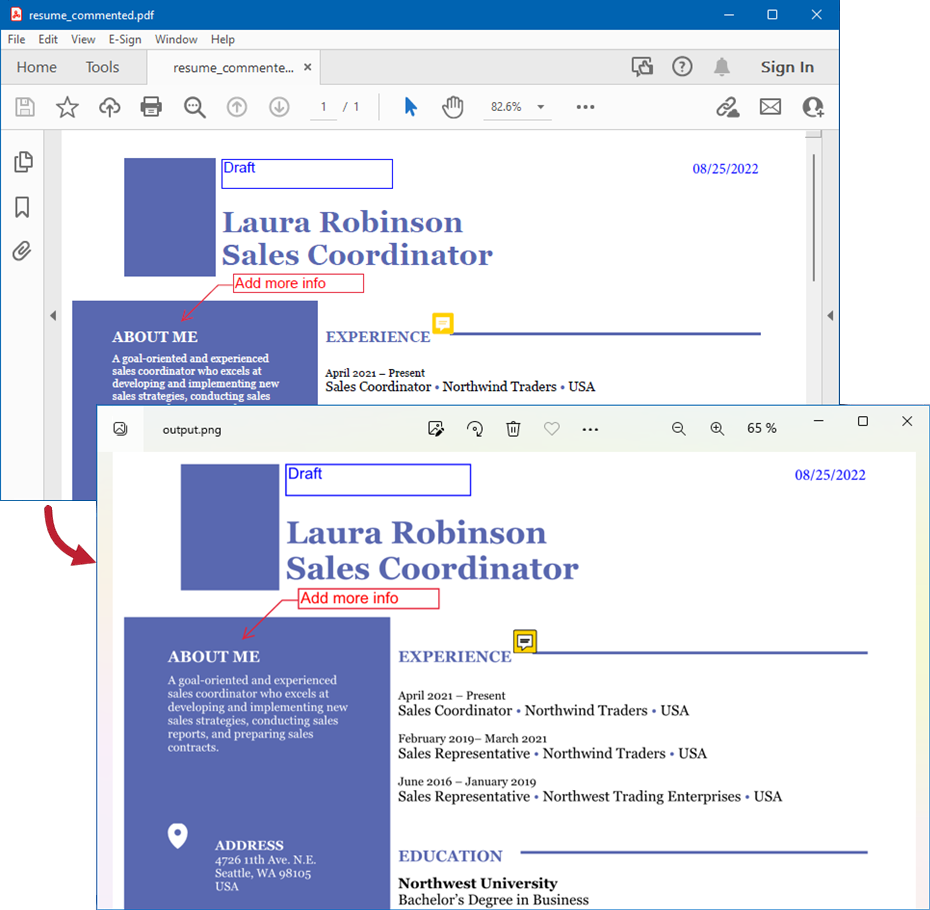
Use the ViewOptions.setRenderComments method for a target view to display textual annotations (such as text comments, sticky notes, text boxes and callouts) in the output HTML, PNG, or JPEG files.
The code example below renders a PDF file with text comments as an image.
import { Viewer, PngViewOptions } from '@groupdocs/groupdocs.viewer';

const viewer = new Viewer("resume.pdf")
// Create a PNG image for each PDF page.
// {0} is replaced with the current page number in the image name.
const viewOptions = PngViewOptions("render-pdf-to-png/pdf-to-png-page_{0}.png")
// Enable rendering comments.
viewOptions.setRenderComments(true)
viewer.view(viewOptions)
resume.pdf is the sample file used in this example. Click here to download it.
The following image illustrates the result:
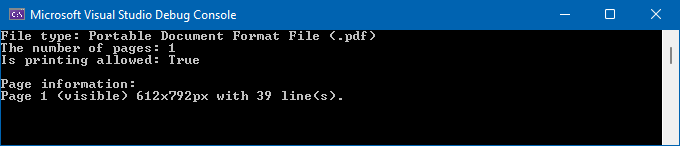
Follow the steps below to obtain information about a PDF file (the number of pages, page size, and printing permissions):
- Create a ViewInfoOptions instance for a specific view.
- Call the Viewer.getViewInfo method, pass the
ViewInfoOptionsinstance to this method as a parameter, and cast the returned object to the PdfViewInfo type. - Use the
PdfViewInfoclass properties to retrieve document-specific information.
import { Viewer, ViewInfoOptions } from '@groupdocs/groupdocs.viewer';

const viewInfoOptions = ViewInfoOptions.forHtmlView();
const viewer = new Viewer("resume.pdf")
const viewInfo = viewer.getViewInfo(viewInfoOptions)

// Display information about the PDF document.
console.log("File type: " + viewInfo.getFileType());
console.log("The number of pages: " + viewInfo.getPages().size());
console.log("Is printing allowed: " + viewInfo.isPrintingAllowed());
resume.pdf is the sample file used in this example. Click here to download it.
The following image shows a sample console output:
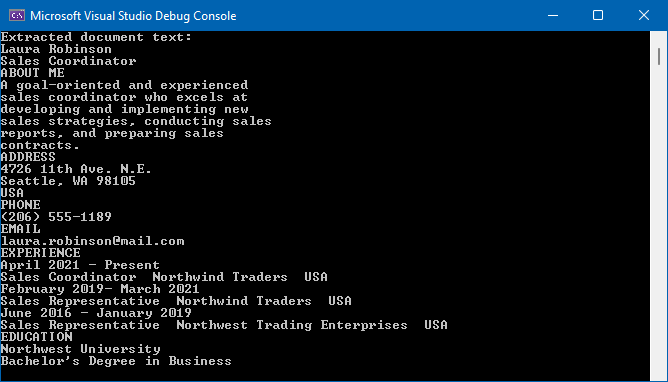
Use the ViewInfoOptions.setExtractText method to enable PDF text extraction. Use the PdfViewInfo.getPages methods to obtain the list of all document pages, and use the (Page.getLines method to retrieve text for each line.
import { Viewer, ViewInfoOptions } from '@groupdocs/groupdocs.viewer';

const viewInfoOptions = ViewInfoOptions.forHtmlView();
viewInfoOptions.setExtractText(true)

const viewer = new Viewer("resume.pdf")
const viewInfo = viewer.getViewInfo(viewInfoOptions)

// Retrieve text from the PDF file.
viewInfo.getPages().toArray().forEach(function(page) {
  page.getLines().toArray().forEach(function(line){
    console.log(line.getValue())
    })
  })
resume.pdf is the sample file used in this example. Click here to download it.
Starting from the version 26.9, GroupDocs.Viewer for Node.js via Java supports the OFD (Open Fixed-layout Document) format, defined by GB/T 33190-2016, which aims to replace PDF in Chinese public institutions. For processing all documents of this format, GroupDocs.Viewer requires that the font SimSun.ttf is installed on the operating system. On Microsoft Windows this is usually not a problem, because SimSun is preinstalled in Windows versions and editions starting from Windows 7 (for example, Windows 7 has preinstalled SimSun version 5.03, while Windows 10 — SimSun version 5.16). On Linux, SimSun is usually not installed, and when trying to process such a file on Linux, a GroupDocsViewerException : Could not load file. File is corrupted or damaged. - Font SimSun was not found exception will be thrown.
To view and save an arbitrary OFD file on Linux, load SimSun.ttf into GroupDocs.Viewer using the FolderFontSource class and the FontSettings.setFontSources method, and do this before creating a Viewer instance with the OFD file. See also Render a PSD file with custom fonts for a related custom-font example. A short example of setting SimSun and saving OFD to HTML on Linux is below:
import { Viewer, HtmlViewOptions, FolderFontSource, FontSettings, SearchOption } from '@groupdocs/groupdocs.viewer';

// Put SimSun.ttf into the folder
const simSunFolderPath = "full-valid-path/folder-with-SimSun-inside"
const fontSource = new FolderFontSource(simSunFolderPath, SearchOption.TOP_FOLDER_ONLY)
FontSettings.setFontSources(fontSource)

const viewer = new Viewer("input.ofd")
const viewOptions = HtmlViewOptions.forEmbeddedResources()
viewer.view(viewOptions)
PDF documents may contain specific annotations represented as popups, also called balloon hints, which are hidden by default but appear when the user hovers the mouse cursor over them and/or clicks them. Another annotation type, highlight annotations, highlights a portion of text or an area on the page and can have bound comments that are also hidden by default and appear when clicking the highlight. Before version 26.9 of GroupDocs.Viewer it was not possible to view such annotation types regardless of the selected output format; the only way to see them was to open the original PDF document in a desktop PDF viewer like Adobe Reader or Foxit Reader. There was no way to preserve these annotations when rendering PDF to HTML or raster image formats.
In GroupDocs.Viewer version 26.9 this has changed. Popup annotations are still hidden by default (so the usual behavior of GroupDocs.Viewer is unchanged), but they can be enabled. From the beginning GroupDocs.Viewer has a boolean option setRenderNotes on BaseViewOptions, and thus it is available for all four rendering options: PDF, HTML, PNG, and JPEG. Initially RenderNotes related only to the Presentation (PPT, PPTX, PPTM, …) and Microsoft Project (MPP, MPT, MPX) format families, and when rendering PDF documents this option had no effect. In GroupDocs.Viewer version 26.9 this option also applies to PDF and enables popup annotations: when it is disabled by default (false), popup annotations are hidden; when enabled (true), popup annotations are present in the output HTML and raster image formats.
The source code sample below shows loading a PDF file and rendering it to HTML with embedded resources, PNG, and JPEG with popup annotations enabled.
import { Viewer, PngViewOptions, JpgViewOptions, HtmlViewOptions } from '@groupdocs/groupdocs.viewer';

// Preparing output options
const pngOpt = new PngViewOptions()
const jpegOpt = new JpgViewOptions()
const htmlEmbeddedOpt = HtmlViewOptions.forEmbeddedResources()

// Enabling RenderNotes for all options
pngOpt.setRenderNotes(true)
jpegOpt.setRenderNotes(true)
htmlEmbeddedOpt.setRenderNotes(true)

// Loading sample PDF file
const viewer = new Viewer("sample.pdf")
// Rendering to output formats
viewer.view(pngOpt)
viewer.view(jpegOpt)
viewer.view(htmlEmbeddedOpt)
One important note: the PdfOptions class has a boolean option setEnableLayeredRendering, which works when rendering PDF to HTML and is disabled (false) by default. This means that by default all objects like text and graphics are present in the output HTML as a single layer. However, when setRenderNotes is enabled and the user renders PDF to HTML, layered rendering is applied internally even if setEnableLayeredRendering(false) was set explicitly.
Was this page helpful?
Any additional feedback you'd like to share with us?
Please tell us how we can improve this page.
Thank you for your feedback!
We value your opinion. Your feedback will help us improve our documentation.