# Render EBooks as HTML, PDF, and image files
This topic describes how to use the GroupDocs.Viewer Node.js API to convert EBooks to HTML, PDF, PNG, and JPEG formats.
[GroupDocs.Viewer for Node.js via Java](https://products.groupdocs.com/viewer/nodejs-java) allows you to render your EBooks (EPUB, MOBI) in HTML, PDF, PNG, and JPEG formats. You do not need to use any book reader to load and view EBooks within your Node.js application (web or desktop).
To start using the GroupDocs.Viewer API, create a [Viewer](https://reference.groupdocs.com/viewer/nodejs-java/com.groupdocs.viewer/viewer) class instance. Pass a book you want to view to the class constructor. You can load the book from a file or stream. Call one of the [Viewer.view](https://reference.groupdocs.com/viewer/nodejs-java/com.groupdocs.viewer/viewer/) method overloads to convert the EBook to HTML, PDF, or image format.
{{< button style="primary" link="https://products.groupdocs.app/viewer/ebook" >}} {{< icon "gdoc_person" >}} View EBooks online {{< /button >}} {{< button style="primary" link="https://github.com/groupdocs-viewer/GroupDocs.Viewer-for-Node.js-via-Java" >}} {{< icon "gdoc_github" >}} View demos and examples on GitHub {{< /button >}}
## Supported EBooks file formats
GroupDocs.Viewer supports the following EBooks file formats:
* [EPUB](https://docs.fileformat.com/ebook/epub/) (.EPUB)
* [MOBI](https://docs.fileformat.com/ebook/mobi/) (.MOBI)
## Render EBooks as HTML
Create an [HtmlViewOptions](https://reference.groupdocs.com/viewer/nodejs-java/com.groupdocs.viewer.options/htmlviewoptions) class instance and pass it to the [Viewer.view](https://reference.groupdocs.com/viewer/nodejs-java/com.groupdocs.viewer/viewer/) method to convert an EBook file to HTML. The `HtmlViewOptions` class properties allow you to control the conversion process. For instance, you can embed all external resources in the generated HTML file, minify the output file, and optimize it for printing. Refer to the following documentation section for details: [Rendering to HTML]({{< ref "viewer/nodejs-java/developer-guide/rendering-documents/rendering-to-html/_index.md" >}}).
### Create an HTML file with embedded resources
To save all elements of an HTML page (including text, graphics, and stylesheets) into a single file, call the [HtmlViewOptions.forEmbeddedResources](https://reference.groupdocs.com/viewer/nodejs-java/com.groupdocs.viewer.options/htmlviewoptions/#forEmbeddedResources--) method and specify the output file name.
{{< tabs "render-ebook-to-html-embedded">}}
{{< tab "JavaScript" >}}
```js
import { Viewer, HtmlViewOptions } from '@groupdocs/groupdocs.viewer';
const viewer = new Viewer("sample.epub")
// Create an HTML file for the drawing.
// {0} is replaced with the current page number in the file name.
const viewOptions = HtmlViewOptions.forEmbeddedResources("render-ebook-to-html-embedded/epub-to-html-page_{0}.html")
viewer.view(viewOptions)
```
{{< /tab >}}
{{< tab "sample.epub" >}}
{{< tab-text >}}
`sample.epub` is the sample file used in this example. Click [here](https://docs.groupdocs.com/viewer/nodejs-java/_sample_files/rendering-basics/render-ebooks/sample.epub) to download it.
{{< /tab-text >}}
{{< /tab >}}
{{< /tabs >}}
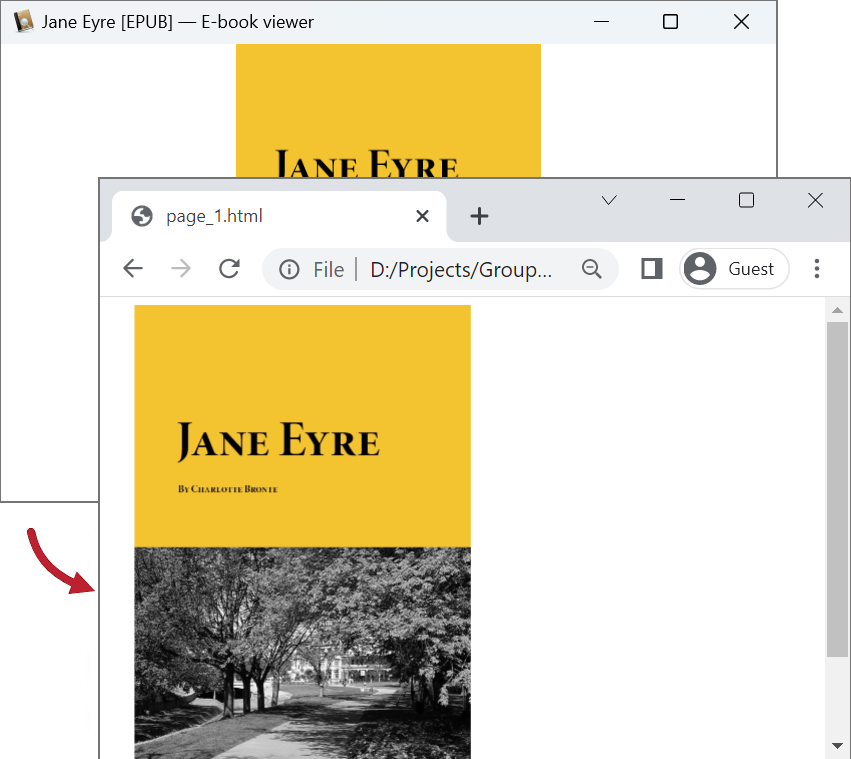
The following image demonstrates the result:
### Create an HTML file with external resources
If you want to store an HTML file and additional resource files (such as fonts, images, and stylesheets) separately, call the [HtmlViewOptions.forExternalResources](https://reference.groupdocs.com/viewer/nodejs-java/com.groupdocs.viewer.options/htmlviewoptions/#forExternalResources--) method and pass the following parameters:
* The output file path format
* The path format for the folder with external resources
* The resource URL format
{{< tabs "render-ebook-to-html-external">}}
{{< tab "JavaScript" >}}
```js
import { Viewer, HtmlViewOptions } from '@groupdocs/groupdocs.viewer';
const viewer = new Viewer("sample.epub")
// Create an HTML file for each page.
// Specify the HTML file names and location of external resources.
// {0} and {1} are replaced with the current page number and resource name, respectively.
const viewOptions = HtmlViewOptions.forExternalResources("render-ebook-to-html-external/epub-to-html-page_{0}.html", "render-ebook-to-html-external/epub-to-html-page_{0}/resource_{0}_{1}", "render-ebook-to-html-external/epub-to-html-page_{0}/resource_{0}_{1}")
viewer.view(viewOptions)
```
{{< /tab >}}
{{< tab "sample.epub" >}}
{{< tab-text >}}
`sample.epub` is the sample file used in this example. Click [here](https://docs.groupdocs.com/viewer/nodejs-java/_sample_files/rendering-basics/render-ebooks/sample.epub) to download it.
{{< /tab-text >}}
{{< /tab >}}
{{< /tabs >}}
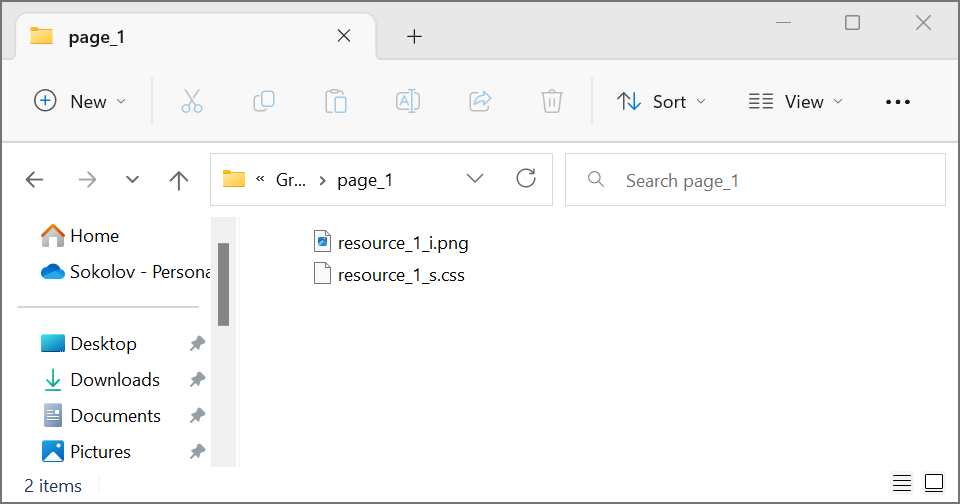
The image below demonstrates the result. External resources are placed in a separate folder.
## Render EBooks as PDF
Create a [PdfViewOptions](https://reference.groupdocs.com/viewer/nodejs-java/com.groupdocs.viewer.options/pdfviewoptions) class instance and pass it to the [Viewer.view](https://reference.groupdocs.com/viewer/nodejs-java/com.groupdocs.viewer/viewer/) method to convert an EBook file to PDF. The `PdfViewOptions` class properties allow you to control the conversion process. For instance, you can protect the output PDF file, reorder its pages, and specify the quality of document images. Refer to the following documentation section for details: [Rendering to PDF]({{< ref "viewer/nodejs-java/developer-guide/rendering-documents/rendering-to-pdf/_index.md" >}}).
{{< tabs "render-ebook-to-pdf">}}
{{< tab "JavaScript" >}}
```js
import { Viewer, PdfViewOptions } from '@groupdocs/groupdocs.viewer';
const viewer = new Viewer("sample.epub")
// Create a PDF file for the document.
// Specify the PDF file name.
const viewOptions = PdfViewOptions("render-ebook-to-pdf/epub-to-pdf.pdf")
viewer.view(viewOptions)
```
{{< /tab >}}
{{< tab "sample.epub" >}}
{{< tab-text >}}
`sample.epub` is the sample file used in this example. Click [here](https://docs.groupdocs.com/viewer/nodejs-java/_sample_files/rendering-basics/render-ebooks/sample.epub) to download it.
{{< /tab-text >}}
{{< /tab >}}
{{< /tabs >}}
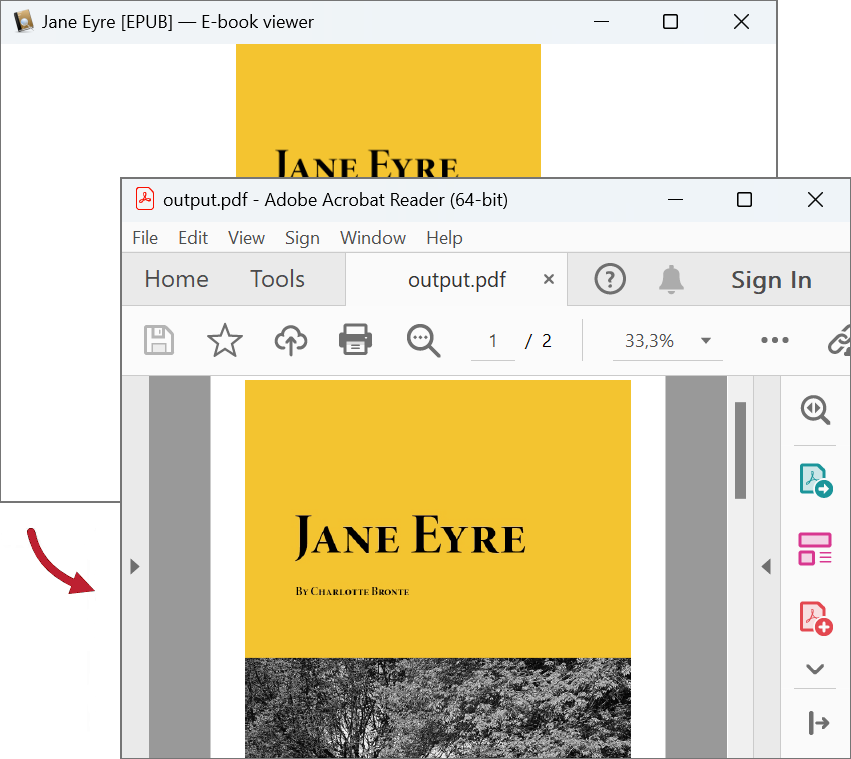
The following image demonstrates the result:
## Render EBooks as PNG
Create a [PngViewOptions](https://reference.groupdocs.com/viewer/nodejs-java/com.groupdocs.viewer.options/pngviewoptions) class instance and pass it to the [Viewer.view](https://reference.groupdocs.com/viewer/nodejs-java/com.groupdocs.viewer/viewer/) method to convert an EBook file to PNG. Use the [PngViewOptions.setHeight](https://reference.groupdocs.com/viewer/nodejs-java/com.groupdocs.viewer.options/pngviewoptions/#setHeight-int-) and [PngViewOptions.setWidth](https://reference.groupdocs.com/viewer/nodejs-java/com.groupdocs.viewer.options/pngviewoptions/#setWidth-int-) methods to specify the output image size in pixels.
{{< tabs "render-ebook-to-png">}}
{{< tab "JavaScript" >}}
```js
import { Viewer, PngViewOptions } from '@groupdocs/groupdocs.viewer';
const viewer = new Viewer("sample.epub")
// Create a PNG image for each document page.
// {0} is replaced with the current page number in the image name.
const viewOptions = PngViewOptions("render-ebook-to-png/epub-to-png-page_{0}.png")
// Set width and height.
viewOptions.setWidth(950)
viewOptions.setHeight(550)
viewer.view(viewOptions)
```
{{< /tab >}}
{{< tab "sample.epub" >}}
{{< tab-text >}}
`sample.epub` is the sample file used in this example. Click [here](https://docs.groupdocs.com/viewer/nodejs-java/_sample_files/rendering-basics/render-ebooks/sample.epub) to download it.
{{< /tab-text >}}
{{< /tab >}}
{{< /tabs >}}
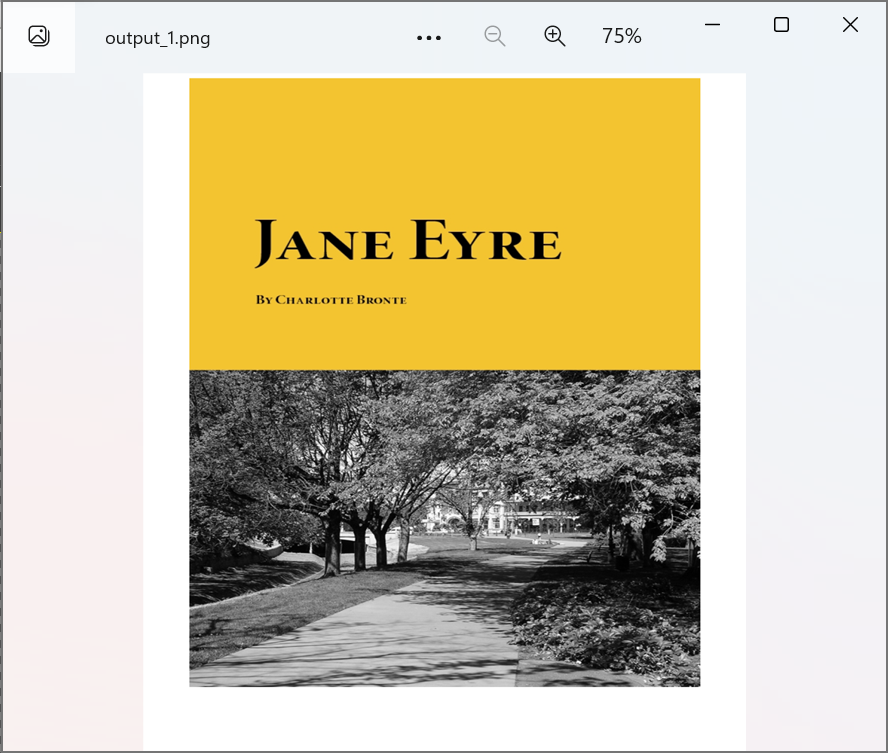
The following image demonstrates the result:
## Render EBooks as JPEG
Create a [JpgViewOptions](https://reference.groupdocs.com/viewer/nodejs-java/com.groupdocs.viewer.options/jpgviewoptions) class instance and pass it to the [Viewer.view](https://reference.groupdocs.com/viewer/nodejs-java/com.groupdocs.viewer/viewer/) method to convert an EBook file to JPEG. Use the [JpgViewOptions.setHeight](https://reference.groupdocs.com/viewer/nodejs-java/com.groupdocs.viewer.options/jpgviewoptions/#setHeight-int-) and [JpgViewOptions.setWidth](https://reference.groupdocs.com/viewer/nodejs-java/com.groupdocs.viewer.options/jpgviewoptions/#setWidth-int-) methods to specify the output image size in pixels.
{{< tabs "render-ebook-to-jpeg">}}
{{< tab "JavaScript" >}}
```js
import { Viewer, JpgViewOptions } from '@groupdocs/groupdocs.viewer';
const viewer = new Viewer("sample.epub")
// Create a JPG image for each document page.
// {0} is replaced with the current page number in the image name.
const viewOptions = JpgViewOptions("render-ebook-to-jpeg/epub-to-jpg-page_{0}.jpg")
// Set width and height.
viewOptions.setWidth(950)
viewOptions.setHeight(550)
viewer.view(viewOptions)
```
{{< /tab >}}
{{< tab "sample.epub" >}}
{{< tab-text >}}
`sample.epub` is the sample file used in this example. Click [here](https://docs.groupdocs.com/viewer/nodejs-java/_sample_files/rendering-basics/render-ebooks/sample.epub) to download it.
{{< /tab-text >}}
{{< /tab >}}
{{< /tabs >}}