# Render archives as HTML, PDF, and image files
This topic describes how to use the GroupDocs.Viewer Node.js API to convert archive files to HTML, PDF, PNG, and JPEG formats.
[GroupDocs.Viewer for Node.js via Java](https://products.groupdocs.com/viewer/nodejs-java) allows you to view the contents of archive files in HTML, PDF, PNG, and JPEG formats. You do not need to use third-party file archiver and compression software to display archive file contents within your Node.js application (web or desktop).
To start using the GroupDocs.Viewer API, create a [Viewer](https://reference.groupdocs.com/viewer/nodejs-java/com.groupdocs.viewer/viewer) class instance. Pass an archive file you want to view to the class constructor. You can load the archive from a file or stream. Call one of the [Viewer.view](https://reference.groupdocs.com/viewer/nodejs-java/com.groupdocs.viewer/viewer/) method overloads to convert the archive file to HTML, PDF, or image format.
{{< button style="primary" link="https://products.groupdocs.app/viewer/archive" >}} {{< icon "gdoc_person" >}} View archive files online {{< /button >}} {{< button style="primary" link="https://github.com/groupdocs-viewer/GroupDocs.Viewer-for-Node.js-via-Java" >}} {{< icon "gdoc_github" >}} View demos and examples on GitHub {{< /button >}}
## Supported archive and compressed file formats
GroupDocs.Viewer supports the following archive file formats:
* [.7Z (7-Zip Compressed File)](https://docs.fileformat.com/compression/7z)
* [.BZ2 (Bzip2 Compressed File)](https://docs.fileformat.com/compression/bz2)
* [.GZ (Gnu Zipped Archive)](https://docs.fileformat.com/compression/gz)
* [.RAR (WinRAR Compressed Archive)](https://docs.fileformat.com/compression/rar)
* [.TAR (Consolidated Unix File Archive)](https://docs.fileformat.com/compression/tar)
* [.TGZ / .TAR.GZ (Gzipped Tar File)](https://docs.fileformat.com/compression/tgz/)
* [.TXZ / .TAR.XZ (XZ Compressed Tar Archive)](https://docs.fileformat.com/compression/xz/)
* [.XZ (XZ Compressed Archive)](https://docs.fileformat.com/compression/xz/)
* [.ZIP (Zipped File)](https://docs.fileformat.com/compression/zip)
## Render archive files as HTML
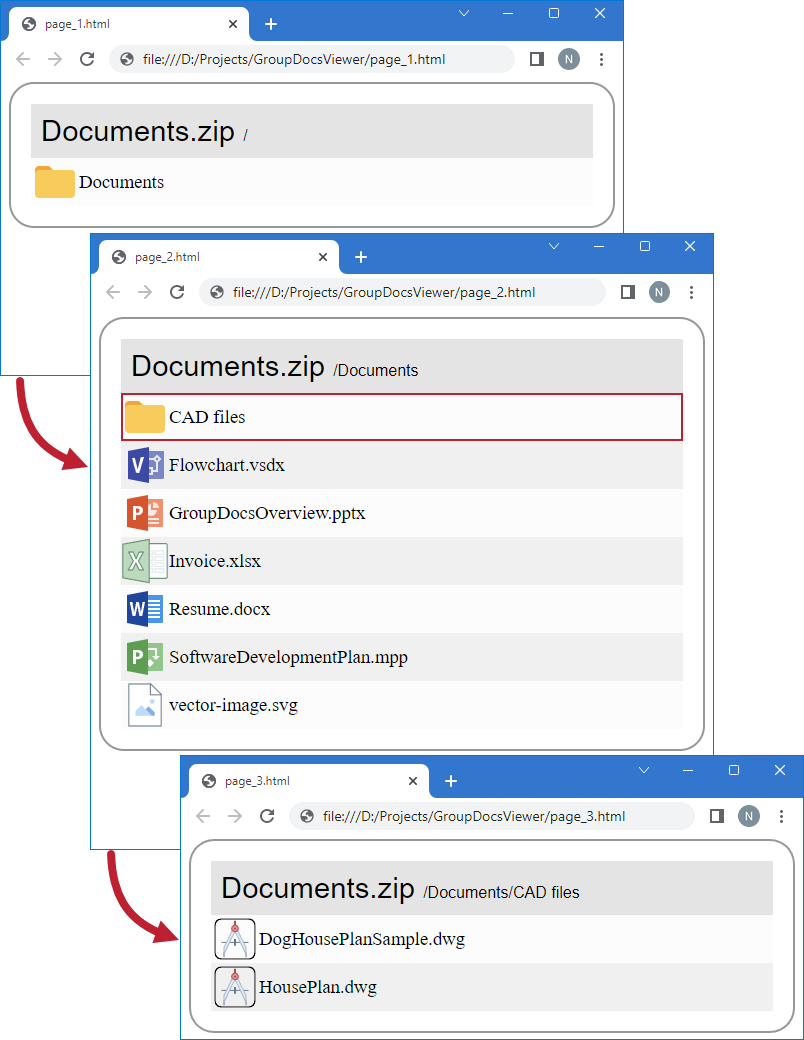
To convert an archive file to HTML, call the [HtmlViewOptions.forEmbeddedResources](https://reference.groupdocs.com/viewer/nodejs-java/com.groupdocs.viewer.options/htmlviewoptions/#forEmbeddedResources--) method to create an [HtmlViewOptions](https://reference.groupdocs.com/viewer/nodejs-java/com.groupdocs.viewer.options/htmlviewoptions) class instance and pass this instance to the [Viewer.view](https://reference.groupdocs.com/viewer/nodejs-java/com.groupdocs.viewer/viewer/) method.
{{< tabs "render-archive-to-html">}}
{{< tab "JavaScript" >}}
```js
import { Viewer, HtmlViewOptions } from '@groupdocs/groupdocs.viewer';
const viewer = new Viewer("documents.zip")
// Create an HTML file for top folder and each subfolder in the archive.
// {0} is replaced with the current page number in the file name.
const viewOptions = HtmlViewOptions.forEmbeddedResources("render-archive-to-html/zip-to-html-page_{0}.html")
viewer.view(viewOptions)
```
{{< /tab >}}
{{< tab "documents.zip" >}}
{{< tab-text >}}
`documents.zip` is the sample file used in this example. Click [here](https://docs.groupdocs.com/viewer/nodejs-java/_sample_files/rendering-basics/render-archive-files/documents.zip) to download it.
{{< /tab-text >}}
{{< /tab >}}
{{< /tabs >}}
The following image demonstrates the result:
### Create a single HTML page
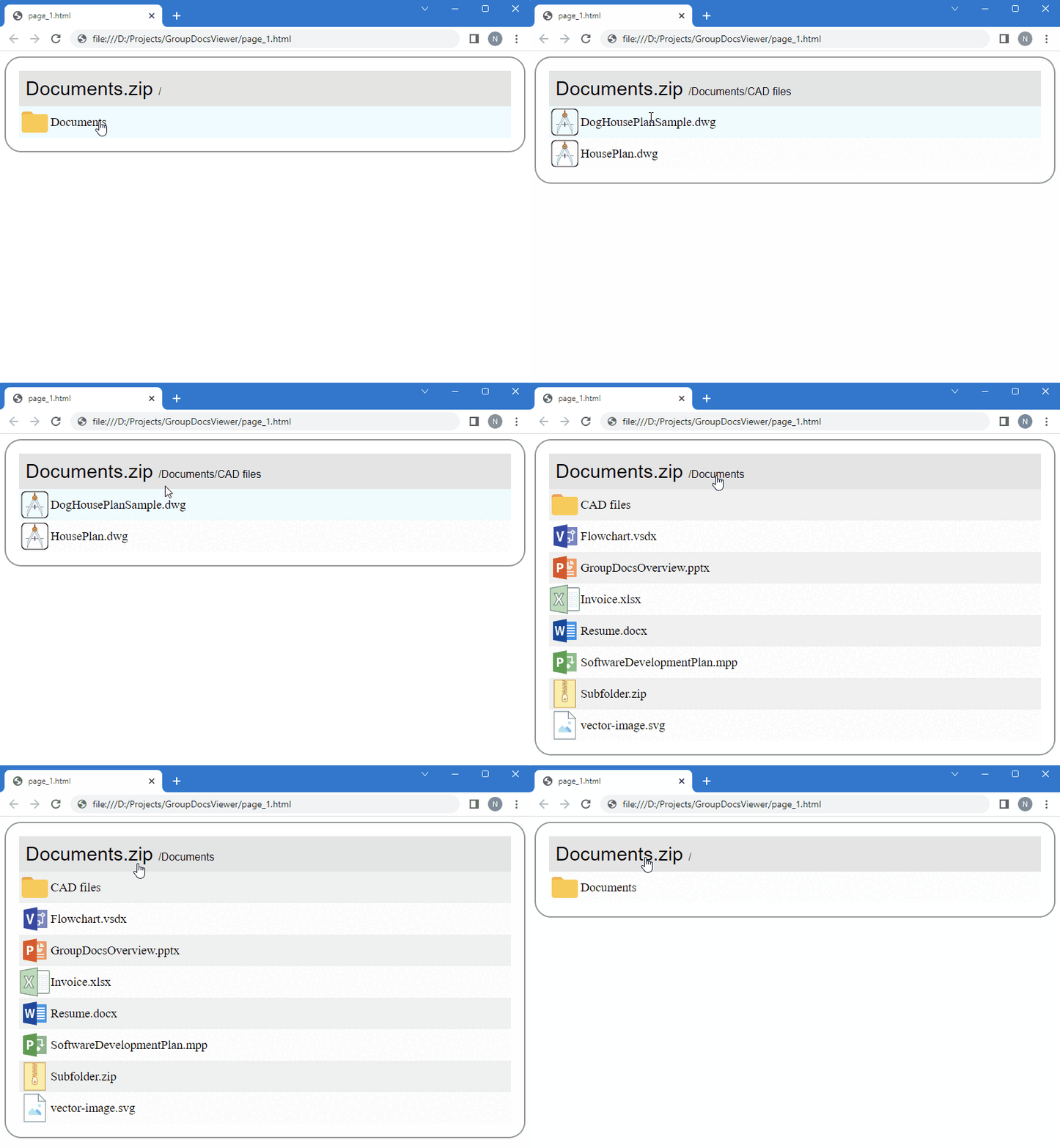
If you need to display the contents of an archive file on a single HTML page, use the [HtmlViewOptions.setRenderToSinglePage](https://reference.groupdocs.com/viewer/nodejs-java/com.groupdocs.viewer.options/htmlviewoptions/#setRenderToSinglePage-boolean-) method, as shown below:
{{< tabs "render-archive-to-single-page">}}
{{< tab "JavaScript" >}}
```js
import { Viewer, HtmlViewOptions } from '@groupdocs/groupdocs.viewer';
const viewer = new Viewer("documents.zip")
// Create an HTML file for the top folder and each subfolder in the archive.
// {0} is replaced with the current page number in the output file name.
const viewOptions = HtmlViewOptions.forEmbeddedResources("render-archive-to-single-page/zip-to-html-page_{0}.html")
// Specify the number of items to display on each HTML page.
viewOptions.setRenderToSinglePage(true)
viewer.view(viewOptions)
```
{{< /tab >}}
{{< tab "documents.zip" >}}
{{< tab-text >}}
`documents.zip` is the sample file used in this example. Click [here](https://docs.groupdocs.com/viewer/nodejs-java/_sample_files/rendering-basics/render-archive-files/documents.zip) to download it.
{{< /tab-text >}}
{{< /tab >}}
{{< /tabs >}}
The animation below demonstrates the result. You can navigate between the archive folders. Click on a particular folder to see its contents. To go backward, click the required folder name in the navigation bar at the top of the web page.
## Render archive files as PDF
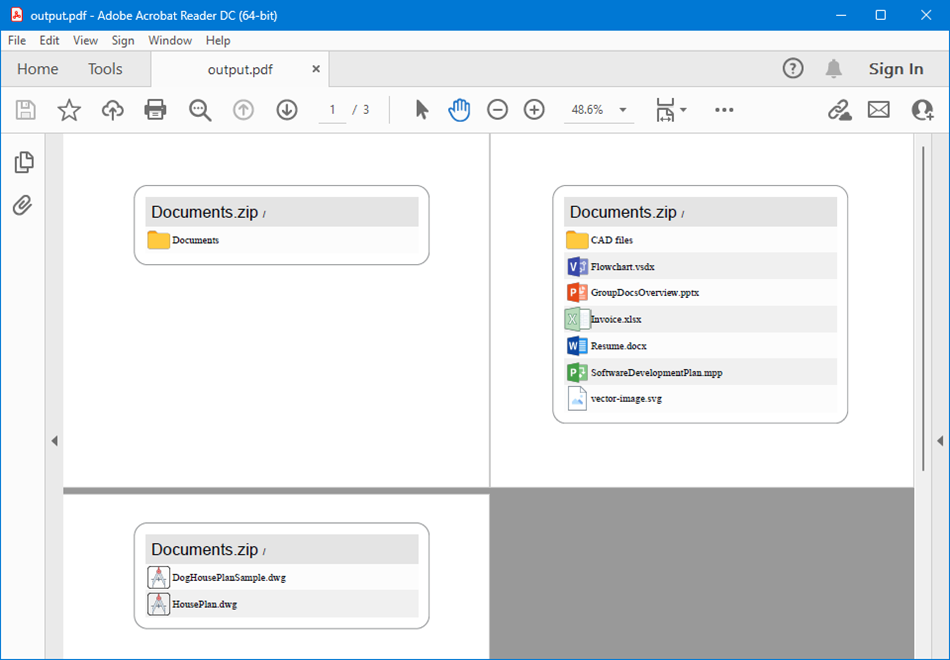
Create a [PdfViewOptions](https://reference.groupdocs.com/viewer/nodejs-java/com.groupdocs.viewer.options/pdfviewoptions) class instance and pass it to the [Viewer.view](https://reference.groupdocs.com/viewer/nodejs-java/com.groupdocs.viewer/viewer/) method to convert an archive file to PDF. The `PdfViewOptions` class properties allow you to control the conversion process. For instance, you can protect the output PDF file or reorder its pages. Refer to the following documentation section for details: [Rendering to PDF]({{< ref "viewer/nodejs-java/developer-guide/rendering-documents/rendering-to-pdf/_index.md" >}}).
{{< tabs "render-archive-to-pdf">}}
{{< tab "JavaScript" >}}
```js
import { Viewer, PdfViewOptions } from '@groupdocs/groupdocs.viewer';
const viewer = new Viewer("documents.zip")
// Specify the PDF file name.
const viewOptions = PdfViewOptions("render-archive-to-pdf/zip-to-pdf.pdf")
viewer.view(viewOptions)
```
{{< /tab >}}
{{< tab "documents.zip" >}}
{{< tab-text >}}
`documents.zip` is the sample file used in this example. Click [here](https://docs.groupdocs.com/viewer/nodejs-java/_sample_files/rendering-basics/render-archive-files/documents.zip) to download it.
{{< /tab-text >}}
{{< /tab >}}
{{< /tabs >}}
The following image demonstrates the result:
## Render archive files as PNG
Create a [PngViewOptions](https://reference.groupdocs.com/viewer/nodejs-java/com.groupdocs.viewer.options/pngviewoptions) class instance and pass it to the [Viewer.view](https://reference.groupdocs.com/viewer/nodejs-java/com.groupdocs.viewer/viewer/) method to convert an archive file to PNG. Use the [PngViewOptions.setHeight](https://reference.groupdocs.com/viewer/nodejs-java/com.groupdocs.viewer.options/pngviewoptions/#setHeight-int-) and [PngViewOptions.setWidth](https://reference.groupdocs.com/viewer/nodejs-java/com.groupdocs.viewer.options/pngviewoptions/#setWidth-int-) methods to specify the output image size in pixels.
{{< tabs "render-archive-to-png">}}
{{< tab "JavaScript" >}}
```js
import { Viewer, PngViewOptions } from '@groupdocs/groupdocs.viewer';
const viewer = new Viewer("documents.zip")
// Create a PNG image for the top folder and each subfolder in the archive.
// {0} is replaced with the current page number in the image name.
const viewOptions = PngViewOptions("render-archive-to-png/zip-to-png-page_{0}.png")
// Set width and height.
viewOptions.setWidth(950)
viewOptions.setHeight(550)
viewer.view(viewOptions)
```
{{< /tab >}}
{{< tab "documents.zip" >}}
{{< tab-text >}}
`documents.zip` is the sample file used in this example. Click [here](https://docs.groupdocs.com/viewer/nodejs-java/_sample_files/rendering-basics/render-archive-files/documents.zip) to download it.
{{< /tab-text >}}
{{< /tab >}}
{{< /tabs >}}
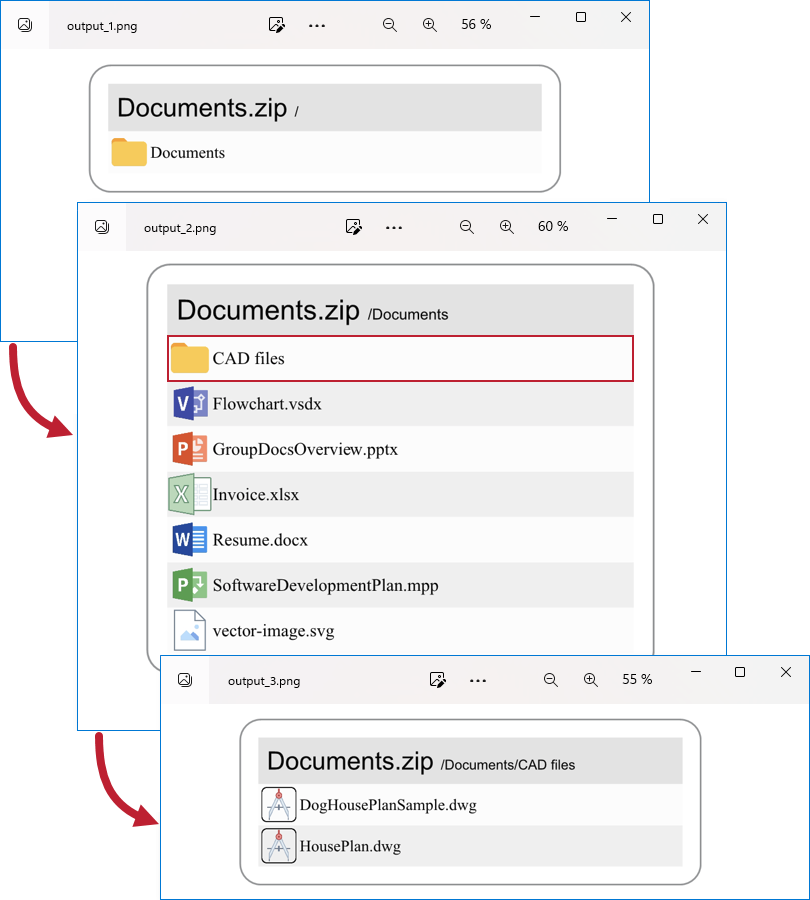
The following image demonstrates the result:
## Render archive files as JPEG
Create a [JpgViewOptions](https://reference.groupdocs.com/viewer/nodejs-java/com.groupdocs.viewer.options/jpgviewoptions) class instance and pass it to the [Viewer.view](https://reference.groupdocs.com/viewer/nodejs-java/com.groupdocs.viewer/viewer/) method to convert an archive file to JPEG. Use the [JpgViewOptions.setHeight](https://reference.groupdocs.com/viewer/nodejs-java/com.groupdocs.viewer.options/jpgviewoptions/#setHeight-int-) and [JpgViewOptions.setWidth](https://reference.groupdocs.com/viewer/nodejs-java/com.groupdocs.viewer.options/jpgviewoptions/#setWidth-int-) methods to specify the output image size in pixels.
{{< tabs "render-archive-to-jpeg">}}
{{< tab "JavaScript" >}}
```js
import { Viewer, JpgViewOptions } from '@groupdocs/groupdocs.viewer';
const viewer = new Viewer("documents.zip")
// Create a JPG image for the top folder and each subfolder in the archive.
// {0} is replaced with the current page number in the image name.
const viewOptions = JpgViewOptions("render-archive-to-jpeg/zip-to-jpg-page_{0}.jpg")
// Set width and height.
viewOptions.setWidth(950)
viewOptions.setHeight(550)
viewer.view(viewOptions)
```
{{< /tab >}}
{{< tab "documents.zip" >}}
{{< tab-text >}}
`documents.zip` is the sample file used in this example. Click [here](https://docs.groupdocs.com/viewer/nodejs-java/_sample_files/rendering-basics/render-archive-files/documents.zip) to download it.
{{< /tab-text >}}
{{< /tab >}}
{{< /tabs >}}
## Obtain information about folders in an archive file
Follow the steps below to obtain information about folders contained in an archive file. You can use this information to [specify which folder to display in the output file](#render-a-specific-folder).
1. Create a [ViewInfoOptions](https://reference.groupdocs.com/viewer/nodejs-java/com.groupdocs.viewer.options/viewinfooptions) instance for a specific view.
2. Call the [Viewer.getViewInfo](https://reference.groupdocs.com/viewer/nodejs-java/com.groupdocs.viewer/viewer/#getViewInfo-com.groupdocs.viewer.options.ViewInfoOptions-) method, pass the `ViewInfoOptions` instance to this method as a parameter, and cast the returned object to the [ArchiveViewInfo](https://reference.groupdocs.com/viewer/nodejs-java/com.groupdocs.viewer.results/archiveviewinfo/) type.
3. Use the [ArchiveViewInfo.getFolders](https://reference.groupdocs.com/viewer/nodejs-java/com.groupdocs.viewer.results/archiveviewinfo/#getFolders--) method to obtain the lists of folders in the archive file.
{{< tabs "get-archive-folders-info">}}
{{< tab "JavaScript" >}}
```js
import { Viewer, ViewInfoOptions } from '@groupdocs/groupdocs.viewer'
const viewer = new Viewer('sample.zip')
const viewInfoOptions = ViewInfoOptions.forHtmlView()
const viewInfo = viewer.getViewInfo(viewInfoOptions)
const folders = viewInfo.getFolders()
console.log('File type: ' + viewInfo.getFileType())
console.log('Pages count: ' + viewInfo.getPages().size())
console.log('Folders: ')
for (let i = 0; i < folders.size(); i++) {
console.log(' - ', folders.get(i).toString())
}
```
{{< /tab >}}
{{< tab "sample.zip" >}}
{{< tab-text >}}
`sample.zip` is the sample file used in this example. Click [here](https://docs.groupdocs.com/viewer/nodejs-java/_sample_files/rendering-basics/render-archive-files/sample.zip) to download it.
{{< /tab-text >}}
{{< /tab >}}
{{< /tabs >}}
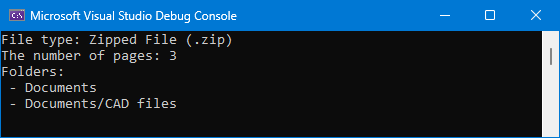
The following image shows a sample console output:
GroupDocs.Viewer also allows you to list and extract all files contained in the archive. Refer to the following help topics for details:
* [List attachments](https://docs.groupdocs.com/viewer/nodejs-java/how-to-list-attachments.md)
* [Save attachments](https://docs.groupdocs.com/viewer/nodejs-java/how-to-extract-and-save-attachments.md)
## Render a specific folder
When you convert an archive file to HTML, PDF, or image format, GroupDocs.Viewer renders items from all folders contained in the archive. If you need to render items from a specific folder, use the [ArchiveOptions.setFolder](https://reference.groupdocs.com/viewer/nodejs-java/com.groupdocs.viewer.options/archiveoptions/#setFolder-java.lang.String-) method of one of the following classes (depending on the output file format):
* [HtmlViewOptions](https://reference.groupdocs.com/viewer/nodejs-java/com.groupdocs.viewer.options/htmlviewoptions)
* [PdfViewOptions](https://reference.groupdocs.com/viewer/nodejs-java/com.groupdocs.viewer.options/pdfviewoptions)
* [PngViewOptions](https://reference.groupdocs.com/viewer/nodejs-java/com.groupdocs.viewer.options/pngviewoptions)
* [JpgViewOptions](https://reference.groupdocs.com/viewer/nodejs-java/com.groupdocs.viewer.options/jpgviewoptions)
{{< tabs "render-archive-specific-folder">}}
{{< tab "JavaScript" >}}
```js
import { Viewer, HtmlViewOptions } from '@groupdocs/groupdocs.viewer';
const viewer = new Viewer("documents.zip")
const viewOptions = HtmlViewOptions.forEmbeddedResources("render-archive-specific-folder/zip-to-html-page_{0}.html")
viewOptions.getArchiveOptions().setFolder("Documents/CAD files");
viewer.view(viewOptions)
```
{{< /tab >}}
{{< tab "documents.zip" >}}
{{< tab-text >}}
`documents.zip` is the sample file used in this example. Click [here](https://docs.groupdocs.com/viewer/nodejs-java/_sample_files/rendering-basics/render-archive-files/documents.zip) to download it.
{{< /tab-text >}}
{{< /tab >}}
{{< /tabs >}}
## Specify the archive file name
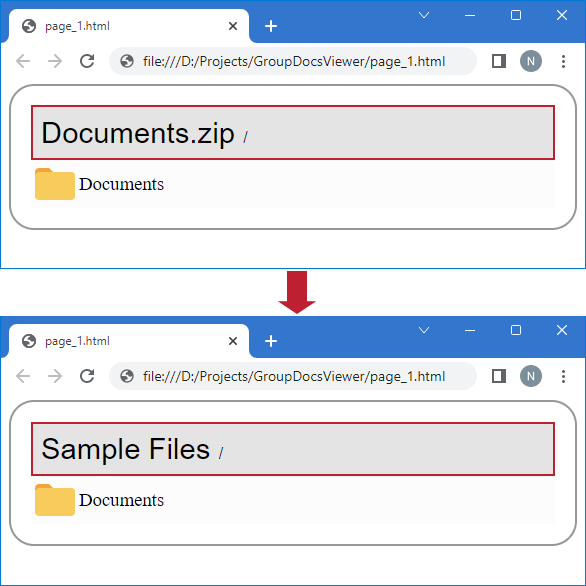
When rendering an archive file, GroupDocs.Viewer displays the archive file name in the header of each page. If you need to change or hide this name, use the [ArchiveOptions.setFileName](https://reference.groupdocs.com/viewer/nodejs-java/com.groupdocs.viewer.options/archiveoptions/#setFileName-com.groupdocs.viewer.options.FileName-) method for a target view. You can set this option to one of the following values:
* [FileName.SOURCE](https://reference.groupdocs.com/viewer/nodejs-java/com.groupdocs.viewer.options/filename/#SOURCE)--- Returns the name of the source file (this name is used by default).
* [FileName.EMPTY](https://reference.groupdocs.com/viewer/nodejs-java/com.groupdocs.viewer.options/filename/#EMPTY)---Specifies an empty name. Use this value to hide the archive file name in the output file.
* A [FileName](https://reference.groupdocs.com/viewer/nodejs-java/com.groupdocs.viewer.options/filename) instance with a custom name you want to display in the output file.
The following code snippet demonstrates how to use a custom name when rendering an archive file to HTML:
{{< tabs "render-archive-with-custom-filename">}}
{{< tab "JavaScript" >}}
```js
import { Viewer, HtmlViewOptions, FileName } from '@groupdocs/groupdocs.viewer';
const viewer = new Viewer("documents.zip")
const viewOptions = HtmlViewOptions.forEmbeddedResources("render-archive-with-custom-filename/zip-to-html-page_{0}.html")
const fileName = new FileName("Sample Files")
viewOptions.getArchiveOptions().setFileName(fileName);
viewer.view(viewOptions)
```
{{< /tab >}}
{{< tab "documents.zip" >}}
{{< tab-text >}}
`documents.zip` is the sample file used in this example. Click [here](https://docs.groupdocs.com/viewer/nodejs-java/_sample_files/rendering-basics/render-archive-files/documents.zip) to download it.
{{< /tab-text >}}
{{< /tab >}}
{{< /tabs >}}
The image below demonstrates the result.