Render archives as HTML, PDF, and image files Leave feedback
On this page
GroupDocs.Viewer for Node.js via Java allows you to view the contents of archive files in HTML, PDF, PNG, and JPEG formats. You do not need to use third-party file archiver and compression software to display archive file contents within your Node.js application (web or desktop).
To start using the GroupDocs.Viewer API, create a Viewer class instance. Pass an archive file you want to view to the class constructor. You can load the archive from a file or stream. Call one of the Viewer.view method overloads to convert the archive file to HTML, PDF, or image format.
GroupDocs.Viewer supports the following archive file formats:
- .7Z (7-Zip Compressed File)
- .BZ2 (Bzip2 Compressed File)
- .GZ (Gnu Zipped Archive)
- .RAR (WinRAR Compressed Archive)
- .TAR (Consolidated Unix File Archive)
- .TGZ / .TAR.GZ (Gzipped Tar File)
- .TXZ / .TAR.XZ (XZ Compressed Tar Archive)
- .XZ (XZ Compressed Archive)
- .ZIP (Zipped File)
To convert an archive file to HTML, call the HtmlViewOptions.forEmbeddedResources method to create an HtmlViewOptions class instance and pass this instance to the Viewer.view method.
import { Viewer, HtmlViewOptions } from '@groupdocs/groupdocs.viewer';

const viewer = new Viewer("documents.zip")
// Create an HTML file for top folder and each subfolder in the archive.
// {0} is replaced with the current page number in the file name.
const viewOptions = HtmlViewOptions.forEmbeddedResources("render-archive-to-html/zip-to-html-page_{0}.html")
viewer.view(viewOptions)
documents.zip is the sample file used in this example. Click here to download it.
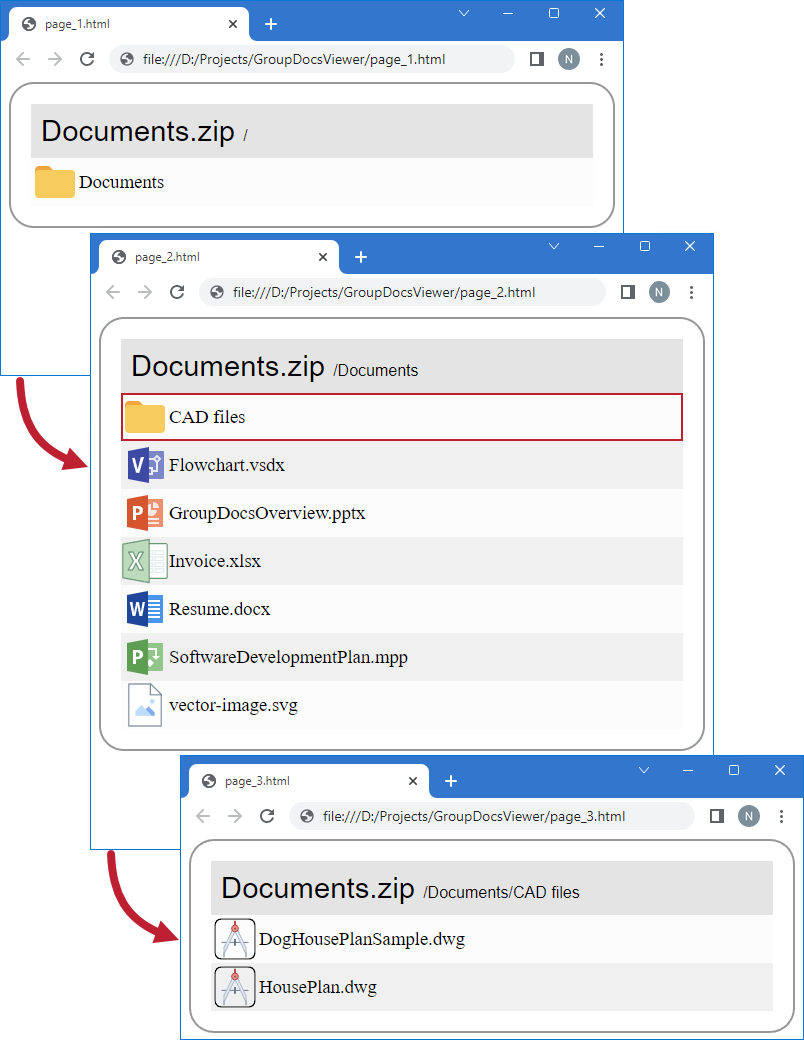
The following image demonstrates the result:
If you need to display the contents of an archive file on a single HTML page, use the HtmlViewOptions.setRenderToSinglePage method, as shown below:
import { Viewer, HtmlViewOptions } from '@groupdocs/groupdocs.viewer';

const viewer = new Viewer("documents.zip")
// Create an HTML file for the top folder and each subfolder in the archive.
// {0} is replaced with the current page number in the output file name.
const viewOptions = HtmlViewOptions.forEmbeddedResources("render-archive-to-single-page/zip-to-html-page_{0}.html")
// Specify the number of items to display on each HTML page.
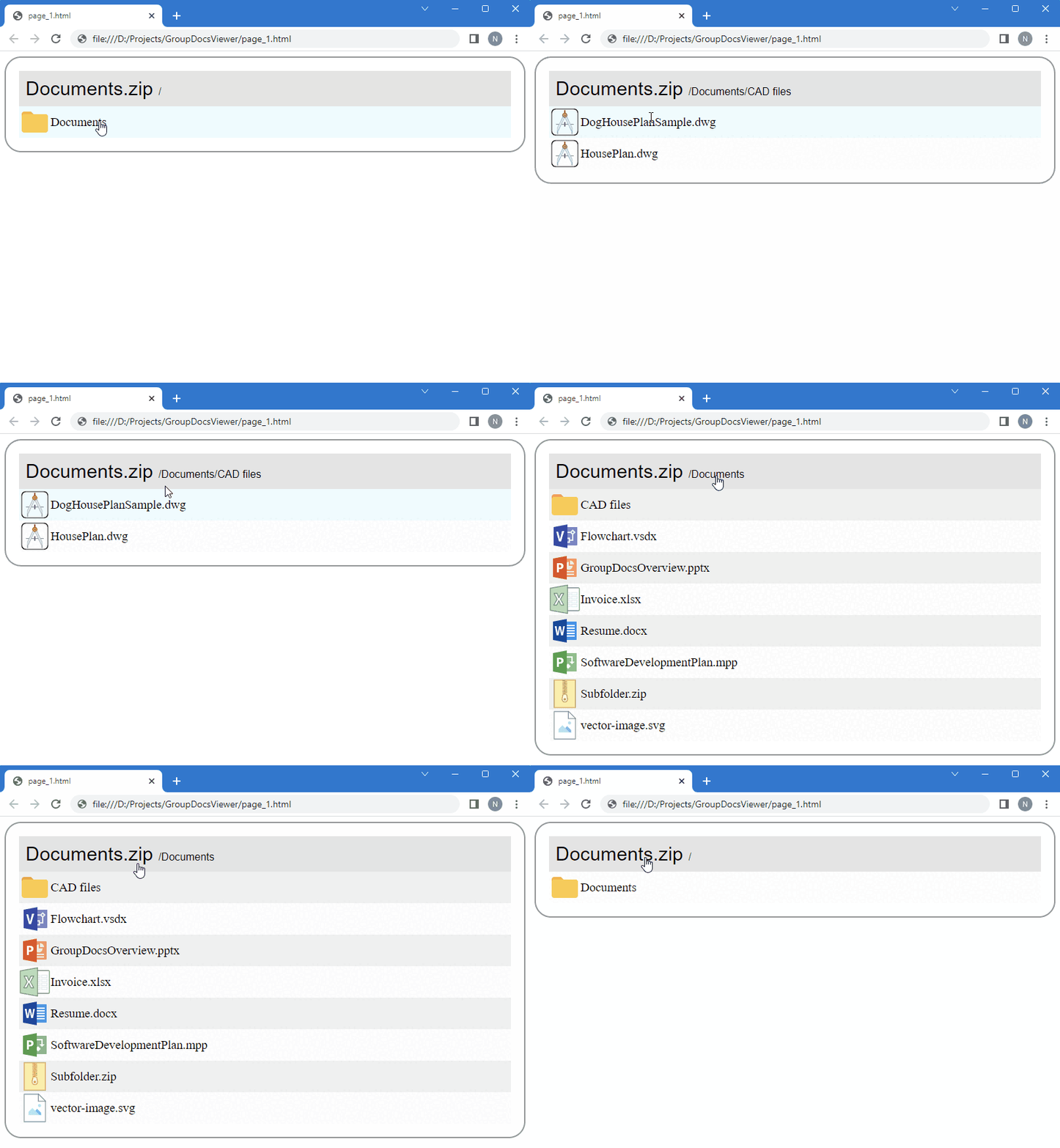
viewOptions.setRenderToSinglePage(true)
viewer.view(viewOptions)
documents.zip is the sample file used in this example. Click here to download it.
The animation below demonstrates the result. You can navigate between the archive folders. Click on a particular folder to see its contents. To go backward, click the required folder name in the navigation bar at the top of the web page.
Create a PdfViewOptions class instance and pass it to the Viewer.view method to convert an archive file to PDF. The PdfViewOptions class properties allow you to control the conversion process. For instance, you can protect the output PDF file or reorder its pages. Refer to the following documentation section for details: Rendering to PDF.
import { Viewer, PdfViewOptions } from '@groupdocs/groupdocs.viewer';

const viewer = new Viewer("documents.zip")
// Specify the PDF file name.
const viewOptions = PdfViewOptions("render-archive-to-pdf/zip-to-pdf.pdf")
viewer.view(viewOptions)
documents.zip is the sample file used in this example. Click here to download it.
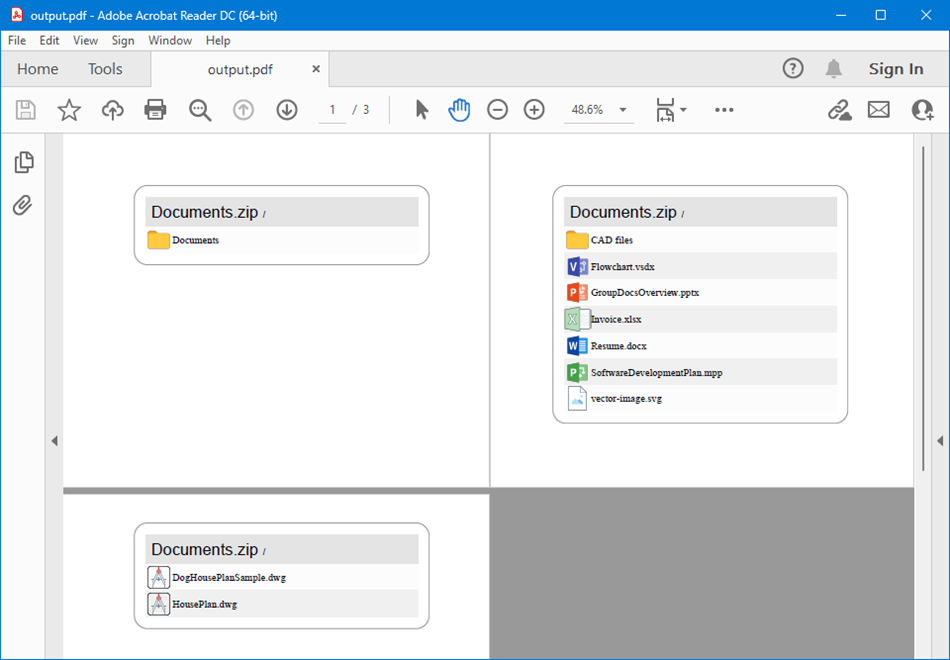
The following image demonstrates the result:
Create a PngViewOptions class instance and pass it to the Viewer.view method to convert an archive file to PNG. Use the PngViewOptions.setHeight and PngViewOptions.setWidth methods to specify the output image size in pixels.
import { Viewer, PngViewOptions } from '@groupdocs/groupdocs.viewer';

const viewer = new Viewer("documents.zip")
// Create a PNG image for the top folder and each subfolder in the archive.
// {0} is replaced with the current page number in the image name.
const viewOptions = PngViewOptions("render-archive-to-png/zip-to-png-page_{0}.png")
// Set width and height.
viewOptions.setWidth(950)
viewOptions.setHeight(550)
viewer.view(viewOptions)
documents.zip is the sample file used in this example. Click here to download it.
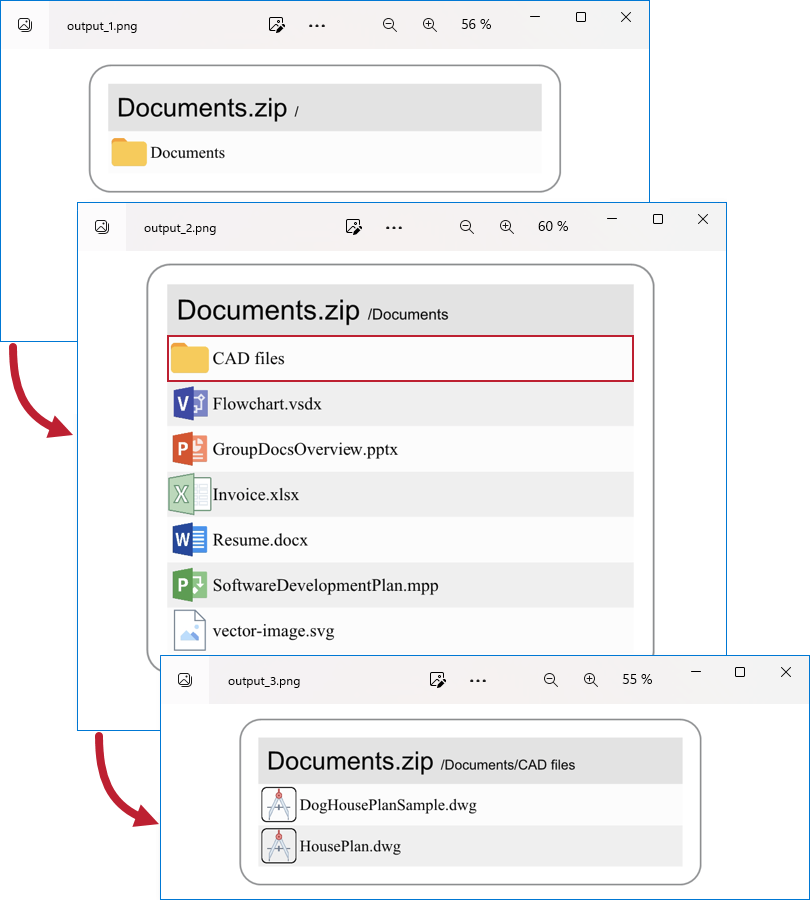
The following image demonstrates the result:
Create a JpgViewOptions class instance and pass it to the Viewer.view method to convert an archive file to JPEG. Use the JpgViewOptions.setHeight and JpgViewOptions.setWidth methods to specify the output image size in pixels.
import { Viewer, JpgViewOptions } from '@groupdocs/groupdocs.viewer';

const viewer = new Viewer("documents.zip")
// Create a JPG image for the top folder and each subfolder in the archive.
// {0} is replaced with the current page number in the image name.
const viewOptions = JpgViewOptions("render-archive-to-jpeg/zip-to-jpg-page_{0}.jpg")
// Set width and height.
viewOptions.setWidth(950)
viewOptions.setHeight(550)
viewer.view(viewOptions)
documents.zip is the sample file used in this example. Click here to download it.
Follow the steps below to obtain information about folders contained in an archive file. You can use this information to specify which folder to display in the output file.
- Create a ViewInfoOptions instance for a specific view.
- Call the Viewer.getViewInfo method, pass the
ViewInfoOptionsinstance to this method as a parameter, and cast the returned object to the ArchiveViewInfo type. - Use the ArchiveViewInfo.getFolders method to obtain the lists of folders in the archive file.
import { Viewer, ViewInfoOptions } from '@groupdocs/groupdocs.viewer'

const viewer = new Viewer('sample.zip')

const viewInfoOptions = ViewInfoOptions.forHtmlView()
const viewInfo = viewer.getViewInfo(viewInfoOptions)
const folders = viewInfo.getFolders()

console.log('File type: ' + viewInfo.getFileType())
console.log('Pages count: ' + viewInfo.getPages().size())
console.log('Folders: ')
for (let i = 0; i < folders.size(); i++) {
  console.log(' - ', folders.get(i).toString())
}
sample.zip is the sample file used in this example. Click here to download it.
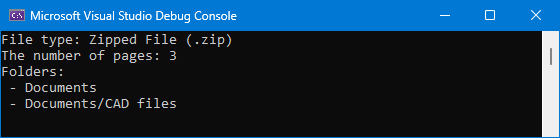
The following image shows a sample console output:
GroupDocs.Viewer also allows you to list and extract all files contained in the archive. Refer to the following help topics for details:
When you convert an archive file to HTML, PDF, or image format, GroupDocs.Viewer renders items from all folders contained in the archive. If you need to render items from a specific folder, use the ArchiveOptions.setFolder method of one of the following classes (depending on the output file format):
import { Viewer, HtmlViewOptions } from '@groupdocs/groupdocs.viewer';

const viewer = new Viewer("documents.zip")
const viewOptions = HtmlViewOptions.forEmbeddedResources("render-archive-specific-folder/zip-to-html-page_{0}.html")

viewOptions.getArchiveOptions().setFolder("Documents/CAD files");

viewer.view(viewOptions)
documents.zip is the sample file used in this example. Click here to download it.
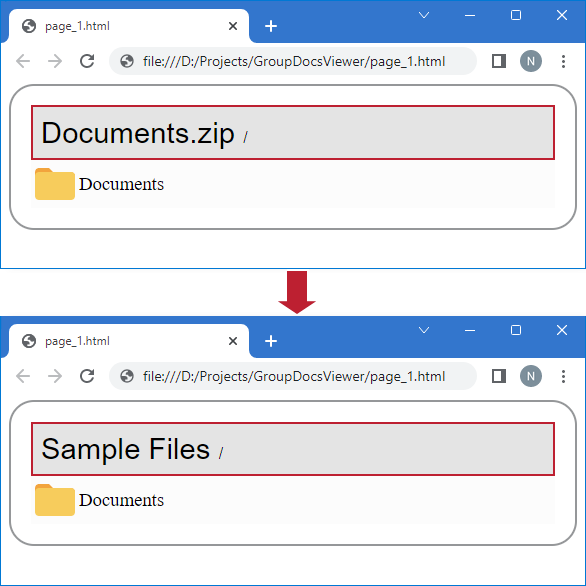
When rendering an archive file, GroupDocs.Viewer displays the archive file name in the header of each page. If you need to change or hide this name, use the ArchiveOptions.setFileName method for a target view. You can set this option to one of the following values:
- FileName.SOURCE— Returns the name of the source file (this name is used by default).
- FileName.EMPTY—Specifies an empty name. Use this value to hide the archive file name in the output file.
- A FileName instance with a custom name you want to display in the output file.
The following code snippet demonstrates how to use a custom name when rendering an archive file to HTML:
import { Viewer, HtmlViewOptions, FileName } from '@groupdocs/groupdocs.viewer';

const viewer = new Viewer("documents.zip")
const viewOptions = HtmlViewOptions.forEmbeddedResources("render-archive-with-custom-filename/zip-to-html-page_{0}.html")

const fileName = new FileName("Sample Files")
viewOptions.getArchiveOptions().setFileName(fileName);

viewer.view(viewOptions)
documents.zip is the sample file used in this example. Click here to download it.
The image below demonstrates the result.
Was this page helpful?
Any additional feedback you'd like to share with us?
Please tell us how we can improve this page.
Thank you for your feedback!
We value your opinion. Your feedback will help us improve our documentation.