# Render PowerPoint presentations as HTML, PDF, and image files
This topic describes how to use the GroupDocs.Viewer .NET API (C#) to convert PowerPoint presentations to HTML, PDF, PNG, and JPEG formats.
[GroupDocs.Viewer for .NET](https://products.groupdocs.com/viewer/net) allows you to render your presentations in HTML, PDF, PNG, and JPEG formats. You do not need to use Microsoft PowerPoint or other software to load and view presentations within your .NET application (web or desktop).
Create a [Viewer](https://reference.groupdocs.com/viewer/net/groupdocs.viewer/viewer) class instance to get started with the GroupDocs.Viewer API. Pass a presentation you want to view to the class constructor. You can load the presentation from a file or stream. Call one of the [Viewer.View](https://reference.groupdocs.com/viewer/net/groupdocs.viewer/viewer/methods/view/index) method overloads to convert the presentation to HTML, PDF, or image format. These methods allow you to render the entire presentation or specific slides.
{{< button style="primary" link="https://products.groupdocs.app/viewer/powerpoint" >}} {{< icon "gdoc_person" >}} View PowerPoint files online {{< /button >}} {{< button style="primary" link="https://github.com/groupdocs-viewer/GroupDocs.Viewer-for-.NET" >}} {{< icon "gdoc_github" >}} View demos and examples on GitHub {{< /button >}}
## Supported presentation file formats
GroupDocs.Viewer supports the following presentation file formats:
* [Microsoft PowerPoint Presentation](https://docs.fileformat.com/presentation/pptx/) (.PPTX)
* [Microsoft PowerPoint 97-2003 Presentation](https://docs.fileformat.com/presentation/ppt/) (.PPT)
* [Microsoft PowerPoint Template](https://docs.fileformat.com/presentation/potx) (.POTX)
* [Microsoft PowerPoint 97-2003 Template](https://docs.fileformat.com/presentation/pot) (.POT)
* [Microsoft PowerPoint Macro-Enabled Template](https://docs.fileformat.com/presentation/potm) (.POTM)
* [Microsoft PowerPoint Slide Show](https://docs.fileformat.com/presentation/ppsx) (.PPSX)
* [Microsoft PowerPoint Macro-Enabled Slide Show](https://docs.fileformat.com/presentation/ppsm) (.PPSM)
* [Microsoft PowerPoint 97-2003 Slide Show](https://docs.fileformat.com/presentation/pps) (.PPS)
* [Microsoft PowerPoint Macro-Enabled Presentation](https://docs.fileformat.com/presentation/pptmx) (.PPTM)
* [OpenDocument Presentation](https://docs.fileformat.com/presentation/odp) (.ODP)
* [OpenDocument Presentation Template](https://docs.fileformat.com/presentation/otp) (.OTP)
* [OpenDocument Flat XML Presentation](https://docs.fileformat.com/) (.FODP)
GroupDocs.Viewer can detect the document format automatically based on information in the file header.
## Render presentations as HTML
Create an [HtmlViewOptions](https://reference.groupdocs.com/viewer/net/groupdocs.viewer.options/htmlviewoptions) class instance and pass it to the [Viewer.View](https://reference.groupdocs.com/viewer/net/groupdocs.viewer/viewer/methods/view/index) method to convert a presentation file to HTML. The `HtmlViewOptions` class properties allow you to control the conversion process. For instance, you can embed all external resources in the generated HTML file, minify the output file, and optimize it for printing. Refer to the following documentation section for details: [Rendering to HTML]({{< ref "viewer/net/developer-guide/rendering-documents/rendering-to-html/_index.md" >}}).
### Create an HTML file with embedded resources
To save all elements of an HTML page (including text, graphics, and stylesheets) into a single file, call the [HtmlViewOptions.ForEmbeddedResources](https://reference.groupdocs.com/viewer/net/groupdocs.viewer.options/htmlviewoptions/methods/forembeddedresources/index) method and specify the output file name.
{{< tabs "example1">}}
{{< tab "C#" >}}
```csharp
using GroupDocs.Viewer;
using GroupDocs.Viewer.Options;
// ...
using (var viewer = new Viewer("sample.pptx"))
{
// Create an HTML file for each slide.
// {0} is replaced with the current page number in the file name.
var viewOptions = HtmlViewOptions.ForEmbeddedResources("page_{0}.html");
viewer.View(viewOptions);
}
```
{{< /tab >}}
{{< tab "VB.NET">}}
```vb
Imports GroupDocs.Viewer
Imports GroupDocs.Viewer.Options
' ...
Module Program
Sub Main(args As String())
Using viewer = New Viewer("sample.pptx")
' Create an HTML file for each slide.
' {0} is replaced with the current page number in the file name.
Dim viewOptions = HtmlViewOptions.ForEmbeddedResources("page_{0}.html")
viewer.View(viewOptions)
End Using
End Sub
End Module
```
{{< /tab >}}
{{< /tabs >}}
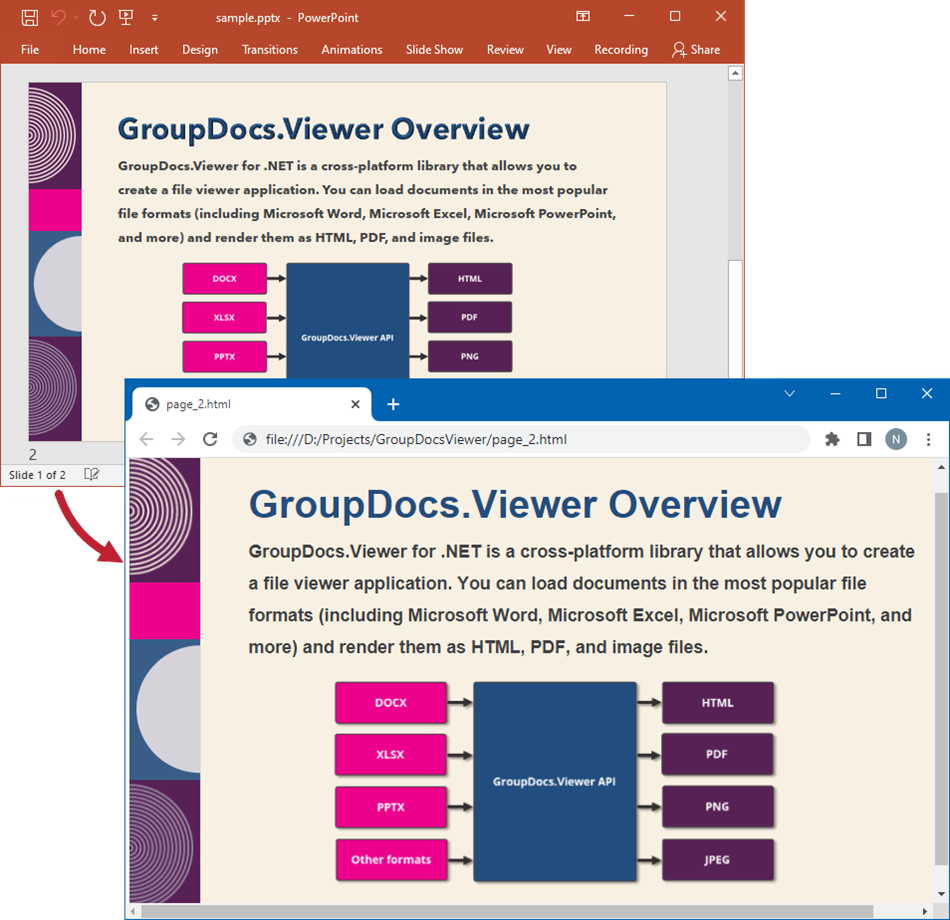
The following image demonstrates the result:
### Create an HTML file with external resources
If you want to store an HTML file and additional resource files (such as fonts, images, and stylesheets) separately, call the [HtmlViewOptions.ForExternalResources](https://reference.groupdocs.com/viewer/net/groupdocs.viewer.options/htmlviewoptions/methods/forexternalresources/index) method and pass the following parameters:
* The output file path format
* The path format for the folder with external resources
* The resource URL format
{{< tabs "example2">}}
{{< tab "C#" >}}
```csharp
using GroupDocs.Viewer;
using GroupDocs.Viewer.Options;
// ...
using (var viewer = new Viewer("sample.pptx"))
{
// Create an HTML file for each slide.
// Specify the HTML file names and location of external resources.
// {0} and {1} are replaced with the current page number and resource name, respectively.
var viewOptions = HtmlViewOptions.ForExternalResources(
"page_{0}.html", "page_{0}/resource_{0}_{1}", "page_{0}/resource_{0}_{1}");
viewer.View(viewOptions);
}
```
{{< /tab >}}
{{< tab "VB.NET">}}
```vb
Imports GroupDocs.Viewer
Imports GroupDocs.Viewer.Options
' ...
Module Program
Sub Main(args As String())
Using viewer = New Viewer("sample.pptx")
' Create an HTML file for each slide.
' Specify the HTML file names and location of external resources.
' {0} and {1} are replaced with the current page number and resource name, respectively.
Dim viewOptions = HtmlViewOptions.ForExternalResources("page_{0}.html", "page_{0}/resource_{0}_{1}", "page_{0}/resource_{0}_{1}")
viewer.View(viewOptions)
End Using
End Sub
End Module
```
{{< /tab >}}
{{< /tabs >}}
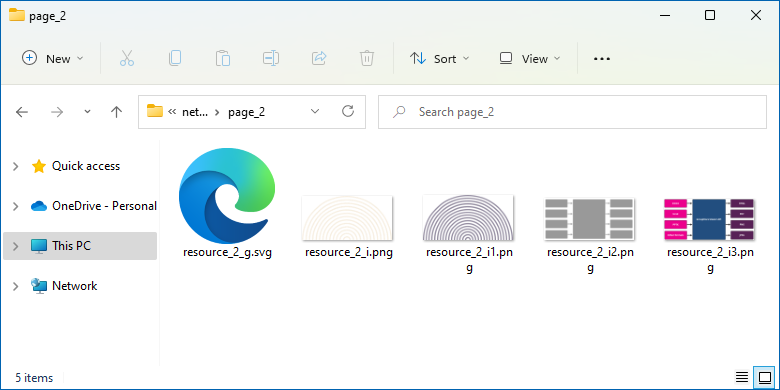
The image below demonstrates the result. External resources are placed in a separate folder.
### Generate pure HTML/CSS markup
Before [version 24.5](https://releases.groupdocs.com/viewer/net/release-notes/2024/groupdocs-viewer-for-net-24-5-release-notes/), the GroupDocs.Viewer for .NET was able to render presentations to the HTML in only one mode, which is heavily based on SVG images. Actually, the whole slide is converted to a single vector image in [SVG format](https://docs.fileformat.com/page-description-language/svg/), and the HTML here is served only as a wrapper around a SVG element. This mode has an undeniable advantage of 100% accurate reproduction of the original presentation. In other words, what you see in MS PowerPoint when opening a presentation, this is exactly what you see in the web-browser after opening the same presentation in the GroupDocs.Viewer. This is possible because GroupDocs.Viewer scans the original presentation document and reproduces it by drawing every tiny element, every pixel on a SVG canvas while preserving the position, shape and orientation.
But because of its SVG-based nature this mode also has the disadvantages — the SVG markup is too complex, full-text search may not work as expected, and, actually, this is not the “real” HTML- and CSS-markup. So if you want to implement something like modification or post-processing the document after obtaining it from GroupDocs.Viewer, you may encounter troubles, because standard tools like HTML parsers or CSS queries usually are not working with SVG markup.
That’s why we represent the new HTML conversion mode for the Presentations — pure HTML/CSS mode. In this mode no SVG images are generated at all, only pure HTML and CSS markup.
By default this mode is disabled, and the existing SVG-based mode is activated. For enabling the new pure HTML/CSS conversion mode, please set the boolean flag `RenderToPureHtml` to `true` value in the [`PresentationOptions`](https://reference.groupdocs.com/viewer/net/groupdocs.viewer.options/baseviewoptions/presentationoptions/) property of the [`HtmlViewOptions`](https://reference.groupdocs.com/viewer/net/groupdocs.viewer.options/htmlviewoptions/) class.
Code example below shows converting the same presentation file to the pure HTML/CSS markup in two variations — with embedded and external resources:
{{< tabs "example_pure">}}
{{< tab "C#" >}}
```csharp
using GroupDocs.Viewer;
using GroupDocs.Viewer.Options;
// ...
string inputPresentationPath = "SamplePresentation.pptx";
//preparing HTML options for embedded and external resources
HtmlViewOptions embeddedOptions = HtmlViewOptions.ForEmbeddedResources("slide_{0}_embedded.html");
HtmlViewOptions externalOptions = HtmlViewOptions.ForExternalResources("slide_{0}.html", "slide_{0}_{1}", "slide_{0}_{1}");
//enabling the pure HTML/CSS mode for both options
embeddedOptions.PresentationOptions.RenderToPureHtml = externalOptions.PresentationOptions.RenderToPureHtml = true;
using (Viewer viewer = new Viewer(inputPresentationPath))
{
viewer.View(embeddedOptions);
viewer.View(externalOptions);
}
```
{{< /tab >}}
{{< tab "VB.NET">}}
```vb
Imports GroupDocs.Viewer
Imports GroupDocs.Viewer.Options
' ...
Module Program
Sub Main(args As String())
Dim inputPresentationPath As String = "SamplePresentation.pptx"
'preparing HTML options for embedded and external resources
Dim embeddedOptions As HtmlViewOptions = HtmlViewOptions.ForEmbeddedResources("slide_{0}_embedded.html")
Dim externalOptions As HtmlViewOptions = HtmlViewOptions.ForExternalResources("slide_{0}.html", "slide_{0}_{1}", "slide_{0}_{1}")
'enabling the pure HTML/CSS mode for both options
embeddedOptions.PresentationOptions.RenderToPureHtml = True
externalOptions.PresentationOptions.RenderToPureHtml = True
Using viewer = New Viewer(inputPresentationPath)
viewer.View(embeddedOptions)
viewer.View(externalOptions)
End Using
End Sub
End Module
```
{{< /tab >}}
{{< /tabs >}}
Need to mention that this new pure HTML/CSS mode also has the next limitations and disadvantages:
1. Its fidelity is generally worse compared to the original SVG-based mode, especially on presentations with complex slides layout and sophisticated text formatting.
2. For this moment rendering comments and notes are not supported, so the [`RenderComments`](https://reference.groupdocs.com/viewer/net/groupdocs.viewer.options/baseviewoptions/rendercomments/) and [`RenderNotes`](https://reference.groupdocs.com/viewer/net/groupdocs.viewer.options/baseviewoptions/rendernotes/) properties of the [`HtmlViewOptions`](https://reference.groupdocs.com/viewer/net/groupdocs.viewer.options/htmlviewoptions/) class are ignored.
3. [`Resolution`](https://reference.groupdocs.com/viewer/net/groupdocs.viewer.options/presentationoptions/resolution/) property of the [`PresentationOptions`](https://reference.groupdocs.com/viewer/net/groupdocs.viewer.options/presentationoptions/) class is also not supported for this moment, the images are exported to the output HTML document in their original resolution.
4. [`RenderToSinglePage`](https://reference.groupdocs.com/viewer/net/groupdocs.viewer.options/htmlviewoptions/rendertosinglepage/) boolean property of the [`HtmlViewOptions`](https://reference.groupdocs.com/viewer/net/groupdocs.viewer.options/htmlviewoptions/) class is not supported too, so every slide of the presentation will be saved to the distinct HTML document.
5. [`RenderResponsive`](https://reference.groupdocs.com/viewer/net/groupdocs.viewer.options/htmlviewoptions/renderresponsive/) boolean property of [`HtmlViewOptions`](https://reference.groupdocs.com/viewer/net/groupdocs.viewer.options/htmlviewoptions/) class belongs to the existing SVG-based conversion mode, so its value is ignored while converting in pure HTML/CSS mode, — HTML- and CSS-markup are already 100% responsive.
We plan to add support for most of these missing features in the near future by constantly improving this new pure HTML/CSS converter, adding new features and fixing bugs.
## Render presentations as PDF
Create a [PdfViewOptions](https://reference.groupdocs.com/viewer/net/groupdocs.viewer.options/pdfviewoptions) class instance and pass it to the [Viewer.View](https://reference.groupdocs.com/viewer/net/groupdocs.viewer/viewer/methods/view/index) method to convert a presentation file to PDF. The `PdfViewOptions` class properties allow you to control the conversion process. For instance, you can protect the output PDF file, reorder its pages, and specify the quality of document images. Refer to the following documentation section for details: [Rendering to PDF]({{< ref "viewer/net/developer-guide/rendering-documents/rendering-to-pdf/_index.md" >}}).
{{< tabs "example3">}}
{{< tab "C#" >}}
```csharp
using GroupDocs.Viewer;
using GroupDocs.Viewer.Options;
// ...
using (var viewer = new Viewer("sample.pptx"))
{
// Create a PDF file for the presentation.
// Specify the PDF file name.
var viewOptions = new PdfViewOptions("output.pdf");
viewer.View(viewOptions);
}
```
{{< /tab >}}
{{< tab "VB.NET">}}
```vb
Imports GroupDocs.Viewer
Imports GroupDocs.Viewer.Options
' ...
Module Program
Sub Main(args As String())
Using viewer = New Viewer("sample.pptx")
' Create a PDF file for the presentation.
' Specify the PDF file name.
Dim viewOptions = New PdfViewOptions("output.pdf")
viewer.View(viewOptions)
End Using
End Sub
End Module
```
{{< /tab >}}
{{< /tabs >}}
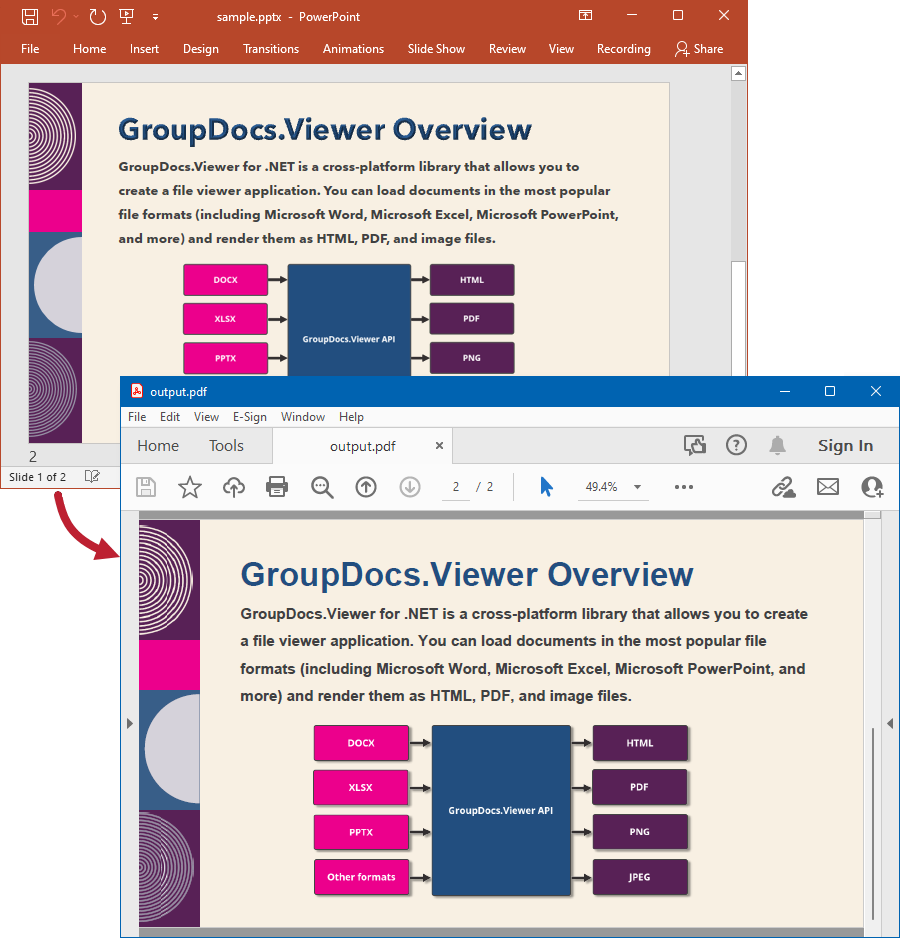
The following image demonstrates the result:
## Render presentations as PNG
Create a [PngViewOptions](https://reference.groupdocs.com/viewer/net/groupdocs.viewer.options/pngviewoptions) class instance and pass it to the [Viewer.View](https://reference.groupdocs.com/viewer/net/groupdocs.viewer/viewer/methods/view/index) method to convert a presentation file to PNG. Use the [PngViewOptions.Height](https://reference.groupdocs.com/viewer/net/groupdocs.viewer.options/pngviewoptions/properties/height) and [PngViewOptions.Width](https://reference.groupdocs.com/viewer/net/groupdocs.viewer.options/pngviewoptions/properties/width) properties to specify the output image size in pixels.
{{< tabs "example4">}}
{{< tab "C#" >}}
```csharp
using GroupDocs.Viewer;
using GroupDocs.Viewer.Options;
// ...
using (var viewer = new Viewer("sample.pptx"))
{
// Create a PNG image for each slide.
// {0} is replaced with the current page number in the image name.
var viewOptions = new PngViewOptions("output_{0}.png");
// Set width and height.
viewOptions.Width = 950;
viewOptions.Height = 550;
viewer.View(viewOptions);
}
```
{{< /tab >}}
{{< tab "VB.NET">}}
```vb
Imports GroupDocs.Viewer
Imports GroupDocs.Viewer.Options
' ...
Module Program
Sub Main(args As String())
Using viewer = New Viewer("sample.pptx")
' Create a PNG image for each slide.
' {0} is replaced with the current page number in the image name.
Dim viewOptions = New PngViewOptions("output_{0}.png")
' Set width and height.
viewOptions.Width = 950
viewOptions.Height = 550
viewer.View(viewOptions)
End Using
End Sub
End Module
```
{{< /tab >}}
{{< /tabs >}}
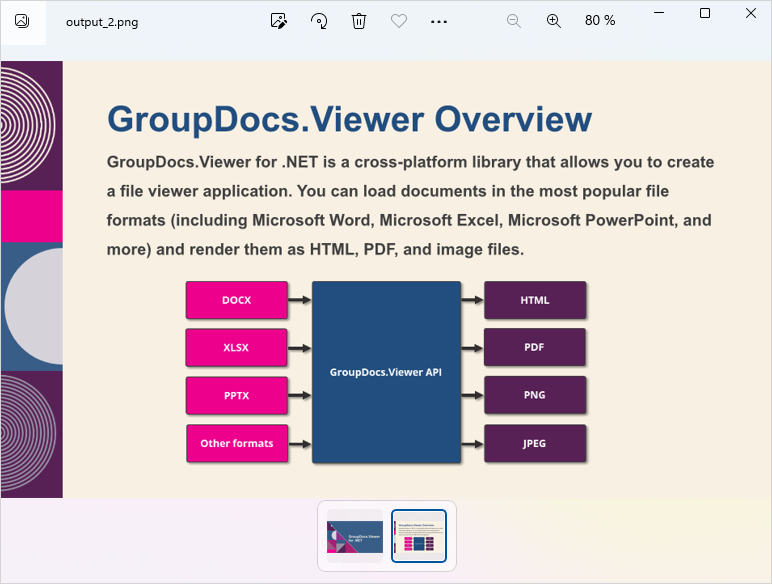
The following image demonstrates the result:
## Render presentations as JPEG
Create a [JpgViewOptions](https://reference.groupdocs.com/viewer/net/groupdocs.viewer.options/jpgviewoptions) class instance and pass it to the [Viewer.View](https://reference.groupdocs.com/viewer/net/groupdocs.viewer/viewer/methods/view/index) method to convert a presentation file to JPEG. Use the [JpgViewOptions.Height](https://reference.groupdocs.com/viewer/net/groupdocs.viewer.options/jpgviewoptions/properties/height) and [JpgViewOptions.Width](https://reference.groupdocs.com/viewer/net/groupdocs.viewer.options/jpgviewoptions/properties/width) properties to specify the output image size in pixels.
{{< tabs "example5">}}
{{< tab "C#" >}}
```csharp
using GroupDocs.Viewer;
using GroupDocs.Viewer.Options;
// ...
using (var viewer = new Viewer("sample.pptx"))
{
// Create a JPEG image for each slide.
// {0} is replaced with the current page number in the image name.
var viewOptions = new JpgViewOptions("output_{0}.jpg");
// Set width and height.
viewOptions.Width = 950;
viewOptions.Height = 550;
viewer.View(viewOptions);
}
```
{{< /tab >}}
{{< tab "VB.NET">}}
```vb
Imports GroupDocs.Viewer
Imports GroupDocs.Viewer.Options
' ...
Module Program
Sub Main(args As String())
Using viewer = New Viewer("sample.pptx")
' Create a JPEG image for each slide.
' {0} is replaced with the current page number in the image name.
Dim viewOptions = New JpgViewOptions("output_{0}.jpg")
' Set width and height.
viewOptions.Width = 950
viewOptions.Height = 550
viewer.View(viewOptions)
End Using
End Sub
End Module
```
{{< /tab >}}
{{< /tabs >}}
## Specify image resolution
When you convert presentations with high-resolution images to other formats, you may need to lower image resolution to reduce the output file size. GroupDocs.Viewer supports the [PresentationOptions.Resolution](https://reference.groupdocs.com/viewer/net/groupdocs.viewer.options/presentationoptions/properties/resolution) option that allows you to compress images in the output HTML and PDF files. To access this option, use the [HtmlViewOptions.PresentationOptions](https://reference.groupdocs.com/viewer/net/groupdocs.viewer.options/baseviewoptions/properties/presentationoptions) or [PdfViewOptions.PresentationOptions](https://reference.groupdocs.com/viewer/net/groupdocs.viewer.options/baseviewoptions/properties/presentationoptions) property (depending on the output file format).
You can set the [PresentationOptions.Resolution](https://reference.groupdocs.com/viewer/net/groupdocs.viewer.options/presentationoptions/properties/resolution) property to one of the following [Resolution](https://reference.groupdocs.com/viewer/net/groupdocs.viewer.options/resolution) field values:
| Resolution field | DPI | Remarks |
| --- | --- | --- |
| DocumentResolution | As in the source file | This is the default value.|
| Dpi72 | 72 | Maximum image compression and minimum file size. |
| Dpi96 | 96 | Good for web pages and projectors. |
| Dpi150 | 150 | Good for web pages and projectors. |
| Dpi220 | 220 | Excellent quality on most printers and screens. |
| Dpi330 | 330 | Good quality for high-definition (HD) displays. |
The following example shows how to specify image resolution in code:
{{< tabs "example6">}}
{{< tab "C#" >}}
```csharp
using GroupDocs.Viewer;
using GroupDocs.Viewer.Options;
// ...
using (var viewer = new Viewer("sample.pptx"))
{
// Convert the presentation to PDF.
var viewOptions = new PdfViewOptions("output.pdf");
// Specify resolution.
viewOptions.PresentationOptions.Resolution = Resolution.Dpi150;
viewer.View(viewOptions);
}
```
{{< /tab >}}
{{< tab "VB.NET">}}
```vb
Imports GroupDocs.Viewer
Imports GroupDocs.Viewer.Options
' ...
Module Program
Sub Main(args As String())
Using viewer = New Viewer("sample.pptx")
' Convert the presentation to PDF.
Dim viewOptions = New PdfViewOptions("output.pdf")
' Specify resolution.
viewOptions.PresentationOptions.Resolution = Resolution.Dpi150
viewer.View(viewOptions)
End Using
End Sub
End Module
```
{{< /tab >}}
{{< /tabs >}}
## Render hidden slides
If your presentation contains hidden slides, enable the [ViewOptions.RenderHiddenPages](https://reference.groupdocs.com/viewer/net/groupdocs.viewer.options/baseviewoptions/properties/renderhiddenpages) property for a target view to display these slides in the output HTML, PDF, or image files.
The following code example uses this option to display hidden slides in the generated PDF file:
{{< tabs "example7">}}
{{< tab "C#" >}}
```csharp
using GroupDocs.Viewer;
using GroupDocs.Viewer.Options;
// ...
using (var viewer = new Viewer("sample.pptx"))
{
// Convert the presentation to PDF.
var viewOptions = new PdfViewOptions("output.pdf");
// Enable hidden slides rendering.
viewOptions.RenderHiddenPages = true;
viewer.View(viewOptions);
}
```
{{< /tab >}}
{{< tab "VB.NET">}}
```vb
Imports GroupDocs.Viewer
Imports GroupDocs.Viewer.Options
' ...
Module Program
Sub Main(args As String())
Using viewer = New Viewer("sample.pptx")
' Convert the presentation to PDF.
Dim viewOptions = New PdfViewOptions("output.pdf")
' Enable hidden slides rendering.
viewOptions.RenderHiddenPages = True
viewer.View(viewOptions)
End Using
End Sub
End Module
```
{{< /tab >}}
{{< /tabs >}}
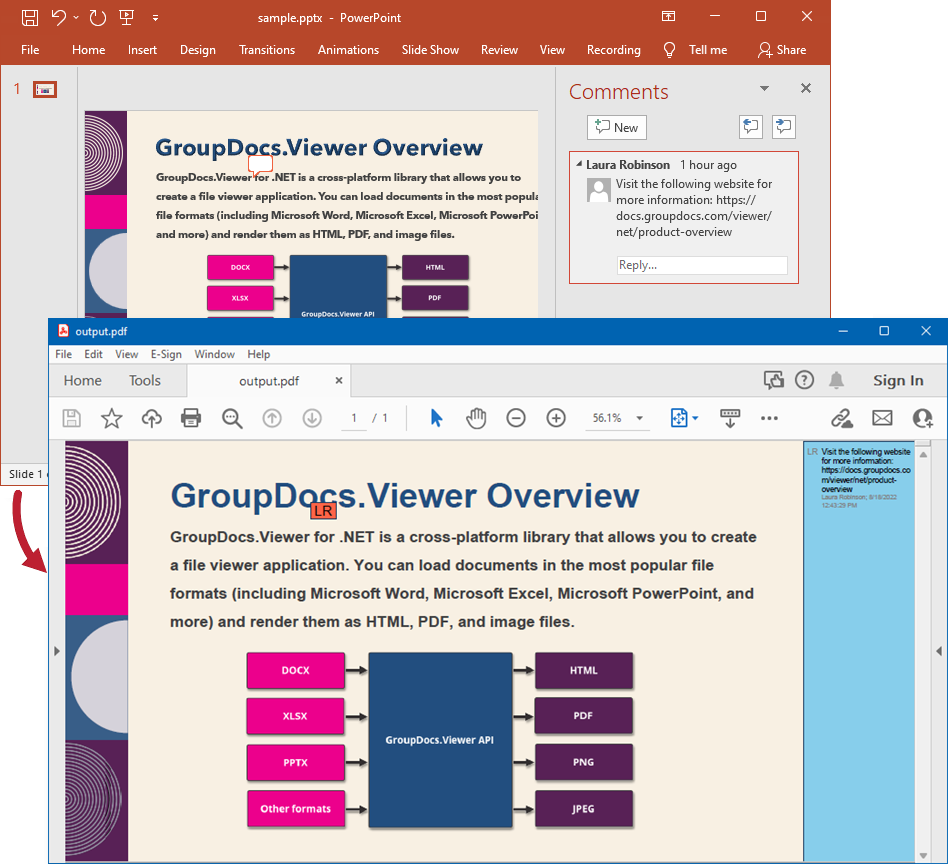
## Render comments
Enable the [ViewOptions.RenderComments](https://reference.groupdocs.com/viewer/net/groupdocs.viewer.options/baseviewoptions/properties/rendercomments) option for a target view to display comments in the output file when you convert your presentation to HTML, PDF, PNG, or JPEG format.
{{< tabs "example8">}}
{{< tab "C#" >}}
```csharp
using GroupDocs.Viewer;
using GroupDocs.Viewer.Options;
// ...
using (var viewer = new Viewer("sample.pptx"))
{
// Convert the presentation to PDF.
var viewOptions = new PdfViewOptions("output.pdf");
// Enable comments rendering.
viewOptions.RenderComments = true;
viewer.View(viewOptions);
}
```
{{< /tab >}}
{{< tab "VB.NET">}}
```vb
Imports GroupDocs.Viewer
Imports GroupDocs.Viewer.Options
' ...
Module Program
Sub Main(args As String())
Using viewer = New Viewer("sample.pptx")
' Convert the presentation to PDF.
Dim viewOptions = New PdfViewOptions("output.pdf")
' Enable comments rendering.
viewOptions.RenderComments = True
viewer.View(viewOptions)
End Using
End Sub
End Module
```
{{< /tab >}}
{{< /tabs >}}
The following image demonstrates the result:
## Render speaker notes
A presentation file can contain speaker notes that help presenters recall important information during the presentation. Speaker notes appear in the **Notes** pane below each slide.
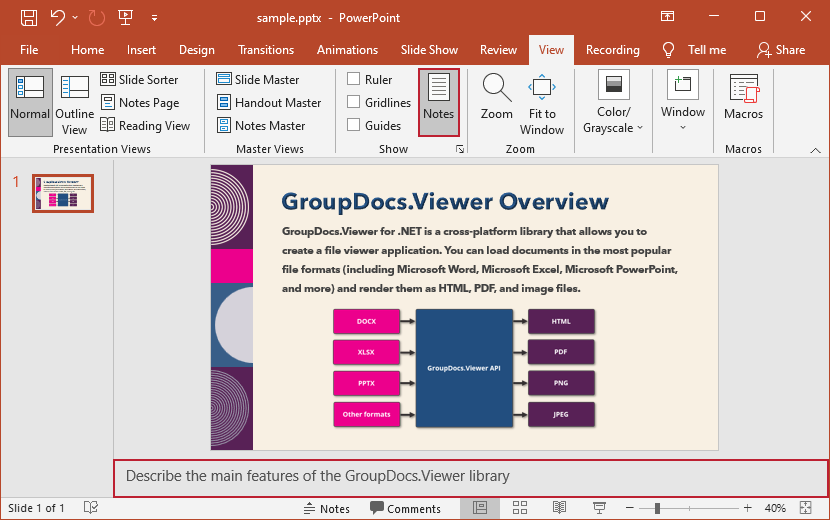
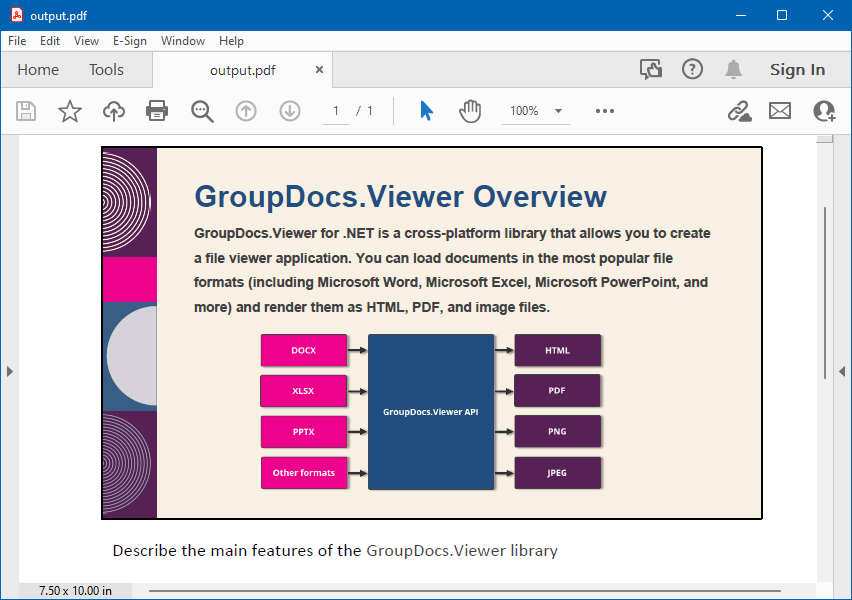
Enable the [ViewOptions.RenderNotes](https://reference.groupdocs.com/viewer/net/groupdocs.viewer.options/baseviewoptions/properties/rendernotes) property for a target view to display speaker notes in the output HTML, PDF, or image files.
The following code sample renders a presentation with speaker notes to PDF:
{{< tabs "example9">}}
{{< tab "C#" >}}
```csharp
using GroupDocs.Viewer;
using GroupDocs.Viewer.Options;
// ...
using (var viewer = new Viewer("sample.pptx"))
{
// Convert the presentation to PDF.
var viewOptions = new PdfViewOptions("output.pdf");
// Enable speaker notes rendering.
viewOptions.RenderNotes = true;
viewer.View(viewOptions);
}
```
{{< /tab >}}
{{< tab "VB.NET">}}
```vb
Imports GroupDocs.Viewer
Imports GroupDocs.Viewer.Options
' ...
Module Program
Sub Main(args As String())
Using viewer = New Viewer("sample.pptx")
' Convert the presentation to PDF.
Dim viewOptions = New PdfViewOptions("output.pdf")
' Enable speaker notes rendering.
viewOptions.RenderNotes = True
viewer.View(viewOptions)
End Using
End Sub
End Module
```
{{< /tab >}}
{{< /tabs >}}
The image below demonstrates the result.
## PowerPoint files rendering demo
The [View PowerPoint files online](https://products.groupdocs.app/viewer/pptx) app is available to test and preview rendering output for PowerPoint and other document formats.