| `, ` ` type-selector, and these rulesets may corrupt the behavior of the parent web-page. It was a problem in the GroupDocs.Viewer before the version 24.3. Starting from [version 24.3](https://releases.groupdocs.com/viewer/net/release-notes/2024/groupdocs-viewer-for-net-24-3-release-notes/), when rendering spreadsheet documents, the GroupDocs.Viewer adds the unique ID value to every HTML element and CSS selector in order to eliminate any interference with styles of the parent application. So now all the type-selectors are replaced to be the combined id-type descendant selectors like `#gdt-id-1 td`, `#gdt-id-2 tr`, and so on. This excludes any style conflicts once and for all. ### Create an HTML file with embedded resources To save all elements of an HTML page (including text, graphics, and stylesheets) into a single file, call the [HtmlViewOptions.ForEmbeddedResources](https://reference.groupdocs.com/viewer/net/groupdocs.viewer.options/htmlviewoptions/methods/forembeddedresources/index) method and specify the output file name. #### Convert an Excel workbook to HTML {{< tabs "example1">}} {{< tab "C#" >}} ```csharp using GroupDocs.Viewer; using GroupDocs.Viewer.Options; // ... using (var viewer = new Viewer("invoice.xlsx")) { // Convert the spreadsheet to HTML. // {0} is replaced with the current page number in the file names. var viewOptions = HtmlViewOptions.ForEmbeddedResources("page_{0}.html"); viewer.View(viewOptions); } ``` {{< /tab >}} {{< tab "VB.NET">}} ```vb Imports GroupDocs.Viewer Imports GroupDocs.Viewer.Options ' ... Module Program Sub Main(args As String()) Using viewer = New Viewer("invoice.xlsx") ' Convert the spreadsheet to HTML. ' {0} is replaced with the current page number in the file names. Dim viewOptions = HtmlViewOptions.ForEmbeddedResources("page_{0}.html") viewer.View(viewOptions) End Using End Sub End Module ``` {{< /tab >}} {{< /tabs >}} The following image demonstrates the result: 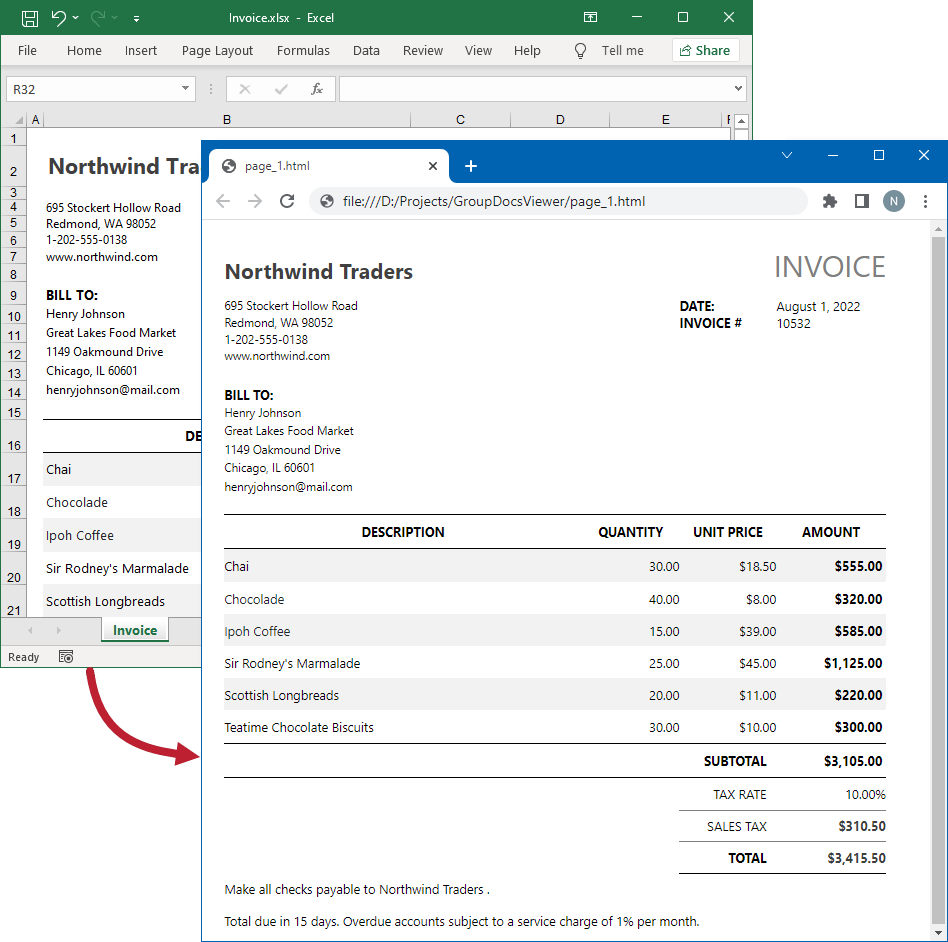 #### Convert an Apple Numbers spreadsheet to HTML {{< tabs "example2">}} {{< tab "C#" >}} ```csharp using GroupDocs.Viewer; using GroupDocs.Viewer.Options; // ... using (var viewer = new Viewer("Products.numbers")) { // Convert the spreadsheet to HTML. // {0} is replaced with the current page number in the file names. var viewOptions = HtmlViewOptions.ForEmbeddedResources("page_{0}.html"); viewer.View(viewOptions); } ``` {{< /tab >}} {{< tab "VB.NET">}} ```vb Imports GroupDocs.Viewer Imports GroupDocs.Viewer.Options ' ... Module Program Sub Main(args As String()) Using viewer = New Viewer("Products.numbers") ' Convert the spreadsheet to HTML. ' {0} is replaced with the current page number in the file names. Dim viewOptions = HtmlViewOptions.ForEmbeddedResources("page_{0}.html") viewer.View(viewOptions) End Using End Sub End Module ``` {{< /tab >}} {{< /tabs >}} The following image demonstrates the result:  ### Create an HTML file with external resources If you want to store an HTML file and additional resource files (such as fonts, images, and stylesheets) separately, call the [HtmlViewOptions.ForExternalResources](https://reference.groupdocs.com/viewer/net/groupdocs.viewer.options/htmlviewoptions/methods/forexternalresources/index) method and pass the following parameters: * The output file path format * The path format for the folder with external resources * The resource URL format #### Convert an Excel workbook to HTML {{< tabs "example3">}} {{< tab "C#" >}} ```csharp using GroupDocs.Viewer; using GroupDocs.Viewer.Options; // ... using (var viewer = new Viewer("invoice.xlsx")) { // Convert the spreadsheet to HTML. // Specify the HTML file names and location of external resources. // {0} and {1} are replaced with the current page number and resource name, respectively. var viewOptions = HtmlViewOptions.ForExternalResources("page_{0}.html", "page_{0}/resource_{0}_{1}", "page_{0}/resource_{0}_{1}"); viewer.View(viewOptions); } ``` {{< /tab >}} {{< tab "VB.NET">}} ```vb Imports GroupDocs.Viewer Imports GroupDocs.Viewer.Options ' ... Module Program Sub Main(args As String()) Using viewer = New Viewer("invoice.xlsx") ' Convert the spreadsheet to HTML. ' Specify the HTML file names and location of external resources. ' {0} and {1} are replaced with the current page number and resource name, respectively. Dim viewOptions = HtmlViewOptions.ForExternalResources("page_{0}.html", "page_{0}/resource_{0}_{1}", "page_{0}/resource_{0}_{1}") viewer.View(viewOptions) End Using End Sub End Module ``` {{< /tab >}} {{< /tabs >}} #### Convert an Apple Numbers spreadsheet to HTML {{< tabs "example4">}} {{< tab "C#" >}} ```csharp using GroupDocs.Viewer; using GroupDocs.Viewer.Options; // ... using (var viewer = new Viewer("Products.numbers")) { // Convert the spreadsheet to HTML. // Specify the HTML file names and location of external resources. // {0} and {1} are replaced with the current page number and resource name, respectively. var viewOptions = HtmlViewOptions.ForExternalResources("page_{0}.html", "page_{0}/resource_{0}_{1}", "page_{0}/resource_{0}_{1}"); viewer.View(viewOptions); } ``` {{< /tab >}} {{< tab "VB.NET">}} ```vb Imports GroupDocs.Viewer Imports GroupDocs.Viewer.Options ' ... Module Program Sub Main(args As String()) Using viewer = New Viewer("Products.numbers") ' Convert the spreadsheet to HTML. ' Specify the HTML file names and location of external resources. ' {0} and {1} are replaced with the current page number and resource name, respectively. Dim viewOptions = HtmlViewOptions.ForExternalResources("page_{0}.html", "page_{0}/resource_{0}_{1}", "page_{0}/resource_{0}_{1}") viewer.View(viewOptions) End Using End Sub End Module ``` {{< /tab >}} {{< /tabs >}} The image below demonstrates the result. External resources are placed in a separate folder.  ### Convert all Excel worksheets to one HTML file To convert all worksheets to one HTML file, set the [HtmlViewOptions.RenderToSinglePage](https://reference.groupdocs.com/viewer/net/groupdocs.viewer.options/htmlviewoptions/rendertosinglepage/) property to `true`. This feature is supported in both cases - when converting to HTML with embedded and external resources. {{< tabs "example5">}} {{< tab "C#" >}} ```csharp using GroupDocs.Viewer; using GroupDocs.Viewer.Options; // ... using (var viewer = new Viewer("Personal_net_worth_calculator.xlsx")) { // Convert all Excel worksheets to one HTML file. var viewOptions = HtmlViewOptions.ForEmbeddedResources("page.html"); // Enable converting all worksheets to one file. viewOptions.RenderToSinglePage = true; viewer.View(viewOptions); } ``` {{< /tab >}} {{< tab "VB.NET">}} ```vb Imports GroupDocs.Viewer Imports GroupDocs.Viewer.Options ' ... Module Program Sub Main(args As String()) Using viewer = New Viewer("Personal_net_worth_calculator.xlsx") ' Convert all Excel worksheets to one HTML file. Dim viewOptions = HtmlViewOptions.ForEmbeddedResources("page.html") ' Enable converting all worksheets to one file. viewOptions.RenderToSinglePage = True viewer.View(viewOptions) End Using End Sub End Module ``` {{< /tab >}} {{< /tabs >}} The following image demonstrates the result: 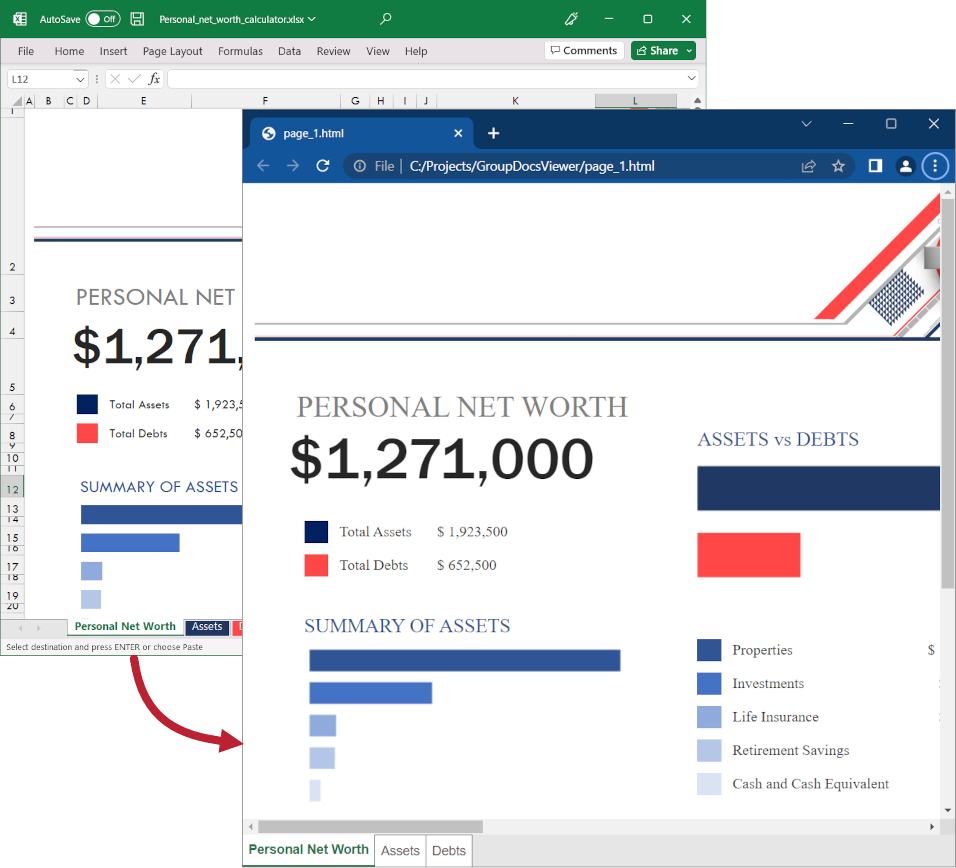 ## Render spreadsheets as PDF Create a [PdfViewOptions](https://reference.groupdocs.com/viewer/net/groupdocs.viewer.options/pdfviewoptions) class instance and pass it to the [Viewer.View](https://reference.groupdocs.com/viewer/net/groupdocs.viewer/viewer/methods/view/index) method to convert a spreadsheet file to PDF. The `PdfViewOptions` class properties allow you to control the conversion process. For instance, you can protect the output PDF file, reorder its pages, and specify the quality of document images. Refer to the following documentation section for details: [Rendering to PDF]({{< ref "viewer/net/developer-guide/rendering-documents/rendering-to-pdf/_index.md" >}}). ### Convert an Excel workbook to PDF {{< tabs "example6">}} {{< tab "C#" >}} ```csharp using GroupDocs.Viewer; using GroupDocs.Viewer.Options; // ... using (var viewer = new Viewer("invoice.xlsx")) { // Convert the spreadsheet to PDF. var viewOptions = new PdfViewOptions("output.pdf"); viewer.View(viewOptions); } ``` {{< /tab >}} {{< tab "VB.NET">}} ```vb Imports GroupDocs.Viewer Imports GroupDocs.Viewer.Options ' ... Module Program Sub Main(args As String()) Using viewer = New Viewer("invoice.xlsx") ' Convert the spreadsheet to PDF. Dim viewOptions = New PdfViewOptions("output.pdf") viewer.View(viewOptions) End Using End Sub End Module ``` {{< /tab >}} {{< /tabs >}} The following image demonstrates the result:  ### Convert an Apple Numbers spreadsheet to PDF {{< tabs "example7">}} {{< tab "C#" >}} ```csharp using GroupDocs.Viewer; using GroupDocs.Viewer.Options; // ... using (var viewer = new Viewer("Products.numbers")) { // Convert the spreadsheet to PDF. var viewOptions = new PdfViewOptions("output.pdf"); viewer.View(viewOptions); } ``` {{< /tab >}} {{< tab "VB.NET">}} ```vb Imports GroupDocs.Viewer Imports GroupDocs.Viewer.Options ' ... Module Program Sub Main(args As String()) Using viewer = New Viewer("Products.numbers") ' Convert the spreadsheet to PDF. Dim viewOptions = New PdfViewOptions("output.pdf") viewer.View(viewOptions) End Using End Sub End Module ``` {{< /tab >}} {{< /tabs >}} The following image demonstrates the result:  ## Render spreadsheets as PNG Create a [PngViewOptions](https://reference.groupdocs.com/viewer/net/groupdocs.viewer.options/pngviewoptions) class instance and pass it to the [Viewer.View](https://reference.groupdocs.com/viewer/net/groupdocs.viewer/viewer/methods/view/index) method to convert a spreadsheet file to PNG. Use the [PngViewOptions.Height](https://reference.groupdocs.com/viewer/net/groupdocs.viewer.options/pngviewoptions/properties/height) and [PngViewOptions.Width](https://reference.groupdocs.com/viewer/net/groupdocs.viewer.options/pngviewoptions/properties/width) properties to specify the output image size in pixels. ### Convert an Excel workbook to PNG {{< tabs "example8">}} {{< tab "C#" >}} ```csharp using GroupDocs.Viewer; using GroupDocs.Viewer.Options; // ... using (var viewer = new Viewer("invoice.xlsx")) { // Convert the spreadsheet to PNG. // {0} is replaced with the current page number in the file names. var viewOptions = new PngViewOptions("output_{0}.png"); // Set width and height. viewOptions.Width = 800; viewOptions.Height = 900; viewer.View(viewOptions); } ``` {{< /tab >}} {{< tab "VB.NET">}} ```vb Imports GroupDocs.Viewer Imports GroupDocs.Viewer.Options ' ... Module Program Sub Main(args As String()) Using viewer = New Viewer("invoice.xlsx") ' Convert the spreadsheet to PNG. ' {0} is replaced with the current page number in the file names. Dim viewOptions = New PngViewOptions("output_{0}.png") ' Set width and height. viewOptions.Width = 800 viewOptions.Height = 900 viewer.View(viewOptions) End Using End Sub End Module ``` {{< /tab >}} {{< /tabs >}} The following image demonstrates the result:  ### Convert an Apple Numbers spreadsheet to PNG {{< tabs "example9">}} {{< tab "C#" >}} ```csharp using GroupDocs.Viewer; using GroupDocs.Viewer.Options; // ... using (var viewer = new Viewer("Products.numbers")) { // Convert the spreadsheet to PNG. // {0} is replaced with the current page number in the file names. var viewOptions = new PngViewOptions("output_{0}.png"); // Set width and height. viewOptions.Width = 800; viewOptions.Height = 900; viewer.View(viewOptions); } ``` {{< /tab >}} {{< tab "VB.NET">}} ```vb Imports GroupDocs.Viewer Imports GroupDocs.Viewer.Options ' ... Module Program Sub Main(args As String()) Using viewer = New Viewer("Products.numbers") ' Convert the spreadsheet to PNG. ' {0} is replaced with the current page number in the file names. Dim viewOptions = New PngViewOptions("output_{0}.png") ' Set width and height. viewOptions.Width = 800 viewOptions.Height = 900 viewer.View(viewOptions) End Using End Sub End Module ``` {{< /tab >}} {{< /tabs >}} The following image demonstrates the result:  ## Render spreadsheets as JPEG Create a [JpgViewOptions](https://reference.groupdocs.com/viewer/net/groupdocs.viewer.options/jpgviewoptions) class instance and pass it to the [Viewer.View](https://reference.groupdocs.com/viewer/net/groupdocs.viewer/viewer/methods/view/index) method to convert a spreadsheet file to JPEG. Use the [JpgViewOptions.Height](https://reference.groupdocs.com/viewer/net/groupdocs.viewer.options/jpgviewoptions/properties/height) and [JpgViewOptions.Width](https://reference.groupdocs.com/viewer/net/groupdocs.viewer.options/jpgviewoptions/properties/width) properties to specify the output image size in pixels. ### Convert an Excel workbook to JPEG {{< tabs "example10">}} {{< tab "C#" >}} ```csharp using GroupDocs.Viewer; using GroupDocs.Viewer.Options; // ... using (var viewer = new Viewer("invoice.xlsx")) { // Convert the spreadsheet to JPEG. // {0} is replaced with the current page number in the file names. var viewOptions = new JpgViewOptions("output_{0}.jpg"); // Set width and height. viewOptions.Width = 800; viewOptions.Height = 900; viewer.View(viewOptions); } ``` {{< /tab >}} {{< tab "VB.NET">}} ```vb Imports GroupDocs.Viewer Imports GroupDocs.Viewer.Options ' ... Module Program Sub Main(args As String()) Using viewer = New Viewer("invoice.xlsx") ' Convert the spreadsheet to JPEG. ' {0} is replaced with the current page number in the file names. Dim viewOptions = New JpgViewOptions("output_{0}.jpg") ' Set width and height. viewOptions.Width = 800 viewOptions.Height = 900 viewer.View(viewOptions) End Using End Sub End Module ``` {{< /tab >}} {{< /tabs >}} ### Convert an Apple Numbers spreadsheet to JPEG {{< tabs "example11">}} {{< tab "C#" >}} ```csharp using GroupDocs.Viewer; using GroupDocs.Viewer.Options; // ... using (var viewer = new Viewer("Products.numbers")) { // Convert the spreadsheet to JPEG. // {0} is replaced with the current page number in the file names. var viewOptions = new JpgViewOptions("output_{0}.jpg"); // Set width and height. viewOptions.Width = 800; viewOptions.Height = 900; viewer.View(viewOptions); } ``` {{< /tab >}} {{< tab "VB.NET">}} ```vb Imports GroupDocs.Viewer Imports GroupDocs.Viewer.Options ' ... Module Program Sub Main(args As String()) Using viewer = New Viewer("Products.numbers") ' Convert the spreadsheet to JPEG. ' {0} is replaced with the current page number in the file names. Dim viewOptions = New JpgViewOptions("output_{0}.jpg") ' Set width and height. viewOptions.Width = 800 viewOptions.Height = 900 viewer.View(viewOptions) End Using End Sub End Module ``` {{< /tab >}} {{< /tabs >}} ## Detect a CSV/TSV separator If you load a CSV/TSV file to convert it to another format, enable the [SpreadsheetOptions.DetectSeparator](https://reference.groupdocs.com/viewer/net/groupdocs.viewer.options/spreadsheetoptions/properties/detectseparator) property for a target view to automatically detect a delimiter used to separate values in the source file. GroupDocs.Viewer can detect the following separators: * A comma (the default separator) * A semicolon {{< tabs "example12">}} {{< tab "C#" >}} ```csharp using GroupDocs.Viewer; using GroupDocs.Viewer.Options; // ... using (var viewer = new Viewer("sample.csv")) { // Convert the spreadsheet to HTML. // {0} is replaced with the current page number in the file names. var viewOptions = HtmlViewOptions.ForEmbeddedResources("page_{0}.html"); // Detect a CSV/TSV separator. viewOptions.SpreadsheetOptions.DetectSeparator = true; viewer.View(viewOptions); } ``` {{< /tab >}} {{< tab "VB.NET">}} ```vb Imports GroupDocs.Viewer Imports GroupDocs.Viewer.Options ' ... Module Program Sub Main(args As String()) Using viewer = New Viewer("sample.csv") ' Convert the spreadsheet to HTML. ' {0} is replaced with the current page number in the file names. Dim viewOptions = HtmlViewOptions.ForEmbeddedResources("page_{0}.html") ' Detect a CSV/TSV separator. viewOptions.SpreadsheetOptions.DetectSeparator = True viewer.View(viewOptions) End Using End Sub End Module ``` {{< /tab >}} {{< /tabs >}} ## Get worksheet names GroupDocs.Viewer allows you to obtain information about the source spreadsheet file. For example, you can retrieve worksheet names, as described below: 1. Create a [ViewInfoOptions](https://reference.groupdocs.com/viewer/net/groupdocs.viewer.options/viewinfooptions) instance for a specific view. 2. Call the [Viewer.GetViewInfo](https://reference.groupdocs.com/net/viewer/groupdocs.viewer/viewer/methods/getviewinfo) method and pass the `ViewInfoOptions` instance to this method as a parameter. 3. Use the [Pages](https://reference.groupdocs.com/viewer/net/groupdocs.viewer.results/viewinfo/properties/pages) property of the returned [ViewInfo](https://reference.groupdocs.com/viewer/net/groupdocs.viewer.results/viewinfo) object to iterate through the list of worksheets and retrieve the worksheet names. {{< tabs "example13">}} {{< tab "C#" >}} ```csharp using GroupDocs.Viewer; using GroupDocs.Viewer.Options; using GroupDocs.Viewer.Results; // ... using (var viewer = new Viewer("sample.xlsx")) { var viewInfoOptions = ViewInfoOptions.ForHtmlView(); // Call this method to create a single page for each worksheet. viewInfoOptions.SpreadsheetOptions = SpreadsheetOptions.ForOnePagePerSheet(); var viewInfo = viewer.GetViewInfo(viewInfoOptions); // Print the worksheet names in the console window. Console.WriteLine("The document contains the following worksheets:"); foreach (Page page in viewInfo.Pages) { Console.WriteLine($" - Worksheet {page.Number}: '{page.Name}'"); } } ``` {{< /tab >}} {{< tab "VB.NET">}} ```vb Imports GroupDocs.Viewer Imports GroupDocs.Viewer.Options Imports GroupDocs.Viewer.Results ' ... Module Program Sub Main(args As String()) Using viewer = New Viewer("sample.xlsx") Dim viewInfoOptions = ViewInfoOptions.ForHtmlView() ' Call this method to create a single page for each worksheet. viewInfoOptions.SpreadsheetOptions = SpreadsheetOptions.ForOnePagePerSheet() Dim viewInfo = viewer.GetViewInfo(viewInfoOptions) ' Print the worksheet names in the console window. Console.WriteLine("The document contains the following worksheets:") For Each page As Page In viewInfo.Pages Console.WriteLine($" - Worksheet {page.Number}: '{page.Name}'") Next End Using End Sub End Module ``` {{< /tab >}} {{< /tabs >}} The following image shows a sample console output:  ## Excel files rendering demo The [View Excel files online](https://products.groupdocs.app/viewer/xlsx) app is available to test and preview rendering output for Excel and other document formats. ## See also * [Split a worksheet into pages](https://docs.groupdocs.com/viewer/net/split-worksheet-into-pages.md) * [Specify spreadsheet rendering options](https://docs.groupdocs.com/viewer/net/specify-rendering-options.md) |