# Render Outlook data files as HTML, PDF, and image files
This topic describes how to use the GroupDocs.Viewer Java API to convert Outlook data files (PST and OST) to HTML, PDF, PNG, and JPEG formats.
[GroupDocs.Viewer for Java](https://products.groupdocs.com/viewer/java) allows you to render Microsoft Outlook data files in HTML, PDF, PNG, and JPEG formats. Use this library to display the contents of OST and PST files within your Java application (web or desktop).
To start with the GroupDocs.Viewer API, create a [Viewer](https://reference.groupdocs.com/viewer/java/com.groupdocs.viewer/viewer) class instance. Pass a document you want to view to the class constructor. You can load the document from a file or stream. Call one of the [Viewer.view](https://reference.groupdocs.com/viewer/java/com.groupdocs.viewer/viewer/) method overloads to convert the document to HTML, PDF, or image format. These methods allow you to render the entire document or specific pages.
{{< button style="primary" link="https://products.groupdocs.app/viewer/outlook" >}} {{< icon "gdoc_person" >}} View Outlook files online {{< /button >}} {{< button style="primary" link="https://github.com/groupdocs-viewer/GroupDocs.Viewer-for-Java" >}} {{< icon "gdoc_github" >}} View demos and examples on GitHub {{< /button >}}
## Supported Outlook data file formats
GroupDocs.Viewer supports the following Outlook data file formats:
* [Outlook Offline Storage Table](https://docs.fileformat.com/email/ost) (.OST)
* [Outlook Personal Storage Table](https://docs.fileformat.com/email/pst) (.PST)
## Render Outlook data files as HTML
To convert an OST or PST file to HTML, call the [HtmlViewOptions.forEmbeddedResources](https://reference.groupdocs.com/viewer/java/com.groupdocs.viewer.options/htmlviewoptions/#forEmbeddedResources--) method to create an [HtmlViewOptions](https://reference.groupdocs.com/viewer/java/com.groupdocs.viewer.options/htmlviewoptions) class instance and pass this instance to the [Viewer.view](https://reference.groupdocs.com/viewer/java/com.groupdocs.viewer/viewer/) method.
{{< tabs "example1">}}
{{< tab "Java" >}}
```java
import com.groupdocs.viewer.Viewer;
import com.groupdocs.viewer.options.HtmlViewOptions;
// ...
try (Viewer viewer = new Viewer("sample.pst")) {
// Specify the HTML file name.
HtmlViewOptions viewOptions = HtmlViewOptions.forEmbeddedResources("output.html");
viewer.view(viewOptions);
}
```
{{< /tab >}}
{{< /tabs >}}
The following image demonstrates the result:

## Render Outlook data files as PDF
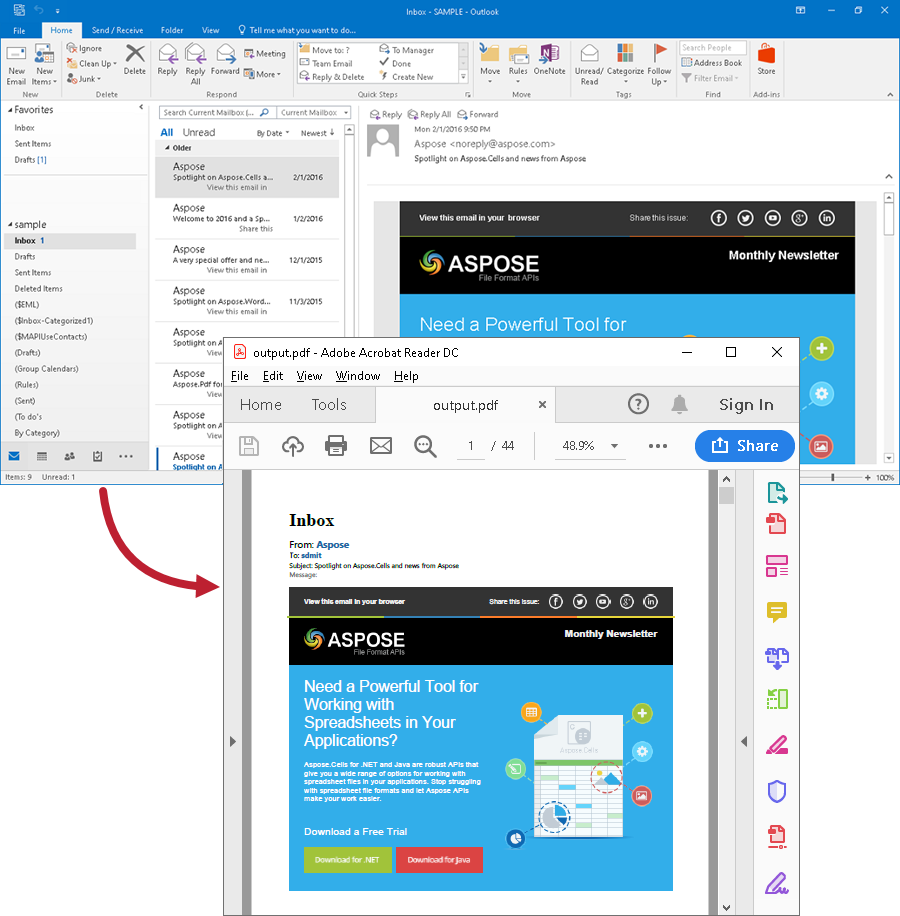
Create a [PdfViewOptions](https://reference.groupdocs.com/viewer/java/com.groupdocs.viewer.options/pdfviewoptions) class instance and pass it to the [Viewer.view](https://reference.groupdocs.com/viewer/java/com.groupdocs.viewer/viewer/) method to convert an OST or PST file to PDF. The `PdfViewOptions` class properties allow you to control the conversion process. For instance, you can protect the output PDF file, reorder its pages, and specify the quality of document images. Refer to the following documentation section for details: [Rendering to PDF]({{< ref "viewer/java/developer-guide/rendering-documents/rendering-to-pdf/_index.md" >}}).
{{< tabs "example2">}}
{{< tab "Java" >}}
```java
import com.groupdocs.viewer.Viewer;
import com.groupdocs.viewer.options.PdfViewOptions;
// ...
try (Viewer viewer = new Viewer("sample.pst")) {
// Create a PDF file.
PdfViewOptions viewOptions = new PdfViewOptions("output.pdf");
viewer.view(viewOptions);
}
```
{{< /tab >}}
{{< /tabs >}}
The following image demonstrates the result:
## Render Outlook data files as PNG
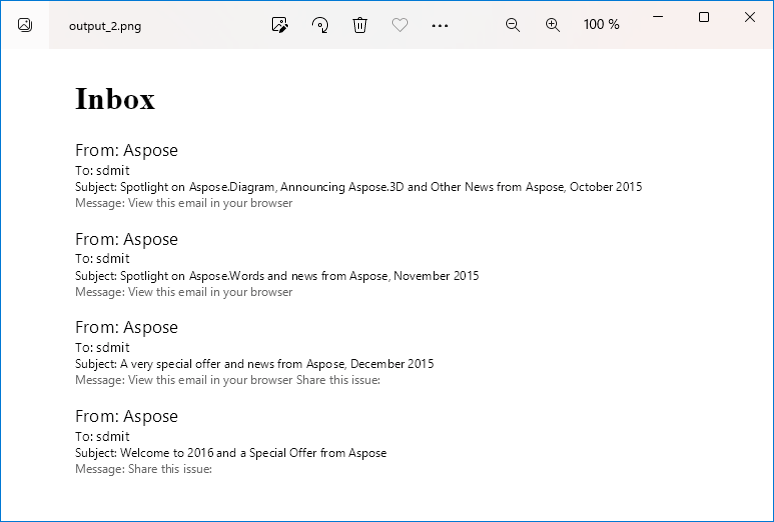
Create a [PngViewOptions](https://reference.groupdocs.com/viewer/java/com.groupdocs.viewer.options/pngviewoptions) class instance and pass it to the [Viewer.view](https://reference.groupdocs.com/viewer/java/com.groupdocs.viewer/viewer/) method to convert an OST or PST file to PNG. Use the [PngViewOptions.setHeight](https://reference.groupdocs.com/viewer/java/com.groupdocs.viewer.options/pngviewoptions/#setHeight-int-) and [PngViewOptions.setWidth](https://reference.groupdocs.com/viewer/java/com.groupdocs.viewer.options/pngviewoptions/#setWidth-int-) methods to specify the output image size in pixels.
{{< tabs "example3">}}
{{< tab "Java" >}}
```java
import com.groupdocs.viewer.Viewer;
import com.groupdocs.viewer.options.PngViewOptions;
// ...
try (Viewer viewer = new Viewer("sample.pst")) {
// Convert the PST file to PNG.
// {0} is replaced with the page numbers in the output image names.
PngViewOptions viewOptions = new PngViewOptions("output_{0}.png");
// Set width and height.
viewOptions.setWidth(950);
viewOptions.setHeight(550);
viewer.view(viewOptions);
}
```
{{< /tab >}}
{{< /tabs >}}
The following image demonstrates the result:
## Render Outlook data files as JPEG
Create a [JpgViewOptions](https://reference.groupdocs.com/viewer/java/com.groupdocs.viewer.options/jpgviewoptions) class instance and pass it to the [Viewer.view](https://reference.groupdocs.com/viewer/java/com.groupdocs.viewer/viewer/) method to convert an OST or PST file to JPEG. Use the [JpgViewOptions.setHeight](https://reference.groupdocs.com/viewer/java/com.groupdocs.viewer.options/jpgviewoptions/#setHeight-int-) and [JpgViewOptions.setWidth](https://reference.groupdocs.com/viewer/java/com.groupdocs.viewer.options/jpgviewoptions/#setWidth-int-) methods to specify the output image size in pixels.
{{< tabs "example4">}}
{{< tab "Java" >}}
```java
import com.groupdocs.viewer.Viewer;
import com.groupdocs.viewer.options.JpgViewOptions;
// ...
try (Viewer viewer = new Viewer("sample.pst")) {
// Convert the PST file to JPG.
// {0} is replaced with the page numbers in the output image names.
JpgViewOptions viewOptions = new JpgViewOptions("output_{0}.jpg");
// Set width and height.
viewOptions.setWidth(950);
viewOptions.setHeight(550);
viewer.view(viewOptions);
}
```
{{< /tab >}}
{{< /tabs >}}
## Get information about folders in an Outlook data file
Follow the steps below to obtain information about folders contained in an Outlook data file.
1. Create a [ViewInfoOptions](https://reference.groupdocs.com/viewer/java/com.groupdocs.viewer.options/viewinfooptions) instance for a specific view.
2. Call the [Viewer.getViewInfo](https://reference.groupdocs.com/viewer/java/com.groupdocs.viewer/viewer/#getViewInfo-com.groupdocs.viewer.options.ViewInfoOptions-) method, pass the `ViewInfoOptions` instance to this method as a parameter, and cast the returned object to the [OutlookViewInfo](https://reference.groupdocs.com/viewer/java/com.groupdocs.viewer.results/outlookviewinfo/) type.
3. Use the [OutlookViewInfo.getFolders](https://reference.groupdocs.com/viewer/java/com.groupdocs.viewer.results/outlookviewinfo/#getFolders--) method to obtain the list of folders in the Outlook data file.
{{< tabs "example5">}}
{{< tab "Java" >}}
```java
import com.groupdocs.viewer.Viewer;
import com.groupdocs.viewer.options.ViewInfoOptions;
import com.groupdocs.viewer.results.OutlookViewInfo;
// ...
ViewInfoOptions viewInfoOptions = ViewInfoOptions.forHtmlView();
OutlookViewInfo viewInfo;
try (Viewer viewer = new Viewer("sample.pst")) {
viewInfo = (OutlookViewInfo) viewer.getViewInfo(viewInfoOptions);
}
// Display information about the PST file.
System.out.println("File type: " + viewInfo.getFileType());
System.out.println("The number of pages: " + viewInfo.getPages().size());
// Display the list of folders that the PST file contains.
System.out.println("The file contains the following folders:");
for (String folder : viewInfo.getFolders()) {
System.out.println(folder);
}
```
{{< /tab >}}
{{< /tabs >}}
## Specify rendering options
GroupDocs.Viewer supports the [OutlookOptions](https://reference.groupdocs.com/viewer/java/com.groupdocs.viewer.options/outlookoptions) class that allows you to specify different options for rendering Outlook data files. To access these options, use the [setOutlookOptions](https://reference.groupdocs.com/viewer/java/com.groupdocs.viewer.options/baseviewoptions/#setOutlookOptions-com.groupdocs.viewer.options.OutlookOptions-) method for one of the following classes (depending on the output file format):
* [HtmlViewOptions](https://reference.groupdocs.com/viewer/java/com.groupdocs.viewer.options/htmlviewoptions)
* [PdfViewOptions](https://reference.groupdocs.com/viewer/java/com.groupdocs.viewer.options/pdfviewoptions)
* [PngViewOptions](https://reference.groupdocs.com/viewer/java/com.groupdocs.viewer.options/pngviewoptions)
* [JpgViewOptions](https://reference.groupdocs.com/viewer/java/com.groupdocs.viewer.options/jpgviewoptions)
### Render a specific folder
When you convert an OST or PST file to HTML, PDF, or image format, GroupDocs.Viewer renders messages from all folders contained in the file (including nested folders). If you want to render items from a specific folder, use the [OutlookOptions.setFolder](https://reference.groupdocs.com/viewer/java/com.groupdocs.viewer.options/outlookoptions/#setFolder-java.lang.String-) method for a target view. Specify the folder name as follows: `{Parent folder name}\\{Subfolder name}`.
{{< tabs "example6">}}
{{< tab "Java" >}}
```java
import com.groupdocs.viewer.Viewer;
import com.groupdocs.viewer.options.HtmlViewOptions;
// ...
// Create an HTML file.
HtmlViewOptions viewOptions = HtmlViewOptions.forEmbeddedResources();
// Render messages from the "Inbox" folder and its subfolders.
viewOptions.getOutlookOptions().setFolder("Inbox");
try (Viewer viewer = new Viewer("sample.pst")) {
viewer.view(viewOptions);
}
```
{{< /tab >}}
{{< /tabs >}}
### Limit the number of folder items to render
When you load large Outlook data files, it may take a significant amount of time to retrieve and render file contents. To improve rendering performance, use the [OutlookOptions.setMaxItemsInFolder](https://reference.groupdocs.com/viewer/java/com.groupdocs.viewer.options/outlookoptions/#setMaxItemsInFolder-int-) method to limit the number of rendered items (messages, contacts, or tasks) in each folder. The default property value is **50**. Set this property to **0** to render all existing items.
The following example demonstrates how to specify the maximum number of folder items to render:
{{< tabs "example7">}}
{{< tab "Java" >}}
```java
import com.groupdocs.viewer.Viewer;
import com.groupdocs.viewer.options.HtmlViewOptions;
// ...
// Create an HTML file.
HtmlViewOptions viewOptions = HtmlViewOptions.forEmbeddedResources();
// Specify the maximum number of folder items.
viewOptions.getOutlookOptions().setMaxItemsInFolder(30);
try (Viewer viewer = new Viewer("sample.pst")) {
viewer.view(viewOptions);
}
```
{{< /tab >}}
{{< /tabs >}}
### Filter messages
Microsoft Outlook allows you to filter messages by specific words in the message body or by part of the sender's or recipient's address.

With GroupDocs.Viewer, you can also filter messages before rendering an Outlook data file to HTML, PDF, or image format. To do this, use the following methods:
* [OutlookOptions.setTextFilter](https://reference.groupdocs.com/viewer/java/com.groupdocs.viewer.options/outlookoptions/#setTextFilter-java.lang.String-)---Allows you to render all messages that contain specific text in the subject or body.
* [OutlookOptions.setAddressFilter](https://reference.groupdocs.com/viewer/java/com.groupdocs.viewer.options/outlookoptions/#setAddressFilter-java.lang.String-)---Allows you to render all messages that contain specific text in the sender's or recipient's address.
The following code sample filters messages in a PST file before rendering this file to HTML:
{{< tabs "example8">}}
{{< tab "Java" >}}
```java
import com.groupdocs.viewer.Viewer;
import com.groupdocs.viewer.options.HtmlViewOptions;
// ...
try (Viewer viewer = new Viewer("sample.nsf")) {
// Create an HTML file.
HtmlViewOptions viewOptions = HtmlViewOptions.forEmbeddedResources("output.html");
// Set filters.
viewOptions.getOutlookOptions().setTextFilter("Viewer");
viewOptions.getOutlookOptions().setAddressFilter("groupdocs.com");
viewer.view(viewOptions);
}
```
{{< /tab >}}
{{< /tabs >}}