# Index Browser
Index Browser is a .NET application for managing indexes created using the GroupDocs.Search library
## Index Browser
Index Browser is a .NET (Framework and Core) application for managing indexes created using the GroupDocs.Search library.
The Index Browser allows you to:
- Create and delete indexes.
- Add documents to opened index.
- Search opened index and view the results.
- View the contents of indexed documents.
The Index Browser project is available on GitHub:
[https://github.com/groupdocs-search/GroupDocs.Search-for-.NET/tree/master/Demos/IndexBrowser](https://github.com/groupdocs-search/GroupDocs.Search-for-.NET/tree/master/Demos/IndexBrowser)
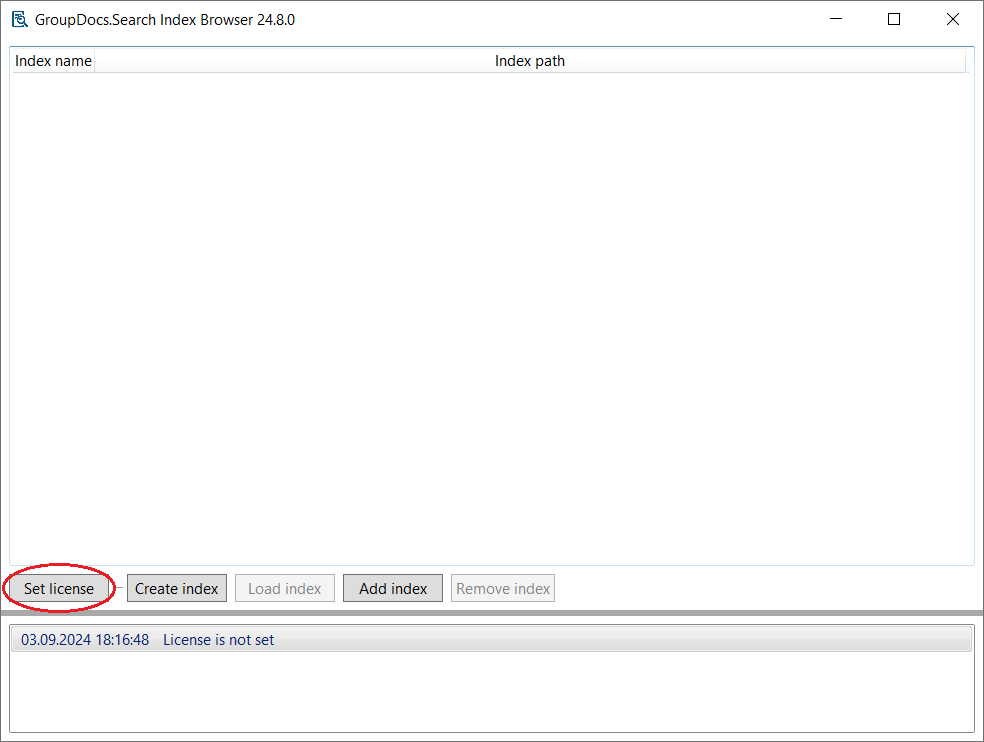
After launching the Index Browser application, click the **Set license** button and select the license file to work with the GroupDocs.Search for .NET library.
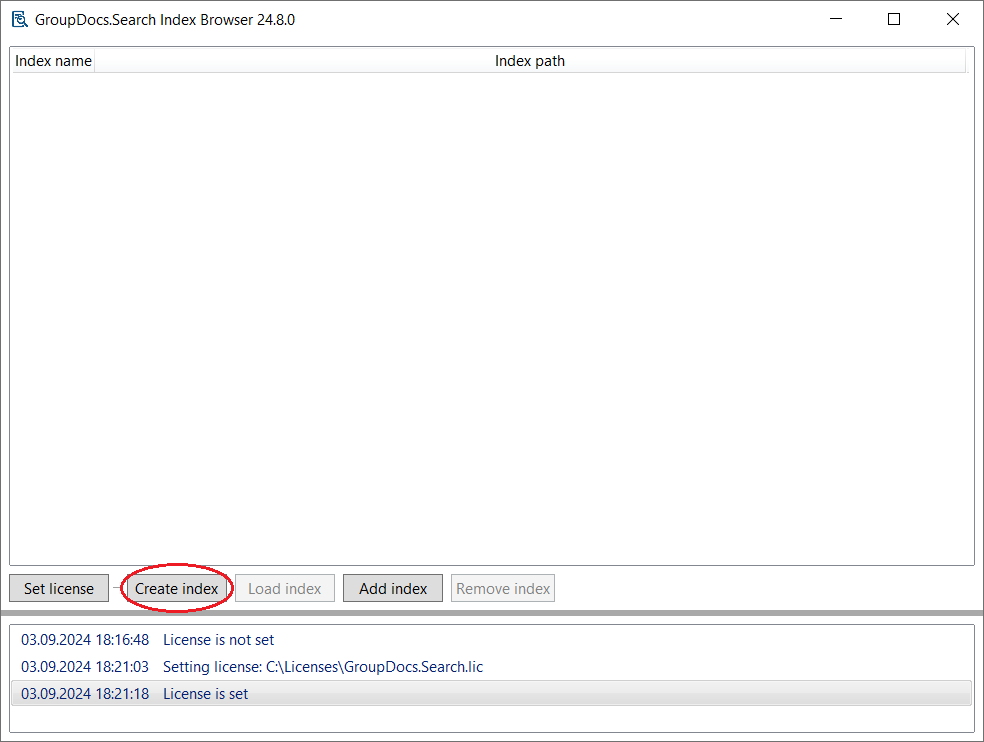
 To create an index, click the **Create index** button.
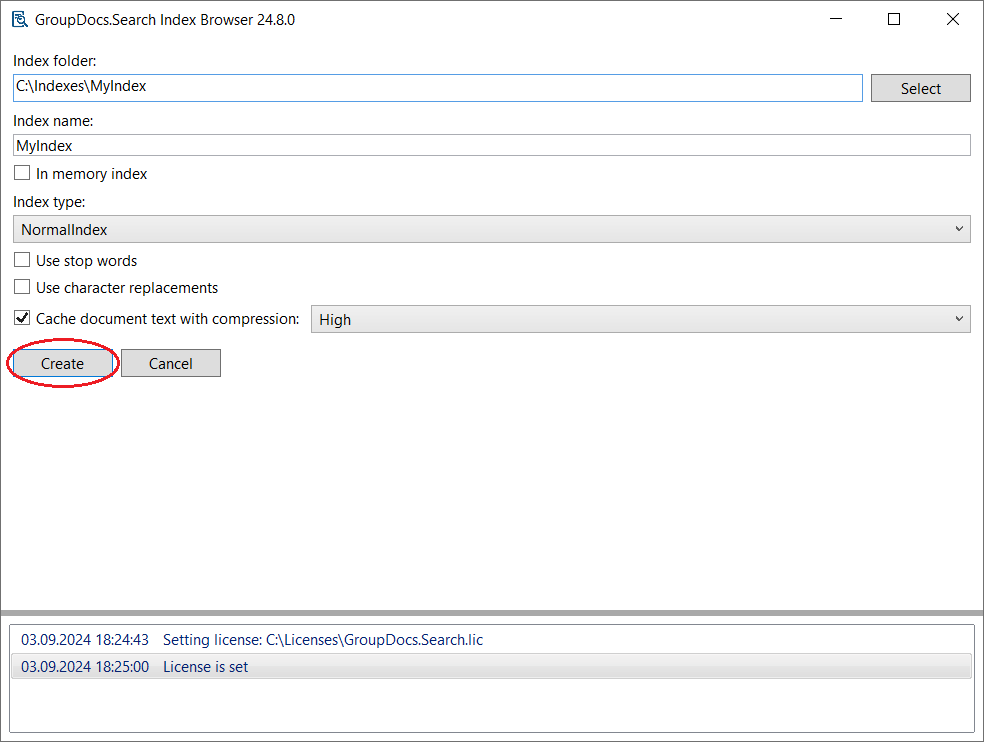
 Enter the index location directory on the disk in the field **Index folder**. Enter the index name (to be displayed in the list). Click the **Create** button.
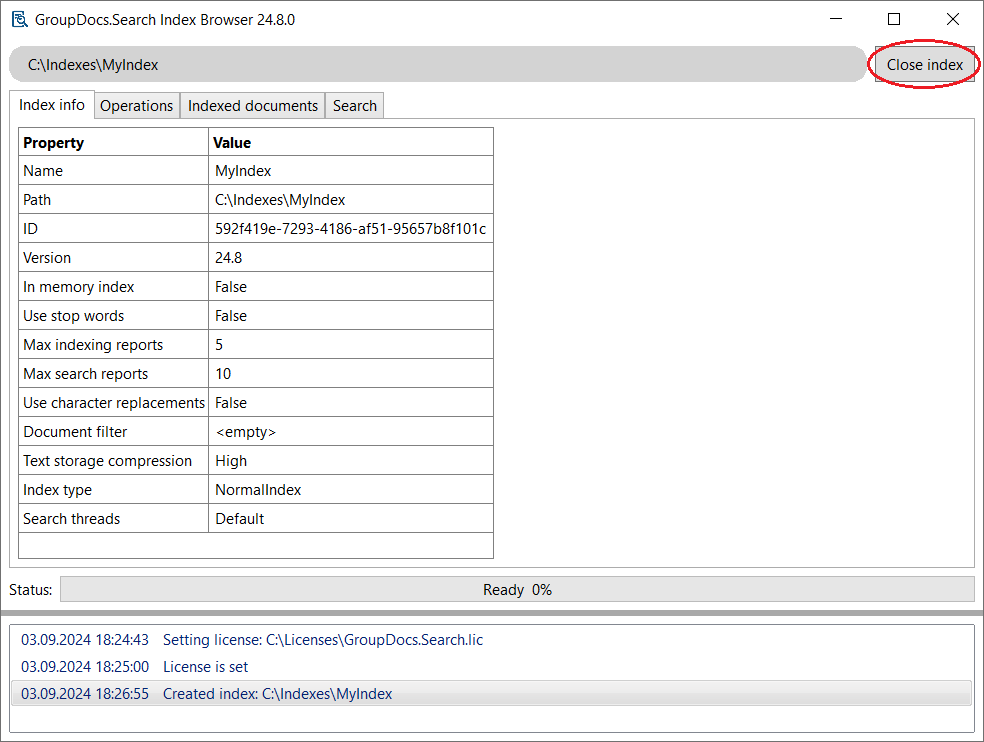
 To unload the index from memory, click the **Close index** button in the upper right corner of the application window.
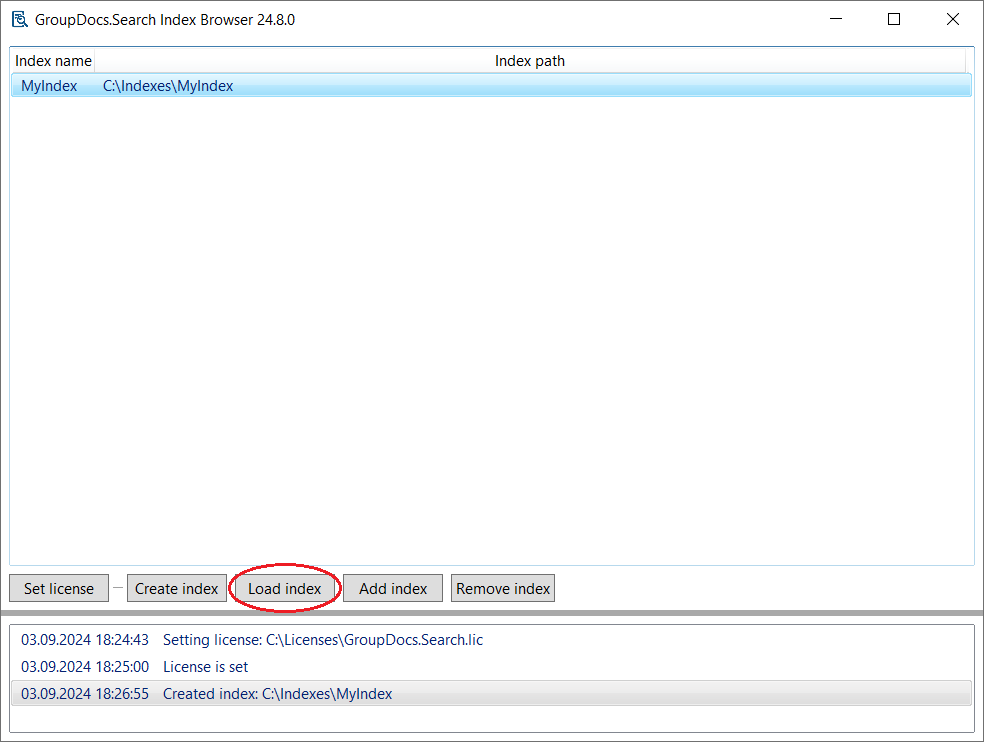
 To open an index, select the desired index in the list and click the **Load index** button. A window for working with the index will open.
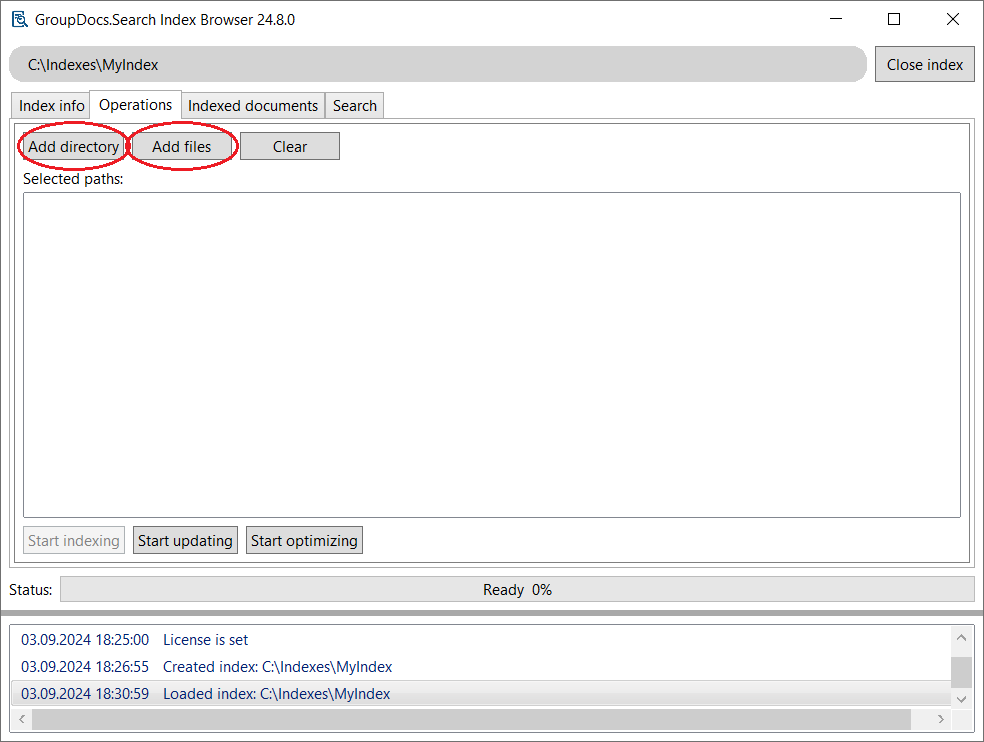
 To add documents to the index, open the **Operations** tab. Click the **Add directory** or **Add files** button to select a folder or file, respectively.
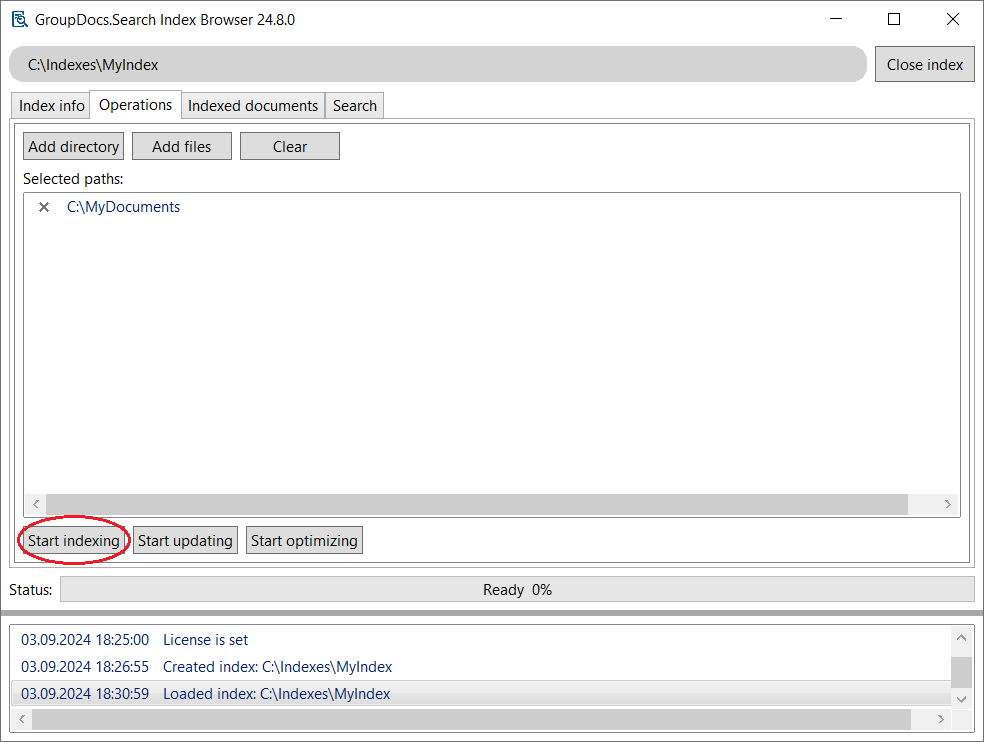
 The added paths to files or folders will appear in the **Selected paths** list. Click the **Start indexing** button and wait for the indexing process to complete.
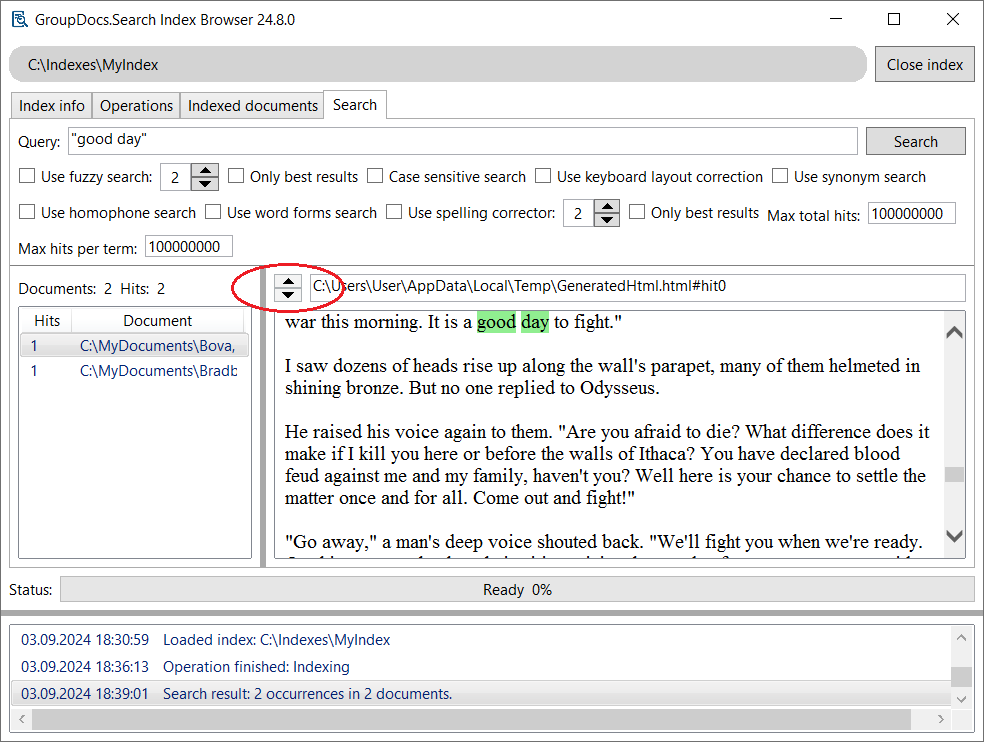
 To search the index, open the **Search** tab. Enter your search query in the **Query** field. Below the query field, specify the search options you require. Press the **Search** button or the Enter key on your keyboard. A list of found files will be displayed on the left side of the window. Please note that to search for a phrase, you must enclose the query in double quotes. For more information about the search query language, see the article [Search operation table]({{< ref "search/net/developer-guide/advanced-usage/searching/search-operation-table.md" >}}).
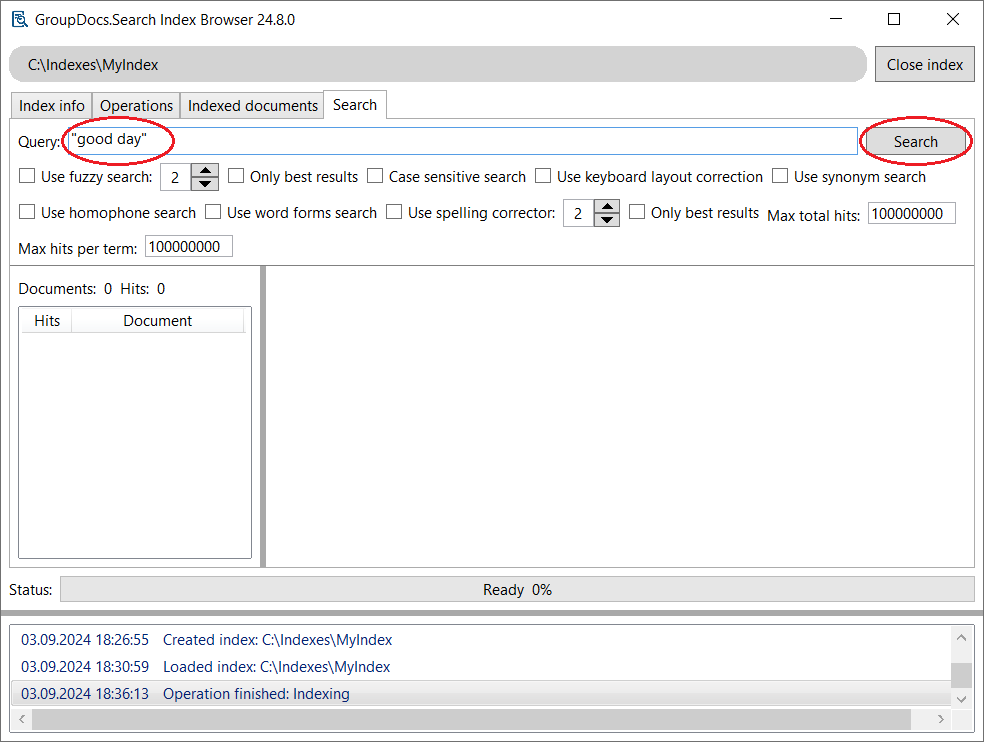 To navigate through the found documents, select the file you are interested in by clicking on it in the list. The text of the document will be displayed on the right side of the window. The arrow buttons allow you to move in the text from one found occurrence to another.