OCR usage basics Leave feedback
On this page
An OCR connector is an object with a recognize(image_stream) method, or a function that takes image_stream:
image_streamis the image to recognize, valid during the call.image_stream.read()gives its bytes.- It returns a RecognizedImage, or
Nonefor an image with no text.
A RecognizedImage holds the lines of text, each a TextLine of TextFragment objects. A fragment is a piece of text with the rectangle, in pixels from the image’s top-left corner, where it was found. Report each line as one fragment: its text and the rectangle that covers it.
GroupDocs.Redaction searches the recognized text for the redaction’s phrase or expression. It covers a match inside a fragment, placing the box by the match’s position in the fragment’s text. A match that spans two fragments is reported APPLIED but not covered (GroupDocs.Redaction 26.10), which is why a line is one fragment. An exception the connector raises reaches the caller of apply().
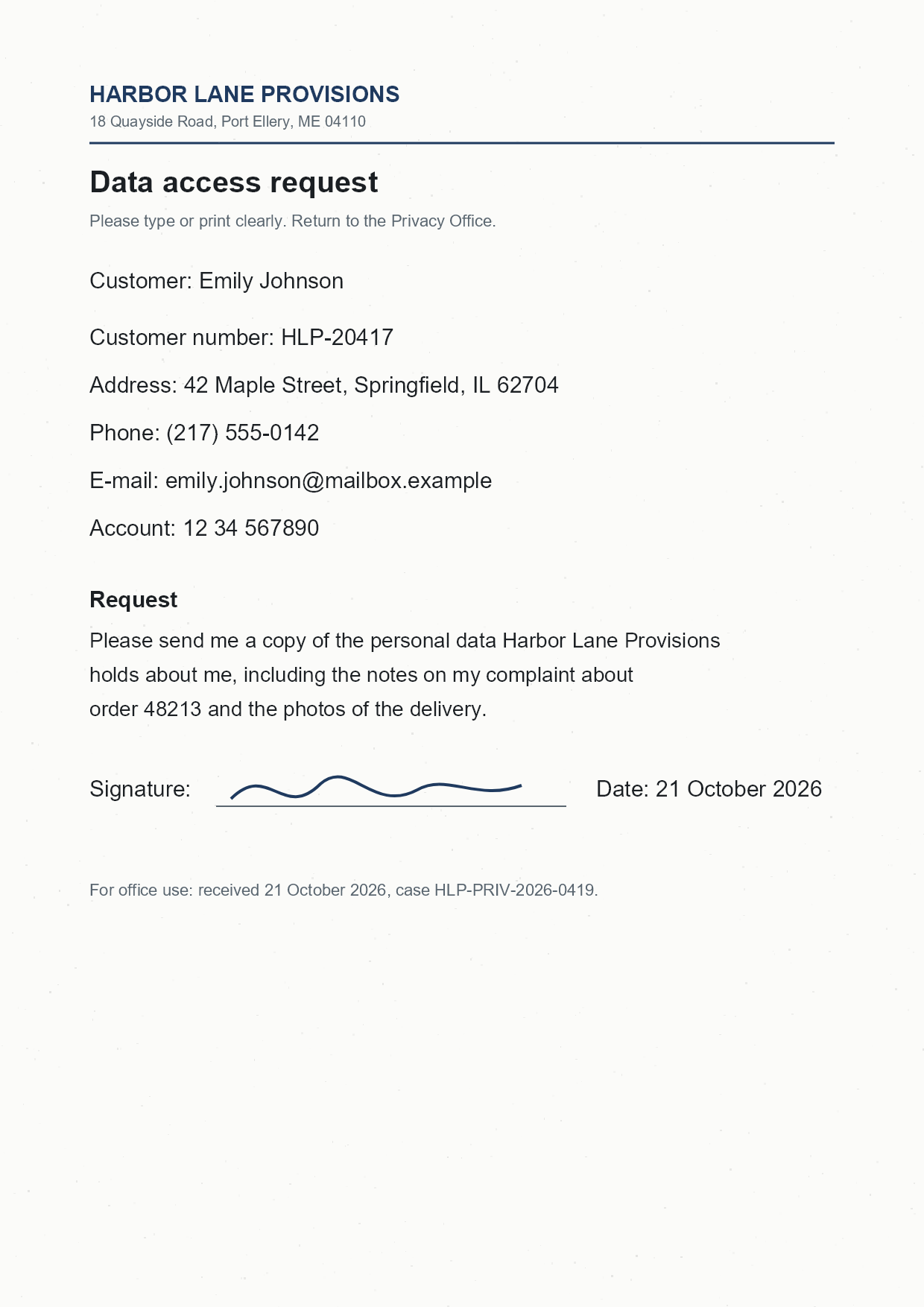
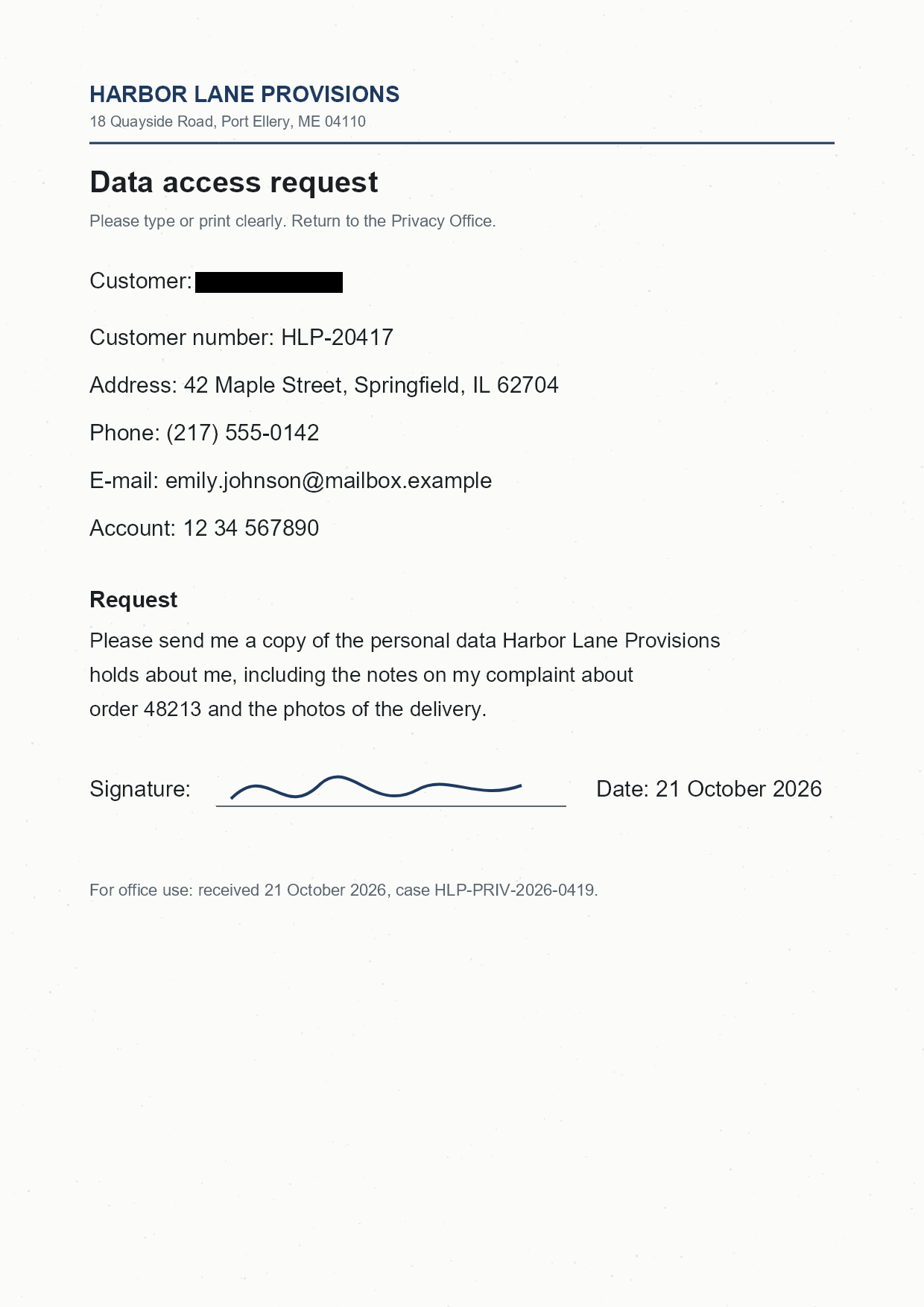
The connector below stands in for an OCR engine: for every image, it reports the line “Customer: Emily Johnson” where it is in the sample scan. It shows the shapes a real connector returns, and it runs without any OCR software:
from groupdocs.redaction import Redactor
from groupdocs.redaction.integration.ocr import RecognizedImage, TextFragment, TextLine
from groupdocs.redaction.options import LoadOptions, RedactorSettings, SaveOptions
from groupdocs.redaction.options.drawing import Color, Rectangle
from groupdocs.redaction.redactions import ExactPhraseRedaction, ReplacementOptions


class FixedResultOcrConnector(object):
    """Reports the line "Customer: Emily Johnson" at the same place in every image."""

    def __init__(self):
        self.images = 0

    def recognize(self, image_stream):
        self.images += 1
        image_bytes = image_stream.read()  # what a real OCR engine would read
        # One fragment per line: its text and the rectangle that covers it, in pixels
        line = TextLine([TextFragment("Customer: Emily Johnson", Rectangle(122, 365, 338, 28))])
        return RecognizedImage([line])


def ocr_usage_basics():
    connector = FixedResultOcrConnector()
    with Redactor("./scan.png", LoadOptions(), RedactorSettings(connector)) as redactor:
        result = redactor.apply(ExactPhraseRedaction("Emily Johnson", ReplacementOptions(Color.black)))
        print("Images recognized: %d, status: %s" % (connector.images, result.status.name))

        options = SaveOptions()
        options.add_suffix = True
        options.rasterize_to_pdf = False  # keep the PNG format
        result_path = redactor.save(options)
        print("Output saved to " + result_path)


if __name__ == "__main__":
    ocr_usage_basics()
scan.png is the sample file used in this example. Click here to download it.
Binary file (PNG, 85 KB)
RedactorSettings(connector) takes the connector as its only argument. Next to a logger and a redaction callback, pass it by name: RedactorSettings(logger, callback, connector) or RedactorSettings(ocr_connector=connector).
For a connector built on a real OCR engine, see Use Tesseract OCR.
Was this page helpful?
Any additional feedback you'd like to share with us?
Please tell us how we can improve this page.
Thank you for your feedback!
We value your opinion. Your feedback will help us improve our documentation.