Installation Leave feedback
On this page
NuGet is the recommended way to install GroupDocs.Redaction for .NET. You can install the package using Visual Studio or the Package Manager Console.
Follow these steps to reference GroupDocs.Redaction using Package Manager GUI:
Open your solution/project in Visual Studio.
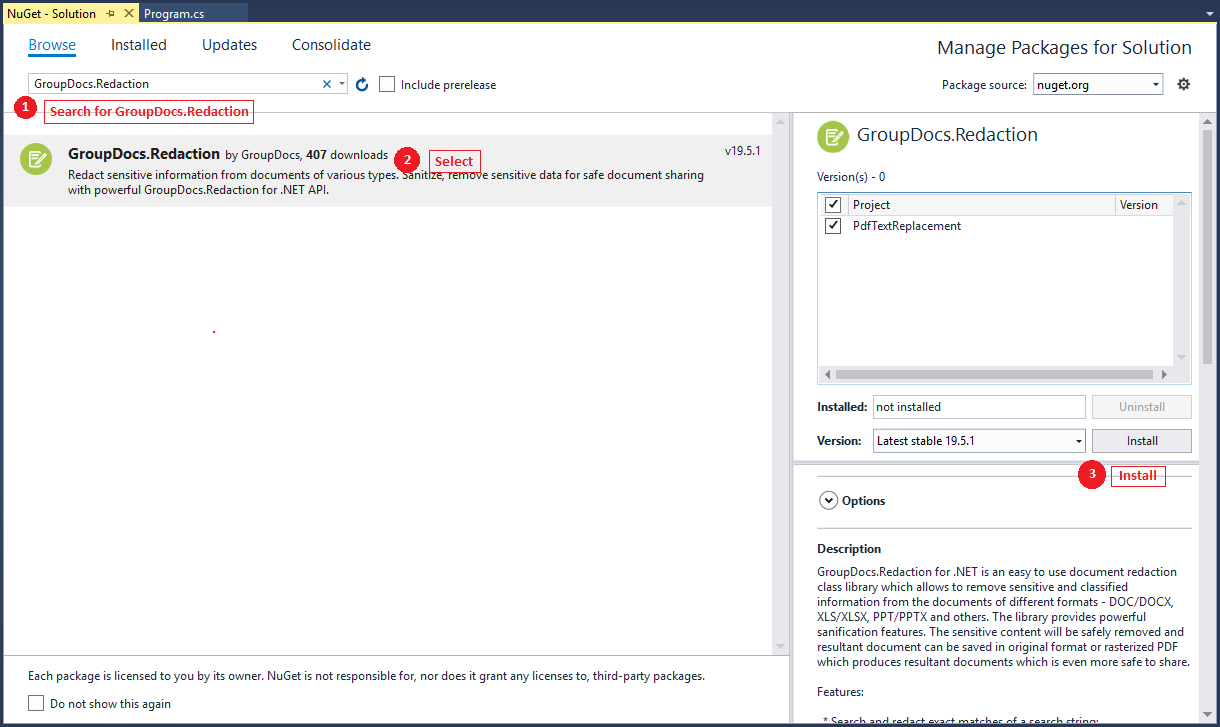
Click Tools -> NuGet Package Manager -> Manage NuGet Packages for Solution. You can also access the same option through the Solution Explorer. Right-click the solution or project and select Manage NuGet Packages from the context menu
Select Browse tab and type “GroupDocs.Redaction” in the search text box.
Click the Install button to install the latest version of the API into your project as shown in the following screenshot.
You can follow the steps below to reference GroupDocs.Redaction for .NET using the Package Manager Console:
Open your solution/project in Visual Studio.
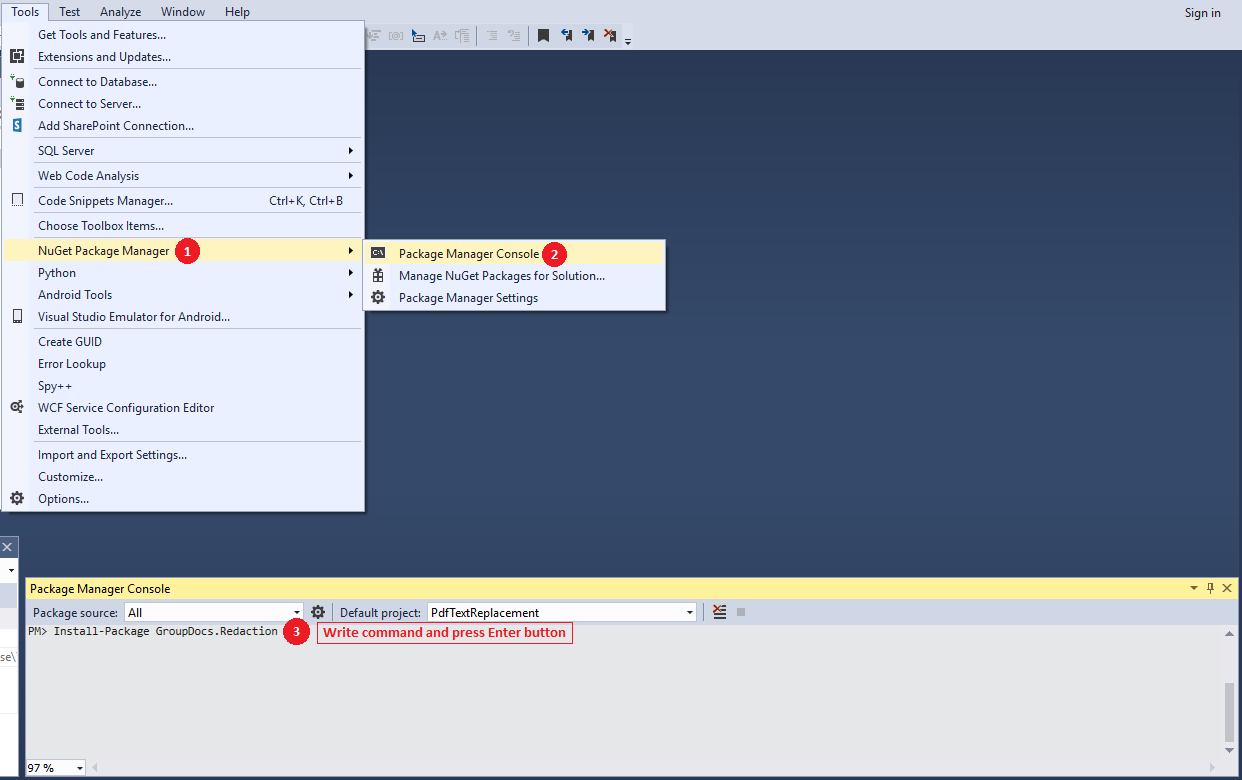
Select Tools -> NuGet Package Manager -> Package Manager Console from the menu to open package manager console.
Run the following command to install the latest release into your application:
Install-Package GroupDocs.Redaction
After successful installation, GroupDocs.Redaction will be referenced in your application.
⚠️ Important
Starting with version 26.5, GroupDocs.Redaction for .NET uses TFM-Split NuGet packaging.
Instead of downloading assemblies for every supported target framework, NuGet now restores only the assemblies required by your project.
- Smaller package size
- Faster package restore
- Reduced disk usage
- Reduced network traffic
- No changes to your application code
⚠️ Important
If you are upgrading from a version earlier than 26.5, we recommend clearing the local NuGet cache before restoring packages.
This helps prevent conflicts caused by cached package metadata from previous package layouts.
.NET CLI
dotnet nuget locals all --clear
NuGet CLI / Package Manager Console
nuget locals all -clear
Alternatively, if you do not want to clear the entire NuGet cache, remove only the cached GroupDocs.Redaction package.
.NET Framework (packages.config) – delete the GroupDocs.Redaction folder from your solution’s
packagesdirectory.PackageReference (.NET Core / .NET 5+) – delete the package from the global NuGet cache:
Windows
%UserProfile%\.nuget\packages\groupdocs.redactionLinux/macOS
~/.nuget/packages/groupdocs.redaction
⚠️ Important
Clearing the NuGet cache is typically required only once when upgrading from versions earlier than 26.5 to the new TFM-Split package structure.
After clearing the cache, restore your NuGet packages or rebuild the solution.
You can follow the steps below to reference GroupDocs.Redaction for .NET downloaded from official website Downloads section:
- Unpack zip archive or follow MSI install wizard instructions.
- In the Solution Explorer, expand the project node you want to add a reference to.
- Right-click the References node for the project and select Add Reference from the menu.
- In the Add Reference dialog box, select the .NET tab (it’s usually selected by default).
- If you have used MSI installer to install GroupDocs.Redaction, you will see GroupDocs.Redaction in the top pane. Select it and then click the Select button.
- If you have downloaded and unpacked the DLL only, click the Browse button and locate the GroupDocs.Redaction.dll file.
You have referenced GroupDocs.Redaction and it should appear in the SelectedComponents pane of the dialog box. - Click OK.
GroupDocs.Redaction reference appears under the References node of the project.
Was this page helpful?
Any additional feedback you'd like to share with us?
Please tell us how we can improve this page.
Thank you for your feedback!
We value your opinion. Your feedback will help us improve our documentation.