Extract Tables from PDF Documents Leave feedback
On this page
Extracting structured table data from PDF documents is a critical requirement for modern business automation. Manual data entry from PDF tables is time-consuming, error-prone, and doesn’t scale. This guide demonstrates multiple professional table extraction methods using GroupDocs.Parser for Java, ranging from simple page-specific extraction to comprehensive document-wide processing that automatically detects and extracts all tables.
What you’ll learn:
- Why automated table extraction is essential for business document processing
- How to implement multiple table extraction techniques with complete code examples
- When to use each extraction method based on your document structure
- Visual demonstrations of extracted tables with formatted output
- Best practices for processing tables from invoices, reports, and financial documents
Modern businesses face the critical challenge of efficiently extracting document data from PDF files containing structured tables. Manual data entry is time-consuming, error-prone, and doesn’t scale. Organizations need automated solutions to parse document structures and extract tables programmatically to access critical business information.
1. Invoice and Financial Document Processing
Businesses receive hundreds of invoices, receipts, and financial statements daily. Each document contains critical table extraction needs:
- Extract document data from invoice line items (product names, quantities, prices)
- Parse document tables to capture billing addresses, tax calculations, and totals
- Extract tables containing payment terms, discounts, and shipping information
- Automatically process vendor invoices for accounts payable automation
Solution: Automatic table extraction eliminates manual data entry and reduces processing time from hours to seconds when extracting tables from financial documents. With programmatic table extraction, businesses can process thousands of invoices daily, extract all relevant data, and integrate directly into accounting systems.
2. Report and Analytics Data Extraction
Organizations generate and receive numerous reports containing analytical data in tabular format:
- Extract document data from sales reports with product performance metrics
- Parse document tables containing quarterly financial results and KPIs
- Extract tables from operational reports with inventory levels, production metrics, and resource utilization
- Process regulatory compliance reports with structured data requirements
Solution: Automated table extraction enables businesses to extract tables from reports programmatically, transforming static PDF documents into actionable data. This allows for real-time data analysis, automated reporting pipelines, and seamless integration with business intelligence tools. By extracting document data automatically, organizations can make data-driven decisions faster and maintain accurate records.
3. Purchase Orders and Supply Chain Documents
Supply chain operations depend on accurate data extraction from purchase orders, shipping manifests, and inventory reports:
- Extract document data from purchase orders including SKU numbers, quantities, and unit prices
- Parse document tables to capture supplier information, delivery dates, and shipping addresses
- Extract tables containing inventory levels, stock movements, and warehouse locations
- Process shipping manifests with item lists, tracking numbers, and delivery confirmations
Solution: Table extraction automates the entire supply chain document processing workflow. By extracting tables from purchase orders and shipping documents, businesses can automatically update inventory systems, track shipments, and reconcile orders without manual intervention. This table extraction capability ensures supply chain visibility and reduces processing errors.
Traditional manual data extraction is inefficient and costly. Table extraction technology solves these challenges by:
- Eliminating Manual Errors: Automated table extraction ensures consistent data capture
- Scaling Operations: Extract tables from hundreds of documents in minutes, not days
- Reducing Costs: Cut data entry costs with automated table extraction
- Improving Speed: Parse document files instantly and extract document data in real-time
- Enabling Integration: Extract tables directly into databases, ERP systems, and analytics platforms
The methods below are written as small static methods of a single class:
PdfTablesExtraction.java
│
├── extractTablesPerParticularPage   # Extract tables from specific page
├── extractAllTablesFromDocument     # Extract all tables from document
├── processTable                     # Format and display tables
├── getCellText                      # Access individual cells
└── extractTablesWithFiltering       # Filter and aggregate tables with Java Streams
The sample documents are Invoices.pdf (a PDF with invoice tables) and TablesReport.pdf (a PDF with multiple tables). The methods use the following imports:
import com.groupdocs.parser.Parser;
import com.groupdocs.parser.data.PageTableArea;
import com.groupdocs.parser.data.PageTableAreaCell;
import com.groupdocs.parser.options.IDocumentInfo;

import java.util.ArrayList;
import java.util.IntSummaryStatistics;
import java.util.List;
import java.util.Map;
import java.util.TreeMap;
import java.util.stream.Collectors;
import java.util.stream.IntStream;
import java.util.stream.StreamSupport;
Use Case: Page-specific extraction | Difficulty: Easy | Best For: Documents with known table locations, single-page processing
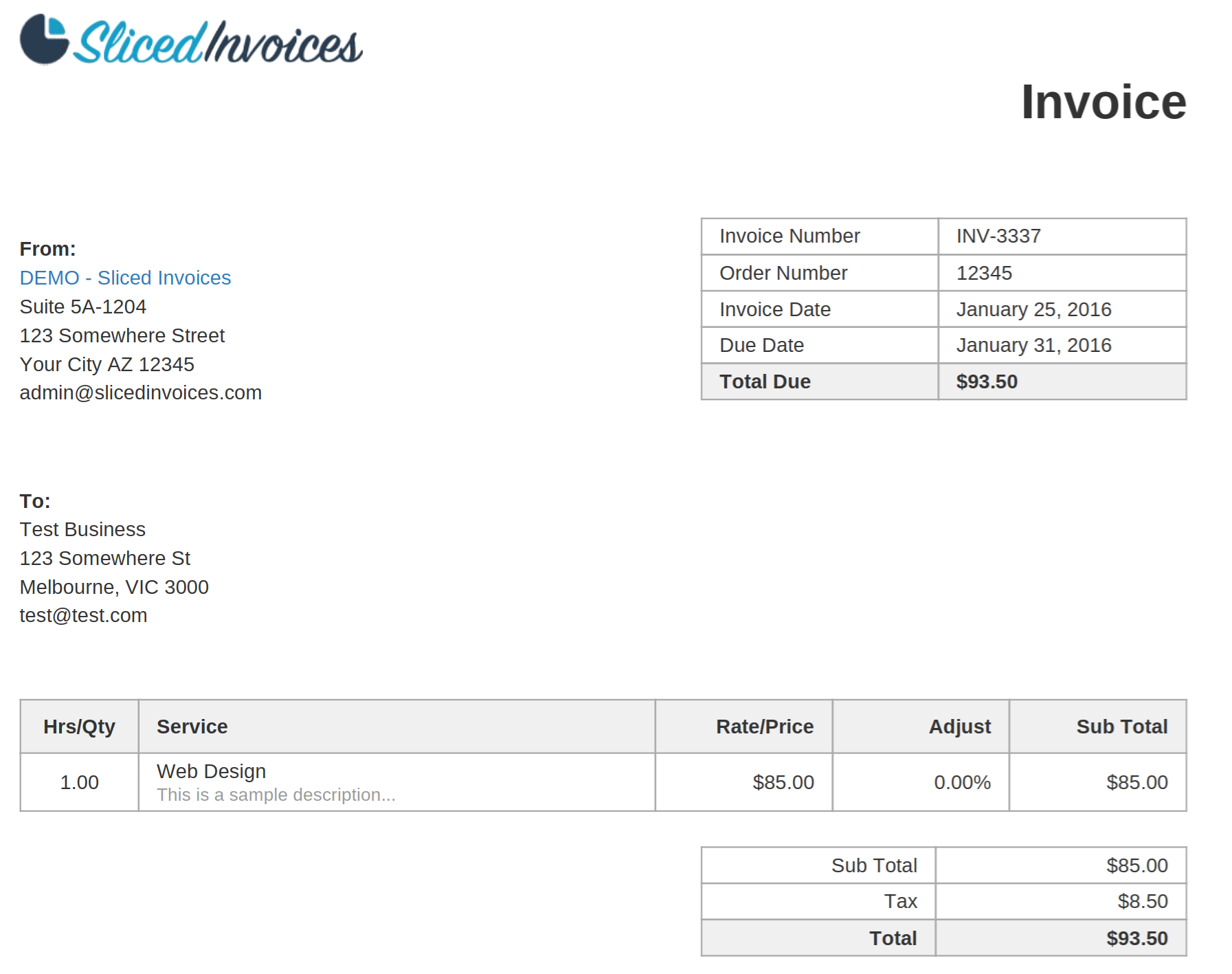
This method extracts tables from a specific page of a PDF document with the getTables(int) method. It’s ideal when you know which page contains the tables you need, such as extracting invoice line items from the first page or processing specific report sections.
static void extractTablesPerParticularPage() {
    String sample = "Invoices.pdf";

    // Initialize parser with PDF document
    try (Parser parser = new Parser(sample)) {
        // Get document information
        IDocumentInfo documentInfo = parser.getDocumentInfo();
        int pageCount = documentInfo.getPageCount();

        System.out.println("Extracting tables from: " + sample);
        System.out.println("Total pages: " + pageCount);
        System.out.println();

        // Extract tables from first page (pageIndex = 0)
        int pageIndex = 0;
        Iterable<PageTableArea> tables = parser.getTables(pageIndex);

        // getTables returns null if table extraction isn't supported
        if (tables != null) {
            int tableNumber = 1;
            for (PageTableArea table : tables) {
                // Display table dimensions and content
                System.out.println(String.format("  Table %d: %d rows x %d columns",
                        tableNumber, table.getRowCount(), table.getColumnCount()));
                processTable(table);
                tableNumber++;
            }
        }
    }
}
Source Document:
Extracted Tables Output:
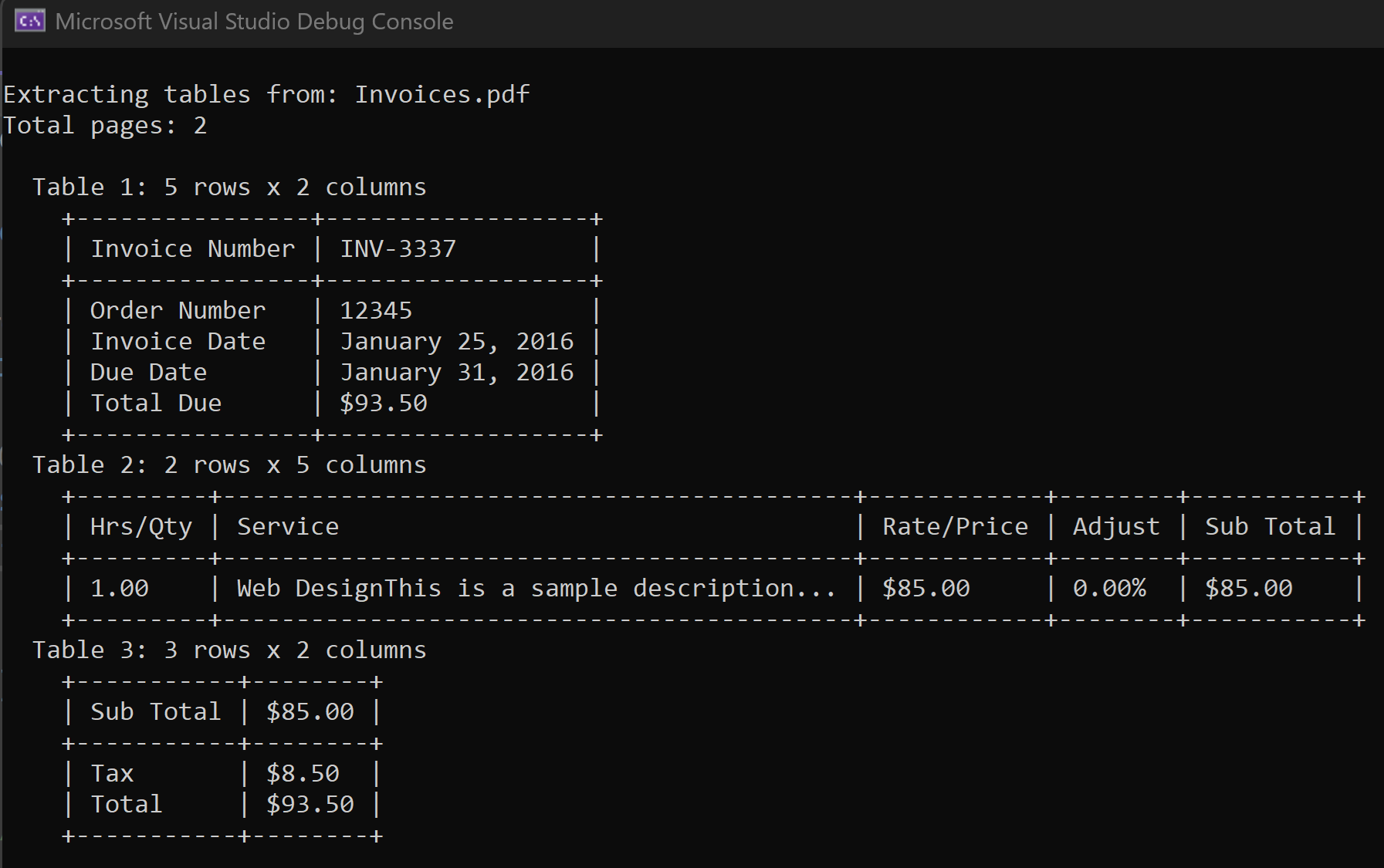
- Page Targeting: Specify exact page index (0-based) for precise extraction
- Multiple Tables: Automatically detects and extracts all tables on the specified page
- Table Metadata: Access row count, column count, and page information
- Ideal For: Invoices, single-page reports, forms with known structure
- Processing invoices where line items are always on page 1
- Extracting data from specific report sections
- Working with forms that have consistent page layouts
- Quick extraction from known document locations
Use Case: Full document processing | Difficulty: Easy | Best For: Multi-page documents, comprehensive data extraction
This method extracts all tables from all pages of a PDF document with the getTables() method and organizes them by page. It’s perfect for processing complete documents where you need comprehensive table data across multiple pages.
static void extractAllTablesFromDocument() {
    String sample = "TablesReport.pdf";

    try (Parser parser = new Parser(sample)) {
        // Get all tables from entire document
        Iterable<PageTableArea> tables = parser.getTables();

        if (tables != null) {
            // Group tables by page index (TreeMap keeps pages in order)
            Map<Integer, List<PageTableArea>> tablesByPage = new TreeMap<>();
            for (PageTableArea table : tables) {
                int pageIndex = table.getPage().getIndex();
                if (!tablesByPage.containsKey(pageIndex)) {
                    tablesByPage.put(pageIndex, new ArrayList<PageTableArea>());
                }
                tablesByPage.get(pageIndex).add(table);
            }

            for (Map.Entry<Integer, List<PageTableArea>> pageGroup : tablesByPage.entrySet()) {
                System.out.println("Tables in the Page " + (pageGroup.getKey() + 1));
                System.out.println();

                int tableNumber = 1;
                for (PageTableArea table : pageGroup.getValue()) {
                    System.out.println(String.format("  Table %d: %d rows x %d columns",
                            tableNumber, table.getRowCount(), table.getColumnCount()));
                    processTable(table);
                    tableNumber++;
                }
                System.out.println();
            }
        }
    }
}
- Complete Coverage: Extracts tables from every page automatically
- Page Organization: Groups tables by page for easy navigation
- Scalable Processing: Handles documents with hundreds of pages
- Ideal For: Financial reports, multi-page invoices, comprehensive data extraction
- Processing complete financial reports with tables across multiple pages
- Extracting all data from multi-page invoices
- Comprehensive document analysis requiring all table data
- Batch processing scenarios where complete extraction is needed
Use Case: Cell-level processing | Difficulty: Medium | Best For: Data transformation, custom formatting, cell-by-cell analysis
This method provides granular access to individual table cells via the getCell method of PageTableArea and formats the output for display or further processing. It calculates optimal column widths and creates formatted table displays with proper alignment.
static void processTable(PageTableArea table) {
    // Calculate column widths for proper alignment
    int[] columnWidths = new int[table.getColumnCount()];
    for (int col = 0; col < table.getColumnCount(); col++) {
        int width = 3;
        for (int row = 0; row < table.getRowCount(); row++) {
            width = Math.max(width, getCellText(table, row, col).length());
        }
        columnWidths[col] = width;
    }

    // Build the border line
    StringBuilder separator = new StringBuilder("+");
    for (int width : columnWidths) {
        separator.append(repeat('-', width + 2)).append('+');
    }

    // Display header row (first row)
    System.out.println("    " + separator);
    printRow(table, 0, columnWidths);
    System.out.println("    " + separator);

    // Display data rows
    for (int row = 1; row < table.getRowCount(); row++) {
        printRow(table, row, columnWidths);
    }
    System.out.println("    " + separator);
}

static void printRow(PageTableArea table, int row, int[] columnWidths) {
    StringBuilder line = new StringBuilder("    |");
    for (int col = 0; col < table.getColumnCount(); col++) {
        String cellText = getCellText(table, row, col);
        line.append(' ').append(String.format("%-" + columnWidths[col] + "s", cellText)).append(" |");
    }
    System.out.println(line);
}

static String getCellText(PageTableArea table, int row, int col) {
    // getCell returns null if there is no cell at the given position
    PageTableAreaCell cell = table.getCell(row, col);
    return cell == null || cell.getText() == null ? "" : cell.getText();
}

static String repeat(char c, int count) {
    return new String(new char[count]).replace('\0', c);
}
- Dynamic Column Sizing: Automatically calculates optimal column widths based on content
- Formatted Display: Creates professional table borders and alignment
- Cell-Level Access: Direct access to any cell by row and column index
- Header Separation: Visually separates header row from data rows
- Ideal For: Console output, data validation, custom formatting requirements
You can extend this method to:
- Filter specific columns or rows
- Apply data transformations to cell values
- Validate cell content against business rules
- Export to CSV, Excel, or database formats
- Perform calculations on numeric cells
Use Case: Advanced filtering and processing | Difficulty: Medium | Best For: Complex data extraction, filtering, and transformation
This method demonstrates how to use the Java Stream API to filter, group, and process extracted tables efficiently. It’s ideal for scenarios requiring conditional extraction or data transformation.
static void extractTablesWithFiltering() {
    String sample = "TablesReport.pdf";

    try (Parser parser = new Parser(sample)) {
        Iterable<PageTableArea> tables = parser.getTables();

        if (tables != null) {
            List<PageTableArea> tableList = StreamSupport.stream(tables.spliterator(), false)
                    .collect(Collectors.toList());

            // Filter tables with more than 5 rows
            List<PageTableArea> largeTables = tableList.stream()
                    .filter(table -> table.getRowCount() > 5)
                    .collect(Collectors.toList());

            // Group by page and count tables and rows per page
            Map<Integer, IntSummaryStatistics> tablesPerPage = tableList.stream()
                    .collect(Collectors.groupingBy(
                            table -> table.getPage().getIndex() + 1,
                            TreeMap::new,
                            Collectors.summarizingInt(PageTableArea::getRowCount)));

            tablesPerPage.forEach((page, stats) -> System.out.println(String.format(
                    "Page %d: %d tables, %d rows", page, stats.getCount(), stats.getSum())));

            // Extract specific columns from all tables
            for (PageTableArea table : tableList) {
                if (table.getColumnCount() >= 2) {
                    // Extract first two columns from each table
                    List<String[]> firstTwoColumns = IntStream.range(0, table.getRowCount())
                            .mapToObj(row -> new String[] {
                                    getCellText(table, row, 0),
                                    getCellText(table, row, 1)
                            })
                            .collect(Collectors.toList());
                }
            }
        }
    }
}
- Stream API Integration: Leverage Java Streams for table processing
- Flexible Filtering: Filter tables by size, page, or content criteria
- Data Aggregation: Calculate statistics across multiple tables
- Selective Extraction: Extract specific columns or rows based on conditions
- Ideal For: Complex data analysis, conditional extraction, data transformation pipelines
| Method | Use Case | Difficulty | Best For | Processing Speed |
|---|---|---|---|---|
| Page-Specific Extraction | Known table location | Easy | Single-page documents, invoices | Fast |
| Full Document Extraction | Complete data extraction | Easy | Multi-page reports, comprehensive analysis | Medium |
| Cell-Level Processing | Custom formatting, validation | Medium | Data transformation, custom output | Fast |
| Stream-Based Processing | Complex filtering, aggregation | Medium | Advanced data analysis, conditional extraction | Medium |
- No Templates Required: Automatically detects table structures in PDF documents
- Smart Recognition: Identifies table boundaries, rows, and columns automatically
- Multiple Table Support: Extracts multiple tables from a single page or document
- Format Preservation: Maintains table structure and cell relationships
- Page-Specific Extraction: Target tables on specific pages for efficient processing
- Full Document Processing: Extract all tables across entire documents
- Cell-Level Access: Access individual cells by row and column coordinates
- Table Metadata: Retrieve table dimensions (rows × columns) and page information
- Structured Output: Formatted table display with headers and values
- Table headers and data rows with precise positioning
- Cell values with accurate text extraction
- Table dimensions (rows × columns) for validation
- Multi-page table extraction with page organization
- Tables organized by page for easy navigation
Q: Do I need templates to extract tables?
A: No. GroupDocs.Parser automatically detects table structures in PDF documents without requiring templates. Templates are optional and used for advanced scenarios with scanned documents or complex layouts: pass a PageTableAreaOptions object with a TemplateTableLayout to the getTables(PageTableAreaOptions) method. See Extract tables from document.
Q: Can I extract tables from scanned PDFs?
A: Yes, with OCR support. GroupDocs.Parser can work with OCR connectors to extract tables from scanned PDFs (see Using OCR). Template-based extraction is recommended for scanned documents with consistent layouts.
Q: How accurate is automatic table detection?
A: Automatic table detection works well for text-based PDFs with clear table structures. Accuracy depends on document quality and table formatting.
Q: Can I extract specific columns or rows?
A: Yes. Once tables are extracted, you can access individual cells by row and column index, allowing you to filter, transform, or extract specific data elements.
Q: Does GroupDocs.Parser support other document formats?
A: Yes. GroupDocs.Parser supports many document formats including Word, Excel, PowerPoint, and more (see Supported Document Formats). However, this guide focuses on PDF table extraction.
Q: How do I handle documents with multiple tables per page?
A: The getTables(int) method returns all tables found on a page. You can iterate through the collection and process each table individually, or filter them based on size, position, or content.
Q: Can I export extracted tables to other formats?
A: Yes. After extraction, you can process table data and export to CSV, Excel, JSON, or database formats using standard Java libraries or GroupDocs conversion APIs.
Extracting tables from PDF documents is essential for modern business automation. GroupDocs.Parser for Java provides multiple extraction methods, from simple page-specific extraction to comprehensive document-wide processing with advanced filtering and formatting capabilities.
Choose the extraction method that matches your requirements:
- Use page-specific extraction for documents with known table locations
- Implement full document extraction for comprehensive data collection
- Apply cell-level processing for custom formatting and validation
- Deploy Stream-based processing for complex filtering and transformation
Whether you need to extract document data from invoices, parse document reports, or extract tables from any PDF document, GroupDocs.Parser provides the solution to transform unstructured PDF documents into structured, actionable data. Start extracting tables programmatically today and eliminate manual data entry from your document processing workflows.
You may easily run the code above and see the feature in action in our GitHub examples:
Along with full featured .NET library we provide simple, but powerful free Apps.
You are welcome to parse documents and extract data from PDF, DOC, DOCX, PPT, PPTX, XLS, XLSX, Emails and more with our free online Free Online Document Parser App.
Was this page helpful?
Any additional feedback you'd like to share with us?
Please tell us how we can improve this page.
Thank you for your feedback!
We value your opinion. Your feedback will help us improve our documentation.