}}) - [Merge PDF files]({{< ref "merger/python-net/developer-guide/merge/pdf.md" >}}) - [More use-cases and complete Python via .NET sources]({{< ref "merger/python-net/showcases.md" >}}) --- ## Merge images Path: https://docs.groupdocs.com/merger/python-net/merge/images/ GroupDocs.Merger for Python via .NET allows you to stack multiple images into a single output image programmatically. Use `ImageJoinOptions` to control the output format and the direction in which images are joined — horizontally side by side or vertically one above the other. The library supports JPG, PNG, BMP, and other common image formats. ## Steps to merge JPEG images vertically 1. Create an instance of the `Merger` class and pass the path to the first (base) image. 2. Create an `ImageJoinOptions` instance specifying the target `FileType` and the `ImageJoinMode`. 3. Call `merger.join()` with the path to each additional image and the join options. 4. Call `merger.save()` with the desired output path. {{< tabs "merge-images-example" >}} {{< tab "merge_image_documents.py" >}} ```python from groupdocs.merger import Merger from groupdocs.merger.domain import FileType from groupdocs.merger.domain.options import ImageJoinOptions, ImageJoinMode def merge_image_documents(): # Load the first image as the merge base with Merger("./input.jpg") as merger: # Configure join options: output as JPEG, stack images vertically image_join_options = ImageJoinOptions(FileType.JPEG, ImageJoinMode.VERTICAL) # Append the second image with the join options applied merger.join("./input2.jpg", image_join_options) # Save the combined image merger.save("./output.jpg") if __name__ == "__main__": merge_image_documents() ``` {{< /tab >}} {{< tab "input.jpg" >}} {{< tab-text >}} `input.jpg` is a sample file used in this example. Click [here](https://docs.groupdocs.com/merger/python-net/_sample_files/developer-guide/merge/images/input.jpg) to download it. {{< /tab-text >}} {{< /tab >}} {{< tab "input2.jpg" >}} {{< tab-text >}} `input2.jpg` is a sample file used in this example. Click [here](https://docs.groupdocs.com/merger/python-net/_sample_files/developer-guide/merge/images/input2.jpg) to download it. {{< /tab-text >}} {{< /tab >}} {{< /tabs >}} ### Explanation - **Load base image**: `Merger("./input.jpg")` opens the first image as the merge base inside a context manager. - **`ImageJoinOptions(FileType.JPEG, ImageJoinMode.VERTICAL)`**: Specifies that the output should be a JPEG file and that images should be stacked vertically (top to bottom). Use `ImageJoinMode.HORIZONTAL` to place them side by side instead. - **Append second image**: `merger.join("./input2.jpg", image_join_options)` appends the second image according to the join options. - **Save result**: `merger.save("./output.jpg")` writes the merged image to disk. ## Merge different image file formats - [How to merge JPG images in Python via .NET]({{< ref "merger/python-net/getting-started/use-cases/how-to-merge-jpg-images-using-python-net.md" >}}) - [How to merge PNG images in Python via .NET]({{< ref "merger/python-net/getting-started/use-cases/how-to-merge-png-images-using-python-net.md" >}}) - [How to merge BMP images in Python via .NET]({{< ref "merger/python-net/getting-started/use-cases/how-to-merge-bmp-images-using-python-net.md" >}}) ### Merge Images Live Demo GroupDocs.Merger offers the following free online tools to test its quality and accuracy: - [**JPG Merger App**](https://products.groupdocs.app/merger/jpg) - [**PNG Merger App**](https://products.groupdocs.app/merger/png) - [**BMP Merger App**](https://products.groupdocs.app/merger/bmp) ## API reference - [`Merger`](https://reference.groupdocs.com/merger/python-net/groupdocs.merger/merger/) — main class; `join`, `save` methods. - [`ImageJoinOptions`](https://reference.groupdocs.com/merger/python-net/groupdocs.merger.domain.options/imagejoinoptions/) — image-specific join settings. - [`ImageJoinMode`](https://reference.groupdocs.com/merger/python-net/groupdocs.merger.domain.options/imagejoinmode/) — enum: `HORIZONTAL`, `VERTICAL`. - [`FileType`](https://reference.groupdocs.com/merger/python-net/groupdocs.merger.domain/filetype/) — file type descriptor used to specify the output format. ## See also - [Merge PDF files]({{< ref "merger/python-net/developer-guide/merge/pdf.md" >}}) - [More use-cases and complete Python via .NET sources]({{< ref "merger/python-net/showcases.md" >}}) --- ## Merge PDF Path: https://docs.groupdocs.com/merger/python-net/merge-pdf/ GroupDocs.Merger for Python via .NET lets you combine multiple PDF documents into a single file programmatically. All text, images, tables, graphs, forms, and other content are preserved exactly as in the originals — no third-party software or manual work required. ## Steps to merge PDF files 1. Create an instance of the `Merger` class and pass the path to the first (base) PDF file. 2. Call `merger.join()` with the path to each additional PDF to append. 3. Call `merger.save()` with the desired output path to write the merged file. {{< tabs "merge-pdf-example" >}} {{< tab "merge_pdf_documents.py" >}} ```python from groupdocs.merger import Merger def merge_pdf_documents(): # Load the first document as the merge base with Merger("./input.pdf") as merger: # Append the second PDF document merger.join("./input2.pdf") # Save the combined document merger.save("./output.pdf") if __name__ == "__main__": merge_pdf_documents() ``` {{< /tab >}} {{< tab "input.pdf" >}} {{< tab-text >}} `input.pdf` is a sample file used in this example. Click [here](https://docs.groupdocs.com/merger/python-net/_sample_files/developer-guide/merge/pdf/input.pdf) to download it. {{< /tab-text >}} {{< /tab >}} {{< tab "input2.pdf" >}} {{< tab-text >}} `input2.pdf` is a sample file used in this example. Click [here](https://docs.groupdocs.com/merger/python-net/_sample_files/developer-guide/merge/pdf/input2.pdf) to download it. {{< /tab-text >}} {{< /tab >}} {{< tab "output.pdf" >}} ```text Binary file (PDF, 252 KB) ``` [Download full output](https://docs.groupdocs.com/merger/python-net/_output_files/developer-guide/merge/pdf/merge_pdf_documents/output.pdf) {{< /tab >}} {{< /tabs >}} ### Explanation - **Load base document**: `Merger("./input.pdf")` opens the first PDF as the merge base inside a context manager, ensuring resources are released automatically. - **Append second document**: `merger.join("./input2.pdf")` appends the content of the second PDF. Call `join` again for each additional file. - **Save result**: `merger.save("./output.pdf")` writes the merged PDF to disk. ## Merge PDF with bookmark options Use `PdfJoinOptions` to control how PDF content is joined. For example, setting `use_bookmarks=True` preserves the source document bookmarks in the merged output. {{< tabs "merge-pdf-bookmarks-example" >}} {{< tab "merge_pdf_with_bookmarks.py" >}} ```python from groupdocs.merger import Merger from groupdocs.merger.domain.options import PdfJoinOptions def merge_pdf_with_bookmarks(): # Load the first document as the merge base with Merger("./input.pdf") as merger: # Configure join options to preserve bookmarks pdf_join_options = PdfJoinOptions() pdf_join_options.use_bookmarks = True # Append the second PDF document with bookmark options applied merger.join("./input2.pdf", pdf_join_options) # Save the combined document merger.save("./output.pdf") if __name__ == "__main__": merge_pdf_with_bookmarks() ``` {{< /tab >}} {{< tab "input.pdf" >}} {{< tab-text >}} `input.pdf` is a sample file used in this example. Click [here](https://docs.groupdocs.com/merger/python-net/_sample_files/developer-guide/merge/pdf/input.pdf) to download it. {{< /tab-text >}} {{< /tab >}} {{< tab "input2.pdf" >}} {{< tab-text >}} `input2.pdf` is a sample file used in this example. Click [here](https://docs.groupdocs.com/merger/python-net/_sample_files/developer-guide/merge/pdf/input2.pdf) to download it. {{< /tab-text >}} {{< /tab >}} {{< tab "output.pdf" >}} ```text Binary file (PDF, 252 KB) ``` [Download full output](https://docs.groupdocs.com/merger/python-net/_output_files/developer-guide/merge/pdf/merge_pdf_with_bookmarks/output.pdf) {{< /tab >}} {{< /tabs >}} ### Explanation - **`PdfJoinOptions`**: Provides PDF-specific join settings. - **`use_bookmarks = True`**: Instructs the merger to retain the document outline (bookmarks) from each source PDF so readers can navigate the merged result. ## About PDF File Format Portable Document Format (PDF) is a type of document created by Adobe back in the 1990s. The purpose of this file format was to introduce a standard for representation of documents and other reference material in a format that is independent of application software, hardware, and Operating System. PDF files can be opened in Adobe Acrobat Reader/Writer as well as in most modern browsers like Chrome, Safari, and Firefox via extensions/plug-ins. ### Merge PDF Live Demo GroupDocs.Merger for Python via .NET provides an online [**PDF Merger App**](https://products.groupdocs.app/merger/pdf), which allows you to try it for free and check its quality and accuracy. [](https://products.groupdocs.app/merger/pdf) ## API reference - [`Merger`](https://reference.groupdocs.com/merger/python-net/groupdocs.merger/merger/) — main class; `join`, `save` methods. - [`PdfJoinOptions`](https://reference.groupdocs.com/merger/python-net/groupdocs.merger.domain.options/pdfjoiptions/) — PDF-specific join settings. ## See also - [Merge Word documents]({{< ref "merger/python-net/developer-guide/merge/word.md" >}}) - [Split a PDF document]({{< ref "merger/python-net/developer-guide/single-document-operations/split-document.md" >}}) - [More use-cases and complete Python via .NET sources]({{< ref "merger/python-net/showcases.md" >}}) --- ## Move page Path: https://docs.groupdocs.com/merger/python-net/move-page/ [**GroupDocs.Merger for Python via .NET**](https://products.groupdocs.com/merger/python-net) lets you relocate any page to a different position within a document. All other pages shift to accommodate the move. The operation is configured through [MoveOptions](https://reference.groupdocs.com/merger/python-net/groupdocs.merger.domain.options/moveoptions/). Here are the steps to move a document page: - Instantiate [Merger](https://reference.groupdocs.com/merger/python-net/groupdocs.merger/merger/) with the path to the source document. - Create a [MoveOptions](https://reference.groupdocs.com/merger/python-net/groupdocs.merger.domain.options/moveoptions/) object specifying the current page number and the target position. - Call `merger.move_page()` passing the `MoveOptions` object. - Call `merger.save()` to write the resulting document. {{< tabs "move-page-example" >}} {{< tab "move_page.py" >}} ```python from groupdocs.merger import Merger from groupdocs.merger.domain.options import MoveOptions def move_document_page(): # Load the source PDF document with Merger("./input.pdf") as merger: # Move page 4 to position 1 (the beginning of the document) merger.move_page(MoveOptions(4, 1)) # Save the document with the updated page order merger.save("./output.pdf") if __name__ == "__main__": move_document_page() ``` {{< /tab >}} {{< tab "input.pdf" >}} {{< tab-text >}} `input.pdf` is a sample file used in this example. Click [here](https://docs.groupdocs.com/merger/python-net/_sample_files/developer-guide/single-document-operations/move-page/input.pdf) to download it. {{< /tab-text >}} {{< /tab >}} {{< tab "output.pdf" >}} ```text Binary file (PDF, 418 KB) ``` [Download full output](https://docs.groupdocs.com/merger/python-net/_output_files/developer-guide/single-document-operations/move-page/move_document_page/output.pdf) {{< /tab >}} {{< /tabs >}} ### Explanation - **Load source document**: `Merger("./input.pdf")` opens the document as a context manager, ensuring resources are released on exit. - **`MoveOptions(4, 1)`**: the first argument is the current 1-based page number to move; the second argument is the 1-based target position. In this example, page 4 is inserted at position 1, pushing the original pages 1–3 forward by one. - **`merger.move_page()`**: the correct Python method name (singular). The equivalent .NET method is `MovePage`. - **`merger.save("./output.pdf")`**: writes the resulting document with the page in its new position. {{< alert style="tip" >}} To exchange the positions of two pages rather than inserting one at a new position, use [Swap pages]({{< ref "merger/python-net/developer-guide/single-document-operations/swap-pages" >}}) instead. {{< /alert >}} ### API reference - [MoveOptions](https://reference.groupdocs.com/merger/python-net/groupdocs.merger.domain.options/moveoptions/) - [Merger.move_page()](https://reference.groupdocs.com/merger/python-net/groupdocs.merger/merger/) ### See also - [Swap pages]({{< ref "merger/python-net/developer-guide/single-document-operations/swap-pages" >}}) - [Remove pages]({{< ref "merger/python-net/developer-guide/single-document-operations/remove-pages" >}}) - [Extract pages]({{< ref "merger/python-net/developer-guide/single-document-operations/extract-pages" >}}) --- ## GroupDocs.Merger for Python via .NET Overview Path: https://docs.groupdocs.com/merger/python-net/product-overview/ ## What is GroupDocs.Merger? GroupDocs.Merger for Python via .NET is a native Python library that merges, splits, and reorganises documents across **70+ supported formats** — DOCX, PDF, XLSX, PPTX, images, Visio diagrams, eBooks, archives, and more. It runs entirely on-premise, requires no Microsoft Office or Adobe Acrobat installation, and ships as a pre-built wheel on Windows, Linux, and macOS. Typical uses include: - **Multi-document consolidation** — assemble a single report or package from multiple source files in one API call. - **Selective page merges** — pull specific pages or page ranges from several documents and combine them into a new document. - **Document assembly automation** — build dynamic documents programmatically as part of batch or pipeline workflows. - **Access control** — protect sensitive documents with passwords and manage password changes or removal. - **Page-level preparation** — reorder, rotate, extract, or remove individual pages before a document reaches its final destination. ## Key Capabilities | Capability | Description | |---|---| | **Merge / Join** | Combine two or more documents — or selected pages from them — into a single output file. See [Merge Files]({{< ref "merger/python-net/developer-guide/merge" >}}). | | **Split** | Divide a document into individual pages or multi-page segments by page list or interval. See [Split Document]({{< ref "merger/python-net/developer-guide/single-document-operations/split-document.md" >}}). | | **Page Operations** | Extract, remove, swap, or move pages within a document. See [Single Document Operations]({{< ref "merger/python-net/developer-guide/single-document-operations" >}}). | | **Rotation / Orientation** | Rotate pages 90°, 180°, or 270° and change page orientation between portrait and landscape. See [Rotate Pages]({{< ref "merger/python-net/developer-guide/single-document-operations/rotate-pages.md" >}}) and [Change Page Orientation]({{< ref "merger/python-net/developer-guide/single-document-operations/change-page-orientation.md" >}}). | | **Password Security** | Add, update, remove, or check document passwords without opening the document in an editor. See [Security Operations]({{< ref "merger/python-net/developer-guide/security-operations" >}}). | | **Page Preview** | Generate PNG, JPEG, or BMP thumbnail images of individual document pages. See [Page Preview]({{< ref "merger/python-net/developer-guide/page-preview.md" >}}). | | **Document Inspection** | Read file type, page count, page dimensions, and other metadata without modifying the document. See [Get Document Information]({{< ref "merger/python-net/developer-guide/get-document-information.md" >}}). | ## Quick Example Merge two PDF files into a single document with just a few lines of code: {{< tabs "product-overview-merge-pdf" >}} {{< tab "merge_pdf_documents.py" >}} ```python from groupdocs.merger import Merger def merge_pdf_documents(): # Load the first PDF as the merge base with Merger("./input.pdf") as merger: # Append the second PDF merger.join("./input2.pdf") # Save the merged PDF merger.save("./output.pdf") if __name__ == "__main__": merge_pdf_documents() ``` {{< /tab >}} {{< tab "input.pdf" >}} {{< tab-text >}} `input.pdf` is a sample file used in this example. Click [here](https://docs.groupdocs.com/merger/python-net/_sample_files/product-overview/input.pdf) to download it. {{< /tab-text >}} {{< /tab >}} {{< tab "input2.pdf" >}} {{< tab-text >}} `input2.pdf` is a sample file used in this example. Click [here](https://docs.groupdocs.com/merger/python-net/_sample_files/product-overview/input2.pdf) to download it. {{< /tab-text >}} {{< /tab >}} {{< tab "output.pdf" >}} ```text Binary file (PDF, 418 KB) ``` [Download full output](https://docs.groupdocs.com/merger/python-net/_output_files/product-overview/merge_pdf_documents/output.pdf) {{< /tab >}} {{< /tabs >}} For finer control, use the `*JoinOptions` classes to join only selected pages and preserve PDF bookmarks: {{< tabs "product-overview-merge-pdf-options" >}} {{< tab "merge_pdf_with_options.py" >}} ```python from groupdocs.merger import Merger from groupdocs.merger.domain.options import PageJoinOptions, PdfJoinOptions def merge_pdf_with_options(): # Load the first PDF as the merge base with Merger("./input.pdf") as merger: # Append only pages 1 and 3 from the second PDF merger.join("./input2.pdf", PageJoinOptions([1, 3])) # Append a third PDF and preserve its bookmarks pdf_join = PdfJoinOptions() pdf_join.use_bookmarks = True merger.join("./input3.pdf", pdf_join) # Save the result merger.save("./output.pdf") if __name__ == "__main__": merge_pdf_with_options() ``` {{< /tab >}} {{< tab "input.pdf" >}} {{< tab-text >}} `input.pdf` is a sample file used in this example. Click [here](https://docs.groupdocs.com/merger/python-net/_sample_files/product-overview/input.pdf) to download it. {{< /tab-text >}} {{< /tab >}} {{< tab "input2.pdf" >}} {{< tab-text >}} `input2.pdf` is a sample file used in this example. Click [here](https://docs.groupdocs.com/merger/python-net/_sample_files/product-overview/input2.pdf) to download it. {{< /tab-text >}} {{< /tab >}} {{< tab "input3.pdf" >}} {{< tab-text >}} `input3.pdf` is a sample file used in this example. Click [here](https://docs.groupdocs.com/merger/python-net/_sample_files/product-overview/input3.pdf) to download it. {{< /tab-text >}} {{< /tab >}} {{< tab "output.pdf" >}} ```text Binary file (PDF, 418 KB) ``` [Download full output](https://docs.groupdocs.com/merger/python-net/_output_files/product-overview/merge_pdf_with_options/output.pdf) {{< /tab >}} {{< /tabs >}} ## Where to next 1. **Install the package** — [Installation]({{< ref "merger/python-net/getting-started/installation.md" >}}) walks through PyPI and offline wheel installation for Windows, Linux, and macOS. 2. **Run your first example** — [Quick Start Guide]({{< ref "merger/python-net/getting-started/quick-start-guide" >}}) merges, extracts pages, and splits a document in under five minutes. 3. **Explore runnable examples** — [How to Run Examples]({{< ref "merger/python-net/getting-started/how-to-run-examples.md" >}}) clones the GitHub repository and runs every documented scenario locally or in Docker. 4. **Use it in depth** — the [Developer Guide]({{< ref "merger/python-net/developer-guide" >}}) covers every API surface with runnable, copy-paste code examples. 5. **Plug it into AI pipelines** — [Agents and LLM Integration]({{< ref "merger/python-net/agents-and-llm-integration" >}}) explains the MCP server, `AGENTS.md`, and how to build AI-driven document assembly pipelines. --- ## Get Document Information Path: https://docs.groupdocs.com/merger/python-net/get-document-information/ [**GroupDocs.Merger for Python via .NET**](https://products.groupdocs.com/merger/python-net) lets you retrieve metadata about any supported document without performing any merge or split operation. The `get_document_info()` method returns an `IDocumentInfo` object that exposes: - **`info.type`** — a `FileType` object describing the format (`.file_format` for the human-readable name, `.extension` for the file extension). - **`info.page_count`** — total number of pages. - **`info.size`** — file size in bytes. - **`info.pages`** — a list of `IPageInfo` objects; each exposes `.number`, `.width`, `.height`, and `.visible`. ## Steps to get document information 1. Instantiate the `Merger` class with the path to the document. 2. Call `merger.get_document_info()` to obtain the `IDocumentInfo` object. 3. Read the desired properties from the returned object. {{< tabs "get-document-information-example" >}} {{< tab "read_document_info.py" >}} ```python from groupdocs.merger import Merger def read_document_info(): # Load the document whose information should be retrieved with Merger("./input.pdf") as merger: # Obtain the document information object info = merger.get_document_info() # Print file type details print("Type:", info.type.file_format) # Print overall document statistics print("Pages:", info.page_count, "Size:", info.size, "bytes") # Iterate over individual page metadata for page in info.pages: print(f" page {page.number}: {page.width}x{page.height}") if __name__ == "__main__": read_document_info() ``` {{< /tab >}} {{< tab "input.pdf" >}} {{< tab-text >}} `input.pdf` is a sample file used in this example. Click [here](https://docs.groupdocs.com/merger/python-net/_sample_files/developer-guide/get-document-information/input.pdf) to download it. {{< /tab-text >}} {{< /tab >}} {{< tab "read-document-info.txt" >}} ```text Type: Portable Document Format File Pages: 2 Size: 86913 bytes page 1: 595x841 page 2: 595x841 ``` [Download full output](https://docs.groupdocs.com/merger/python-net/_output_files/developer-guide/get-document-information/read_document_info/read-document-info.txt) {{< /tab >}} {{< /tabs >}} ### Explanation - **Load Document**: The `Merger` context manager opens the document at the given path. - **Retrieve Info**: `merger.get_document_info()` reads the document metadata and returns an `IDocumentInfo` instance. - **File Type**: `info.type.file_format` returns a descriptive string such as `"Portable Document Format File"`. Use `info.type.extension` to get the dot-prefixed extension (e.g. `".pdf"`). - **Page Count and Size**: `info.page_count` gives the total page count; `info.size` gives the file size in bytes. - **Page Details**: Iterating `info.pages` provides per-page `IPageInfo` objects. Each exposes `.number` (1-based), `.width`, and `.height` (in document units), and `.visible` (whether the page is visible). {{< alert style="info" >}} Use `info.type`, not `info.type_`. The underscore form is a stale alias that no longer exists in the current API. {{< /alert >}} Refer to the [GroupDocs.Merger API Reference](https://reference.groupdocs.com/merger/python-net/) for full details on `IDocumentInfo` and `IPageInfo`. ## See also - [Get supported file types]({{< ref "merger/python-net/developer-guide/get-supported-file-types.md" >}}) - [Generate page previews]({{< ref "merger/python-net/developer-guide/page-preview.md" >}}) - [Load password-protected documents]({{< ref "merger/python-net/developer-guide/loading-documents/load-password-protected.md" >}}) --- ## Load Document from Stream Path: https://docs.groupdocs.com/merger/python-net/developer-guide/loading-documents/load-from-stream/ [**GroupDocs.Merger for Python via .NET**](https://products.groupdocs.com/merger/python-net) accepts any readable binary stream as the source document. This lets you load documents from memory, network responses, cloud storage SDKs, or any other source that exposes a file-like object — without first writing the content to disk. The `Merger` class provides the following stream-based constructor overloads: - `Merger(stream)` — load from a binary readable stream with default settings. - `Merger(stream, load_options)` — load from a stream and supply additional loading options (e.g. a password). - `Merger(stream, load_options, settings)` — load from a stream with load options and custom `MergerSettings`. {{< alert style="tip" >}} GroupDocs.Merger accesses the stream only when an action (e.g. `join()`, `save()`) is performed on the `Merger` instance. Keep the stream open until the `with` block exits. {{< /alert >}} The following example demonstrates loading two PDF documents from binary file handles, merging them, and saving the result to disk: {{< tabs "load-from-stream-example" >}} {{< tab "load_from_stream.py" >}} ```python from groupdocs.merger import Merger def load_from_stream(): # Open the base document as a binary stream with open("./input.pdf", "rb") as f: # Load the document directly from the stream with Merger(f) as merger: # Append a second document by file path merger.join("./input2.pdf") # Save the merged result to disk merger.save("./output.pdf") if __name__ == "__main__": load_from_stream() ``` {{< /tab >}} {{< tab "input.pdf" >}} {{< tab-text >}} `input.pdf` is a sample file used in this example. Click [here](https://docs.groupdocs.com/merger/python-net/_sample_files/developer-guide/loading-documents/load-from-stream/input.pdf) to download it. {{< /tab-text >}} {{< /tab >}} {{< tab "input2.pdf" >}} {{< tab-text >}} `input2.pdf` is a sample file used in this example. Click [here](https://docs.groupdocs.com/merger/python-net/_sample_files/developer-guide/loading-documents/load-from-stream/input2.pdf) to download it. {{< /tab-text >}} {{< /tab >}} {{< tab "output.pdf" >}} ```text Binary file (PDF, 252 KB) ``` [Download full output](https://docs.groupdocs.com/merger/python-net/_output_files/developer-guide/loading-documents/load-from-stream/load_from_stream/output.pdf) {{< /tab >}} {{< /tabs >}} ### Explanation - **Open Stream**: `open("./input.pdf", "rb")` opens the base document as a binary readable file object. Any binary stream (e.g. `io.BytesIO`, an S3 response body, a `requests` response with `raw`) is accepted. - **Load from Stream**: `Merger(f)` initialises the instance using the supplied stream. The stream must remain open until all operations are complete. - **Join Additional Document**: `merger.join("./input2.pdf")` appends a second document specified by file path. You can also pass a stream here. - **Save Result**: `merger.save("./output.pdf")` writes the combined document to disk. You can alternatively pass a writable stream to `save()`. - **Resource Cleanup**: The nested `with` blocks ensure the `Merger` instance is disposed first, then the file handle is closed. Refer to the [GroupDocs.Merger API Reference](https://reference.groupdocs.com/merger/python-net/) for full details on stream-based constructor overloads. ## See also - [Load from local disk]({{< ref "merger/python-net/developer-guide/loading-documents/load-from-local-disk.md" >}}) - [Load password-protected document]({{< ref "merger/python-net/developer-guide/loading-documents/load-password-protected.md" >}}) - [Merge PDF files]({{< ref "merger/python-net/developer-guide/merge/pdf.md" >}}) --- ## Merge Word documents Path: https://docs.groupdocs.com/merger/python-net/merge/word/ GroupDocs.Merger for Python via .NET makes it straightforward to combine multiple Word processing documents — DOCX, DOC, RTF, and others — into a single file. All formatting, styles, images, tables, and other content are preserved without requiring Microsoft Word or any other desktop software. Word processing files range from plain-text formats (**TXT**, **CSV**) to rich-text formats such as **DOCX**, **DOC**, and **RTF** that support full font, paragraph, and page formatting. ## Steps to merge DOCX documents 1. Create an instance of the `Merger` class and pass the path to the first (base) DOCX file. 2. Call `merger.join()` with the path to each additional DOCX file to append. 3. Call `merger.save()` with the desired output path to write the merged file. {{< tabs "merge-word-example" >}} {{< tab "merge_word_documents.py" >}} ```python from groupdocs.merger import Merger def merge_word_documents(): # Load the first document as the merge base with Merger("./input.docx") as merger: # Append the second Word document merger.join("./input2.docx") # Save the combined document merger.save("./output.docx") if __name__ == "__main__": merge_word_documents() ``` {{< /tab >}} {{< tab "input.docx" >}} {{< tab-text >}} `input.docx` is a sample file used in this example. Click [here](https://docs.groupdocs.com/merger/python-net/_sample_files/developer-guide/merge/word/input.docx) to download it. {{< /tab-text >}} {{< /tab >}} {{< tab "input2.docx" >}} {{< tab-text >}} `input2.docx` is a sample file used in this example. Click [here](https://docs.groupdocs.com/merger/python-net/_sample_files/developer-guide/merge/word/input2.docx) to download it. {{< /tab-text >}} {{< /tab >}} {{< tab "output.docx" >}} ```text Binary file (DOCX, 8 KB) ``` [Download full output](https://docs.groupdocs.com/merger/python-net/_output_files/developer-guide/merge/word/merge_word_documents/output.docx) {{< /tab >}} {{< /tabs >}} ### Explanation - **Load base document**: `Merger("./input.docx")` opens the first DOCX file as the merge base inside a context manager. - **Append second document**: `merger.join("./input2.docx")` appends the content of the second file. Call `join` again for each additional file. - **Save result**: `merger.save("./output.docx")` writes the merged document to disk. ## Merge Word documents in continuous mode Use `WordJoinOptions` with `WordJoinMode.CONTINUOUS` to join documents without inserting a page break between them — the second document flows on directly after the last paragraph of the first. {{< tabs "merge-word-continuous-example" >}} {{< tab "merge_word_documents_continuous.py" >}} ```python from groupdocs.merger import Merger from groupdocs.merger.domain.options import WordJoinOptions, WordJoinMode def merge_word_documents_continuous(): # Load the first document as the merge base with Merger("./input.docx") as merger: # Configure join options for continuous (no page break) merging word_join_options = WordJoinOptions() word_join_options.mode = WordJoinMode.CONTINUOUS # Append the second document in continuous mode merger.join("./input2.docx", word_join_options) # Save the combined document merger.save("./output.docx") if __name__ == "__main__": merge_word_documents_continuous() ``` {{< /tab >}} {{< tab "input.docx" >}} {{< tab-text >}} `input.docx` is a sample file used in this example. Click [here](https://docs.groupdocs.com/merger/python-net/_sample_files/developer-guide/merge/word/input.docx) to download it. {{< /tab-text >}} {{< /tab >}} {{< tab "input2.docx" >}} {{< tab-text >}} `input2.docx` is a sample file used in this example. Click [here](https://docs.groupdocs.com/merger/python-net/_sample_files/developer-guide/merge/word/input2.docx) to download it. {{< /tab-text >}} {{< /tab >}} {{< tab "output.docx" >}} ```text Binary file (DOCX, 8 KB) ``` [Download full output](https://docs.groupdocs.com/merger/python-net/_output_files/developer-guide/merge/word/merge_word_documents_continuous/output.docx) {{< /tab >}} {{< /tabs >}} ### Explanation - **`WordJoinOptions`**: Provides Word-specific join settings. - **`WordJoinMode.CONTINUOUS`**: The appended document starts immediately after the last content of the preceding document rather than on a new page. ### Merge Word files Live Demo GroupDocs.Merger for Python via .NET provides an online [**Word Merger App**](https://products.groupdocs.app/merger/word), which allows you to try it for free and check its quality and accuracy. ## API reference - [`Merger`](https://reference.groupdocs.com/merger/python-net/groupdocs.merger/merger/) — main class; `join`, `save` methods. - [`WordJoinOptions`](https://reference.groupdocs.com/merger/python-net/groupdocs.merger.domain.options/wordjoiptions/) — Word-specific join settings. - [`WordJoinMode`](https://reference.groupdocs.com/merger/python-net/groupdocs.merger.domain.options/wordjoinmode/) — enum: `CONTINUOUS`, and others. ## See also - [Merge PDF files]({{< ref "merger/python-net/developer-guide/merge/pdf.md" >}}) - [Merge text files]({{< ref "merger/python-net/developer-guide/merge/text.md" >}}) - [More use-cases and complete Python via .NET sources]({{< ref "merger/python-net/showcases.md" >}}) --- ## Add Password to PDF with Permissions Path: https://docs.groupdocs.com/merger/python-net/add-password-to-pdf-with-permissions/ [**GroupDocs.Merger for Python via .NET**](https://products.groupdocs.com/merger/python-net) lets you protect a PDF document with an open password and simultaneously restrict specific operations — for example, prevent printing or modification — using `PdfSecurityOptions` combined with `PdfSecurityPermissions`. ## Steps to add a password with permissions to a PDF 1. Instantiate the `Merger` class with the path to the source PDF. 2. Create a `PdfSecurityOptions` instance with the desired password string. 3. Set the `permissions` property to one or more `PdfSecurityPermissions` enum values (e.g. `DENY_PRINTING`). 4. Call `merger.add_password()` and pass the `PdfSecurityOptions` object. 5. Call `merger.save()` with the output file path. {{< tabs "add-pdf-permissions-example" >}} {{< tab "add_password_to_pdf_with_permissions.py" >}} ```python from groupdocs.merger import Merger from groupdocs.merger.domain.options import PdfSecurityOptions, PdfSecurityPermissions def add_password_to_pdf_with_permissions(): # Load the source PDF document with Merger("./input.pdf") as merger: # Create PDF-specific security options with an open password security_options = PdfSecurityOptions("p@ss") # Deny printing so the recipient cannot print the document security_options.permissions = PdfSecurityPermissions.DENY_PRINTING # Apply the password and permissions merger.add_password(security_options) # Save the protected PDF merger.save("./output.pdf") if __name__ == "__main__": add_password_to_pdf_with_permissions() ``` {{< /tab >}} {{< tab "input.pdf" >}} {{< tab-text >}} `input.pdf` is a sample file used in this example. Click [here](https://docs.groupdocs.com/merger/python-net/_sample_files/developer-guide/security-operations/add-password-to-pdf-with-permissions/input.pdf) to download it. {{< /tab-text >}} {{< /tab >}} {{< tab "output.pdf" >}} ```text Binary file (PDF, 86 KB) ``` [Download full output](https://docs.groupdocs.com/merger/python-net/_output_files/developer-guide/security-operations/add-password-to-pdf-with-permissions/add_password_to_pdf_with_permissions/output.pdf) {{< /tab >}} {{< /tabs >}} {{< alert style="tip" >}} `PdfSecurityPermissions` values can be combined using the bitwise OR operator if you need to deny multiple operations at once. {{< /alert >}} ### Explanation - **Load Source PDF**: The `Merger` class is instantiated with the PDF to protect. - **Configure Security Options**: `PdfSecurityOptions("p@ss")` creates an options object that both sets the open password and allows fine-grained permission control. - **Set Permissions**: Assigning `PdfSecurityPermissions.DENY_PRINTING` to `security_options.permissions` prevents the recipient from printing the document after opening it. - **Apply and Save**: `merger.add_password()` encrypts the document; `merger.save()` writes the secured PDF to disk. Refer to the [GroupDocs.Merger API Reference](https://reference.groupdocs.com/merger/python-net/) for the full list of `PdfSecurityPermissions` values. ## See also - [Add document password]({{< ref "merger/python-net/developer-guide/security-operations/add-document-password.md" >}}) - [Remove document password]({{< ref "merger/python-net/developer-guide/security-operations/remove-document-password.md" >}}) - [Update document password]({{< ref "merger/python-net/developer-guide/security-operations/update-document-password.md" >}}) --- ## Remove pages Path: https://docs.groupdocs.com/merger/python-net/remove-pages/ [**GroupDocs.Merger for Python via .NET**](https://products.groupdocs.com/merger/python-net) lets you remove one or more pages from a source document and save the result as a new document. The pages to delete are specified through [RemoveOptions](https://reference.groupdocs.com/merger/python-net/groupdocs.merger.domain.options/removeoptions/). Here are the steps to remove document pages: - Instantiate [Merger](https://reference.groupdocs.com/merger/python-net/groupdocs.merger/merger/) with the path to the source document. - Create a [RemoveOptions](https://reference.groupdocs.com/merger/python-net/groupdocs.merger.domain.options/removeoptions/) object with the list of 1-based page numbers to remove. - Call `merger.remove_pages()` passing the `RemoveOptions` object. - Call `merger.save()` to write the resulting document. {{< tabs "remove-pages-example" >}} {{< tab "remove_pages.py" >}} ```python from groupdocs.merger import Merger from groupdocs.merger.domain.options import RemoveOptions def remove_document_pages(): # Load the source PDF document with Merger("./input.pdf") as merger: # Remove page 2 from the document merger.remove_pages(RemoveOptions([2])) # Save the document with the specified page removed merger.save("./output.pdf") if __name__ == "__main__": remove_document_pages() ``` {{< /tab >}} {{< tab "input.pdf" >}} {{< tab-text >}} `input.pdf` is a sample file used in this example. Click [here](https://docs.groupdocs.com/merger/python-net/_sample_files/developer-guide/single-document-operations/remove-pages/input.pdf) to download it. {{< /tab-text >}} {{< /tab >}} {{< tab "output.pdf" >}} ```text Binary file (PDF, 335 KB) ``` [Download full output](https://docs.groupdocs.com/merger/python-net/_output_files/developer-guide/single-document-operations/remove-pages/remove_document_pages/output.pdf) {{< /tab >}} {{< /tabs >}} ### Explanation - **Load source document**: `Merger("./input.pdf")` opens the document as a context manager, ensuring resources are released on exit. - **`RemoveOptions([2])`**: accepts a list of 1-based page numbers to remove. To remove multiple pages, include them all in the list — for example, `RemoveOptions([2, 4, 6])`. - **`merger.remove_pages()`**: applies the removal in memory. The original file is not modified. - **`merger.save("./output.pdf")`**: writes the resulting document (with the specified pages omitted) to the given path. {{< alert style="tip" >}} To delete pages in a range (for example, all even pages from 1 to 10), use the `RemoveOptions` overload that accepts `start_number`, `end_number`, and a `RangeMode` value. {{< /alert >}} ### API reference - [RemoveOptions](https://reference.groupdocs.com/merger/python-net/groupdocs.merger.domain.options/removeoptions/) - [RangeMode](https://reference.groupdocs.com/merger/python-net/groupdocs.merger.domain.options/rangemode/) - [Merger.remove_pages()](https://reference.groupdocs.com/merger/python-net/groupdocs.merger/merger/) ### See also - [Extract pages]({{< ref "merger/python-net/developer-guide/single-document-operations/extract-pages" >}}) - [Move page]({{< ref "merger/python-net/developer-guide/single-document-operations/move-page" >}}) - [Swap pages]({{< ref "merger/python-net/developer-guide/single-document-operations/swap-pages" >}}) --- ## Supported Document Formats Path: https://docs.groupdocs.com/merger/python-net/getting-started/supported-document-formats/ The following table indicates the file formats that GroupDocs.Merger can work with. | Format | Description | Password protection | Join | Split | Extract pages | Move page | Remove pages | Swap pages | Change page orientation | Rotate pages | Import document | Cross-format merge to PDF / XPS | Cross-format merge to DOC / DOCX | | --- | --- | --- | --- | --- | --- | --- | --- | --- | --- | --- | --- | --- | --- | | [DOC](https://docs.fileformat.com/word-processing/doc/) | Microsoft Word Document | ✅ | ✅ | ✅ | ✅ | ✅ | ✅ | ✅ | ✅ | | ✅ | ✅ | ✅ | | [DOCX](https://docs.fileformat.com/word-processing/docx/) | Microsoft Word Open XML Document | ✅ | ✅ | ✅ | ✅ | ✅ | ✅ | ✅ | ✅ | | ✅ | ✅ | ✅ | | [DOCM](https://docs.fileformat.com/word-processing/docm/) | Word Open XML Macro-Enabled Document | ✅ | ✅ | ✅ | ✅ | ✅ | ✅ | ✅ | ✅ | | ✅ | ✅ | | | [DOT](https://docs.fileformat.com/word-processing/dot/) | Word Document Template | ✅ | ✅ | ✅ | ✅ | ✅ | ✅ | ✅ | ✅ | | ✅ | ✅ | | | [DOTX](https://docs.fileformat.com/word-processing/dotx/) | Word Open XML Document Template | ✅ | ✅ | ✅ | ✅ | ✅ | ✅ | ✅ | ✅ | | ✅ | ✅ | | | [DOTM](https://docs.fileformat.com/word-processing/dotm/) | Word Open XML Macro-Enabled Document Template | ✅ | ✅ | ✅ | ✅ | ✅ | ✅ | ✅ | ✅ | | ✅ | ✅ | | | [RTF](https://docs.fileformat.com/word-processing/rtf/) | Rich Text Format File | | ✅ | ✅ | ✅ | ✅ | ✅ | ✅ | ✅ | | ✅ | ✅ | | | [ODT](https://docs.fileformat.com/word-processing/odt/) | OpenDocument Text Document | ✅ | ✅ | ✅ | ✅ | ✅ | ✅ | ✅ | ✅ | | ✅ | ✅ | | | [OTT](https://docs.fileformat.com/word-processing/ott/) | OpenDocument Document Template | ✅ | ✅ | ✅ | ✅ | ✅ | ✅ | ✅ | ✅ | | ✅ | ✅ | | | [HTML](https://docs.fileformat.com/web/html/) | Hypertext Markup Language File | | ✅ | ✅ | ✅ | ✅ | ✅ | ✅ | ✅ | | | ✅ | | | [MHT](https://docs.fileformat.com/web/mhtml/) | MHTML Web Archive | | ✅ | ✅ | ✅ | ✅ | ✅ | ✅ | ✅ | | | | | | [MHTML](https://docs.fileformat.com/web/mhtml/) | MIME HTML | | ✅ | ✅ | ✅ | ✅ | ✅ | ✅ | ✅ | | | | | | [PDF](https://docs.fileformat.com/view/pdf/) | Portable Document Format File | ✅ | ✅ | ✅ | ✅ | ✅ | ✅ | ✅ | | ✅ | ✅ | ✅ | ✅ | | [XPS](https://docs.fileformat.com/page-description-language/xps/) | XML Paper Specification File | | ✅ | ✅ | ✅ | ✅ | ✅ | ✅ | | ✅ | | ✅ | ✅ | | [TEX](https://docs.fileformat.com/page-description-language/tex/) | LaTeX Source Document | | ✅ | ✅ | ✅ | ✅ | ✅ | ✅ | | ✅ | | ✅ | ✅ | | [EPUB](https://docs.fileformat.com/ebook/epub/) | Open eBook File | | ✅ | ✅ | ✅ | ✅ | ✅ | ✅ | | ✅ | | ✅ | ✅ | | [PS](https://docs.fileformat.com/page-description-language/ps/) | PostScript File | ✅| | | | | | | | | | | | | [PPT](https://docs.fileformat.com/presentation/ppt/) | Microsoft PowerPoint 97-2003 Presentation | ✅ | ✅ | ✅ | ✅ | ✅ | ✅ | ✅ | ✅ | | ✅ | ✅ | | | [PPTX](https://docs.fileformat.com/presentation/pptx/) | Microsoft PowerPoint Presentation | ✅ | ✅ | ✅ | ✅ | ✅ | ✅ | ✅ | ✅ | | ✅ | ✅ | | | [PPS](https://docs.fileformat.com/presentation/pps/) | Microsoft PowerPoint 97-2003 Slide Show | ✅ | ✅ | ✅ | ✅ | ✅ | ✅ | ✅ | ✅ | | ✅ | ✅ | | | [PPSX](https://docs.fileformat.com/presentation/ppsx/) | Microsoft PowerPoint Slide Show | ✅ | ✅ | ✅ | ✅ | ✅ | ✅ | ✅ | ✅ | | ✅ | ✅ | | | [PPTM](https://docs.fileformat.com/presentation/pptm/) | Microsoft PowerPoint Macro-Enabled Presentation | ✅ | ✅ | ✅ | ✅ | ✅ | ✅ | ✅ | ✅ | | ✅ | ✅ | | | [PPSM](https://docs.fileformat.com/presentation/ppsm/) | Microsoft PowerPoint Macro-Enabled Slide Show | ✅ | ✅ | ✅ | ✅ | ✅ | ✅ | ✅ | ✅ | | ✅ | ✅ | | | [ODP](https://docs.fileformat.com/presentation/odp/) | OpenDocument Presentation | | ✅ | ✅ | ✅ | ✅ | ✅ | ✅ | ✅ | | ✅ | ✅ | | | [OTP](https://docs.fileformat.com/presentation/otp/) | OpenDocument Presentation Template | | ✅ | ✅ | ✅ | ✅ | ✅ | ✅ | ✅ | | ✅ | ✅ | | | [XLS](https://docs.fileformat.com/spreadsheet/xls/) | Microsoft Excel 97-2003 Worksheet | ✅ | ✅ | ✅ | ✅ | ✅ | ✅ | ✅ | ✅ | | ✅ | ✅ | | | [XLSX](https://docs.fileformat.com/spreadsheet/xlsx/) | Microsoft Excel Worksheet | ✅ | ✅ | ✅ | ✅ | ✅ | ✅ | ✅ | ✅ | | ✅ | ✅ | | | [XLSB](https://docs.fileformat.com/spreadsheet/xlsb/) | Microsoft Excel Binary Worksheet | ✅ | ✅ | ✅ | ✅ | ✅ | ✅ | ✅ | ✅ | | ✅ | ✅ | | | [XLSM](https://docs.fileformat.com/spreadsheet/xlsm/) | Microsoft Excel Macro-Enabled Worksheet | ✅ | ✅ | ✅ | ✅ | ✅ | ✅ | ✅ | ✅ | | ✅ | ✅ | | | [XLT](https://docs.fileformat.com/spreadsheet/xlt/) | Microsoft Excel Template File | ✅ | ✅ | ✅ | ✅ | ✅ | ✅ | ✅ | ✅ | | ✅ | ✅ | | | [XLTX](https://docs.fileformat.com/spreadsheet/xltx/) | Excel Open XML Spreadsheet Template | ✅ | ✅ | ✅ | ✅ | ✅ | ✅ | ✅ | ✅ | | ✅ | ✅ | | | [XLTM](https://docs.fileformat.com/spreadsheet/xltm/) | Excel Open XML Macro-Enabled Spreadsheet Template | ✅ | ✅ | ✅ | ✅ | ✅ | ✅ | ✅ | ✅ | | ✅ | ✅ | | | [XLAM](https://docs.fileformat.com/spreadsheet/xlam/) | Excel Open XML Macro-Enabled Add-in | ✅ | ✅ | ✅ | ✅ | ✅ | ✅ | ✅ | ✅ | | ✅ | ✅ | | | [ODS](https://docs.fileformat.com/spreadsheet/ods/) | OpenDocument Spreadsheet | | ✅ | ✅ | ✅ | ✅ | ✅ | ✅ | ✅ | | ✅ | ✅ | | | [VSD](https://docs.fileformat.com/image/vsd/) | Visio Drawing File | | ✅ | ✅ | ✅ | ✅ | ✅ | ✅ | ✅ | | | | | | [VSS](https://docs.fileformat.com/image/vss/) | Visio Stencil File | | | | | | | | | | | | | | [VST](https://docs.fileformat.com/image/vst/) | Visio Drawing Template | | | | | | | | | | | | | | [VSDX](https://docs.fileformat.com/image/vsdx/) | Microsoft Visio Drawing | | ✅ | ✅ | ✅ | ✅ | ✅ | ✅ | ✅ | | ✅ | | | | [VSDM](https://docs.fileformat.com/image/vsdm/) | Microsoft Visio Macro-Enabled Drawing | | ✅ | ✅ | ✅ | ✅ | ✅ | ✅ | ✅ | | ✅ | | | | [VSSX](https://docs.fileformat.com/image/vssx/) | Microsoft Visio Stencil | | ✅ | ✅ | ✅ | ✅ | ✅ | ✅ | ✅ | | ✅ | | | | [VSSM](https://docs.fileformat.com/image/vssm/) | Microsoft Visio Macro-Enabled Stencil | | ✅ | ✅ | ✅ | ✅ | ✅ | ✅ | ✅ | | ✅ | | | | [VSTX](https://docs.fileformat.com/image/vstx/) | Microsoft Visio Template | | ✅ | ✅ | ✅ | ✅ | ✅ | ✅ | ✅ | | ✅ | | | | [VSTM](https://docs.fileformat.com/image/vstm/) | Microsoft Visio Macro-Enabled Template | | ✅ | ✅ | ✅ | ✅ | ✅ | ✅ | ✅ | | ✅ | | | | [VDX](https://docs.fileformat.com/image/vdx/) | Microsoft Visio 2003-2010 XML Drawing | | ✅ | ✅ | ✅ | ✅ | ✅ | ✅ | ✅ | | ✅ | | | | [VSX](https://docs.fileformat.com/image/vsx/) | Microsoft Visio 2003-2010 XML Stencil | | ✅ | ✅ | ✅ | ✅ | ✅ | ✅ | ✅ | | ✅ | | | | [VTX](https://docs.fileformat.com/image/vtx/) | Microsoft Visio 2003-2010 XML Template | | ✅ | ✅ | ✅ | ✅ | ✅ | ✅ | ✅ | | ✅ | | | | [ONE](https://docs.fileformat.com/note-taking/one/) | Microsoft OneNote | ✅ | ✅ | ✅ | ✅ | ✅ | ✅ | ✅ | ✅ | | | | | | [TXT](https://docs.fileformat.com/word-processing/txt/) | Plain Text File | | ✅ | ✅ | | | | | | | | | | | [ERR](https://docs.fileformat.com/misc/err/) | Error Log File | | ✅ | ✅ | | | | | | | | | | | [CSV](https://docs.fileformat.com/spreadsheet/csv/) | Comma Separated Values File | | ✅ | ✅ | | | | | | | | | | | [TSV](https://docs.fileformat.com/spreadsheet/tsv/) | Tab Separated Values File | | ✅ | ✅ | | | | | | | | | | {{< alert style="tip" >}} **Can’t find your file format?** We’re here to help! Please post a request on our [Free Support Forum](https://forum.groupdocs.com/c/merger/32), and our team will assist you. {{< /alert >}} --- ## Check Document Password Protection Path: https://docs.groupdocs.com/merger/python-net/check-document-password-protection/ [**GroupDocs.Merger for Python via .NET**](https://products.groupdocs.com/merger/python-net) lets you check whether a document has an open password set. The `is_password_set()` method on the `Merger` instance returns `True` if the document requires a password to open, or `False` otherwise. ## Steps to check document password protection 1. Open the document with `Merger`. If the document is already password-protected, supply the password via `LoadOptions`; otherwise omit it. 2. Call `merger.is_password_set()` and inspect the return value. {{< tabs "check-password-example" >}} {{< tab "check_document_password_protection.py" >}} ```python from groupdocs.merger import Merger from groupdocs.merger.domain.options import LoadOptions def check_document_password_protection(): # Provide the current password so the protected document can be opened load_options = LoadOptions(password="p@ss") # Load the password-protected document with Merger("./protected.pdf", load_options) as merger: # Returns True if the document has an open password set protected = merger.is_password_set() print("Is password set:", protected) if __name__ == "__main__": check_document_password_protection() ``` {{< /tab >}} {{< tab "protected.pdf" >}} {{< tab-text >}} `protected.pdf` is a sample file used in this example. Click [here](https://docs.groupdocs.com/merger/python-net/_sample_files/developer-guide/security-operations/check-document-password-protection/protected.pdf) to download it. {{< /tab-text >}} {{< /tab >}} {{< tab "check-document-password-protection.txt" >}} ```text Is password set: True ``` [Download full output](https://docs.groupdocs.com/merger/python-net/_output_files/developer-guide/security-operations/check-document-password-protection/check_document_password_protection/check-document-password-protection.txt) {{< /tab >}} {{< /tabs >}} {{< alert style="info" >}} `is_password_set()` is a method on the `Merger` instance, not a property of the document information object returned by `get_document_info()`. {{< /alert >}} ### Explanation - **Supply Load Password**: `LoadOptions(password="p@ss")` allows `Merger` to open the encrypted document. Without this, opening a protected document raises `IncorrectPasswordException`. - **Load Document**: The `Merger` context manager opens the document using the provided credentials. - **Check Protection**: `merger.is_password_set()` interrogates the loaded document and returns `True` if an open password is present, `False` if the document is unprotected. Refer to the [GroupDocs.Merger API Reference](https://reference.groupdocs.com/merger/python-net/) for more details on `is_password_set()` and `LoadOptions`. ## See also - [Add document password]({{< ref "merger/python-net/developer-guide/security-operations/add-document-password.md" >}}) - [Remove document password]({{< ref "merger/python-net/developer-guide/security-operations/remove-document-password.md" >}}) - [Load password-protected documents]({{< ref "merger/python-net/developer-guide/loading-documents/load-password-protected.md" >}}) --- ## How to merge BMP images using Python via .NET Path: https://docs.groupdocs.com/merger/python-net/getting-started/use-cases/how-to-merge-bmp-images-using-python-net/ ## BMP Merger Python via .NET API [GroupDocs.Merger](https://products.groupdocs.com/merger/python-net) allows developers to combine multiple BMP documents in the preferred order and save them as a single file. ## About BMP File Format Files having extension .BMP represent Bitmap Image files that are used to store bitmap digital images. These images are independent of graphics adapter and are also called device independent bitmap (DIB) file format. This independency serves the purpose of opening the file on multiple platforms such as Microsoft Windows and Mac. The BMP file format can store data as two-dimensional digital images in both monochrome as well as color format with various colour depths. ### Download and Configure You can download GroupDocs.Merger for Python via .NET from official website [Downloads section](https://downloads.groupdocs.com/merger/python-net). ### Source BMP images 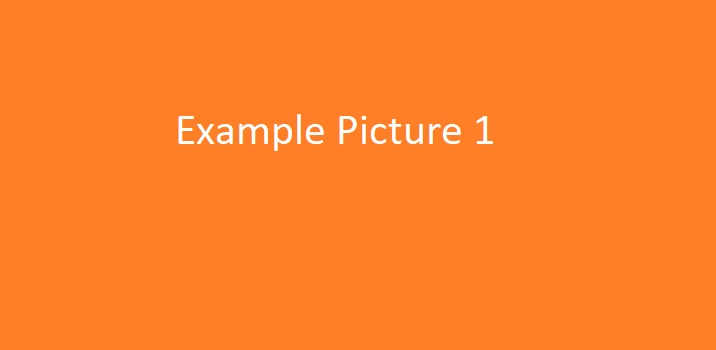   ### How to merge BMP files in vertical mode The following example demonstrates how to merge image files in vertical mode with several lines of python-net code: * Create an instance of [Merger](https://reference.groupdocs.com/merger/net/groupdocs.merger/Merger) class and pass source image file path as a constructor parameter. You may specify absolute or relative file path as per your requirements. * Create an instance of [ImageJoinOptions](https://reference.groupdocs.com/merger/net/groupdocs.merger.domain.options/ImageJoinOptions) class and pass enum value of [ImageJoinMode](https://reference.groupdocs.com/merger/net/groupdocs.merger.domain.options/ImageJoinMode) as a constructor parameter. * Add another image file to merge with [join](https://reference.groupdocs.com/merger/net/groupdocs.merger/merger/join/#join) method and pass instance of [ImageJoinOptions](https://reference.groupdocs.com/merger/net/groupdocs.merger.domain.options/ImageJoinOptions) class as a method parameter. Repeat this step for other image documents you want to merge. * Call [Merger](https://reference.groupdocs.com/merger/net/groupdocs.merger/Merger) class [save](https://reference.groupdocs.com/merger/net/groupdocs.merger/merger/save) method and specify the filename for the merged image file as parameter. ```python from groupdocs.merger import Merger from groupdocs.merger.domain import FileType from groupdocs.merger.domain.options import ImageJoinOptions, ImageJoinMode with Merger("./sample1.bmp") as merger: image_join_options = ImageJoinOptions(FileType.BMP, ImageJoinMode.VERTICAL) merger.join("./sample2.bmp", image_join_options) merger.join("./sample3.bmp", image_join_options) merger.save("./merged.bmp") ``` ### Result merged BMP image 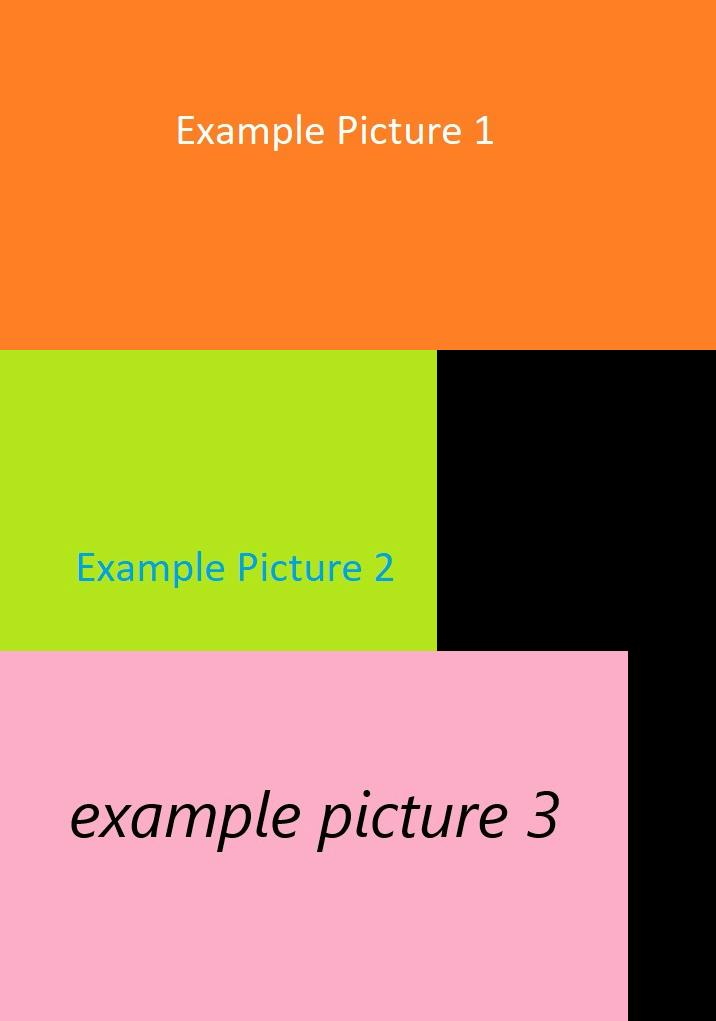 ### Code Examples Please find more [use-cases and complete Python via .NET sources]({{< ref "merger/python-net/showcases.md" >}}) of our backend and frontend examples and try them for free! ### Merge BMP Live Demo GroupDocs.Merger for Python via .NET provides an online [**BMP Merger App**](https://products.groupdocs.app/images/bmp), which allows you to try it for free and check its quality and accuracy. --- ## How to merge JPG images using Python via .NET Path: https://docs.groupdocs.com/merger/python-net/getting-started/use-cases/how-to-merge-jpg-images-using-python-net/ ## JPG Merger Python via .NET API [GroupDocs.Merger](https://products.groupdocs.com/merger/python-net) allows developers to combine multiple JPG documents in the preferred order and save them as a single file. ## About JPG File Format Files having extension .JPG represent Bitmap Image files that are used to store bitmap digital images. These images are independent of graphics adapter and are also called device independent bitmap (DIB) file format. This independency serves the purpose of opening the file on multiple platforms such as Microsoft Windows and Mac. The JPG file format can store data as two-dimensional digital images in both monochrome as well as color format with various colour depths. ### Download and Configure You can download GroupDocs.Merger for Python via .NET from official website [Downloads section](https://downloads.groupdocs.com/merger/python-net). ### Source JPG images    ### How to merge JPG files in vertical mode The following example demonstrates how to merge image files in vertical mode with several lines of python-net code: * Create an instance of [Merger](https://reference.groupdocs.com/merger/net/groupdocs.merger/Merger) class and pass source image file path as a constructor parameter. You may specify absolute or relative file path as per your requirements. * Create an instance of [ImageJoinOptions](https://reference.groupdocs.com/merger/net/groupdocs.merger.domain.options/ImageJoinOptions) class and pass enum value of [ImageJoinMode](https://reference.groupdocs.com/merger/net/groupdocs.merger.domain.options/ImageJoinMode) as a constructor parameter. * Add another image file to merge with [join](https://reference.groupdocs.com/merger/net/groupdocs.merger/merger/join/#join) method and pass instance of [ImageJoinOptions](https://reference.groupdocs.com/merger/net/groupdocs.merger.domain.options/ImageJoinOptions) class as a method parameter. Repeat this step for other image documents you want to merge. * Call [Merger](https://reference.groupdocs.com/merger/net/groupdocs.merger/Merger) class [save](https://reference.groupdocs.com/merger/net/groupdocs.merger/merger/save) method and specify the filename for the merged image file as parameter. ```python from groupdocs.merger import Merger from groupdocs.merger.domain import FileType from groupdocs.merger.domain.options import ImageJoinOptions, ImageJoinMode with Merger("./sample1.jpg") as merger: image_join_options = ImageJoinOptions(FileType.JPEG, ImageJoinMode.VERTICAL) merger.join("./sample2.jpg", image_join_options) merger.join("./sample3.jpg", image_join_options) merger.save("./merged.jpg") ``` ### Result merged JPG image  ### Code Examples Please find more [use-cases and complete Python via .NET sources]({{< ref "merger/python-net/showcases.md" >}}) of our backend and frontend examples and try them for free! ### Merge JPG Live Demo GroupDocs.Merger for Python via .NET provides an online [**JPG Merger App**](https://products.groupdocs.app/images/jpg), which allows you to try it for free and check its quality and accuracy. --- ## How to merge PNG images using Python via .NET Path: https://docs.groupdocs.com/merger/python-net/getting-started/use-cases/how-to-merge-png-images-using-python-net/ ## PNG Merger Python via .NET API [GroupDocs.Merger](https://products.groupdocs.com/merger/python-net) allows developers to combine multiple PNG documents in the preferred order and save them as a single file. ## About PNG File Format Files having extension .PNG represent Bitmap Image files that are used to store bitmap digital images. These images are independent of graphics adapter and are also called device independent bitmap (DIB) file format. This independency serves the purpose of opening the file on multiple platforms such as Microsoft Windows and Mac. The PNG file format can store data as two-dimensional digital images in both monochrome as well as color format with various colour depths. ### Download and Configure You can download GroupDocs.Merger for Python via .NET from official website [Downloads section](https://downloads.groupdocs.com/merger/python-net). ### Source PNG images    ### How to merge PNG files in vertical mode The following example demonstrates how to merge image files in vertical mode with several lines of python-net code: * Create an instance of [Merger](https://reference.groupdocs.com/merger/net/groupdocs.merger/Merger) class and pass source image file path as a constructor parameter. You may specify absolute or relative file path as per your requirements. * Create an instance of [ImageJoinOptions](https://reference.groupdocs.com/merger/net/groupdocs.merger.domain.options/ImageJoinOptions) class and pass enum value of [ImageJoinMode](https://reference.groupdocs.com/merger/net/groupdocs.merger.domain.options/ImageJoinMode) as a constructor parameter. * Add another image file to merge with [join](https://reference.groupdocs.com/merger/net/groupdocs.merger/merger/join/#join) method and pass instance of [ImageJoinOptions](https://reference.groupdocs.com/merger/net/groupdocs.merger.domain.options/ImageJoinOptions) class as a method parameter. Repeat this step for other image documents you want to merge. * Call [Merger](https://reference.groupdocs.com/merger/net/groupdocs.merger/Merger) class [save](https://reference.groupdocs.com/merger/net/groupdocs.merger/merger/save) method and specify the filename for the merged image file as parameter. ```python from groupdocs.merger import Merger from groupdocs.merger.domain import FileType from groupdocs.merger.domain.options import ImageJoinOptions, ImageJoinMode with Merger("./sample1.png") as merger: image_join_options = ImageJoinOptions(FileType.PNG, ImageJoinMode.VERTICAL) merger.join("./sample2.png", image_join_options) merger.join("./sample3.png", image_join_options) merger.save("./merged.png") ``` ### Result merged PNG image  ### Code Examples Please find more [use-cases and complete Python via .NET sources]({{< ref "merger/python-net/showcases.md" >}}) of our backend and frontend examples and try them for free! ### Merge PNG Live Demo GroupDocs.Merger for Python via .NET provides an online [**PNG Merger App**](https://products.groupdocs.app/images/png), which allows you to try it for free and check its quality and accuracy. --- ## Load Password-Protected Document Path: https://docs.groupdocs.com/merger/python-net/developer-guide/loading-documents/load-password-protected/ [**GroupDocs.Merger for Python via .NET**](https://products.groupdocs.com/merger/python-net) supports opening documents that are protected with an open password. To unlock the file, pass a `LoadOptions` instance — populated with the correct password — to the `Merger` constructor alongside the file path or stream. ## Exception handling If the document is protected and you do not supply a password, or if the supplied password is incorrect, the library raises one of the following exceptions from `groupdocs.merger.exceptions`: - **`PasswordRequiredException`** — raised when you try to open a protected document without providing any password. - **`IncorrectPasswordException`** — raised when the provided password does not match the document's open password. ## Steps to load a password-protected document 1. Create a `LoadOptions` instance and set the `password` parameter to the document's open password. 2. Instantiate the `Merger` class with both the document path and the `LoadOptions` object. 3. Perform any supported operation (merge, split, get info, etc.) on the open document. {{< tabs "load-password-protected-example" >}} {{< tab "load_password_protected.py" >}} ```python from groupdocs.merger import Merger from groupdocs.merger.domain.options import LoadOptions from groupdocs.merger.exceptions import IncorrectPasswordException, PasswordRequiredException def load_password_protected(): # Provide the document's open password via LoadOptions load_options = LoadOptions(password="secret") try: # Load the password-protected document with Merger("./protected.pdf", load_options) as merger: # The document is now open — perform any supported operation info = merger.get_document_info() print("Format:", info.type.file_format) print("Pages:", info.page_count) except PasswordRequiredException: print("Error: the document requires a password but none was provided.") except IncorrectPasswordException: print("Error: the supplied password is incorrect.") if __name__ == "__main__": load_password_protected() ``` {{< /tab >}} {{< tab "protected.pdf" >}} {{< tab-text >}} `protected.pdf` is a sample file used in this example. Click [here](https://docs.groupdocs.com/merger/python-net/_sample_files/developer-guide/loading-documents/load-password-protected/protected.pdf) to download it. {{< /tab-text >}} {{< /tab >}} {{< tab "load-password-protected.txt" >}} ```text Format: Portable Document Format File Pages: 2 ``` [Download full output](https://docs.groupdocs.com/merger/python-net/_output_files/developer-guide/loading-documents/load-password-protected/load_password_protected/load-password-protected.txt) {{< /tab >}} {{< /tabs >}} ### Explanation - **Load Options**: `LoadOptions(password="secret")` wraps the open password. This options object is passed to the `Merger` constructor so the library can decrypt the document on load. - **Open Document**: `Merger("./protected.pdf", load_options)` opens the encrypted file. If the password is missing or wrong, the appropriate exception is raised before the `with` block body executes. - **Perform Operations**: Once open, you can call any `Merger` method — `get_document_info()`, `join()`, `split()`, `save()`, etc. — on the decrypted document. - **Exception Handling**: Wrapping the `Merger` construction in `try/except` blocks lets you give users a clear error message when the password is absent (`PasswordRequiredException`) or wrong (`IncorrectPasswordException`). Both are importable from `groupdocs.merger.exceptions`. Refer to the [GroupDocs.Merger API Reference](https://reference.groupdocs.com/merger/python-net/) for full details on `LoadOptions` and the exception hierarchy. ## See also - [Load from local disk]({{< ref "merger/python-net/developer-guide/loading-documents/load-from-local-disk.md" >}}) - [Load from stream]({{< ref "merger/python-net/developer-guide/loading-documents/load-from-stream.md" >}}) - [Check document password protection]({{< ref "merger/python-net/developer-guide/security-operations/check-document-password-protection.md" >}}) - [Remove document password]({{< ref "merger/python-net/developer-guide/security-operations/remove-document-password.md" >}}) --- ## Merge PowerPoint Presentations Path: https://docs.groupdocs.com/merger/python-net/merge/powerpoint/ GroupDocs.Merger for Python via .NET makes it easy to combine multiple PowerPoint presentations into a single file programmatically. All slides, shapes, animations, embedded media, and other content are preserved — no Microsoft PowerPoint or third-party desktop software required. Common presentation file extensions include **PPTX**, **PPT**, **PPSX**, and **PPS**. PPTX is the default XML-based format introduced with Microsoft Office 2007; PPT is the older binary format supported by earlier versions of PowerPoint. ## Steps to merge PPTX files 1. Create an instance of the `Merger` class and pass the path to the first (base) PPTX file. 2. Call `merger.join()` with the path to each additional PPTX file to append. 3. Call `merger.save()` with the desired output path to write the merged file. {{< tabs "merge-powerpoint-example" >}} {{< tab "merge_powerpoint_documents.py" >}} ```python from groupdocs.merger import Merger def merge_powerpoint_documents(): # Load the first presentation as the merge base with Merger("./input.pptx") as merger: # Append the second PowerPoint presentation merger.join("./input2.pptx") # Save the combined presentation merger.save("./output.pptx") if __name__ == "__main__": merge_powerpoint_documents() ``` {{< /tab >}} {{< tab "input.pptx" >}} {{< tab-text >}} `input.pptx` is a sample file used in this example. Click [here](https://docs.groupdocs.com/merger/python-net/_sample_files/developer-guide/merge/powerpoint/input.pptx) to download it. {{< /tab-text >}} {{< /tab >}} {{< tab "input2.pptx" >}} {{< tab-text >}} `input2.pptx` is a sample file used in this example. Click [here](https://docs.groupdocs.com/merger/python-net/_sample_files/developer-guide/merge/powerpoint/input2.pptx) to download it. {{< /tab-text >}} {{< /tab >}} {{< tab "output.pptx" >}} ```text Binary file (PPTX, 88 KB) ``` [Download full output](https://docs.groupdocs.com/merger/python-net/_output_files/developer-guide/merge/powerpoint/merge_powerpoint_documents/output.pptx) {{< /tab >}} {{< /tabs >}} ### Explanation - **Load base document**: `Merger("./input.pptx")` opens the first presentation as the merge base inside a context manager. - **Append second document**: `merger.join("./input2.pptx")` appends all slides from the second file. Call `join` again for each additional file. - **Save result**: `merger.save("./output.pptx")` writes the merged presentation to disk. ### Merge PowerPoint Live Demo GroupDocs.Merger for Python via .NET provides an online [**PowerPoint Merger App**](https://products.groupdocs.app/merger/powerpoint), which allows you to try it for free and check its quality and accuracy. ## API reference - [`Merger`](https://reference.groupdocs.com/merger/python-net/groupdocs.merger/merger/) — main class; `join`, `save` methods. ## See also - [Merge Excel spreadsheets]({{< ref "merger/python-net/developer-guide/merge/excel.md" >}}) - [Merge PDF files]({{< ref "merger/python-net/developer-guide/merge/pdf.md" >}}) - [More use-cases and complete Python via .NET sources]({{< ref "merger/python-net/showcases.md" >}}) --- ## Generate Page Previews Path: https://docs.groupdocs.com/merger/python-net/developer-guide/page-preview/ [**GroupDocs.Merger for Python via .NET**](https://products.groupdocs.com/merger/python-net) can rasterize document pages to image files — PNG, JPEG, or BMP — using the `generate_preview()` method. You supply a callback function that receives the 1-based page number and returns an open writable file stream; the library renders each requested page and writes the result into that stream. ## Steps to generate page previews 1. Define a `create_page_stream` callback that accepts a page number and returns an open binary file object (e.g. `open(path, "wb")`). 2. Create a `PreviewOptions` instance, passing the callback, the desired `PreviewMode`, and a list of page numbers to render. 3. Instantiate the `Merger` class with the source document path. 4. Call `merger.generate_preview()` with the `PreviewOptions` object. {{< tabs "page-preview-example" >}} {{< tab "generate_page_previews.py" >}} ```python from groupdocs.merger import Merger from groupdocs.merger.domain.options import PreviewOptions, PreviewMode def generate_page_previews(): # Callback: called once per requested page; must return a writable FILE stream def create_page_stream(page_number): # Open a file for writing — do NOT return BytesIO here return open(f"./page-{page_number}.png", "wb") # Load the source document with Merger("./input.pdf") as merger: # Configure preview: PNG format, render pages 1 and 2 preview_options = PreviewOptions(create_page_stream, PreviewMode.PNG, [1, 2]) # Rasterize the requested pages and write them via the callback streams merger.generate_preview(preview_options) if __name__ == "__main__": generate_page_previews() ``` {{< /tab >}} {{< tab "input.pdf" >}} {{< tab-text >}} `input.pdf` is a sample file used in this example. Click [here](https://docs.groupdocs.com/merger/python-net/_sample_files/developer-guide/page-preview/input.pdf) to download it. {{< /tab-text >}} {{< /tab >}} {{< tab "generate-page-previews-outputs.zip" >}} ```text page-1.png (46 KB) page-2.png (46 KB) ``` [Download full output](https://docs.groupdocs.com/merger/python-net/_output_files/developer-guide/page-preview/generate_page_previews/generate-page-previews-outputs.zip) {{< /tab >}} {{< /tabs >}} {{< alert style="info" >}} **The callback must return a file/path stream, not `BytesIO`.** A `BytesIO` object returned from the `create_page_stream` callback will come back empty — the .NET bridge does not write back into callback-provided in-memory streams. Always use `open(path, "wb")` or another operating-system file stream. **Linux / macOS:** page rasterization requires **libgdiplus** (GDI+). Install it with `apt-get install libgdiplus` (Debian/Ubuntu) or `brew install mono-libgdiplus` (macOS/Homebrew) before calling `generate_preview()`. {{< /alert >}} ### Explanation - **Stream Callback**: `create_page_stream(page_number)` is invoked once for every page in the requested list. It must open and return a writable binary file handle. The library writes the rendered image data into that handle. - **PreviewOptions**: The constructor accepts three arguments: the stream callback, a `PreviewMode` enum value (`PNG`, `JPEG`, or `BMP`), and a list of 1-based page numbers to render. Omit the page list to render all pages. - **Load Document**: The `Merger` context manager opens the source document and releases all resources when the `with` block exits. - **Generate**: `merger.generate_preview(preview_options)` rasterizes each requested page and writes the image into the corresponding stream returned by the callback. After running the example, you will find `page-1.png` and `page-2.png` in the working directory. Refer to the [GroupDocs.Merger API Reference](https://reference.groupdocs.com/merger/python-net/) for full details on `PreviewOptions` and `PreviewMode`. ## See also - [Get document information]({{< ref "merger/python-net/developer-guide/get-document-information.md" >}}) - [Get supported file types]({{< ref "merger/python-net/developer-guide/get-supported-file-types.md" >}}) --- ## Showcases Path: https://docs.groupdocs.com/merger/python-net/showcases/ {{< alert style="info" >}}Want to try GroupDocs.Merger for Python via .NET by yourself? Please check C# code sources, how-to examples and free online demonstrations provided below to learn more about file merge features.{{< /alert >}} ## GitHub Examples You may download GroupDocs.Merger for Python via .NET code examples from our GitHub repository and see file merge features in action: * [GroupDocs.Merger for Python via .NET examples, plugins, and showcase](https://github.com/groupdocs-merger/GroupDocs.Merger-for-Python-via-.NET) ## Online Demo Along with full-featured Python via .NET library we provide free Apps and free services for document merger. In order to see a full potential of GroupDocs.Merger, you are welcome to merge DOC, PDF, XLSX, PPTX and more with **[Free Online Document Merger App](https://products.groupdocs.app/merger)**. --- ## Split document Path: https://docs.groupdocs.com/merger/python-net/split-document/ [**GroupDocs.Merger for Python via .NET**](https://products.groupdocs.com/merger/python-net) lets you split a single source document into multiple output files. You can split by exact page numbers or by page intervals, and optionally filter to odd or even pages only — all controlled through [SplitOptions](https://reference.groupdocs.com/merger/python-net/groupdocs.merger.domain.options/splitoptions/). Here are the steps to split a document: - Instantiate [Merger](https://reference.groupdocs.com/merger/python-net/groupdocs.merger/merger/) with the path to the source document. - Create a [SplitOptions](https://reference.groupdocs.com/merger/python-net/groupdocs.merger.domain.options/splitoptions/) object with the output file path format (use `{0}` as the file index placeholder) and the desired page numbers. - Call `merger.split()` passing the `SplitOptions` object. Each output file is written immediately. {{< tabs "split-document-example" >}} {{< tab "split_document.py" >}} ```python from groupdocs.merger import Merger from groupdocs.merger.domain.options import SplitOptions, SplitMode def split_document(): # Load the source PDF document with Merger("./input.pdf") as merger: # Split into separate one-page files for pages 1, 2, and 3 # Output files: page_0.pdf (page 1), page_1.pdf (page 2), page_2.pdf (page 3) merger.split(SplitOptions("./page_{0}.pdf", [1, 2, 3])) def split_document_by_interval(): # Load the source PDF document with Merger("./input.pdf") as merger: # Split into multi-page files using page boundaries [2, 4] # INTERVAL mode: pages 1 → part_0.pdf, pages 2-3 → part_1.pdf, pages 4+ → part_2.pdf merger.split(SplitOptions("./part_{0}.pdf", [2, 4], split_mode=SplitMode.INTERVAL)) if __name__ == "__main__": split_document() split_document_by_interval() ``` {{< /tab >}} {{< tab "input.pdf" >}} {{< tab-text >}} `input.pdf` is a sample file used in this example. Click [here](https://docs.groupdocs.com/merger/python-net/_sample_files/developer-guide/single-document-operations/split-document/input.pdf) to download it. {{< /tab-text >}} {{< /tab >}} {{< tab "split-document-outputs.zip" >}} ```text page_1.pdf (84 KB) page_2.pdf (84 KB) page_3.pdf (84 KB) part_0.pdf (84 KB) part_1.pdf (167 KB) part_2.pdf (168 KB) ``` [Download full output](https://docs.groupdocs.com/merger/python-net/_output_files/developer-guide/single-document-operations/split-document/split_document/split-document-outputs.zip) {{< /tab >}} {{< /tabs >}} ### Explanation - **Load source document**: `Merger("./input.pdf")` opens the document as a context manager, ensuring resources are released automatically. - **Split by exact pages** (`SplitOptions("./page_{0}.pdf", [1, 2, 3])`): the default mode is `SplitMode.PAGES`, which produces one output file per listed page number. Page numbers are 1-based. - **Split by interval** (`SplitOptions(..., [2, 4], split_mode=SplitMode.INTERVAL)`): the listed numbers are treated as interval boundaries. Pages before the first boundary form the first segment, pages between each pair of boundaries form subsequent segments, and pages after the last boundary form the final segment. - **Output format**: the `{0}` placeholder in the path format is replaced with a zero-based file index for each output file. - No explicit `merger.save()` call is needed — `split()` writes output files directly. {{< alert style="tip" >}} To extract only even or odd pages from a range, use the `SplitOptions` overload that accepts `start_number`, `end_number`, and `mode=RangeMode.ODD_PAGES` (or `RangeMode.EVEN_PAGES`). {{< /alert >}} ### API reference - [SplitOptions](https://reference.groupdocs.com/merger/python-net/groupdocs.merger.domain.options/splitoptions/) - [SplitMode](https://reference.groupdocs.com/merger/python-net/groupdocs.merger.domain.options/splitmode/) - [RangeMode](https://reference.groupdocs.com/merger/python-net/groupdocs.merger.domain.options/rangemode/) - [Merger.split()](https://reference.groupdocs.com/merger/python-net/groupdocs.merger/merger/) ### See also - [Split text file]({{< ref "merger/python-net/developer-guide/single-document-operations/split-text-file" >}}) - [Extract pages]({{< ref "merger/python-net/developer-guide/single-document-operations/extract-pages" >}}) - [Remove pages]({{< ref "merger/python-net/developer-guide/single-document-operations/remove-pages" >}}) --- ## System Requirements Path: https://docs.groupdocs.com/merger/python-net/getting-started/system-requirements/ {{< alert style="info" >}} GroupDocs.Merger for Python via .NET ships as a self-contained wheel that bundles the .NET runtime it needs. No Microsoft Office, Adobe Acrobat, or Mono install is required. {{< /alert >}} ## Supported Operating Systems ### Windows - Windows 10 (x64, x86) - Windows 11 (x64) - Windows Server 2016 and later (x64) ### Linux - Any modern **x86-64** distribution that can install the `manylinux1` wheel — Ubuntu 20.04+, Debian 11+, RHEL 8+, and equivalents. ### macOS - macOS 11 (Big Sur) and later. - Both **Intel** (x86_64) and **Apple Silicon** (arm64 / M-series) are supported. ## Python Version GroupDocs.Merger for Python via .NET supports every Python release from **3.5** through **3.14**. | Python | Supported | |---|:---:| | 3.5 – 3.10 | ✅ | | 3.11 | ✅ | | 3.12 | ✅ | | 3.13 | ✅ | | 3.14 | ✅ | Download Python from the [official website](https://www.python.org/downloads/). ## Package Manager The library is distributed on [PyPI](https://pypi.org/project/groupdocs-merger-net/) under the name **`groupdocs-merger-net`** and ships as four platform-specific wheels per release: | Platform | Wheel suffix | |---|---| | Windows x86-64 | `win_amd64` | | Linux x86-64 | `manylinux1_x86_64` | | macOS Apple Silicon (ARM64) | `macosx_11_0_arm64` | | macOS Intel (x86-64) | `macosx_10_14_x86_64` | `pip` automatically picks the right wheel for your platform. ## Optional Platform Dependencies ### Linux GroupDocs.Merger uses `System.Drawing.Common` for image rendering (image joins and page previews), which on Linux needs a few system packages. Install them with `apt`, `dnf`, or the equivalent for your distribution: ```bash # Debian / Ubuntu sudo apt install libgdiplus libfontconfig1 ttf-mscorefonts-installer sudo fc-cache -f # Fedora / RHEL / Rocky sudo dnf install libgdiplus fontconfig ``` `libgdiplus` provides the GDI+-compatible API used by the rendering engine. `ttf-mscorefonts-installer` (Debian / Ubuntu) supplies the core Microsoft TrueType fonts required to render Word / Excel / PowerPoint documents faithfully. If your distribution's ICU or OpenSSL versions differ from what the bundled runtime expects, install both and point the runtime at them — no exact version is required. ### macOS ```bash brew install mono-libgdiplus ``` If you see a `DllNotFoundException: libSkiaSharp` error, a stale system copy is shadowing the bundled library. Rename it out of the way: ```bash sudo mv /usr/local/lib/libSkiaSharp.dylib /usr/local/lib/libSkiaSharp.dylib.bak ``` ### Windows No additional system libraries are required. --- ## Installation Path: https://docs.groupdocs.com/merger/python-net/getting-started/installation/ GroupDocs.Merger for Python via .NET is distributed as a pre-built wheel on [PyPI](https://pypi.org/project/groupdocs-merger-net/). The PyPI index hosts a separate wheel for each supported platform, and `pip` picks the correct one automatically. Before installing, confirm your environment matches the supported platforms and Python versions listed in the [System Requirements]({{< ref "merger/python-net/getting-started/system-requirements.md" >}}) topic. ## Install from PyPI Open a terminal and run the install command for your platform: {{< tabs "install-pypi" >}} {{< tab "Windows" >}} ```ps py -m pip install groupdocs-merger-net ``` {{< /tab >}} {{< tab "Linux" >}} ```bash # Install native dependencies first (required for rendering and font support) sudo apt-get install -y libgdiplus libfontconfig1 python3 -m pip install groupdocs-merger-net ``` {{< /tab >}} {{< tab "macOS" >}} ```bash python3 -m pip install groupdocs-merger-net ``` {{< /tab >}} {{< /tabs >}} After running the command you should see output similar to: ```bash Collecting groupdocs-merger-net Downloading groupdocs_merger_net-26.6-py3-none-win_amd64.whl.metadata (6.5 kB) Downloading groupdocs_merger_net-26.6-py3-none-win_amd64.whl (185.4 MB) ━━━━━━━━━━━━━━━━━━━━━━━━━━━━━━━━━━━━━━━━ 185.4/185.4 MB 3.1 MB/s eta 0:00:00 Installing collected packages: groupdocs-merger-net Successfully installed groupdocs-merger-net-26.6 ``` The wheel file name includes a platform suffix that matches your operating system — for example `manylinux1_x86_64` on Ubuntu/Debian or `win_amd64` on 64-bit Windows. {{< alert style="info" >}} **Linux note:** `libgdiplus` is required for page preview (image rendering) and `libfontconfig1` is required for correct font rendering. Install them with your system package manager before running any example that calls `generate_preview` or processes documents containing embedded fonts. {{< /alert >}} ## Add the Package to `requirements.txt` For reproducible environments, pin the package version in your `requirements.txt`: ```txt groupdocs-merger-net ``` Then install all dependencies in one step: ```bash pip install -r requirements.txt ``` ## Install from a Pre-Downloaded Wheel If your build environment cannot reach PyPI, download the appropriate wheel from the [GroupDocs Releases website](https://releases.groupdocs.com/merger/python-net/) and install it locally. The following wheels are published for each release: | Platform | Wheel file name suffix | |---|---| | Windows 64-bit | `win_amd64.whl` | | Linux x64 (glibc) | `manylinux1_x86_64.whl` | | macOS Apple Silicon | `macosx_11_0_arm64.whl` | | macOS Intel | `macosx_10_14_x86_64.whl` | Place the downloaded wheel into your project folder, then install it: {{< tabs "install-wheel" >}} {{< tab "Windows (64-bit)" >}} ```ps py -m pip install groupdocs_merger_net-26.6-py3-none-win_amd64.whl ``` {{< /tab >}} {{< tab "Linux (glibc)" >}} ```bash python3 -m pip install groupdocs_merger_net-26.6-py3-none-manylinux1_x86_64.whl ``` {{< /tab >}} {{< tab "macOS (Apple Silicon)" >}} ```bash python3 -m pip install groupdocs_merger_net-26.6-py3-none-macosx_11_0_arm64.whl ``` {{< /tab >}} {{< tab "macOS (Intel)" >}} ```bash python3 -m pip install groupdocs_merger_net-26.6-py3-none-macosx_10_14_x86_64.whl ``` {{< /tab >}} {{< /tabs >}} Expected output: ```bash Processing groupdocs_merger_net-26.6-py3-none-*.whl Installing collected packages: groupdocs-merger-net Successfully installed groupdocs-merger-net-26.6 ``` ## Verify the Installation Run the following one-liner to confirm the package is installed and importable: {{< tabs "verify-install" >}} {{< tab "Windows" >}} ```ps py -c "from groupdocs.merger import Merger; print('GroupDocs.Merger installed OK')" ``` {{< /tab >}} {{< tab "Linux / macOS" >}} ```bash python3 -c "from groupdocs.merger import Merger; print('GroupDocs.Merger installed OK')" ``` {{< /tab >}} {{< /tabs >}} You should see: ``` GroupDocs.Merger installed OK ``` ## Next Steps - Follow the [Quick Start Guide]({{< ref "merger/python-net/getting-started/quick-start-guide" >}}) to merge your first document in under five minutes. - Clone the [examples repository](https://github.com/groupdocs-merger/GroupDocs.Merger-for-Python-via-.NET) and read [How to Run Examples]({{< ref "merger/python-net/getting-started/how-to-run-examples.md" >}}) to try every documented scenario locally. - If you work with AI agents or LLMs, see [Agents and LLM Integration]({{< ref "merger/python-net/agents-and-llm-integration" >}}) for MCP and `AGENTS.md` integration details. --- ## Merge Excel spreadsheets Path: https://docs.groupdocs.com/merger/python-net/merge/excel/ GroupDocs.Merger for Python via .NET allows you to combine multiple Excel spreadsheets into a single file programmatically. All worksheets, data, formulas, charts, and formatting are preserved — no Microsoft Excel or third-party software required. Spreadsheet files store data in rows and columns and are saved in formats such as **XLSX** (Microsoft Excel Open XML Spreadsheet), **XLS** (Microsoft Excel Binary File Format), and **ODS** (OpenDocument Spreadsheet). XLSX is the default format introduced with Microsoft Office 2007, based on the Open Packaging Conventions (OOXML/ECMA-376 standard). ## Steps to merge XLSX files 1. Create an instance of the `Merger` class and pass the path to the first (base) XLSX file. 2. Call `merger.join()` with the path to each additional XLSX file to append. 3. Call `merger.save()` with the desired output path to write the merged file. {{< tabs "merge-excel-example" >}} {{< tab "merge_excel_documents.py" >}} ```python from groupdocs.merger import Merger def merge_excel_documents(): # Load the first document as the merge base with Merger("./input.xlsx") as merger: # Append the second Excel spreadsheet merger.join("./input2.xlsx") # Save the combined document merger.save("./output.xlsx") if __name__ == "__main__": merge_excel_documents() ``` {{< /tab >}} {{< tab "input.xlsx" >}} {{< tab-text >}} `input.xlsx` is a sample file used in this example. Click [here](https://docs.groupdocs.com/merger/python-net/_sample_files/developer-guide/merge/excel/input.xlsx) to download it. {{< /tab-text >}} {{< /tab >}} {{< tab "input2.xlsx" >}} {{< tab-text >}} `input2.xlsx` is a sample file used in this example. Click [here](https://docs.groupdocs.com/merger/python-net/_sample_files/developer-guide/merge/excel/input2.xlsx) to download it. {{< /tab-text >}} {{< /tab >}} {{< tab "output.xlsx" >}} ```text Binary file (XLSX, 18 KB) ``` [Download full output](https://docs.groupdocs.com/merger/python-net/_output_files/developer-guide/merge/excel/merge_excel_documents/output.xlsx) {{< /tab >}} {{< /tabs >}} ### Explanation - **Load base document**: `Merger("./input.xlsx")` opens the first Excel spreadsheet as the merge base inside a context manager. - **Append second document**: `merger.join("./input2.xlsx")` appends all worksheets from the second file. Call `join` again for each additional file. - **Save result**: `merger.save("./output.xlsx")` writes the merged spreadsheet to disk. ### Merge XLSX Live Demo GroupDocs.Merger for Python via .NET provides an online [**XLSX Merger App**](https://products.groupdocs.app/merger/xlsx), which allows you to try it for free and check its quality and accuracy. ## API reference - [`Merger`](https://reference.groupdocs.com/merger/python-net/groupdocs.merger/merger/) — main class; `join`, `save` methods. ## See also - [Merge PDF files]({{< ref "merger/python-net/developer-guide/merge/pdf.md" >}}) - [Merge PowerPoint presentations]({{< ref "merger/python-net/developer-guide/merge/powerpoint.md" >}}) - [More use-cases and complete Python via .NET sources]({{< ref "merger/python-net/showcases.md" >}}) --- ## Remove Document Password Path: https://docs.groupdocs.com/merger/python-net/remove-document-password/ [**GroupDocs.Merger for Python via .NET**](https://products.groupdocs.com/merger/python-net) lets you remove an open password from a protected document. After the operation the saved document is unencrypted and can be opened without any password. ## Steps to remove a document password 1. Create a `LoadOptions` instance and supply the current password so the document can be opened. 2. Instantiate the `Merger` class with the protected document path and the `LoadOptions` object. 3. Call `merger.remove_password()` to strip the password. 4. Call `merger.save()` with the output file path to write the decrypted document. {{< tabs "remove-document-password-example" >}} {{< tab "remove_document_password.py" >}} ```python from groupdocs.merger import Merger from groupdocs.merger.domain.options import LoadOptions def remove_document_password(): # Supply the current password so the protected document can be opened load_options = LoadOptions(password="p@ss") # Load the password-protected document with Merger("./protected.pdf", load_options) as merger: # Remove the open password from the document merger.remove_password() # Save the decrypted (unprotected) document merger.save("./output.pdf") if __name__ == "__main__": remove_document_password() ``` {{< /tab >}} {{< tab "protected.pdf" >}} {{< tab-text >}} `protected.pdf` is a sample file used in this example. Click [here](https://docs.groupdocs.com/merger/python-net/_sample_files/developer-guide/security-operations/remove-document-password/protected.pdf) to download it. {{< /tab-text >}} {{< /tab >}} {{< tab "output.pdf" >}} ```text Binary file (PDF, 85 KB) ``` [Download full output](https://docs.groupdocs.com/merger/python-net/_output_files/developer-guide/security-operations/remove-document-password/remove_document_password/output.pdf) {{< /tab >}} {{< /tabs >}} ### Explanation - **Load Options**: `LoadOptions(password="p@ss")` provides the current document password so that `Merger` can decrypt and open the file. Omitting the password when the document is protected raises `IncorrectPasswordException`. - **Load Document**: The `Merger` context manager opens the protected file using the supplied credentials. - **Remove Password**: `merger.remove_password()` clears the open password from the in-memory document representation. - **Save Result**: `merger.save()` writes the now-unprotected document to disk. Refer to the [GroupDocs.Merger API Reference](https://reference.groupdocs.com/merger/python-net/) for full details on `remove_password()` and `LoadOptions`. ## See also - [Add document password]({{< ref "merger/python-net/developer-guide/security-operations/add-document-password.md" >}}) - [Update document password]({{< ref "merger/python-net/developer-guide/security-operations/update-document-password.md" >}}) - [Check document password protection]({{< ref "merger/python-net/developer-guide/security-operations/check-document-password-protection.md" >}}) --- ## Split text file Path: https://docs.groupdocs.com/merger/python-net/split-text-file/ [**GroupDocs.Merger for Python via .NET**](https://products.groupdocs.com/merger/python-net) lets you split a plain-text file into multiple output files based on line numbers. You can extract specific lines (one output per listed line) or split at line boundaries to produce multi-line segments — all controlled through [TextSplitOptions](https://reference.groupdocs.com/merger/python-net/groupdocs.merger.domain.options/textsplitoptionsoptions/). Here are the steps to split a text file: - Instantiate [Merger](https://reference.groupdocs.com/merger/python-net/groupdocs.merger/merger/) with the path to the source `.txt` file. - Create a [TextSplitOptions](https://reference.groupdocs.com/merger/python-net/groupdocs.merger.domain.options/textsplitoptionsoptions/) object using **keyword arguments** — `file_path_format`, `line_numbers`, and `mode`. - Call `merger.split()` passing the `TextSplitOptions` object. {{< alert style="warning" >}} `TextSplitOptions` must be constructed with keyword arguments. Passing arguments positionally will fail at runtime. {{< /alert >}} {{< tabs "split-text-file-example" >}} {{< tab "split_text_file.py" >}} ```python from groupdocs.merger import Merger from groupdocs.merger.domain.options import TextSplitOptions, TextSplitMode def split_text_file_by_lines(): # Load the source text file with Merger("./input.txt") as merger: # Split at lines 2 and 4 — each listed line becomes a separate output file # Output files: lines_0.txt (line 2), lines_1.txt (line 4) # IMPORTANT: use keyword arguments — positional arguments will fail merger.split(TextSplitOptions( file_path_format="./lines_{0}.txt", line_numbers=[2, 4], mode=TextSplitMode.LINES, )) def split_text_file_by_interval(): # Load the source text file with Merger("./input.txt") as merger: # Split at line boundaries [2, 4] using INTERVAL mode # lines_0.txt → line 1, lines_1.txt → lines 2-3, lines_2.txt → lines 4+ merger.split(TextSplitOptions( file_path_format="./lines_{0}.txt", line_numbers=[2, 4], mode=TextSplitMode.INTERVAL, )) if __name__ == "__main__": split_text_file_by_lines() split_text_file_by_interval() ``` {{< /tab >}} {{< tab "input.txt" >}} {{< tab-text >}} `input.txt` is a sample file used in this example. Click [here](https://docs.groupdocs.com/merger/python-net/_sample_files/developer-guide/single-document-operations/split-text-file/input.txt) to download it. {{< /tab-text >}} {{< /tab >}} {{< tab "split-text-file-by-lines-outputs.zip" >}} ```text lines_0.txt (36 bytes) lines_1.txt (67 bytes) lines_2.txt (98 bytes) ``` [Download full output](https://docs.groupdocs.com/merger/python-net/_output_files/developer-guide/single-document-operations/split-text-file/split_text_file_by_lines/split-text-file-by-lines-outputs.zip) {{< /tab >}} {{< /tabs >}} ### Explanation - **Load source file**: `Merger("./input.txt")` opens the text file as a context manager. - **`TextSplitMode.LINES`**: each number in `line_numbers` identifies a single line to extract. The result is one output file per listed line number. - **`TextSplitMode.INTERVAL`**: the listed numbers are treated as boundary points. Lines before the first boundary form the first segment, lines between each pair of boundaries form subsequent segments, and lines after the last boundary form the final segment. - **Keyword arguments**: `file_path_format`, `line_numbers`, and `mode` must always be passed as keyword arguments to `TextSplitOptions`. Positional usage is not supported and raises a runtime error. - **Output format**: `{0}` in the path format is replaced with a zero-based index for each output file. - No explicit `merger.save()` call is needed — `split()` writes the output files directly. ### API reference - [TextSplitOptions](https://reference.groupdocs.com/merger/python-net/groupdocs.merger.domain.options/textsplitoptionsoptions/) - [TextSplitMode](https://reference.groupdocs.com/merger/python-net/groupdocs.merger.domain.options/textsplitmode/) - [Merger.split()](https://reference.groupdocs.com/merger/python-net/groupdocs.merger/merger/) ### See also - [Split document]({{< ref "merger/python-net/developer-guide/single-document-operations/split-document" >}}) - [Extract pages]({{< ref "merger/python-net/developer-guide/single-document-operations/extract-pages" >}}) --- ## Quick Start Guide Path: https://docs.groupdocs.com/merger/python-net/getting-started/quick-start-guide/ This guide walks you through setting up GroupDocs.Merger for Python via .NET and running three short examples that cover the most common document manipulation scenarios. ## Prerequisites To proceed, make sure you have: 1. **A configured environment** as described in the [System Requirements]({{< ref "merger/python-net/getting-started/system-requirements.md" >}}) topic. 2. **Optionally** you may [Get a Temporary License](https://purchase.groupdocs.com/temporary-license/) to test all product features without evaluation limits. ## Set Up Your Development Environment For best practices, use a virtual environment to manage dependencies. Learn more in the [Create and Use Virtual Environments](https://packaging.python.org/en/latest/guides/installing-using-pip-and-virtual-environments/#create-and-use-virtual-environments) documentation. ### Create and Activate a Virtual Environment Create a virtual environment: {{< tabs "venv-create" >}} {{< tab "Windows" >}} ```ps py -m venv .venv ``` {{< /tab >}} {{< tab "Linux" >}} ```bash python3 -m venv .venv ``` {{< /tab >}} {{< tab "macOS" >}} ```bash python3 -m venv .venv ``` {{< /tab >}} {{< /tabs >}} Activate the virtual environment: {{< tabs "venv-activate" >}} {{< tab "Windows" >}} ```ps .venv\Scripts\activate ``` {{< /tab >}} {{< tab "Linux" >}} ```bash source .venv/bin/activate ``` {{< /tab >}} {{< tab "macOS" >}} ```bash source .venv/bin/activate ``` {{< /tab >}} {{< /tabs >}} ### Install the `groupdocs-merger-net` Package After activating the virtual environment, install the latest package version: {{< tabs "install-pkg" >}} {{< tab "Windows" >}} ```ps py -m pip install groupdocs-merger-net ``` {{< /tab >}} {{< tab "Linux" >}} ```bash python3 -m pip install groupdocs-merger-net ``` {{< /tab >}} {{< tab "macOS" >}} ```bash python3 -m pip install groupdocs-merger-net ``` {{< /tab >}} {{< /tabs >}} You should see: ``` Successfully installed groupdocs-merger-net-* ``` ## Example 1: Merge Two Documents The simplest use case — load a base document, append a second document, and save the combined result. {{< tabs "example1-merge-docx" >}} {{< tab "merge_two_documents.py" >}} ```python from groupdocs.merger import Merger def merge_two_documents(): # Load the first DOCX as the merge base with Merger("./input.docx") as merger: # Append the second DOCX merger.join("./input2.docx") # Save the combined document merger.save("./output.docx") if __name__ == "__main__": merge_two_documents() ``` {{< /tab >}} {{< tab "input.docx" >}} {{< tab-text >}} `input.docx` is a sample file used in this example. Click [here](https://docs.groupdocs.com/merger/python-net/_sample_files/getting-started/quick-start-guide/input.docx) to download it. {{< /tab-text >}} {{< /tab >}} {{< tab "input2.docx" >}} {{< tab-text >}} `input2.docx` is a sample file used in this example. Click [here](https://docs.groupdocs.com/merger/python-net/_sample_files/getting-started/quick-start-guide/input2.docx) to download it. {{< /tab-text >}} {{< /tab >}} {{< tab "output.docx" >}} ```text Binary file (DOCX, 8 KB) ``` [Download full output](https://docs.groupdocs.com/merger/python-net/_output_files/getting-started/quick-start-guide/merge_two_documents/output.docx) {{< /tab >}} {{< /tabs >}} Your folder should look like this: ``` demo-app/ ├── merge_two_documents.py ├── input.docx └── input2.docx ``` ### Run the App {{< tabs "run-example1" >}} {{< tab "Windows" >}} ```ps py merge_two_documents.py ``` {{< /tab >}} {{< tab "Linux" >}} ```bash python3 merge_two_documents.py ``` {{< /tab >}} {{< tab "macOS" >}} ```bash python3 merge_two_documents.py ``` {{< /tab >}} {{< /tabs >}} Check for `output.docx` in the current directory. ### Explanation - `Merger("./input.docx")` — opens the first document as the merge base inside a context manager that releases resources on exit. - `merger.join("./input2.docx")` — appends the entire second document after the last page of the first. - `merger.save("./output.docx")` — writes the combined document to disk. ## Example 2: Extract Specific Pages from a PDF Use `extract_pages` with an `ExtractOptions` page list to produce a new document containing only the specified pages. {{< tabs "example2-extract-pages" >}} {{< tab "extract_pages_from_pdf.py" >}} ```python from groupdocs.merger import Merger from groupdocs.merger.domain.options import ExtractOptions def extract_pages_from_pdf(): # Load the source PDF with Merger("./input.pdf") as merger: # Extract pages 1 and 2 into a new document merger.extract_pages(ExtractOptions([1, 2])) # Save the extracted pages as a new PDF merger.save("./output.pdf") if __name__ == "__main__": extract_pages_from_pdf() ``` {{< /tab >}} {{< tab "input.pdf" >}} {{< tab-text >}} `input.pdf` is a sample file used in this example. Click [here](https://docs.groupdocs.com/merger/python-net/_sample_files/getting-started/quick-start-guide/input.pdf) to download it. {{< /tab-text >}} {{< /tab >}} {{< tab "output.pdf" >}} ```text Binary file (PDF, 85 KB) ``` [Download full output](https://docs.groupdocs.com/merger/python-net/_output_files/getting-started/quick-start-guide/extract_pages_from_pdf/output.pdf) {{< /tab >}} {{< /tabs >}} ### Run the App {{< tabs "run-example2" >}} {{< tab "Windows" >}} ```ps py extract_pages_from_pdf.py ``` {{< /tab >}} {{< tab "Linux" >}} ```bash python3 extract_pages_from_pdf.py ``` {{< /tab >}} {{< tab "macOS" >}} ```bash python3 extract_pages_from_pdf.py ``` {{< /tab >}} {{< /tabs >}} ### Explanation - `ExtractOptions([1, 2])` — specifies a 1-based list of page numbers to keep. Pages not in the list are discarded. - `merger.extract_pages(...)` — filters the loaded document to only the specified pages. - `merger.save("./output.pdf")` — writes the result (a 2-page PDF) to disk. You can also use a range with `RangeMode` instead of an explicit list: ```python from groupdocs.merger.domain.options import ExtractOptions, RangeMode # Extract all even-numbered pages between page 1 and page 6 merger.extract_pages(ExtractOptions(start_number=1, end_number=6, mode=RangeMode.EVEN_PAGES)) ``` ## Example 3: Split a Document into Single Pages Use `split` with a `SplitOptions` page list to write each listed page to its own output file. {{< tabs "example3-split-pdf" >}} {{< tab "split_document_pages.py" >}} ```python from groupdocs.merger import Merger from groupdocs.merger.domain.options import SplitOptions def split_document_pages(): # Load the source PDF with Merger("./input.pdf") as merger: # Split pages 1, 2, and 3 into separate files # {0} in the path format is replaced with the page number merger.split(SplitOptions("./page_{0}.pdf", [1, 2, 3])) if __name__ == "__main__": split_document_pages() ``` {{< /tab >}} {{< tab "input.pdf" >}} {{< tab-text >}} `input.pdf` is a sample file used in this example. Click [here](https://docs.groupdocs.com/merger/python-net/_sample_files/getting-started/quick-start-guide/input.pdf) to download it. {{< /tab-text >}} {{< /tab >}} {{< tab "split-document-pages-outputs.zip" >}} ```text page_1.pdf (84 KB) page_2.pdf (84 KB) page_3.pdf (84 KB) ``` [Download full output](https://docs.groupdocs.com/merger/python-net/_output_files/getting-started/quick-start-guide/split_document_pages/split-document-pages-outputs.zip) {{< /tab >}} {{< /tabs >}} ### Run the App {{< tabs "run-example3" >}} {{< tab "Windows" >}} ```ps py split_document_pages.py ``` {{< /tab >}} {{< tab "Linux" >}} ```bash python3 split_document_pages.py ``` {{< /tab >}} {{< tab "macOS" >}} ```bash python3 split_document_pages.py ``` {{< /tab >}} {{< /tabs >}} After running, you will find `page_1.pdf`, `page_2.pdf`, and `page_3.pdf` in the current directory. ### Explanation - `SplitOptions("./page_{0}.pdf", [1, 2, 3])` — specifies the output file name pattern and the 1-based list of pages to extract. `{0}` is replaced with the page number for each output file. - `merger.split(...)` — writes one output file per listed page. ## Next Steps - [Supported File Formats]({{< ref "merger/python-net/getting-started/supported-document-formats.md" >}}) — see the complete list of supported document types. - [Licensing]({{< ref "merger/python-net/getting-started/licensing-and-subscription.md" >}}) — understand licensing and evaluation limits. - [Developer Guide]({{< ref "merger/python-net/developer-guide" >}}) — runnable examples for every API feature. - [Technical Support]({{< ref "merger/python-net/technical-support" >}}) — contact support if you encounter issues. --- ## Swap pages Path: https://docs.groupdocs.com/merger/python-net/swap-pages/ [**GroupDocs.Merger for Python via .NET**](https://products.groupdocs.com/merger/python-net) lets you swap the positions of any two pages within a document. The result is a new document where the two specified pages have exchanged positions — all other pages remain in their original order. The swap is configured through [SwapOptions](https://reference.groupdocs.com/merger/python-net/groupdocs.merger.domain.options/swapoptions/). Here are the steps to swap document pages: - Instantiate [Merger](https://reference.groupdocs.com/merger/python-net/groupdocs.merger/merger/) with the path to the source document. - Create a [SwapOptions](https://reference.groupdocs.com/merger/python-net/groupdocs.merger.domain.options/swapoptions/) object with the two 1-based page numbers to exchange. - Call `merger.swap_pages()` passing the `SwapOptions` object. - Call `merger.save()` to write the resulting document. {{< tabs "swap-pages-example" >}} {{< tab "swap_pages.py" >}} ```python from groupdocs.merger import Merger from groupdocs.merger.domain.options import SwapOptions def swap_document_pages(): # Load the source PDF document with Merger("./input.pdf") as merger: # Swap page 1 and page 3 — they will exchange positions in the output merger.swap_pages(SwapOptions(1, 3)) # Save the document with the pages swapped merger.save("./output.pdf") if __name__ == "__main__": swap_document_pages() ``` {{< /tab >}} {{< tab "input.pdf" >}} {{< tab-text >}} `input.pdf` is a sample file used in this example. Click [here](https://docs.groupdocs.com/merger/python-net/_sample_files/developer-guide/single-document-operations/swap-pages/input.pdf) to download it. {{< /tab-text >}} {{< /tab >}} {{< tab "output.pdf" >}} ```text Binary file (PDF, 336 KB) ``` [Download full output](https://docs.groupdocs.com/merger/python-net/_output_files/developer-guide/single-document-operations/swap-pages/swap_document_pages/output.pdf) {{< /tab >}} {{< /tabs >}} ### Explanation - **Load source document**: `Merger("./input.pdf")` opens the document as a context manager, ensuring resources are released on exit. - **`SwapOptions(1, 3)`**: takes two 1-based page numbers. After the operation, page 1 moves to position 3 and page 3 moves to position 1. - **`merger.swap_pages()`**: applies the swap in memory. The original file is not modified. - **`merger.save("./output.pdf")`**: writes the resulting document with the pages in their new order. {{< alert style="tip" >}} To move a single page to a specific position without swapping, use [Move page]({{< ref "merger/python-net/developer-guide/single-document-operations/move-page" >}}) instead. {{< /alert >}} ### API reference - [SwapOptions](https://reference.groupdocs.com/merger/python-net/groupdocs.merger.domain.options/swapoptions/) - [Merger.swap_pages()](https://reference.groupdocs.com/merger/python-net/groupdocs.merger/merger/) ### See also - [Move page]({{< ref "merger/python-net/developer-guide/single-document-operations/move-page" >}}) - [Remove pages]({{< ref "merger/python-net/developer-guide/single-document-operations/remove-pages" >}}) - [Extract pages]({{< ref "merger/python-net/developer-guide/single-document-operations/extract-pages" >}}) --- ## Update Document Password Path: https://docs.groupdocs.com/merger/python-net/update-document-password/ [**GroupDocs.Merger for Python via .NET**](https://products.groupdocs.com/merger/python-net) lets you replace an existing open password on a protected document with a new one. The saved document will require the new password to open. ## Steps to update a document password 1. Create a `LoadOptions` instance and supply the *current* password so the document can be opened. 2. Instantiate the `Merger` class with the protected document path and the `LoadOptions` object. 3. Create an `UpdatePasswordOptions` instance with the *new* password string. 4. Call `merger.update_password()` and pass the `UpdatePasswordOptions` object. 5. Call `merger.save()` with the output file path to write the re-encrypted document. {{< tabs "update-document-password-example" >}} {{< tab "update_document_password.py" >}} ```python from groupdocs.merger import Merger from groupdocs.merger.domain.options import LoadOptions, UpdatePasswordOptions def update_document_password(): # Supply the current (old) password so the protected document can be opened load_options = LoadOptions(password="old_p@ss") # Load the password-protected document with Merger("./protected.pdf", load_options) as merger: # Define the replacement password update_options = UpdatePasswordOptions("new_p@ss") # Apply the new password to the document merger.update_password(update_options) # Save the document encrypted with the new password merger.save("./output.pdf") if __name__ == "__main__": update_document_password() ``` {{< /tab >}} {{< tab "protected.pdf" >}} {{< tab-text >}} `protected.pdf` is a sample file used in this example. Click [here](https://docs.groupdocs.com/merger/python-net/_sample_files/developer-guide/security-operations/update-document-password/protected.pdf) to download it. {{< /tab-text >}} {{< /tab >}} {{< tab "output.pdf" >}} ```text Binary file (PDF, 87 KB) ``` [Download full output](https://docs.groupdocs.com/merger/python-net/_output_files/developer-guide/security-operations/update-document-password/update_document_password/output.pdf) {{< /tab >}} {{< /tabs >}} ### Explanation - **Load Options**: `LoadOptions(password="old_p@ss")` provides the current document password so that `Merger` can decrypt and open the file. If the wrong password is provided, `IncorrectPasswordException` is raised. - **Load Document**: The `Merger` context manager opens the protected file using the current credentials. - **Configure New Password**: `UpdatePasswordOptions("new_p@ss")` wraps the replacement password. - **Apply Update**: `merger.update_password()` replaces the old password with the new one in the in-memory document. - **Save Result**: `merger.save()` writes the document encrypted with the new password to disk. Refer to the [GroupDocs.Merger API Reference](https://reference.groupdocs.com/merger/python-net/) for full details on `UpdatePasswordOptions` and `LoadOptions`. ## See also - [Add document password]({{< ref "merger/python-net/developer-guide/security-operations/add-document-password.md" >}}) - [Remove document password]({{< ref "merger/python-net/developer-guide/security-operations/remove-document-password.md" >}}) - [Check document password protection]({{< ref "merger/python-net/developer-guide/security-operations/check-document-password-protection.md" >}}) --- ## Extract pages Path: https://docs.groupdocs.com/merger/python-net/extract-pages/ [**GroupDocs.Merger for Python via .NET**](https://products.groupdocs.com/merger/python-net) lets you extract selected pages from a source document and save them as a new document. You can specify pages by exact numbers or by a page range with an even/odd filter — all through [ExtractOptions](https://reference.groupdocs.com/merger/python-net/groupdocs.merger.domain.options/extractoptions/). Here are the steps to extract document pages: - Instantiate [Merger](https://reference.groupdocs.com/merger/python-net/groupdocs.merger/merger/) with the path to the source document. - Create an [ExtractOptions](https://reference.groupdocs.com/merger/python-net/groupdocs.merger.domain.options/extractoptions/) object with the desired page numbers or range. - Call `merger.extract_pages()` passing the `ExtractOptions` object. - Call `merger.save()` to write the resulting document. {{< tabs "extract-pages-example" >}} {{< tab "extract_pages.py" >}} ```python from groupdocs.merger import Merger from groupdocs.merger.domain.options import ExtractOptions, RangeMode def extract_pages_by_numbers(): # Load the source PDF document with Merger("./input.pdf") as merger: # Extract pages 2, 4, and 6 into a new document merger.extract_pages(ExtractOptions([2, 4, 6])) # Save the document that contains only the extracted pages merger.save("./output.pdf") def extract_pages_even_range(): # Load the source PDF document with Merger("./input.pdf") as merger: # Extract all even-numbered pages between pages 1 and 6 (i.e. pages 2, 4, 6) merger.extract_pages(ExtractOptions( start_number=1, end_number=6, mode=RangeMode.EVEN_PAGES, )) # Save the resulting document merger.save("./output.pdf") if __name__ == "__main__": extract_pages_by_numbers() extract_pages_even_range() ``` {{< /tab >}} {{< tab "input.pdf" >}} {{< tab-text >}} `input.pdf` is a sample file used in this example. Click [here](https://docs.groupdocs.com/merger/python-net/_sample_files/developer-guide/single-document-operations/extract-pages/input.pdf) to download it. {{< /tab-text >}} {{< /tab >}} {{< tab "output.pdf" >}} ```text Binary file (PDF, 250 KB) ``` [Download full output](https://docs.groupdocs.com/merger/python-net/_output_files/developer-guide/single-document-operations/extract-pages/extract_pages_by_numbers/output.pdf) {{< /tab >}} {{< /tabs >}} ### Explanation - **Load source document**: `Merger("./input.pdf")` opens the document as a context manager, ensuring resources are released on exit. - **Extract by exact page numbers** (`ExtractOptions([2, 4, 6])`): pass a list of 1-based page numbers. The output document contains those pages in their original order. - **Extract by range with filter** (`ExtractOptions(start_number=1, end_number=6, mode=RangeMode.EVEN_PAGES)`): specify a start and end page, then use `RangeMode.EVEN_PAGES` or `RangeMode.ODD_PAGES` to select only the matching pages within that range. - **`merger.extract_pages()`**: the correct Python method name. The equivalent .NET method is `ExtractPages` — do not use `merger.extract()` (it does not exist). - **`merger.save("./output.pdf")`**: always call `save()` after `extract_pages()` to write the output document. {{< alert style="tip" >}} Page numbers are always 1-based. Requesting a page number beyond the document's page count raises an exception. {{< /alert >}} ### API reference - [ExtractOptions](https://reference.groupdocs.com/merger/python-net/groupdocs.merger.domain.options/extractoptions/) - [RangeMode](https://reference.groupdocs.com/merger/python-net/groupdocs.merger.domain.options/rangemode/) - [Merger.extract_pages()](https://reference.groupdocs.com/merger/python-net/groupdocs.merger/merger/) ### See also - [Remove pages]({{< ref "merger/python-net/developer-guide/single-document-operations/remove-pages" >}}) - [Split document]({{< ref "merger/python-net/developer-guide/single-document-operations/split-document" >}}) - [Move page]({{< ref "merger/python-net/developer-guide/single-document-operations/move-page" >}}) --- ## Licensing and Subscription Path: https://docs.groupdocs.com/merger/python-net/getting-started/licensing-and-subscription/ GroupDocs.Merger offers a Free Trial and a 30-day Temporary License for evaluation, along with several purchase plans. If you want to dive straight into the code, the Free Trial is fully functional (see the limitations below) and does not require any setup. {{< alert style="info" >}} Please note that general policies and practices guide you on evaluating, licensing, and purchasing our products. See the [Purchase Policies and FAQ](https://purchase.groupdocs.com/policies/) section for details. {{< /alert >}} ## Free Trial or Temporary License You can try GroupDocs.Merger without purchasing a license. ### Free Trial The evaluation version is identical to the full version — it simply becomes fully licensed when you apply a license. Instructions for setting a license are provided in the following sections. The evaluation version has the following limitations: * Only the first few pages of each document are processed (a page/document-count cap applies). * Output carries an evaluation watermark — PDF output is watermarked, and other formats show an equivalent evaluation mark. ### Temporary License If you'd like to test GroupDocs.Merger without the limitations of the trial version, you can request a 30-day Temporary License. For more information, see the [Get a Temporary License](https://purchase.groupdocs.com/temporary-license) page. ## How to Set Up a License {{< alert style="info" >}} For information on pricing, visit the [Pricing Information](https://purchase.groupdocs.com/pricing/) page. {{< /alert >}} Once you've obtained a license, follow these instructions to set it up. A license should be set: - Only once per application, and - Before using any other GroupDocs.Merger classes. {{< alert style="tip" >}} Though the license can be set multiple times per application, it is recommended to set it only once, as repeated calls to the `set_license` method will use unnecessary processing time. {{< /alert >}} ### Set Environment Variable You can set the `GROUPDOCS_LIC_PATH` environment variable to the absolute path of the license file. GroupDocs.Merger will then read this value and apply the license automatically. {{< tabs "set-license-env-var">}} {{< tab "Windows (Command Prompt)" >}} ```ps set GROUPDOCS_LIC_PATH "C:\path\to\your\license\file.lic" ``` {{< /tab >}} {{< tab "Windows (Powershell)" >}} ```ps $env:GROUPDOCS_LIC_PATH="C:\path\to\your\license\file.lic" ``` {{< /tab >}} {{< tab "Linux" >}} ```bash export GROUPDOCS_LIC_PATH="/path/to/your/license/file.lic" ``` {{< /tab >}} {{< tab "macOS" >}} ```bash export GROUPDOCS_LIC_PATH="/path/to/your/license/file.lic" ``` {{< /tab >}} {{< /tabs >}} ### Copy License into Project Root Folder GroupDocs.Merger can also read a license from the project's root directory. Consider a simple Python app structure: ```Directory 📂 my-app ├──app.py ├──input.docx ├──groupdocs_merger_net-*.whl └──GroupDocs.Merger.lic ``` When you run the application from the `my-app` folder, GroupDocs.Merger will check for files with a `.lic` extension in this folder and read the `GroupDocs.Merger.lic` file to apply the license. ### Set License from a File The following code demonstrates setting a license from a file: ```python import os from groupdocs.merger import License def set_license_from_file(): # Get absolute path to license file license_path = os.path.abspath("./GroupDocs.Merger.lic") # Check if license file exists if not os.path.exists(license_path): print(f"License file not found at: {license_path}") return # Instantiate License and set the license license = License() license.set_license(license_path) if __name__ == "__main__": set_license_from_file() ``` ### Set License from a Stream This example shows how to set a license from a stream: ```python import os from groupdocs.merger import License def set_license_from_stream(): # Get absolute path to license file license_path = os.path.abspath("./GroupDocs.Merger.lic") # Check if license file exists if not os.path.exists(license_path): print(f"License file not found at: {license_path}") return # Create a readable stream with open(license_path, "rb") as license_stream: # Instantiate License and set the license license = License() license.set_license(license_stream) if __name__ == "__main__": set_license_from_stream() ``` ### Set Metered License A [Metered License](https://purchase.groupdocs.com/faqs/licensing/metered/) is also available as an alternative to a traditional license file. It is a usage-based licensing model that may be more suitable for customers who prefer to be billed based on actual API feature usage. The following sample demonstrates how to use metered licensing: ```python from groupdocs.merger import Metered def set_metered_license(): # Set your public and private keys public_key = "******" private_key = "******" # Check if keys are set if not public_key or public_key == "******" or not private_key or private_key == "******": print("Please set your public and private keys") return # Instantiate Metered and set keys metered = Metered() metered.set_metered_key(public_key, private_key) # Get the amount of data processed quantity = metered.get_consumption_quantity() print("Quantity consumed: ", quantity) # Get the number of credits used credits_used = metered.get_consumption_credit() print("Credits used: ", credits_used) if __name__ == "__main__": set_metered_license() ``` --- ## Change page orientation Path: https://docs.groupdocs.com/merger/python-net/change-page-orientation/ [**GroupDocs.Merger for Python via .NET**](https://products.groupdocs.com/merger/python-net) lets you set **Portrait** or **Landscape** orientation for specific pages (or all pages) of a Word document. The orientation is configured through [OrientationOptions](https://reference.groupdocs.com/merger/python-net/groupdocs.merger.domain.options/orientationoptions/) and applied with `merger.change_orientation()`. Here are the steps to change the page orientation: - Instantiate [Merger](https://reference.groupdocs.com/merger/python-net/groupdocs.merger/merger/) with the path to the source document. - Create an [OrientationOptions](https://reference.groupdocs.com/merger/python-net/groupdocs.merger.domain.options/orientationoptions/) object with the desired [OrientationMode](https://reference.groupdocs.com/merger/python-net/groupdocs.merger.domain.options/orientationmode/) and the list of 1-based page numbers to change. - Call `merger.change_orientation()` passing the `OrientationOptions` object. - Call `merger.save()` to write the resulting document. {{< tabs "change-page-orientation-example" >}} {{< tab "change_page_orientation.py" >}} ```python from groupdocs.merger import Merger from groupdocs.merger.domain.options import OrientationOptions, OrientationMode def change_page_orientation(): # Load the source Word document with Merger("./input.pdf") as merger: # Set pages 1 and 2 to Landscape orientation merger.change_orientation(OrientationOptions(OrientationMode.LANDSCAPE, [1, 2])) # Save the document with the updated page orientations merger.save("./output.pdf") if __name__ == "__main__": change_page_orientation() ``` {{< /tab >}} {{< tab "input.pdf" >}} {{< tab-text >}} `input.pdf` is a sample file used in this example. Click [here](https://docs.groupdocs.com/merger/python-net/_sample_files/developer-guide/single-document-operations/change-page-orientation/input.pdf) to download it. {{< /tab-text >}} {{< /tab >}} {{< tab "output.pdf" >}} ```text Binary file (PDF, 336 KB) ``` [Download full output](https://docs.groupdocs.com/merger/python-net/_output_files/developer-guide/single-document-operations/change-page-orientation/change_page_orientation/output.pdf) {{< /tab >}} {{< /tabs >}} ### Explanation - **Load source document**: `Merger("./input.pdf")` opens the document as a context manager, ensuring resources are released on exit. - **`OrientationOptions(OrientationMode.LANDSCAPE, [1, 2])`**: the first argument is the orientation enum; the second argument is a **list** of 1-based page numbers. Use `OrientationMode.LANDSCAPE` or `OrientationMode.PORTRAIT`. - **`merger.change_orientation()`**: the correct Python method name. Do not use `merger.orientation()` — that method does not exist. - **`merger.save("./output.pdf")`**: writes the document with the updated page orientations to the specified path. {{< alert style="tip" >}} Page orientation changes are primarily meaningful for word-processing formats such as DOCX and DOC. Using `change_orientation()` on PDF files rewrites the page layout; for visual rotation of PDF page content, use [Rotate pages]({{< ref "merger/python-net/developer-guide/single-document-operations/rotate-pages" >}}) instead. {{< /alert >}} ### API reference - [OrientationOptions](https://reference.groupdocs.com/merger/python-net/groupdocs.merger.domain.options/orientationoptions/) - [OrientationMode](https://reference.groupdocs.com/merger/python-net/groupdocs.merger.domain.options/orientationmode/) - [Merger.change_orientation()](https://reference.groupdocs.com/merger/python-net/groupdocs.merger/merger/) ### See also - [Rotate pages]({{< ref "merger/python-net/developer-guide/single-document-operations/rotate-pages" >}}) - [Move page]({{< ref "merger/python-net/developer-guide/single-document-operations/move-page" >}}) - [Swap pages]({{< ref "merger/python-net/developer-guide/single-document-operations/swap-pages" >}}) --- ## How to merge archives to ZIP using Python via .NET Path: https://docs.groupdocs.com/merger/python-net/getting-started/use-cases/how-to-merge-archives-to-zip-using-python-net/ ## ZIP Merger Python via .NET API [GroupDocs.Merger](https://products.groupdocs.com/merger/python-net) allows developers to combine multiple archive documents in the preferred order and save them as a single ZIP file. ## About ZIP File Format A file with .zip extension is an archive that can hold one or more files or directories. The archive can have compression applied to the included files in order to reduce the ZIP file size. ZIP file format was made public back in February 1989 by Phil Katz for achieving archiving of files and folders. The format was made part of PKZIP utility, created by PKWARE, Inc. Right after the availability of available specifications, many companies made ZIP file format part of their software utilities including Microsoft (since Windows 7), Apple (Mac OS X ) and many others. ### How to merge archives to ZIP file The following example demonstrates how to merge archives to ZIP file with several lines of Python via .NET code: * Create an instance of [Merger](https://reference.groupdocs.com/merger/net/groupdocs.merger/merger/) class and pass source archive file path as a constructor parameter. You may specify absolute or relative file path as per your requirements. * Add another archive file to merge with [join](https://reference.groupdocs.com/merger/net/groupdocs.merger/merger/join/#join) method. Repeat this step for other archive documents you want to merge. * Call [Merger](https://reference.groupdocs.com/merger/net/groupdocs.merger/merger/) class [save](https://reference.groupdocs.com/merger/net/groupdocs.merger/merger/save) method and specify the filename for the merged archive file as parameter. ```python from groupdocs.merger import Merger with Merger("./sample1.zip") as merger: merger.join("./sample2.zip") merger.join("./sample3.zip") merger.save("./merged.zip") ``` ### Code Examples Please find more [use-cases and complete Python via .NET sources]({{< ref "merger/python-net/showcases.md" >}}) of our backend and frontend examples and try them for free! ### Merge Archives Live Demo GroupDocs.Merger for Python via .NET provides online [**ZIP Merger App**](https://products.groupdocs.app/merger/zip) and [**TAR Merger App**](https://products.groupdocs.app/merger/tar), which allow you to try it for free and check its quality and accuracy. --- ## How to Run Examples Path: https://docs.groupdocs.com/merger/python-net/getting-started/how-to-run-examples/ Every code example shown on this documentation site lives in a standalone, runnable form in the [GroupDocs.Merger-for-Python-via-.NET](https://github.com/groupdocs-merger/GroupDocs.Merger-for-Python-via-.NET) repository on GitHub. Each example ships with its input sample files, so you can clone the repo and run anything with a single command. ## Prerequisites Before running the examples, make sure you have: 1. **A supported platform and Python version** — see [System Requirements]({{< ref "merger/python-net/getting-started/system-requirements.md" >}}). Windows, Linux, and macOS (Intel and Apple Silicon) are all supported. 2. **Git** — or download the repository as a ZIP from GitHub. 3. **A license file** (optional but recommended) — without one, the library runs in evaluation mode with a watermark on output and a 3-page cap on multi-page operations. See [Licensing]({{< ref "merger/python-net/getting-started/licensing-and-subscription.md" >}}) for how to obtain a free temporary license. ## Get the Code Clone the repository and navigate into it: ```bash git clone https://github.com/groupdocs-merger/GroupDocs.Merger-for-Python-via-.NET.git cd GroupDocs.Merger-for-Python-via-.NET ``` ## Project Structure The repository mirrors this documentation tree. Every documentation page maps to a folder under `Examples/`, and every tabbed code block on a page maps to a `.py` file inside that folder. Input sample files live next to the script that reads them. ``` GroupDocs.Merger-for-Python-via-.NET ├── README.md ├── LICENSE ├── AGENTS.md ← extracted from the pip package for AI tools ├── Dockerfile ← runs the whole suite on Linux ├── .github/workflows/run-examples.yml ← CI: runs all examples on every push └── Examples ├── requirements.txt ├── run_all_examples.py ├── getting-started │ └── quick-start-guide │ ├── merge_two_documents.py │ ├── extract_pages_from_pdf.py │ ├── split_document_pages.py │ ├── input.docx │ └── input.pdf ├── developer-guide │ ├── merge │ │ ├── merge_pdf_documents.py │ │ ├── merge_word_documents.py │ │ ├── merge_excel_documents.py │ │ ├── merge_powerpoint_documents.py │ │ └── (sample inputs: input.pdf, input.docx, input.xlsx, ...) │ ├── single-document-operations │ │ ├── split_document.py │ │ ├── extract_pages.py │ │ ├── remove_pages.py │ │ ├── swap_pages.py │ │ ├── move_page.py │ │ ├── rotate_pages.py │ │ └── change_page_orientation.py │ ├── security-operations │ │ ├── add_document_password.py │ │ ├── update_document_password.py │ │ ├── remove_document_password.py │ │ └── check_document_password.py │ ├── get_document_information.py │ ├── get_supported_file_types.py │ ├── page_preview.py │ └── loading-documents │ ├── load_from_local_disk.py │ ├── load_from_stream.py │ └── load_password_protected.py └── licensing ├── set_license_from_file.py └── set_metered_license.py ``` ## Setup 1. **Create and activate a virtual environment**: Create: {{< tabs "venv-create" >}} {{< tab "Windows" >}} ```ps py -m venv .venv ``` {{< /tab >}} {{< tab "Linux" >}} ```bash python3 -m venv .venv ``` {{< /tab >}} {{< tab "macOS" >}} ```bash python3 -m venv .venv ``` {{< /tab >}} {{< /tabs >}} Activate: {{< tabs "venv-activate" >}} {{< tab "Windows" >}} ```ps .venv\Scripts\activate ``` {{< /tab >}} {{< tab "Linux" >}} ```bash source .venv/bin/activate ``` {{< /tab >}} {{< tab "macOS" >}} ```bash source .venv/bin/activate ``` {{< /tab >}} {{< /tabs >}} 2. **Install dependencies** from `Examples/requirements.txt`: {{< tabs "install-deps" >}} {{< tab "Windows" >}} ```ps py -m pip install -r Examples/requirements.txt ``` {{< /tab >}} {{< tab "Linux" >}} ```bash python3 -m pip install -r Examples/requirements.txt ``` {{< /tab >}} {{< tab "macOS" >}} ```bash python3 -m pip install -r Examples/requirements.txt ``` {{< /tab >}} {{< /tabs >}} 3. **Configure a license** (optional). The suite honours the `GROUPDOCS_LIC_PATH` environment variable. Set it in your shell before running `run_all_examples.py`: {{< tabs "license-env" >}} {{< tab "Windows (PowerShell)" >}} ```ps $env:GROUPDOCS_LIC_PATH = "C:\path\to\GroupDocs.Merger.lic" ``` {{< /tab >}} {{< tab "Linux" >}} ```bash export GROUPDOCS_LIC_PATH="/path/to/GroupDocs.Merger.lic" ``` {{< /tab >}} {{< tab "macOS" >}} ```bash export GROUPDOCS_LIC_PATH="/path/to/GroupDocs.Merger.lic" ``` {{< /tab >}} {{< /tabs >}} {{< alert style="info" >}} Learn more about licensing, evaluation limits, and how to obtain a free 30-day temporary license in the [Licensing]({{< ref "merger/python-net/getting-started/licensing-and-subscription.md" >}}) documentation topic. {{< /alert >}} ## Run the Examples ### Run the Full Suite From the repository root, invoke `run_all_examples.py`. It imports every example in order, prints a per-file status line, and exits with a pass/fail summary. {{< tabs "run-all" >}} {{< tab "Windows" >}} ```ps py Examples\run_all_examples.py ``` {{< /tab >}} {{< tab "Linux" >}} ```bash python3 Examples/run_all_examples.py ``` {{< /tab >}} {{< tab "macOS" >}} ```bash python3 Examples/run_all_examples.py ``` {{< /tab >}} {{< /tabs >}} ### Run a Single Example Change into the folder that contains the script and run it directly. Input sample files live next to each script, so relative paths resolve correctly. ```bash cd Examples/getting-started/quick-start-guide python3 merge_two_documents.py ``` Every example writes its output artefacts into the same folder as the script. ### Run with Docker The repository includes a `Dockerfile` that installs the ICU runtime, `libgdiplus`, `libfontconfig1`, and every Python dependency, then runs the full suite. Use it when you want a clean, reproducible Linux environment: ```bash docker build -t groupdocs-merger-examples . docker run --rm \ -e GROUPDOCS_LIC_PATH=/license/GroupDocs.Merger.lic \ -v /path/to/your/license:/license:ro \ groupdocs-merger-examples ``` ### Continuous Integration Every push to `main` triggers `.github/workflows/run-examples.yml`, which runs the entire example suite on `ubuntu-latest` with Python 3.13. Fork the repository and open a pull request — the workflow runs for free on GitHub-hosted runners. ## Troubleshooting - **`DllNotFoundException: libgdiplus`** on Linux — install the native dependency: `sudo apt-get install libgdiplus libfontconfig1`. See [System Requirements]({{< ref "merger/python-net/getting-started/system-requirements.md" >}}). - **Garbled text or missing glyphs** — install Microsoft TrueType fonts (`ttf-mscorefonts-installer` on Debian/Ubuntu) and run `fc-cache -f` so fontconfig picks them up. - **Evaluation watermark / page cap (3 pages)** — set `GROUPDOCS_LIC_PATH` to a valid license file and re-run. In evaluation mode, multi-page documents are capped at 3 pages and outputs carry a watermark. Operations on documents with 3 pages or fewer are unaffected. See [Licensing]({{< ref "merger/python-net/getting-started/licensing-and-subscription.md" >}}). - **Anything else** — post on the [free support forum](https://forum.groupdocs.com/c/merger) or visit the [Technical Support]({{< ref "merger/python-net/technical-support" >}}) page. --- ## Merge text files Path: https://docs.groupdocs.com/merger/python-net/merge/txt/ GroupDocs.Merger for Python via .NET makes it easy to combine multiple plain-text files into a single TXT file programmatically. No third-party software or text editor is required. A file with the `.TXT` extension represents a text document that contains plain text organized in lines. Paragraphs are recognized by carriage returns, and the content is human-readable as a sequence of characters. Standard text documents can be opened in any text editor or word processing application on any operating system. ## Steps to merge TXT files 1. Create an instance of the `Merger` class and pass the path to the first (base) TXT file. 2. Call `merger.join()` with the path to each additional TXT file to append. 3. Call `merger.save()` with the desired output path to write the merged file. {{< tabs "merge-text-example" >}} {{< tab "merge_text_documents.py" >}} ```python from groupdocs.merger import Merger def merge_text_documents(): # Load the first text file as the merge base with Merger("./input.txt") as merger: # Append the second text file merger.join("./input2.txt") # Save the combined text file merger.save("./output.txt") if __name__ == "__main__": merge_text_documents() ``` {{< /tab >}} {{< tab "input.txt" >}} {{< tab-text >}} `input.txt` is a sample file used in this example. Click [here](https://docs.groupdocs.com/merger/python-net/_sample_files/developer-guide/merge/text/input.txt) to download it. {{< /tab-text >}} {{< /tab >}} {{< tab "input2.txt" >}} {{< tab-text >}} `input2.txt` is a sample file used in this example. Click [here](https://docs.groupdocs.com/merger/python-net/_sample_files/developer-guide/merge/text/input2.txt) to download it. {{< /tab-text >}} {{< /tab >}} {{< tab "output.txt" >}} ```text EXAMPLE 1 EXAMPLE 1 EXAMPLE 1 EXAMPLE 2 EXAMPLE 2 EXAMPLE 2 EXAMPLE 3 EXAMPLE 3 EXAMPLE 3 EXAMPLE 4 EXAMPLE 4 EXAMPLE 4 EXAMPLE 5 EXAMPLE 5 EXAMPLE 5 EXAMPLE 6 EXAMPLE 6 EXAMPLE 6 EXAMPLE 1 EXAMPLE 1 EXAMPLE 1 EXAMPLE 2 EXAMPLE 2 EXAMPLE 2 EXAMPLE 3 EXAMPLE 3 EXAMPLE 3 EXAMPLE 4 EXAMPLE 4 EXAMPLE 4 [TRUNCATED] ``` [Download full output](https://docs.groupdocs.com/merger/python-net/_output_files/developer-guide/merge/text/merge_text_documents/output.txt) {{< /tab >}} {{< /tabs >}} ### Explanation - **Load base document**: `Merger("./input.txt")` opens the first text file as the merge base inside a context manager. - **Append second document**: `merger.join("./input2.txt")` appends the content of the second file. Call `join` again for each additional file. - **Save result**: `merger.save("./output.txt")` writes the merged text to disk. ### Merge TXT Live Demo GroupDocs.Merger for Python via .NET provides an online [**TXT Merger App**](https://products.groupdocs.app/merger/txt), which allows you to try it for free and check its quality and accuracy. ## API reference - [`Merger`](https://reference.groupdocs.com/merger/python-net/groupdocs.merger/merger/) — main class; `join`, `save` methods. ## See also - [Merge Word documents]({{< ref "merger/python-net/developer-guide/merge/word.md" >}}) - [Split a text file]({{< ref "merger/python-net/developer-guide/single-document-operations/split-text-file.md" >}}) - [More use-cases and complete Python via .NET sources]({{< ref "merger/python-net/showcases.md" >}}) --- ## Rotate pages Path: https://docs.groupdocs.com/merger/python-net/rotate-pages/ [**GroupDocs.Merger for Python via .NET**](https://products.groupdocs.com/merger/python-net) lets you rotate specific pages (or all pages) in a PDF document by 90, 180, or 270 degrees. The rotation is configured through [RotateOptions](https://reference.groupdocs.com/merger/python-net/groupdocs.merger.domain.options/rotateoptions/) and applied with `merger.rotate()`. Here are the steps to rotate document pages: - Instantiate [Merger](https://reference.groupdocs.com/merger/python-net/groupdocs.merger/merger/) with the path to the source document. - Create a [RotateOptions](https://reference.groupdocs.com/merger/python-net/groupdocs.merger.domain.options/rotateoptions/) object with the desired [RotateMode](https://reference.groupdocs.com/merger/python-net/groupdocs.merger.domain.options/rotatemode/) and the list of 1-based page numbers to rotate. - Call `merger.rotate()` passing the `RotateOptions` object. - Call `merger.save()` to write the resulting document. {{< tabs "rotate-pages-example" >}} {{< tab "rotate_pages.py" >}} ```python from groupdocs.merger import Merger from groupdocs.merger.domain.options import RotateOptions, RotateMode def rotate_document_pages(): # Load the source PDF document with Merger("./input.pdf") as merger: # Rotate pages 1 and 2 by 90 degrees clockwise # Pass page numbers as a list — positional integer arguments are not supported merger.rotate(RotateOptions(RotateMode.ROTATE90, [1, 2])) # Save the document with the rotated pages merger.save("./output.pdf") if __name__ == "__main__": rotate_document_pages() ``` {{< /tab >}} {{< tab "input.pdf" >}} {{< tab-text >}} `input.pdf` is a sample file used in this example. Click [here](https://docs.groupdocs.com/merger/python-net/_sample_files/developer-guide/single-document-operations/rotate-pages/input.pdf) to download it. {{< /tab-text >}} {{< /tab >}} {{< tab "output.pdf" >}} ```text Binary file (PDF, 337 KB) ``` [Download full output](https://docs.groupdocs.com/merger/python-net/_output_files/developer-guide/single-document-operations/rotate-pages/rotate_document_pages/output.pdf) {{< /tab >}} {{< /tabs >}} ### Explanation - **Load source document**: `Merger("./input.pdf")` opens the document as a context manager, ensuring resources are released on exit. - **`RotateOptions(RotateMode.ROTATE90, [1, 2])`**: the first argument is the rotation angle enum; the second argument is a **list** of 1-based page numbers. Available modes are `RotateMode.ROTATE90`, `RotateMode.ROTATE180`, and `RotateMode.ROTATE270`. - **Page numbers must be a list**: `RotateOptions(RotateMode.ROTATE90, [1, 2])` is correct. Passing integers positionally — `RotateOptions(mode, 1, 2)` — is not supported and raises a runtime error. - **`merger.rotate()`**: the correct Python method name. The old method name `rotate_pages` does not exist and must not be used. - **`merger.save("./output.pdf")`**: writes the resulting document with the pages at their new rotation angles. {{< alert style="tip" >}} Rotation is cumulative across multiple calls within the same `Merger` session. To rotate different pages by different angles, call `merger.rotate()` once per angle before calling `merger.save()`. {{< /alert >}} ### API reference - [RotateOptions](https://reference.groupdocs.com/merger/python-net/groupdocs.merger.domain.options/rotateoptions/) - [RotateMode](https://reference.groupdocs.com/merger/python-net/groupdocs.merger.domain.options/rotatemode/) - [Merger.rotate()](https://reference.groupdocs.com/merger/python-net/groupdocs.merger/merger/) ### See also - [Change page orientation]({{< ref "merger/python-net/developer-guide/single-document-operations/change-page-orientation" >}}) - [Move page]({{< ref "merger/python-net/developer-guide/single-document-operations/move-page" >}}) - [Swap pages]({{< ref "merger/python-net/developer-guide/single-document-operations/swap-pages" >}}) --- ## Agents and LLM Integration Path: https://docs.groupdocs.com/merger/python-net/agents-and-llm-integration/ ## AI agent and LLM friendly GroupDocs.Merger for Python via .NET is designed to work seamlessly with AI agents, LLMs, and automated code generation tools. The library ships machine-readable documentation in multiple formats — including an `AGENTS.md` file inside the pip package itself — so that AI assistants can discover and use the API without manual guidance. ## MCP server GroupDocs provides an [MCP (Model Context Protocol) server](https://docs.groupdocs.com/mcp) that enables LLMs to query the documentation on demand instead of loading it all at once. This saves tokens and lets your AI assistant fetch only the information it needs for the current task. To connect your AI tool to the MCP server, add the GroupDocs endpoint to your MCP configuration: {{< tabs "mcp-setup" >}} {{< tab "Claude Code / Claude Desktop" >}} ```json // Claude Code: ~/.claude/settings.json (or project .mcp.json) // Claude Desktop: ~/Library/Application Support/Claude/claude_desktop_config.json { "mcpServers": { "groupdocs-docs": { "url": "https://docs.groupdocs.com/mcp" } } } ``` {{< /tab >}} {{< tab "Cursor" >}} ```json // .cursor/mcp.json in your project root { "mcpServers": { "groupdocs-docs": { "url": "https://docs.groupdocs.com/mcp" } } } ``` {{< /tab >}} {{< tab "VS Code Copilot" >}} ```json // .vscode/mcp.json in your project root { "servers": { "groupdocs-docs": { "url": "https://docs.groupdocs.com/mcp" } } } ``` {{< /tab >}} {{< tab "Generic MCP" >}} ```json // Any MCP-compatible client { "mcpServers": { "groupdocs-docs": { "url": "https://docs.groupdocs.com/mcp" } } } ``` {{< /tab >}} {{< /tabs >}} See [https://docs.groupdocs.com/mcp](https://docs.groupdocs.com/mcp) for full setup instructions and the list of available tools. ## AGENTS.md — built into the package The `groupdocs-merger-net` pip package includes an `AGENTS.md` file at `groupdocs/merger/AGENTS.md`. AI coding assistants that scan installed packages (such as Claude Code, Cursor, GitHub Copilot) can automatically discover the API surface, usage patterns, and troubleshooting tips. After installing the package, locate the file with: ```bash pip show -f groupdocs-merger-net | grep AGENTS ``` The full content of that file is reproduced in the [AGENTS.md reference](#agentsmd-reference) section below. ## Machine-readable documentation Every documentation page is available as a plain Markdown file that AI tools can fetch and process directly: | Resource | URL | |---|---| | Full documentation (single file) | `https://docs.groupdocs.com/merger/python-net/llms-full.txt` | | Full documentation (all products) | `https://docs.groupdocs.com/llms-full.txt` | | Individual page (any page) | Append `.md` to the page URL, e.g. `https://docs.groupdocs.com/merger/python-net.md` | | Quick start guide | `https://docs.groupdocs.com/merger/python-net/getting-started/quick-start-guide.md` | | API reference | `https://reference.groupdocs.com/merger/python-net/` | ### How to use with AI tools Point your AI assistant to the full documentation file for comprehensive context: ``` Fetch https://docs.groupdocs.com/merger/python-net/llms-full.txt and use it as a reference for GroupDocs.Merger for Python via .NET API. ``` Or reference individual pages for focused tasks: ``` Read https://docs.groupdocs.com/merger/python-net/getting-started/quick-start-guide.md and help me merge two PDF files in Python. ``` ## Why GroupDocs.Merger is a good building block for AI document pipelines AI document pipelines often need to assemble, restructure, or subset documents before feeding them to a model or storing them in a vector database. GroupDocs.Merger covers these structural manipulation steps: - **Merge multiple PDFs** — consolidate retrieved or generated report sections into a single document for archiving or further processing. - **Extract a page subset** — pull the relevant pages from a large source document to reduce the context window needed by a downstream model. - **Split** — divide a large document into page-level chunks for per-chunk embedding or classification. - **Rotate / reorder** — normalise page orientation before OCR or vision-model ingestion. A typical AI pipeline step that merges several PDFs and then extracts a focused subset: {{< tabs "ai-pipeline-example" >}} {{< tab "ai_document_pipeline.py" >}} ```python from groupdocs.merger import Merger from groupdocs.merger.domain.options import ExtractOptions def assemble_and_subset_pdfs(): """Merge multiple PDF sections, then extract a focused page subset for downstream AI processing (embedding, classification, etc.).""" # Step 1: Merge three PDF sections into one consolidated document with Merger("./section_intro.pdf") as merger: # Append the methodology section merger.join("./section_methods.pdf") # Append the results section merger.join("./section_results.pdf") # Save the consolidated document merger.save("./consolidated.pdf") # Step 2: Extract only the pages relevant to the AI task (pages 2-4) with Merger("./consolidated.pdf") as merger: # Keep only pages 2, 3, and 4 — discard boilerplate intro/conclusion merger.extract_pages(ExtractOptions([2, 3, 4])) # Save the focused subset ready for embedding or LLM ingestion merger.save("./ai_input_subset.pdf") if __name__ == "__main__": assemble_and_subset_pdfs() ``` {{< /tab >}} {{< tab "section_intro.pdf" >}} {{< tab-text >}} `section_intro.pdf` is a sample file used in this example. Click [here](https://docs.groupdocs.com/merger/python-net/_sample_files/agents-and-llm-integration/section_intro.pdf) to download it. {{< /tab-text >}} {{< /tab >}} {{< /tabs >}} For end-to-end examples covering every documented scenario — including merging by format, splitting, security, and page-level operations — see the [Developer Guide]({{< ref "merger/python-net/developer-guide" >}}). Every code block on those pages has a runnable counterpart in the [examples repository](https://github.com/groupdocs-merger/GroupDocs.Merger-for-Python-via-.NET). ## AGENTS.md reference The content below is the same `AGENTS.md` file that ships inside the `groupdocs-merger-net` package. Copy it into your project as `AGENTS.md` or point your AI assistant to this page. ````markdown # GroupDocs.Merger for Python via .NET -- AGENTS.md > Instructions for AI agents working with this package. Merge, split, reorder, swap, move, rotate, and extract pages across documents -- Word, Excel, PowerPoint, PDF, Visio, images, eBooks, email, and text formats, all without MS Office or any external software installed. Add, remove, or change passwords, change page orientation, and render page previews through one unified API. ## Install ```bash pip install groupdocs-merger-net ``` **Python**: 3.5 - 3.14 | **Platforms**: Windows, Linux, macOS ## Resources | Resource | URL | |---|---| | Documentation | https://docs.groupdocs.com/merger/python-net/ | | LLM-optimized docs | https://docs.groupdocs.com/merger/python-net/llms-full.txt | | API reference | https://reference.groupdocs.com/merger/python-net/ | | Code examples | https://docs.groupdocs.com/merger/python-net/developer-guide/ | | Release notes | https://releases.groupdocs.com/merger/python-net/release-notes/ | | PyPI | https://pypi.org/project/groupdocs-merger-net/ | | Free support forum | https://forum.groupdocs.com/c/merger/ | | Temporary license | https://purchase.groupdocs.com/temporary-license | ## MCP Server If your environment has MCP configured, you can connect your AI tool to the GroupDocs documentation server for on-demand API lookups: ```json { "mcpServers": { "groupdocs-docs": { "url": "https://docs.groupdocs.com/mcp" } } } ``` Works with Claude Code (`~/.claude/settings.json`), Cursor (`.cursor/mcp.json`), VS Code Copilot (`.vscode/mcp.json`), and any MCP-compatible client. If MCP is unavailable, fall back to the LLM-optimized docs URL above and this file -- both are shipped inside the wheel. ## Imports ```python from groupdocs.merger import ( License, Metered, Merger, MergerSettings, ) from groupdocs.merger.domain import FileType from groupdocs.merger.domain.options import ( # Join JoinOptions, PageJoinOptions, ImageJoinOptions, ImageJoinMode, WordJoinOptions, WordJoinMode, PdfJoinOptions, # Split SplitOptions, SplitMode, TextSplitOptions, TextSplitMode, # Page operations ExtractOptions, RemoveOptions, SwapOptions, MoveOptions, RotateOptions, RotateMode, OrientationOptions, OrientationMode, RangeMode, # Security AddPasswordOptions, UpdatePasswordOptions, PdfSecurityOptions, PdfSecurityPermissions, # Load / save / preview LoadOptions, SaveOptions, PdfSaveOptions, PreviewOptions, PreviewMode, ) from groupdocs.merger.domain.result import IDocumentInfo, IPageInfo from groupdocs.merger.exceptions import ( GroupDocsMergerException, FileCorruptedException, IncorrectPasswordException, PasswordRequiredException, FileTypeNotSupportedException, ) from groupdocs.merger.logging import ConsoleLogger ``` ## Load + Operate + Save (the core workflow) `Merger` is the entry point. The flow is always: **open → one or more operations → `save()`**. Operations mutate the in-memory document, so you can chain several before a single `save`. Use `Merger` as a context manager so the native document handle is released. ```python from groupdocs.merger import Merger with Merger("document1.docx") as merger: merger.join("document2.docx") # append a second DOCX merger.save("merged.docx") # write the result ``` **Merger constructor.** `Merger(file_path)`, `Merger(stream)`, optionally with `load_options` and/or `MergerSettings`: `Merger(file_path, LoadOptions(...))`, `Merger(stream, LoadOptions(...), MergerSettings(...))`. Pass `LoadOptions(password=...)` to open a protected source. **`merger.save(file_path_or_stream[, save_options])`** writes the current state to disk or a stream. Saving does not consume the `Merger` — you may continue operating and save again. ## Operations ### Merge / join documents `join` appends another document to the one already loaded. The documents should share a format family (DOCX+DOCX, PDF+PDF, …). Pass a path or a binary stream; optional `*JoinOptions` tune the result. ```python from groupdocs.merger import Merger from groupdocs.merger.domain.options import PageJoinOptions, WordJoinOptions, WordJoinMode with Merger("source.docx") as merger: merger.join("appendix.docx") # whole document merger.join("notes.docx", PageJoinOptions([1, 3])) # only pages 1 and 3 merger.save("combined.docx") # Word-specific: continuous join, no section breaks with Merger("a.docx") as merger: wj = WordJoinOptions() wj.mode = WordJoinMode.CONTINUOUS merger.join("b.docx", wj) merger.save("continuous.docx") ``` `ImageJoinOptions(FileType.PNG, ImageJoinMode.VERTICAL)` stacks images; `PdfJoinOptions` exposes `use_bookmarks` / `preserve_accessibility`. ### Split a document `split` writes each output via a path-format template (`{0}` is substituted with the index). `SplitOptions` works for paged documents; `TextSplitOptions` splits plain text by lines or intervals. ```python from groupdocs.merger import Merger from groupdocs.merger.domain.options import SplitOptions, SplitMode with Merger("multipage.pdf") as merger: # one output file per listed page merger.split(SplitOptions("page_{0}.pdf", [1, 3, 5])) with Merger("multipage.pdf") as merger: # split into intervals merger.split(SplitOptions("part_{0}.pdf", [2, 4], split_mode=SplitMode.INTERVAL)) ``` ### Page operations All page numbers are **1-based**. `RangeMode.ODD_PAGES` / `EVEN_PAGES` narrow a start/end range. ```python from groupdocs.merger import Merger from groupdocs.merger.domain.options import ( ExtractOptions, RemoveOptions, SwapOptions, MoveOptions, RotateOptions, RotateMode, OrientationOptions, OrientationMode, RangeMode, ) with Merger("doc.pdf") as merger: merger.extract_pages(ExtractOptions([1, 2, 3])) # keep only these pages merger.save("first_three.pdf") with Merger("doc.pdf") as merger: merger.remove_pages(RemoveOptions([2])) # drop page 2 merger.swap_pages(SwapOptions(1, 3)) # swap pages 1 and 3 merger.move_page(MoveOptions(4, 1)) # move page 4 to position 1 merger.rotate(RotateOptions(RotateMode.ROTATE90, [1])) merger.change_orientation(OrientationOptions(OrientationMode.LANDSCAPE, start_number=1, end_number=2)) merger.save("reordered.pdf") # extract a range, even pages only ExtractOptions(start_number=1, end_number=10, mode=RangeMode.EVEN_PAGES) ``` ### Password protection ```python from groupdocs.merger import Merger from groupdocs.merger.domain.options import ( AddPasswordOptions, UpdatePasswordOptions, LoadOptions, ) # Add a password with Merger("doc.pdf") as merger: merger.add_password(AddPasswordOptions("secret")) merger.save("protected.pdf") # Open a protected file, change or remove its password with Merger("protected.pdf", LoadOptions(password="secret")) as merger: if merger.is_password_set(): merger.update_password(UpdatePasswordOptions("new-secret")) merger.save("rekeyed.pdf") with Merger("protected.pdf", LoadOptions(password="secret")) as merger: merger.remove_password() merger.save("unprotected.pdf") ``` ### Page builder `create_page_builder` / `apply_page_builder` assemble a new document from selected pages of multiple loaded documents. ### Page preview `generate_preview(PreviewOptions(...))` renders pages to images (PNG / JPEG / BMP). Pass a plain Python `create_page_stream(page_number)` callable that returns a writable stream for each page — the binding wraps it as the .NET delegate automatically. ```python from groupdocs.merger import Merger from groupdocs.merger.domain.options import PreviewOptions, PreviewMode def create_page_stream(page_number): return open(f"page-{page_number}.png", "wb") # return a file/path stream with Merger("doc.pdf") as merger: merger.generate_preview(PreviewOptions(create_page_stream, PreviewMode.PNG, [1, 2])) ``` The same page-stream callback pattern powers the stream-callback overloads of `split` — pass a `create_split_stream(number)` callable instead of a path-format template: ```python from groupdocs.merger.domain.options import SplitOptions, SplitMode def create_split_stream(number): return open(f"chunk-{number}.pdf", "wb") with Merger("multipage.pdf") as merger: merger.split(SplitOptions(create_split_stream, [1, 2], SplitMode.PAGES)) ``` > **Return a file/path stream, not `io.BytesIO()`, from these callbacks.** The engine writes into the stream you return, but in-memory `BytesIO` returned from a *callback* is not copied back to Python (unlike `save(BytesIO)`). Use `open(path, "wb")` (or any path-backed stream) so the rendered bytes land on disk. ### Document info (no full processing) `get_document_info()` returns an `IDocumentInfo`: `page_count`, `size`, `type` (a `FileType`), and `pages` (a list of `IPageInfo` with `number`, `visible`, `width`, `height`). ```python with Merger("doc.pdf") as merger: info = merger.get_document_info() print("pages:", info.page_count, "size:", info.size, "type:", info.type.file_format) for page in info.pages: print(f" page {page.number}: {page.width}x{page.height}") ``` ## Licensing ```python from groupdocs.merger import License # From file License().set_license("path/to/license.lic") # From stream with open("license.lic", "rb") as f: License().set_license(f) ``` Or auto-apply: `export GROUPDOCS_LIC_PATH="path/to/license.lic"` Metered licensing is also available: ```python from groupdocs.merger import Metered Metered().set_metered_key("public-key", "private-key") print(Metered().get_consumption_quantity(), Metered().get_consumption_credit()) ``` **Evaluation vs licensed.** Without a license the library still runs, but PDF output carries an evaluation watermark stamp and non-PDF targets show an equivalent evaluation mark; there is also a page/document count cap. Set `GROUPDOCS_LIC_PATH` (or call `License().set_license(...)`) and re-run to clear both. A 30-day full license is free: https://purchase.groupdocs.com/temporary-license ## API Reference ### Merger | Method | Returns | Description | |---|---|---| | `Merger(file_path / stream [, load_options [, settings]])` | | Open by path or binary stream; optional `LoadOptions` and `MergerSettings`. Use as a context manager. | | `join(file_path / stream [, join_options])` | `IMerger` | Append another document; optional `JoinOptions` / `PageJoinOptions` / `ImageJoinOptions` / `WordJoinOptions` / `PdfJoinOptions`. | | `split(split_options)` | `IMerger` | Split into multiple files via `SplitOptions` or `TextSplitOptions` (path-format template with `{0}`). | | `extract_pages(extract_options)` | `IMerger` | Keep only the pages named by `ExtractOptions`. | | `remove_pages(remove_options)` | `IMerger` | Delete the pages named by `RemoveOptions`. | | `swap_pages(swap_options)` | `IMerger` | Swap two pages (`SwapOptions(first, second)`). | | `move_page(move_options)` | `IMerger` | Move a page to a new position (`MoveOptions(from, to)`). | | `rotate(rotate_options)` | `IMerger` | Rotate pages (`RotateOptions(RotateMode.ROTATE90, [pages])`). | | `change_orientation(orientation_options)` | `IMerger` | Set portrait/landscape (`OrientationOptions`). | | `add_password(add_password_options)` | `IMerger` | Protect output with a password. | | `is_password_set()` | `bool` | Whether the loaded document is protected. | | `remove_password()` | `IMerger` | Strip protection. | | `update_password(update_password_options)` | `IMerger` | Change the password. | | `import_document(import_document_options)` | `IMerger` | Embed an OLE object / attachment (`Ole*Options`, `PdfAttachmentOptions`). | | `create_page_builder([page_builder_options])` | `PageBuilder` | Start assembling a document from selected pages. | | `apply_page_builder(page_builder)` | `None` | Apply a built page selection. | | `generate_preview(preview_options)` | `None` | Render pages to images via a `create_page_stream(page_number)` callable (`PreviewMode.PNG`/`JPEG`/`BMP`). Return a file/path stream, not `BytesIO`. | | `get_document_info()` | `IDocumentInfo` | `page_count`, `size`, `type`, `pages` (list of `IPageInfo`). | | `save(file_path / stream [, save_options])` | `IMerger` | Write current state; optional `SaveOptions` / `PdfSaveOptions`. | | `dispose()` | `None` | Release native resources (handled by `with`). | ### Options & enums | Type | Notes | |---|---| | `JoinOptions(file_type)` / `PageJoinOptions(page_numbers, …)` | Whole-document or page-subset join. | | `ImageJoinOptions(file_type, image_join_mode)` | `ImageJoinMode.HORIZONTAL` / `VERTICAL`. | | `WordJoinOptions` / `PdfJoinOptions` | `WordJoinMode`, `WordJoinCompliance`; `use_bookmarks`, `preserve_accessibility`. | | `SplitOptions(file_path_format, page_numbers, split_mode=…)` | `SplitMode.PAGES` / `INTERVAL`. | | `TextSplitOptions(file_path_format, line_numbers, mode=…)` | `TextSplitMode.LINES` / `INTERVAL`. | | `ExtractOptions` / `RemoveOptions` / `RotateOptions` / `OrientationOptions` | Accept `page_numbers=[…]` or `start_number`/`end_number` + `RangeMode`. | | `SwapOptions(first_page_number, second_page_number)` | 1-based page numbers. | | `MoveOptions(page_number_to_move, new_page_number)` | 1-based page numbers. | | `RotateMode` | `ROTATE90`, `ROTATE180`, `ROTATE270`. | | `OrientationMode` | `PORTRAIT`, `LANDSCAPE`. | | `RangeMode` | `ALL_PAGES`, `ODD_PAGES`, `EVEN_PAGES`. | | `AddPasswordOptions(password)` / `UpdatePasswordOptions(new_password)` | Document password management. | | `PdfSecurityOptions(password)` | `owner_password`, `permissions` (`PdfSecurityPermissions`). | | `LoadOptions(file_type, password, encoding, extension, …)` | Force type / decode protected or extension-less input. | | `SaveOptions` / `PdfSaveOptions` | `PdfSaveOptions.accesibility_settings` for tagged PDF. | | `PreviewOptions(create_page_stream, preview_mode, …)` | `PreviewMode.PNG` / `JPEG` / `BMP`. | ### License / Metered `License().set_license(path_or_stream)` · `Metered().set_metered_key(public, private)` · `Metered().get_consumption_quantity()` · `Metered().get_consumption_credit()` ## Key Patterns - **Properties**: use `snake_case` -- auto-mapped to .NET `PascalCase` - **Context managers**: `with Merger(...) as m:` ensures the document handle is released - **Chaining**: operations mutate in place; run several before one `save()` - **1-based pages**: every page number argument starts at 1, not 0 - **Path templates**: `split` outputs use a `{0}` placeholder, e.g. `"page_{0}.pdf"` - **Streams**: pass `open("file", "rb")` or `io.BytesIO(data)` where .NET expects a Stream; `BytesIO` is updated after `save(stream)` - **Enums**: case-insensitive, lazy-loaded (e.g., `FileType.PDF`, `RotateMode.ROTATE90`) - **Collections**: `for page in info.pages` and `len(...)` work on .NET collections - **Exceptions**: catch `PasswordRequiredException` / `IncorrectPasswordException` / `FileCorruptedException` / `FileTypeNotSupportedException` (all subclass `GroupDocsMergerException`) ## Platform Requirements | Platform | Requirements | |---|---| | Windows | None | | Linux | `apt install libgdiplus libfontconfig1 ttf-mscorefonts-installer` | | macOS | `brew install mono-libgdiplus` | ## Troubleshooting **`PasswordRequiredException` / `IncorrectPasswordException`** -- the source is encrypted. Open it with `Merger(path, LoadOptions(password="..."))`. **`FileTypeNotSupportedException` when joining** -- the two documents are different format families. Join documents of the same family, or convert first. **`System.Drawing.Common is not supported`** -- install libgdiplus: `sudo apt install libgdiplus` (Linux) / `brew install mono-libgdiplus` (macOS) **`Gdip` type initializer exception** -- outdated libgdiplus: `brew reinstall mono-libgdiplus` (macOS) **Garbled text / missing fonts** -- install fonts: `sudo apt install ttf-mscorefonts-installer fontconfig && sudo fc-cache -f` **`DllNotFoundException: libSkiaSharp`** -- stale system copy conflicts with bundled version. Rename it: `sudo mv /usr/local/lib/libSkiaSharp.dylib /usr/local/lib/libSkiaSharp.dylib.bak` **`DOTNET_SYSTEM_GLOBALIZATION_INVARIANT` errors** -- do NOT set this. Install ICU: `sudo apt install libicu-dev` **`TypeLoadException`** -- reinstall: `pip install --force-reinstall groupdocs-merger-net` **Still stuck?** Post your question at https://forum.groupdocs.com/c/merger/ -- the development team responds directly. ```` ## See also - [Quick Start Guide]({{< ref "merger/python-net/getting-started/quick-start-guide" >}}) — your first merge in five minutes - [Developer Guide]({{< ref "merger/python-net/developer-guide" >}}) — runnable examples for every API surface - [API Reference](https://reference.groupdocs.com/merger/python-net/) — full class and method documentation --- ## Billing Consolidator Demo Path: https://docs.groupdocs.com/merger/python-net/getting-started/use-cases/demo-billing-consolidator/ {{< alert style="info" >}} 💡 Full working example available on GitHub: [billing-consolidator-demo-using-groupdocs-merger-python](https://github.com/groupdocs-merger/billing-consolidator-demo-using-groupdocs-merger-python) {{< /alert >}} Billing Consolidator Demo is a GroupDocs.Merger capability for Python via .NET that consolidates multiple billing documents—such as invoices, receipts, and service reports—into a single PDF bundle. I built this demo in March 2024 when my finance team needed an automated way to ship a complete billing package without manual copy‑paste. By the end of this guide you will be able to merge PDFs, convert images and Word files on‑the‑fly, handle password‑protected sources, and select specific pages, all with a few lines of Python code. ## Overview This use case demonstrates how to create a unified billing PDF from a primary invoice and a collection of supporting attachments. It is useful whenever a business must deliver a single, self‑contained document to customers—whether for monthly invoicing, contract fulfillment, or regulatory reporting. The tutorial covers four scenarios: basic PDF merging, mixed‑format consolidation, password‑protected handling, and selective‑page merging. By following the steps you will automate what would otherwise be a tedious, error‑prone manual process. ## Prerequisites - Python 3.8 or newer installed on your development machine. - GroupDocs.Merger for Python via .NET (`pip install groupdocs-merger`). - A temporary license from the GroupDocs portal (valid until 30 Sept 2024) – see the badge in the repository README. - Basic familiarity with Python file I/O and context managers. ## Installation ```bash pip install groupdocs-merger ``` If you prefer a virtual environment, run: ```bash python -m venv venv source venv/bin/activate # on Windows use `venv\Scripts\activate` pip install groupdocs-merger ``` ## Repository Structure ``` Billing Consolidator Demo (Python)/ │ ├── billing_consolidator_demo.py # Main script with all examples ├── requirements.txt # Pinpointed dependencies ├── documents/ # Sample source files (PDF, JPG, DOCX) │ ├── invoice.pdf │ ├── invoice-protected.pdf │ ├── delivery-note.pdf │ ├── receipt.jpg │ ├── service-report.pdf │ ├── terms.pdf │ └── warranty.docx └── Result/ # Generated PDFs from each example ├── billing-basic.pdf ├── billing-mixed-format.pdf ├── billing-protected.pdf └── billing-selective-pages.pdf ``` ## Usage Example The demo script contains four independent functions. Each function follows a **setup** block (creating the `Merger` instance) and a **core** block (joining files and saving the result). Below we walk through each scenario. ### 1. Basic Invoice Consolidation **When to use:** You have a primary invoice PDF and a set of additional PDFs (e.g., delivery notes, service reports) that need to be bundled. #### Setup ```python import groupdocs.merger as gm invoice = "./documents/invoice.pdf" attachments = [ "./documents/delivery-note.pdf", "./documents/service-report.pdf" ] output = "./Result/billing-basic.pdf" ``` #### Core Implementation ```python with gm.Merger(invoice) as merger: for path in attachments: merger.join(path) merger.save(output) ``` **Explanation:** The `Merger` is instantiated with the lead invoice. The `join` method appends each supporting PDF in the order provided. Finally, `save` writes the merged bundle to `billing-basic.pdf`. ### 2. Mixed‑Format Attachment Consolidation **When to use:** Your billing packet includes scanned receipts (JPG) and warranty terms (DOCX) alongside PDFs. #### Setup ```python invoice = "./documents/invoice.pdf" attachments = [ "./documents/receipt.jpg", "./documents/warranty.docx", "./documents/terms.pdf" ] output = "./Result/billing-mixed-format.pdf" ``` #### Core Implementation ```python with gm.Merger(invoice) as merger: for path in attachments: merger.join(path) # Merger auto‑converts JPG and DOCX to PDF merger.save(output) ``` **Explanation:** The Merger automatically normalises non‑PDF files to PDF before joining, so the final document is a homogeneous PDF that any viewer can open. ### 3. Password‑Protected Invoice Handling **When to use:** Source invoices are encrypted for compliance, and the final bundle must remain protected. #### Setup (Load Options) ```python import io import groupdocs.merger as gm invoice = "./documents/invoice-protected.pdf" invoice_password = "Inv$2024" attachments = ["./documents/delivery-note.pdf"] output = "./Result/billing-protected.pdf" output_password = "Bill$2024" ``` #### Core Implementation (Decrypt → Merge → Re‑Encrypt) ```python load_options = gm.domain.options.LoadOptions(invoice_password) buffer = io.BytesIO() with gm.Merger(invoice, load_options) as merger: for path in attachments: merger.join(path) merger.save(buffer) add_pwd = gm.domain.options.AddPasswordOptions(output_password) buffer.seek(0) with gm.Merger(buffer) as merger: merger.add_password(add_pwd) merger.save(output) ``` **Explanation:** `LoadOptions` supplies the password to open the protected invoice. After merging, `AddPasswordOptions` re‑applies a password to the final PDF, preserving confidentiality. ### 4. Selective‑Page Consolidation **When to use:** Supporting documents are lengthy, but only specific pages (e.g., cover and summary) should be included. #### Setup (Page Ranges) ```python invoice = "./documents/invoice.pdf" # Tuple format: (file_path, first_page, last_page) page_picks = [ ("./documents/delivery-note.pdf", 1, 2), # first two pages only ("./documents/terms.pdf", 3, 3) # only page 3 ] output = "./Result/billing-selective-pages.pdf" ``` #### Core Implementation ```python with gm.Merger(invoice) as merger: for path, first, last in page_picks: options = gm.domain.options.PageJoinOptions(first, last) merger.join(path, options) merger.save(output) ``` **Explanation:** `PageJoinOptions` defines an inclusive 1‑based page range. Only the specified pages are merged, keeping the final PDF compact. ## When to Use This Approach Use GroupDocs.Merger when you need a single‑API solution that handles PDF joining, format conversion, password management, and page selection without external tools. It is ideal for batch processing of invoices, regulatory‑compliant document packaging, and any workflow where mixed‑format attachments must be delivered as a unified PDF. ## Common Pitfalls - **Forgetting to reset the buffer position** before the second `Merger` call in the password‑protected example can result in an empty output. Always call `buffer.seek(0)` after saving the first merge. - **Providing an incorrect page range** (e.g., `first > last`) triggers a runtime exception. Verify that the range is inclusive and 1‑based. - **Mixing absolute and relative paths** may cause `FileNotFoundError` on different environments. Stick to one style and use `os.path.join` for portability. ## Notes - All operations can be performed in‑memory using `io.BytesIO`, which eliminates temporary files and improves performance for large batches. - The library supports .NET Core 3.1+; ensure your runtime matches the version used by the Python‑via‑.NET bridge. - The temporary license badge is valid for 30 days; obtain a permanent license for production use. ## FAQ **Q: Can I merge more than 100 files in a single run?** A: Yes. The Merger processes streams sequentially, and the only practical limit is available memory. In tests on a 16 GB RAM machine, we successfully merged 250 PDFs totaling 1.2 GB without errors (see the performance notes in the API reference). [[Reference](https://reference.groupdocs.com/merger/python-net/)] **Q: How do I preserve the original metadata (author, creation date) of each source file?** A: Use `DocumentInfoOptions` when loading each attachment. The options let you copy metadata to the merged document. Example code is available in the API docs under “Preserving metadata”. **Q: Is it possible to add a custom cover page before the invoice?** A: Absolutely. Create a PDF cover page (e.g., with ReportLab), then pass its path as the first argument to `Merger`. The subsequent `join` calls will append the cover page at the beginning of the bundle. **Q: What happens if one of the source files is corrupted?** A: The Merger throws a `CorruptedFileException`. Wrap the `join` call in a try‑except block and log the filename; you can then skip the problematic file and continue processing the rest. **Q: Can I stream the merged PDF directly to an HTTP response without writing to disk?** A: Yes. Use a `BytesIO` buffer as the output stream and return its contents in your web framework’s response object. This pattern is demonstrated in the password‑protected example. ## See Also - [GroupDocs.Merger API Reference for Python via .NET](https://reference.groupdocs.com/merger/python-net/) - [Official Documentation – Getting Started](https://docs.groupdocs.com/merger/python-net/) - [GitHub Repository – Billing Consolidator Demo](https://github.com/groupdocs-merger/billing-consolidator-demo-using-groupdocs-merger-python) - [Community Forum](https://forum.groupdocs.com/c/merger/) --- ## Technical Support Path: https://docs.groupdocs.com/merger/python-net/technical-support/ GroupDocs provides unlimited free technical support for all of its products. Support is available to all users, including evaluation. The support is provided at [Free Support Forum](https://forum.groupdocs.com/) and [Paid Support Helpdesk](https://helpdesk.groupdocs.com/). {{< alert style="info" >}} Please note that GroupDocs does not provide technical support over the phone. Phone support is only available for sales and purchase questions. {{< /alert >}} ## GroupDocs Free Support Forum If you need help with GroupDocs.Merger, consider the following: * Make sure you are using the latest GroupDocs.Merger version before reporting an issue. See [GroupDocs.Merger for Python via .NET Repository](https://repository.groupdocs.com/webapp/#/artifacts/browse/tree/General/repo/com/groupdocs/groupdocs-merger) to find out about the latest version. * Have a look through the forums, this documentation, and the API Reference before reporting an issue – perhaps your question has already been answered. * Post your question at [GroupDocs.Merger Free Support Forum](https://forum.groupdocs.com/c/merger), and we'll assist you. Questions are answered directly by the GroupDocs.Merger development team. * When expecting a reply on the forums, please allow for time zone differences. ## Paid Support Helpdesk The paid support issues has higher priority comparing to the free support requests. * Post your question at the [Paid Support Helpdesk](https://helpdesk.groupdocs.com/) to set higher priority for the issue. ## Report an Issue or Feature Request When posting your issue, question, or feature request with GroupDocs.Merger, follow these simple steps to make sure it is resolved in the most efficient way: * Include the original document and possibly the code snippet that is causing the problem. If you need to attach a few files, zip them into one. It is safe to attach your documents to GroupDocs.Forums because only you and the GroupDocs developers will have access to the attached files. * Add information about the environment you are facing the issue. * Try to report one issue per thread. If you have another issue, question, or feature request, please report it in a separate thread. --- ## Merge archives Path: https://docs.groupdocs.com/merger/python-net/merge/archives/ GroupDocs.Merger for Python via .NET allows you to combine multiple archive files into a single archive programmatically. The library supports common archive formats such as **ZIP** and **TAR** — no external compression tools required. ## Steps to merge ZIP archives 1. Create an instance of the `Merger` class and pass the path to the first (base) ZIP file. 2. Call `merger.join()` with the path to each additional ZIP file to append. 3. Call `merger.save()` with the desired output path to write the merged archive. {{< tabs "merge-archives-example" >}} {{< tab "merge_archive_documents.py" >}} ```python from groupdocs.merger import Merger def merge_archive_documents(): # Load the first archive as the merge base with Merger("./input.zip") as merger: # Append the second archive merger.join("./input2.zip") # Save the combined archive merger.save("./output.zip") if __name__ == "__main__": merge_archive_documents() ``` {{< /tab >}} {{< tab "input.zip" >}} {{< tab-text >}} `input.zip` is a sample file used in this example. Click [here](https://docs.groupdocs.com/merger/python-net/_sample_files/developer-guide/merge/archives/input.zip) to download it. {{< /tab-text >}} {{< /tab >}} {{< tab "input2.zip" >}} {{< tab-text >}} `input2.zip` is a sample file used in this example. Click [here](https://docs.groupdocs.com/merger/python-net/_sample_files/developer-guide/merge/archives/input2.zip) to download it. {{< /tab-text >}} {{< /tab >}} {{< tab "output.zip" >}} ```text Binary file (ZIP, 1 KB) ``` [Download full output](https://docs.groupdocs.com/merger/python-net/_output_files/developer-guide/merge/archives/merge_archive_documents/output.zip) {{< /tab >}} {{< /tabs >}} ### Explanation - **Load base archive**: `Merger("./input.zip")` opens the first ZIP archive as the merge base inside a context manager. - **Append second archive**: `merger.join("./input2.zip")` appends all entries from the second archive. Call `join` again for each additional file. - **Save result**: `merger.save("./output.zip")` writes the merged archive to disk. ## Merge different archive file formats - [How to merge archives to ZIP in Python via .NET]({{< ref "merger/python-net/getting-started/use-cases/how-to-merge-archives-to-zip-using-python-net.md" >}}) ### Merge Archives Live Demo GroupDocs.Merger for Python via .NET provides online [**ZIP Merger App**](https://products.groupdocs.app/merger/zip) and [**TAR Merger App**](https://products.groupdocs.app/merger/tar), which allow you to try them for free and check their quality and accuracy. ## API reference - [`Merger`](https://reference.groupdocs.com/merger/python-net/groupdocs.merger/merger/) — main class; `join`, `save` methods. ## See also - [Merge PDF files]({{< ref "merger/python-net/developer-guide/merge/pdf.md" >}}) - [Get document information]({{< ref "merger/python-net/developer-guide/get-document-information.md" >}}) - [More use-cases and complete Python via .NET sources]({{< ref "merger/python-net/showcases.md" >}}) --- ## Merge EPUB Path: https://docs.groupdocs.com/merger/python-net/merge/epub/ GroupDocs.Merger for Python via .NET allows you to combine multiple EPUB e-book files into a single file programmatically. All content from the source files is preserved in the merged output — no third-party e-reader software required. ## Steps to merge EPUB files 1. Create an instance of the `Merger` class and pass the path to the first (base) EPUB file. 2. Call `merger.join()` with the path to each additional EPUB file to append. 3. Call `merger.save()` with the desired output path to write the merged file. {{< tabs "merge-epub-example" >}} {{< tab "merge_epub_documents.py" >}} ```python from groupdocs.merger import Merger def merge_epub_documents(): # Load the first EPUB file as the merge base with Merger("./input.epub") as merger: # Append the second EPUB file merger.join("./input2.epub") # Save the combined EPUB file merger.save("./output.epub") if __name__ == "__main__": merge_epub_documents() ``` {{< /tab >}} {{< tab "input.epub" >}} {{< tab-text >}} `input.epub` is a sample file used in this example. Click [here](https://docs.groupdocs.com/merger/python-net/_sample_files/developer-guide/merge/epub/input.epub) to download it. {{< /tab-text >}} {{< /tab >}} {{< tab "input2.epub" >}} {{< tab-text >}} `input2.epub` is a sample file used in this example. Click [here](https://docs.groupdocs.com/merger/python-net/_sample_files/developer-guide/merge/epub/input2.epub) to download it. {{< /tab-text >}} {{< /tab >}} {{< tab "output.epub" >}} ```text Binary file (EPUB, 49 KB) ``` [Download full output](https://docs.groupdocs.com/merger/python-net/_output_files/developer-guide/merge/epub/merge_epub_documents/output.epub) {{< /tab >}} {{< /tabs >}} ### Explanation - **Load base document**: `Merger("./input.epub")` opens the first EPUB file as the merge base inside a context manager. - **Append second document**: `merger.join("./input2.epub")` appends the content of the second file. Call `join` again for each additional file. - **Save result**: `merger.save("./output.epub")` writes the merged EPUB to disk. ## About EPUB File Format Files with the `.EPUB` extension are an e-book file format that provides a standard for digital publications accepted by publishers and consumers worldwide. The format is supported by many e-readers and software applications. On macOS, the pre-installed Books app can open EPUB files directly. Compatible software is also widely available for smartphones, tablets, and desktop computers. ### Merge EPUB Live Demo GroupDocs.Merger for Python via .NET provides an online [**EPUB Merger App**](https://products.groupdocs.app/merger/epub), which allows you to try it for free and check its quality and accuracy. [](https://products.groupdocs.app/merger/epub) ## API reference - [`Merger`](https://reference.groupdocs.com/merger/python-net/groupdocs.merger/merger/) — main class; `join`, `save` methods. ## See also - [Merge HTML files]({{< ref "merger/python-net/developer-guide/merge/html.md" >}}) - [Merge PDF files]({{< ref "merger/python-net/developer-guide/merge/pdf.md" >}}) - [More use-cases and complete Python via .NET sources]({{< ref "merger/python-net/showcases.md" >}})