Advanced worksheet editing options Leave feedback
On this page
When editing Spreadsheet documents, GroupDocs.Editor edits one worksheet (tab) at a time. The edited worksheet is specified via SpreadsheetEditOptions.setWorksheetIndex(int). So, when the Spreadsheet document is loaded into the Editor class, the user creates a SpreadsheetEditOptions instance, specifies a desired worksheet index, and calls the editor.edit method. As a result, editor.edit converts the selected worksheet to the editable HTML format and encapsulates it in the EditableDocument instance.
Before the version 26.7 there were no other options in SpreadsheetEditOptions except setExcludeHiddenWorksheets(boolean), which only defines whether or not the hidden worksheets should be taken into account. Starting from version 26.7, two new options were added: setMergeEmptyAdjacentCells(boolean) and setExportBogusRowData(boolean), both of boolean type.
At first glance, worksheets (as they can be seen in MS Excel) and HTML tables may seem very similar. However, they have more differences than similarities: different formatting, layout, rendering, processing, internal structure, different rules of how their appearance is calculated, and so on. Maybe the most important difference — Office Open XML Spreadsheets effectively support sparse data. There may be a worksheet with only two non-empty cells: one, for example, is “A1”, while the second is “ZZ1000000000”. Such a worksheet size will be less than 1KiB and MS Excel will open it instantly. For HTML tables, which are not able to effectively store such sparse data, such a document will require many hundreds of MiBs and a common browser will most likely hang while trying to open it.
That’s why converting Excel worksheets to HTML tables is always a harsh tradeoff between different approaches and purposes which usually conflict with each other. These two new options allow you to “adjust” this tradeoff and tune the produced HTML markup to your needs.
The first one, setMergeEmptyAdjacentCells(boolean), controls what to do with multiple consecutive empty cells in the input Excel worksheet. By default they are translated to the HTML table one-to-one — the flag has a false default value. This is ideal for editing HTML tables in a WYSIWYG-editor. But when the input workbook contains sparse data and there are many consecutive empty cells, the produced HTML markup may be very huge in size. With setMergeEmptyAdjacentCells(true) enabled, GroupDocs.Editor finds and merges such consecutive empty cells into one TD cell with an appropriate “colspan” attribute. Such an “optimized” HTML document is visually identical to the default version and may have a much smaller byte size, but there may be issues when editing its content, so use this option deliberately.
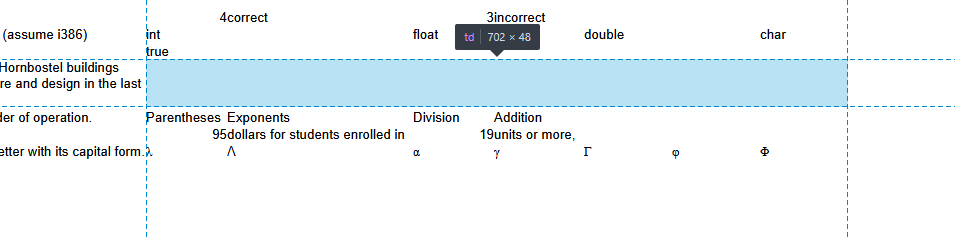
The screenshot above shows what the input Spreadsheet document, converted to HTML format, looks like in a browser debugger. Seven consecutive merged cells (TD elements) in a single row are clearly visible.
The second one, setExportBogusRowData(boolean), is a little more complicated. GroupDocs.Editor should not only convert the input document to editable HTML, but also obtain an edited HTML document and convert it back to the input format (a “backward conversion”). Excel tables and HTML tables are very different, and during a “pure” conversion a lot of technical data is lost because it has no analog in HTML/CSS. As a result, there can be constant degradation in the output Spreadsheet during backward conversion. To address this, when the input Spreadsheet is converted to HTML, GroupDocs.Editor adds a so-called “bogus row” — an empty hidden row at the bottom of the HTML table, which has no data, has zero height, and only stores the original width values of every column. As a result, the resultant Spreadsheet has correct column width values.
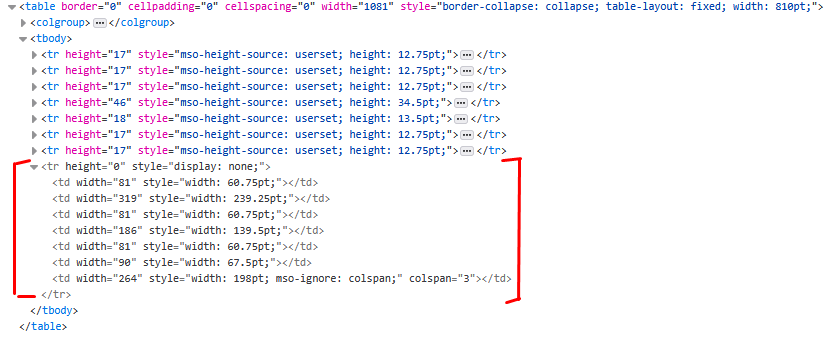
The screenshot above shows how this bogus hidden row is presented in HTML markup.
This option is enabled by default — setExportBogusRowData(boolean) has a true default value. However, this option has one serious drawback — this bogus row is also present in the resultant worksheet, where it is presented as a hidden row.
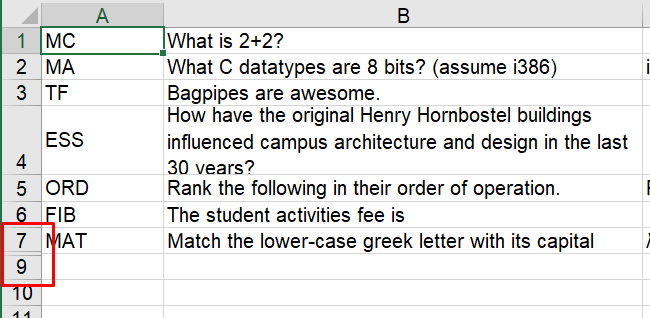
The screenshot above shows what it looks like when the resultant Spreadsheet document is opened in MS Excel — the bogus row has a number “8” and is hidden. That’s why GroupDocs.Editor provides a possibility to disable it.
Both these options are boolean and present in the SpreadsheetEditOptions class. The code below shows loading an input document, creating a SpreadsheetEditOptions instance, tuning these options, and editing the document.
const {
    Editor,
    EditableDocument,
    SpreadsheetEditOptions,
    SpreadsheetLoadOptions
} = require('@groupdocs/groupdocs.editor');

const editor = new Editor('Input.xlsx', new SpreadsheetLoadOptions());
try {
    const editOpt = new SpreadsheetEditOptions();
    editOpt.setWorksheetIndex(0);
    editOpt.setMergeEmptyAdjacentCells(true);
    editOpt.setExportBogusRowData(false);

    const convertedWorksheet = editor.edit(editOpt);
    try {
        convertedWorksheet.save('Output.html');
    } finally {
        convertedWorksheet.dispose();
    }
} finally {
    editor.dispose();
}
Was this page helpful?
Any additional feedback you'd like to share with us?
Please tell us how we can improve this page.
Thank you for your feedback!
We value your opinion. Your feedback will help us improve our documentation.