Advanced worksheet editing options Leave feedback
On this page
When editing the Spreadsheet documents, the GroupDocs.Editor edits one worksheet (tab) at time. The edited worksheet is specified via SpreadsheetEditOptions.WorksheetIndex property. So, when the Spreadsheet document is loaded to the Editor class, the user creates a SpreadsheetEditOptions instance, specifies a desired worksheet index, and calls the Editor.Edit method. As a result, Editor.Edit converts the selected worksheet to the editable HTML format and encapsulates it in the EditableDocument instance.
Before the version 26.6 there were no other options in the SpreadsheetEditOptions except the ExcludeHiddenWorksheets that only defines whether or not the hidden worksheets should be taken into account. However, starting from the version 26.6, two new options (public properties) were added: MergeEmptyAdjacentCells and ExportBogusRowData properties, both of Boolean type.
At first glance, the worksheets, as they can be seen from MS Excel, and HTML tables may seem to be very similar. However they have more differences than similarities: different formatting, layout, rendering, processing, internal structure, different rules of how their appearance is calculated, and so on. Maybe the most important difference — the Office Open XML Spreadsheets effectively support sparse data. There may be a worksheet with only two non-empty cells: one, for example, is “A1”, while the second is “ZZ1000000000”. Such worksheet size will be less than 1KiB and MS Excel will open it instantly. For HTML tables, which are not able to effectively store such sparse data, such a document will require many hundreds of MiBs and a common browser the most likely will hang on while trying to open it.
That’s why converting Excel worksheets to HTML tables is always a harsh tradeoff, a compromise between different approaches and purposes which usually conflict between each other. These 2 new options allow to “adjust” this tradeoff, to tune the produced HTML markup to the user’s needs.
The first one, a MergeEmptyAdjacentCells flag, controls what to do with multiple consecutive empty cells in the input Excel worksheet. By default they are translated to the HTML table one-to–one — MergeEmptyAdjacentCells flag has a false default value. This is ideal for editing HTML tables in WYSIWYG-editor. But in case when the input workbook contains sparse data and there are many consecutive empty cells, the produced HTML markup may be very huge in size. With MergeEmptyAdjacentCells enabled the GroupDocs.Editor finds and merges such consecutive empty cells into one TD cell with appropriate “colspan” attribute. Such an “optimized” HTML document is visually identical to the default version, may have much lesser byte size, but there may be issues when editing its content, so use this option deliberately.
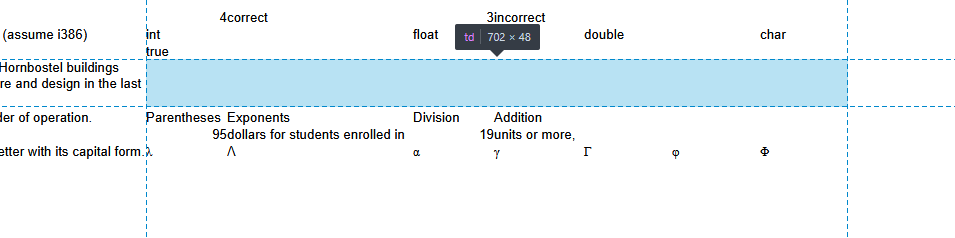
Screenshot above shows what looks like the input Spreadsheet document, converted to HTML format, in a browser debugger. Seven consecutive merged cells (TD elements) in a single row are clearly visible.
The second one, ExportBogusRowData is a little bit complicated. Need to remember that GroupDocs.Editor should not only convert the input document to the editable HTML format, but also obtain an edited HTML document and convert it back to the input format, what is called a “backward conversion”. As it was mentioned earlier, the Excel tables and HTML tables are very different, and when a “pure” conversion is performed, a lot of technical data is lost because it has no analog in HTML/CSS. As a result, there will be a constant degradation in the output Spreadsheet document during backward conversion. To address this, when the input Spreadsheet is converted to HTML format, the GroupDocs.Editor adds a so-called “bogus row” — an empty hidden row in the bottom of HTML table, which has no data, has zero height, and which only stores the original width values of every column. As a result, the resultant Spreadsheet has correct column width values.
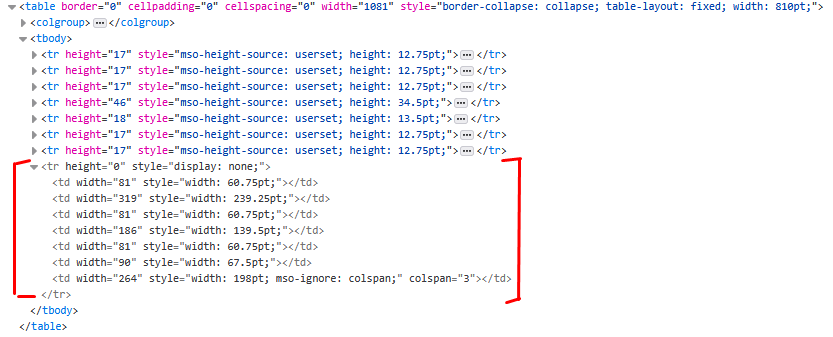
The screenshot above shows how this bogus hidden row is presented in HTML markup.
This option is enabled by default — ExportBogusRowData has a true default value. However, this option has one serious drawback — this bogus row is also present in the resultant worksheet, where it is presented as a hidden row.
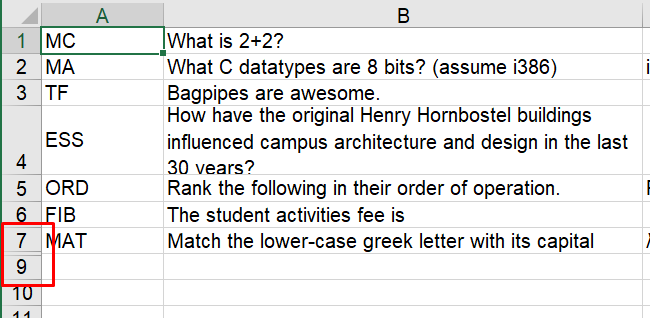
Screenshot above shows what it looks like when the resultant Spreadsheet document is opened in MS Excel — the bogus row has a number “8” and is hidden. That’s why the GroupDocs.Editor team decided to add a possibility to disable it.
Both these options are very easy to use — they both are boolean and present in the SpreadsheetEditOptions class. Code below shows loading an input document, creating a “SpreadsheetEditOptions” instance, tuning these options, and editing the document, where the EditableDocument instance is created.
using GroupDocs.Editor;
using GroupDocs.Editor.Options;
// ...

using (Editor editor = new Editor("Input.xlsx", new SpreadsheetLoadOptions()))
{
    SpreadsheetEditOptions editOpt = new SpreadsheetEditOptions();
    editOpt.WorksheetIndex = 0;
    editOpt.MergeEmptyAdjacentCells = true;
    editOpt.ExportBogusRowData = false;

    using (EditableDocument convertedWorksheet = editor.Edit(editOpt))
    {
        convertedWorksheet.Save("Output.html");
    }
}
Imports GroupDocs.Editor
Imports GroupDocs.Editor.Options
' ...

Using editor As New Editor("Input.xlsx", New SpreadsheetLoadOptions())
    Dim editOpt As New SpreadsheetEditOptions
    editOpt.WorksheetIndex = 0
    editOpt.MergeEmptyAdjacentCells = True
    editOpt.ExportBogusRowData = False

    Using convertedWorksheet As EditableDocument = editor.Edit(editOpt)
        convertedWorksheet.Save("Output.html")
    End Using
End Using
Was this page helpful?
Any additional feedback you'd like to share with us?
Please tell us how we can improve this page.
Thank you for your feedback!
We value your opinion. Your feedback will help us improve our documentation.