Render documents Leave feedback
On this page
Rendering turns a document into files that a browser or an app can display: HTML pages, a PDF file, or PNG and JPEG images. GroupDocs.Viewer renders more than 190 formats, and all of them the same way: open the document with a Viewer, create the view options of the output you need, and call Viewer.View.
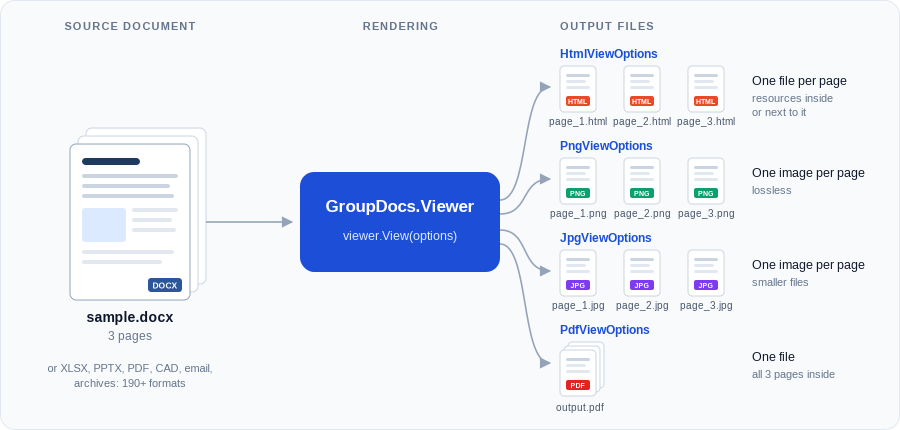
| Output | View options | Files | Good for |
|---|---|---|---|
| HTML | HtmlViewOptions | One HTML file per page. Its fonts, images and styles are embedded in it or saved next to it | Showing a document in a web page, with text that readers can select and search |
| PdfViewOptions | One PDF file with every page | Downloading, printing and archiving | |
| PNG | PngViewOptions | One image per page, lossless | Previews and thumbnails with sharp text |
| JPEG | JpgViewOptions | One image per page, smaller than PNG | Photos and scans, where file size matters more |
When an output has one file per page, put {0} in the file name: it is replaced with the page number, so page_{0}.png gives page_1.png, page_2.png and so on. A PDF needs no {0}, because every page goes into the one file.
The following example renders each page of a Word document to a PNG image:
using GroupDocs.Viewer;
using GroupDocs.Viewer.Options;
// ...

// Load the document
using (Viewer viewer = new Viewer("sample.docx"))
{
    // Create a PNG image for each page.
    // {0} is replaced with the current page number in the file name.
    PngViewOptions viewOptions = new PngViewOptions("page_{0}.png");
    viewer.View(viewOptions);
}
Imports GroupDocs.Viewer
Imports GroupDocs.Viewer.Options
' ...

Module Program
    Sub Main(args As String())
        ' Load the document
        Using viewer As Viewer = New Viewer("sample.docx")
            ' Create a PNG image for each page.
            ' {0} is replaced with the current page number in the file name.
            Dim viewOptions As PngViewOptions = New PngViewOptions("page_{0}.png")
            viewer.View(viewOptions)
        End Using
    End Sub
End Module
sample.docx is the sample file used in this example. Click here to download it.
page_1.png (206 KB)
page_2.png (59 KB)
page_3.png (44 KB)
page_4.png (309 KB)
page_5.png (35 KB)
Replace PngViewOptions with JpgViewOptions, PdfViewOptions or HtmlViewOptions.ForEmbeddedResources to get the other outputs; the pages below describe each one.
To render only some of the pages, pass their numbers to Viewer.View after the view options. The following example renders pages 1 and 3:
using GroupDocs.Viewer;
using GroupDocs.Viewer.Options;
// ...

// Load the document
using (Viewer viewer = new Viewer("sample.docx"))
{
    // {0} is replaced with the current page number in the file name.
    PngViewOptions viewOptions = new PngViewOptions("page_{0}.png");
    // Render pages 1 and 3 only.
    viewer.View(viewOptions, 1, 3);
}
Imports GroupDocs.Viewer
Imports GroupDocs.Viewer.Options
' ...

Module Program
    Sub Main(args As String())
        ' Load the document
        Using viewer As Viewer = New Viewer("sample.docx")
            ' {0} is replaced with the current page number in the file name.
            Dim viewOptions As PngViewOptions = New PngViewOptions("page_{0}.png")
            ' Render pages 1 and 3 only.
            viewer.View(viewOptions, 1, 3)
        End Using
    End Sub
End Module
sample.docx is the sample file used in this example. Click here to download it.
page_1.png (206 KB)
page_3.png (44 KB)
When you render to PDF, the order of the numbers is the order of the pages in the file: see Reorder pages.
Each format has options of its own, such as the hidden slides of a presentation, the layers of a CAD drawing or the folders of an archive. See Document rendering basics. The pages of this section cover the outputs:
- Render specific pages
- Cancel rendering
- Render hidden pages
- Rotate pages
- Set custom fonts
- Replace missing font
- Save output to a stream
- Add text watermarks
- Render to HTML
- Render to PNG or JPEG
- Render to PDF
Was this page helpful?
Any additional feedback you'd like to share with us?
Please tell us how we can improve this page.
Thank you for your feedback!
We value your opinion. Your feedback will help us improve our documentation.
