Choose a PDF Pagination Strategy for Excel Reports in Java Leave feedback
On this page
NoteCompanion sample repository (pending publication): excel-pdf-pagination-java
Spreadsheet pagination is a GroupDocs.Conversion capability for Java that controls how an Excel sheet is grouped into PDF pages. This guide compares four policies using one fictional workbook. The baseline keeps default behavior; the alternatives keep columns together, remove empty rows and columns, or place a sheet on one page. Each method changes one policy at a time. The measured outputs include both A4 and custom-size pages. Choose a policy from those observable results rather than from page count alone.
A report export has two separate dimensions: which data appears together and what physical page receives it. A spreadsheet can be readable across A4 pages while inconvenient to review on screen. A single-page output can be convenient on screen while unsuitable for an A4 print workflow. Empty rows also present a choice because they may separate sections intentionally. The included workbook makes these decisions visible through deliberate gaps. We compare the resulting files before selecting a policy.
The tested runtime is Java 11.0.2 with GroupDocs.Conversion for Java 26.10. Each conversion reopens the same worksheet. Measurements describe that fixture and environment, not a universal count for every workbook or a performance benchmark.
Four methods use SpreadsheetLoadOptions and PdfConvertOptions to produce separate PDFs under Result/. Only the named policy changes from the default case. The application creates the output directory before conversion.
Use JDK 11 or 17, Maven and a license covering 26.10 for unrestricted output. The supplied pom.xml declares com.groupdocs:groupdocs-conversion:26.10 and the GroupDocs Java repository. Run from the project directory so relative paths resolve correctly. Evaluation limits can interrupt a multi-page comparison and should not be mistaken for the final layout behavior.
mvn compile exec:java
The repository contains RUN.md, pom.xml, documents/report.xlsx and ExcelPaginationDemo.java under src/main/java/com/groupdocs/demo/. Result/ is created at runtime and excluded from version control. The fixture has data in columns A, B, C, F, G, H, K and L. Its populated rows are 1, 2, 3, 12, 13 and 40. Other rows and columns make the whitespace policy visible.
| Goal | Starting method | Check before delivery |
|---|---|---|
| Keep source-like spacing and ordinary page grouping | convertWithDefaults | Horizontal page breaks |
| Review each row across all columns together | convertAllColumnsTogether | Physical page width |
| Remove meaningless gaps | convertWithoutEmptyRowsAndColumns | Section spacing |
| View the whole sheet on one page | convertOnePagePerSheet | Width and height |
No. A one-page PDF can use custom dimensions instead of A4. On the supplied workbook, keeping all columns together produces one page measuring 1138.32 by 841.68 points. One page per sheet produces 1138.32 by 638.237 points. Inspect the physical size as well as page count before choosing either setting for a printer or downstream system that expects fixed paper dimensions.
The comparison image scales previews for display, not for a paper-size guarantee. Open the actual PDFs when assessing readability.
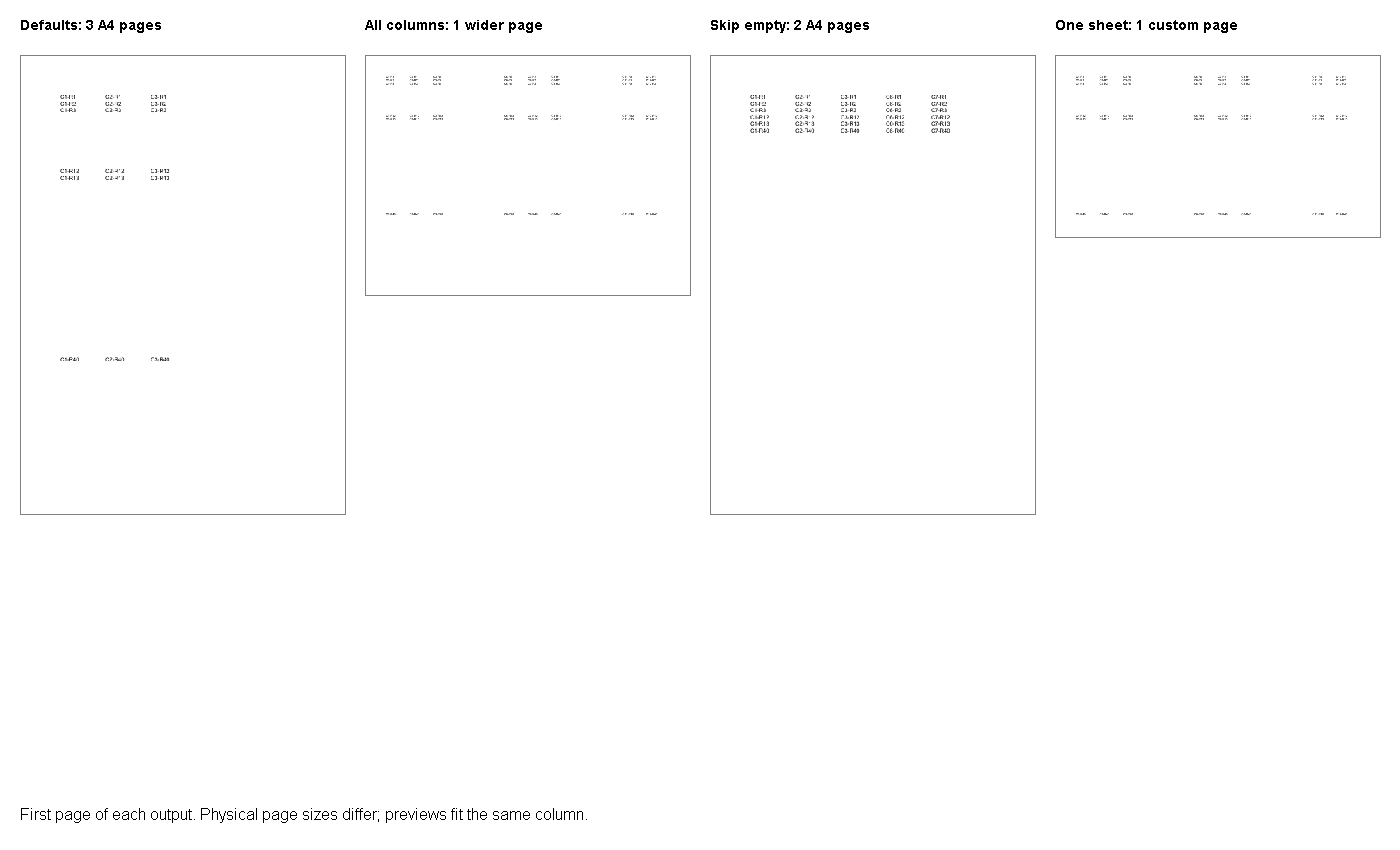
The baseline creates SpreadsheetLoadOptions without changing a layout flag. In 26.10, AllColumnsInOnePagePerSheet and SkipEmptyRowsAndColumns both default to false. The fixture specifies A4 portrait paper and one-inch source margins. Its width crosses horizontal page boundaries. This run preserves the gaps needed for comparison with the compact variant.
Start here to understand the workbook’s existing layout. A baseline also reveals whether an apparent improvement comes from the selected flag or another input change. Keep it when upgrading a dependency.
The full entry point provides imports and directory setup. A fresh Converter loads the fixture; PdfConvertOptions chooses PDF output. The caller and method body are shown separately.
ExcelPaginationDemo.convertWithDefaults();
SpreadsheetLoadOptions options = new SpreadsheetLoadOptions();
try (Converter converter = new Converter("documents/report.xlsx", () -> options)) {
    converter.convert("Result/01-defaults.pdf", new PdfConvertOptions());
}
The resulting three A4 pages preserve empty spacing. Columns split horizontally, so a reviewer may need to move between pages to follow a row. That is a readability decision, not a failed conversion. The measured dimensions are 595.44 by 841.68 points.
The second method sets AllColumnsInOnePagePerSheet to true. It changes the grouping of columns while leaving skip-empty and whole-sheet grouping at default values. On this fixture, the result is one wider page. Empty rows and columns remain visible. This setting therefore solves horizontal fragmentation without compacting the report.
Choose it for screen review when related columns should appear together. Verify the output on reports with more rows because vertical pagination remains a separate concern. This particular workbook fits vertically. That observation must not become a promise that every workbook will yield one page.
The option belongs to SpreadsheetLoadOptions, not PdfConvertOptions. Configure it before opening the input. The sample uses the same relative source path as the baseline. Its separate output filename keeps both results available.
ExcelPaginationDemo.convertAllColumnsTogether();
SpreadsheetLoadOptions options = new SpreadsheetLoadOptions();
options.setAllColumnsInOnePagePerSheet(true);
try (Converter converter = new Converter("documents/report.xlsx", () -> options)) {
    converter.convert("Result/02-all-columns.pdf", new PdfConvertOptions());
}
Row context stays together, but page width increases to 1138.32 points. The height remains 841.68 points in this run. A fixed-paper consumer needs an explicit acceptance decision. No scaling-to-A4 behavior is claimed here.
The compact variant sets SkipEmptyRowsAndColumns to true. The supplied report leaves gaps between populated blocks, so this setting changes the arrangement substantially. The result occupies two A4 pages rather than the default three. It still permits horizontal pagination because the all-columns flag remains false. Compaction and column grouping are independent choices.
Apply this policy when blank spacing carries no report meaning. It can be inappropriate for a form whose empty rows indicate writable space or separate sections. Inspect representative business workbooks instead of judging only the artificial fixture. We keep this case separate from the wide-page variant to expose that trade-off.
The method changes one setting and uses the same PdfConvertOptions as the baseline. The Result filename names the policy. No row-deletion code is applied to the source workbook.
ExcelPaginationDemo.convertWithoutEmptyRowsAndColumns();
SpreadsheetLoadOptions options = new SpreadsheetLoadOptions();
options.setSkipEmptyRowsAndColumns(true);
try (Converter converter = new Converter("documents/report.xlsx", () -> options)) {
    converter.convert("Result/03-skip-empty.pdf", new PdfConvertOptions());
}
The PDF is more compact while remaining A4 in this test. Intentional whitespace disappears, which can change the meaning of a carefully designed report layout. Review section boundaries before adopting this setting. The original XLSX remains available for comparison.
The final method sets OnePagePerSheet to true. It groups the entire input sheet into one PDF page. The fixture has one worksheet, so the output also has one page. Both physical width and height differ from the default A4 result. This is a whole-sheet viewing policy rather than an A4 printing promise.
Use it when a reviewer needs a sheet-level overview in a viewer that handles custom page sizes. Check text readability at the intended zoom level. A larger or denser sheet can create a very different viewing experience. I would avoid selecting it solely to satisfy a page-count target.
OnePagePerSheet is configured before Converter loads report.xlsx. The other flags remain at their defaults. The sample saves a separate fourth result. Compare it with the all-columns output to see the height difference on this fixture.
ExcelPaginationDemo.convertOnePagePerSheet();
SpreadsheetLoadOptions options = new SpreadsheetLoadOptions();
options.setOnePagePerSheet(true);
try (Converter converter = new Converter("documents/report.xlsx", () -> options)) {
    converter.convert("Result/04-one-page.pdf", new PdfConvertOptions());
}
The sheet becomes a single overview measuring 1138.32 by 638.237 points. Consumers expecting fixed paper dimensions need another policy or a separately verified layout step. Inspect the resulting file directly. A thumbnail cannot establish whether text will be comfortable to read.
| File | Pages | Size in points |
|---|---|---|
| 01-defaults.pdf | 3 | 595.44 x 841.68 |
| 02-all-columns.pdf | 1 | 1138.32 x 841.68 |
| 03-skip-empty.pdf | 2 | 595.44 x 841.68 |
| 04-one-page.pdf | 1 | 1138.32 x 638.237 |
Keep the input fixed while comparing flags. Review every page, then record the policy and dimensions accepted by the receiving system. Its comparison concerns page grouping and spacing only.
Do not infer fixed-paper scaling from the word page. Also avoid combining flags before understanding their separate effects. Explicit margin overrides are excluded from this example because a separate 26.10 fixture check showed no rendered difference. Preserve representative inputs when testing future versions.
The article does not claim that these flags were introduced together in 26.10. The release changes relevant defaults and the example verifies behavior on that version. Pin the dependency when reproducing the table. Recheck your own report after an upgrade.
Generate all four outputs before choosing one. Compare spacing, page grouping and physical dimensions. Then apply the selected policy to a representative business report. Keep the accepted dimensions alongside its expected page count.
Was this page helpful?
Any additional feedback you'd like to share with us?
Please tell us how we can improve this page.
Thank you for your feedback!
We value your opinion. Your feedback will help us improve our documentation.
